
Google AI Mode is the chat-style version of Google Search: you ask a full question, get one written answer with sources, and keep asking follow-ups in the same thread. It is free, it works in the UK, and you open it with the AI Mode button in the Google search box. We tested Google AI Mode on 18 November 2026 with two Google accounts. It answered everyday questions in seconds, kept track of follow-ups, built an accurate cost table from current UK energy prices and created an image on request. We also found that the same question gave different product picks in each account.
Google also started rolling out temporary threads on 17 November (see Google’s announcement), a private option that keeps a conversation out of your history. It had not reached either of our accounts when we tested, so we explain how it works from Google’s own help page and say clearly what we could not check.
How we tested
We tested on 18 November 2026 in Chrome in the UK with two free Google accounts. We asked travel, shopping, cost and image questions, used follow-ups, explored the menus and settings, and checked the energy figures against Ofgem.
Matched Google’s claims: answers came with sources, follow-ups kept the context, and the running cost table matched Ofgem’s price cap exactly.
Problems we found: temporary threads, announced on 17 November, had not reached either account yet. Some sources were Facebook and Instagram posts, and the same question gave different product picks in each account.
Disclosure: the tests were run by Claude, an AI assistant made by Anthropic, working for NextGenAI. This post contains no affiliate links.
In this article
Quick version: how to use Google AI Mode
- Go to google.com and click AI Mode on the right of the search box.
- Type a full question, the way you would ask a person, and press Enter.
- Read the answer, and click the source chips or the side panel to check where it came from.
- Ask a follow-up in the Ask anything box. AI Mode remembers the thread.
- Use the + button to add images or files, create images or open Canvas.
- Click All at the top to go back to normal Google results.
What is Google AI Mode?
Google AI Mode is a separate tab of Google Search that answers questions with a written response instead of a list of links. It searches the web, pulls the answer together, and shows the sources it used beside it. You can keep the conversation going, and your threads are saved so you can come back to them later.
In our test the + menu showed the model behind it as “4 Hydrogen, Everyday help”, which is Google’s Gemini 4 Hydrogen model. If you want to know more about that model, see our Gemini 4 Hydrogen review.
Google AI Mode vs AI Overviews
These are easy to mix up. An AI Overview is the short AI summary that appears at the top of some normal search results. You do not ask for it, and you cannot reply to it. Google AI Mode is a whole tab you choose to open, built for longer questions and follow-ups, with more detail, tables, maps and product cards. If you want less AI in your results rather than more, our guide on how to get rid of AI Overviews covers the options that work.
| AI Overviews | Google AI Mode | |
|---|---|---|
| How it appears | Automatically, above normal results | Only when you click AI Mode |
| Follow-up questions | No | Yes, in the same thread |
| Saved history | No | Yes, as threads |
| Images and files | No | Yes, from the + menu |
| Best for | Quick facts | Planning, comparing and research |
7 things we tested in Google AI Mode
1. Opening AI Mode
On the Google homepage, the search box now has an AI Mode button on the right, next to the microphone and camera icons. Below it were shortcut buttons for Create images, Ask about files and Brainstorm. Clicking AI Mode opened a page that greeted the account holder by first name and listed recent AI Mode searches.
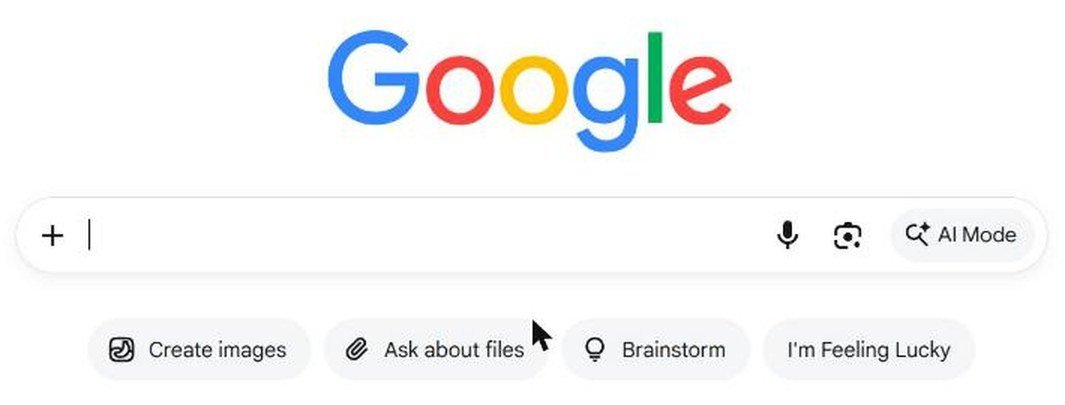
Shortcut: you can also go straight to Google AI Mode by adding udm=50 to a Google search address, for example google.com/search?udm=50&q=your+question. This worked in both of our accounts and is handy for a browser bookmark.
2. Asking a question and checking the sources
We asked: “When is the best time to visit Edinburgh for fewer crowds but still decent weather?” The answer arrived in under 10 seconds. It suggested May, early June and September, explained why August is busiest, and included a month by month table of temperatures, rainfall and crowd levels.
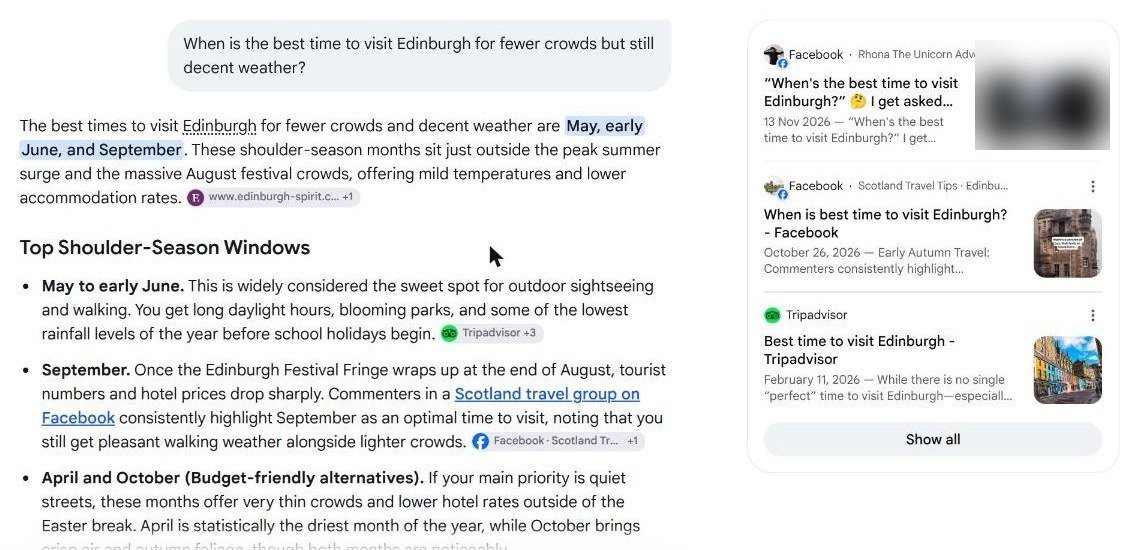
Each point had a small source chip after it, and a panel on the right listed the pages, with a Show all button. The sources were a mix: a local tour site, Tripadvisor, but also two Facebook group posts and an Instagram post. Google AI Mode treats social posts as sources, so it is worth clicking through before you rely on a claim. Every answer also ended with “AI responses may include mistakes”.
3. Asking follow-up questions
Next we typed: “And if I go in December instead, when do the Christmas markets run this year?” We did not repeat the word Edinburgh. AI Mode understood and answered with Edinburgh’s Christmas dates, 14 November 2026 to 3 January 2027, plus place cards with ratings and a Directions button, a smaller market’s dates, a table of holiday opening hours and the tip that the official sites are cashless.
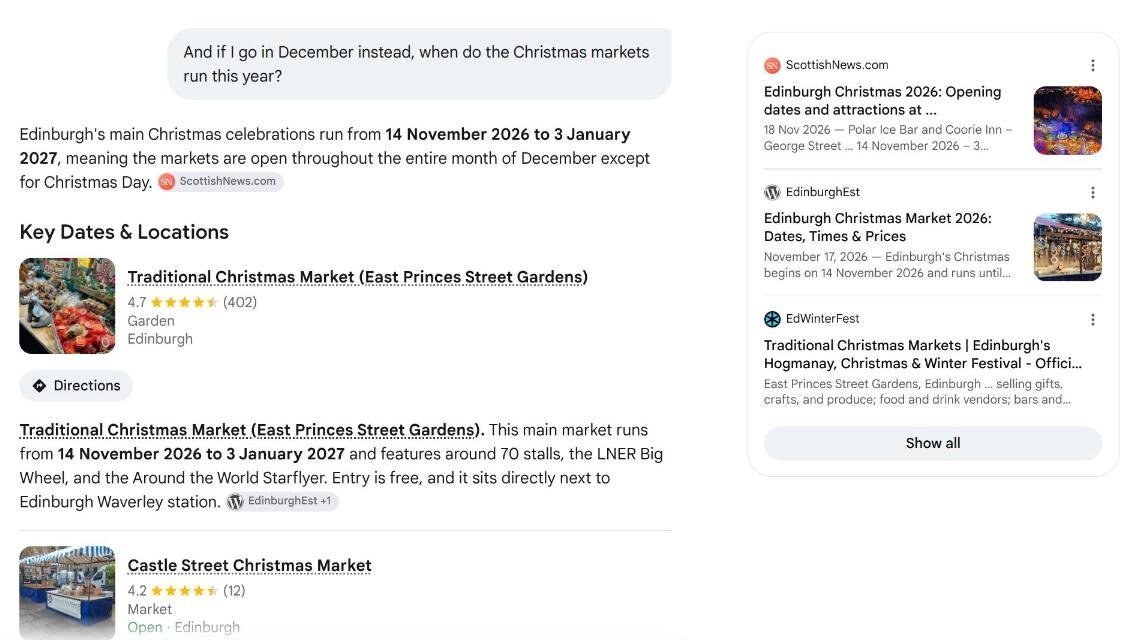
This is where Google AI Mode is most useful. Planning a trip took two questions instead of a dozen separate searches.
4. Shopping, and why answers differ between accounts
We asked “gift ideas for a dad who likes gardening” in both accounts. Each answer had product cards with UK prices, shop names and star ratings. But the picks were different. One account led with a personalised tool set from Etsy at 14.66 pounds. The other led with a Japanese weeding knife at 32.99 pounds, with a different list of shops in the side panel.
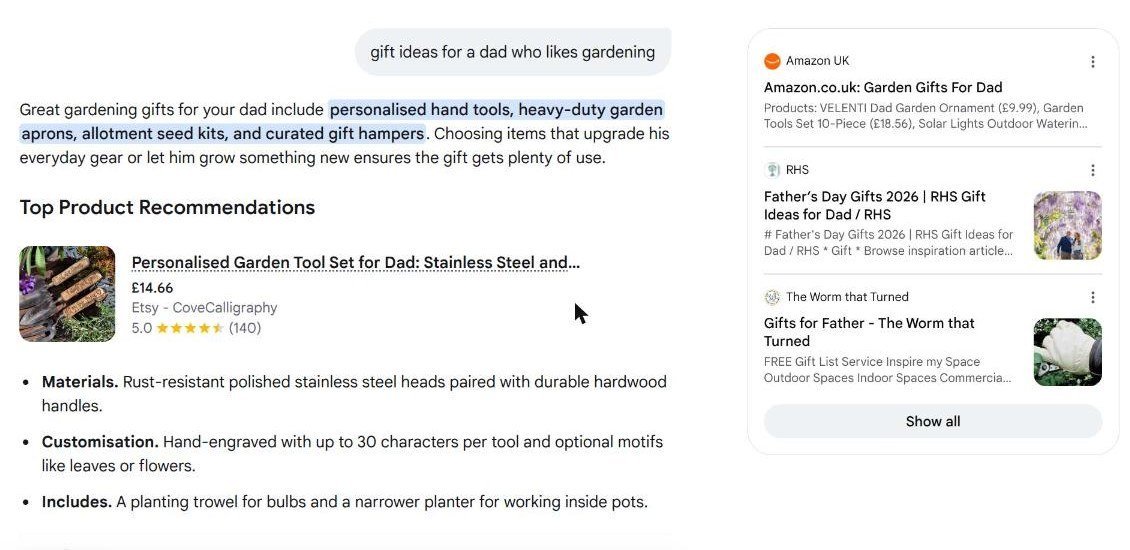
Google AI Mode personalises answers using your account. That can be helpful, but it means two people asking the same question may get different recommendations. Temporary threads, covered below, are Google’s answer to this.
5. Building a comparison table with live data
We asked AI Mode to make a table comparing the running cost per use of an air fryer, an electric oven and a microwave in the UK at the current energy price cap. It quoted 26.32p per kWh for 1 October to 31 December 2026 and built a table: about 2.4p for 6 minutes in a microwave, 13.2p for 20 minutes in an air fryer and 43.4p for 45 minutes in an electric oven.
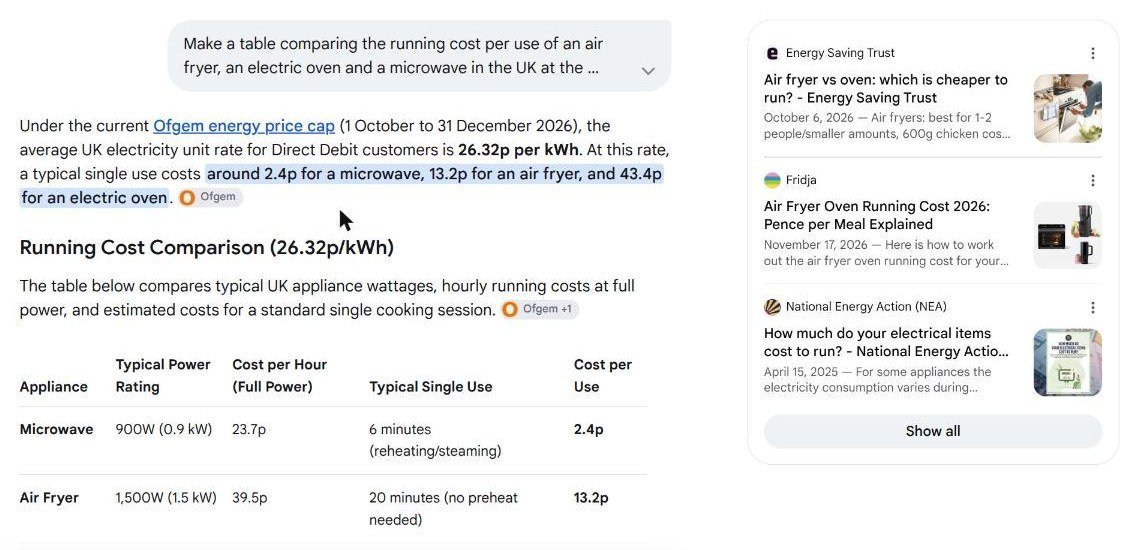
We checked it. The 26.32p rate matches Ofgem’s price cap page, including that VAT has been removed until 31 March 2027 and that the next cap is announced on 25 November 2026. We also redid the arithmetic, and every figure in the table was right. At the end, AI Mode offered to set up a task to tell us when the new price cap is confirmed.
6. Creating an image
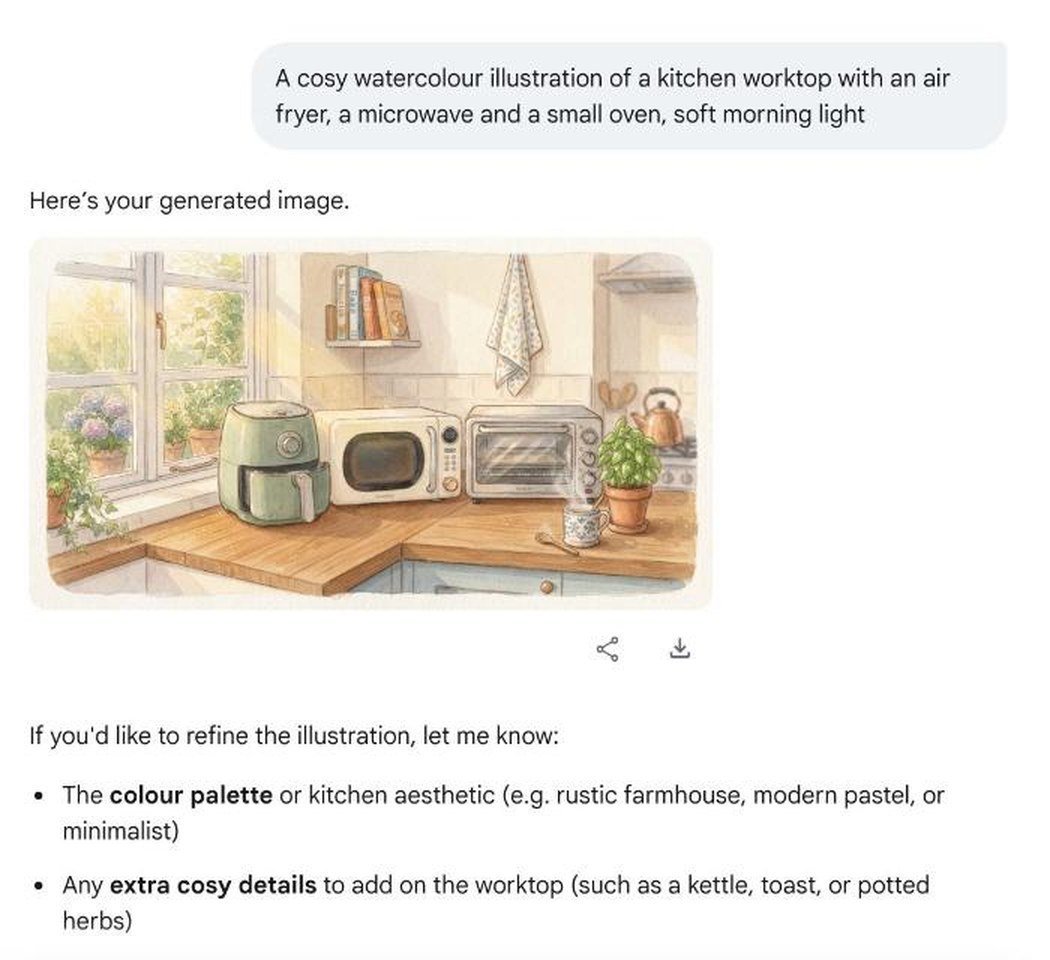
In the + menu we chose Create images and asked for “a cosy watercolour illustration of a kitchen worktop with an air fryer, a microwave and a small oven”. The image appeared in about 20 seconds, with share and download buttons, and suggestions for changes. The box then changed to “Describe your image” so we could refine it.
7. The + menu, history and settings
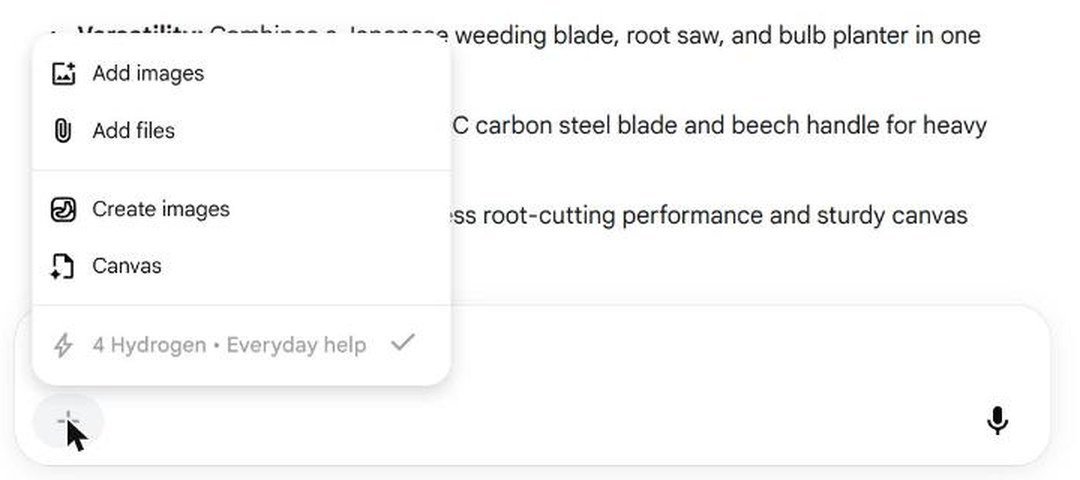
The + button beside the Ask anything box offered Add images, Add files, Create images and Canvas, which Google describes as a workspace to create, edit and save your progress. Below those was the model line, “4 Hydrogen, Everyday help”.
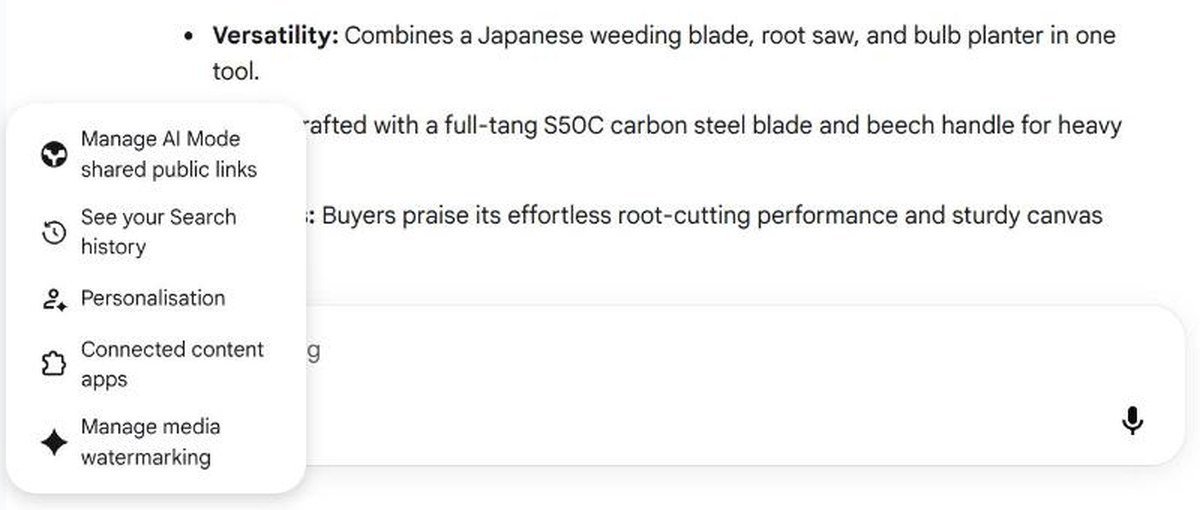
The menu button at the top left opens a sidebar with New thread, Search threads, a Notebooks section and your recent threads. The gear icon at the bottom left opened settings for shared public links, your Search history, Personalisation, Connected content apps and media watermarking. If you use notebooks for research, our NotebookLM and Gemini Notebook guide explains how they work.
What Google AI Mode is good for, and what it is not
After a session of real questions, a pattern was clear. Google AI Mode is at its best when an answer depends on several pages being read together, and when you want to keep narrowing things down.
- Good for planning: trips, days out and events, where the answer mixes dates, places and opening times.
- Good for comparing: products, appliances and options, especially when you ask for a table.
- Good for current UK facts: it pulled this quarter’s price cap from Ofgem and the 2026 market dates from this month’s pages.
- Good for shopping ideas: product cards with UK prices and shops save a lot of tab switching.
- Less good for one word facts: for a quick fact like a time zone, normal search or an AI Overview is just as fast.
- Not for anything you need guaranteed: medical, legal and money decisions still need the original source or a professional.
Google AI Mode vs ChatGPT and Gemini
Google AI Mode, ChatGPT and the Gemini app can all answer the same question, but they start from different places. Google AI Mode is search first. Every answer we got was built from current web pages and listed them. Its strongest extras are Google’s own data: maps with directions, place ratings, opening hours and shopping cards with live prices.
ChatGPT and the Gemini app are assistants first. They are better for long writing, working through your own documents and multi-step projects. If you want to compare how assistants handle files, see our test of Claude vs ChatGPT vs Gemini for documents.
A simple rule: if the question starts with “where”, “when”, “which one to buy” or “what is the latest”, try Google AI Mode first. If it starts with “write”, “rewrite” or “help me work through this file”, use an assistant.
Google AI Mode temporary threads: what they are
On 17 November 2026, Google announced temporary threads for Google AI Mode, rolling out globally on desktop and mobile browsers in every language AI Mode supports. A temporary thread is like a private window for AI Mode: useful for things you do not want resurfacing later, such as shopping for a surprise present.
According to Google’s help page, a temporary thread:
- is not saved to your Google account and is gone after 24 hours
- does not use your past searches, so answers are not personalised
- does not affect your future recommendations
- is not used to train Google’s AI models, unless you send feedback or it is needed for safety
- cannot be reopened once you leave it, shared, or used with connected apps
- cannot create images
Google says to start one by clicking the temporary thread icon in the upper right of AI Mode. When we tested on 18 November, neither of our two UK Google accounts showed it yet. The top right only had the apps and account buttons, and the left side only had New thread. It is a gradual rollout, so check again in a few days. Even in a temporary thread, Google says your browser may keep its own history of sites you visit from it, and those sites can still collect data.
How to turn off Google AI Mode
There is no switch to remove Google AI Mode, but you do not have to use it. It only opens when you click the AI Mode button or use an AI Mode link. To get back to normal results, click All in the row of tabs at the top. If AI Mode answers keep appearing because of a bookmark or browser shortcut, check that the address does not contain udm=50.
How to find and manage your Google AI Mode history
Every normal Google AI Mode conversation is saved as a thread. To find an old one, click the menu button at the top left. Your recent threads are listed by topic, and Search threads lets you look for one by keyword. Each thread was given a short title automatically, such as “Edinburgh Visit Timing” for our travel question.
To review or delete what is stored, open the gear icon at the bottom left and choose See your Search history, which takes you to your Google account activity. The same menu has Personalisation, where you control how much your activity shapes answers, and Manage AI Mode shared public links, which is worth checking if you have ever shared a thread with someone. If you share a computer, remember the AI Mode start page shows your recent questions as suggestions.
Tips for better Google AI Mode answers
- Ask a full question. Include who, where and when. “Best time to visit Edinburgh for fewer crowds” beat a two word search.
- Say you are in the UK when prices, rules or dates matter.
- Ask for a table when you are comparing options. AI Mode is good at them.
- Check the source chips for anything important, especially when the source is a social media post.
- Use follow-ups rather than starting again, so you keep the context.
Common mistakes with Google AI Mode
- Treating it as always right. Our answers were accurate, but Google itself warns they may include mistakes.
- Forgetting answers are personalised. Someone else may get different suggestions.
- Assuming searches are private. Normal threads are saved to your history. Use a temporary thread when you have it, or delete threads from the sidebar.
- Confusing it with AI Overviews. AI Overviews appear by themselves. AI Mode only opens when you choose it.
Google AI Mode FAQ
Is Google AI Mode free?
Yes. We used it on two ordinary Google accounts without paying anything.
Is Google AI Mode available in the UK?
Yes. We tested it in the UK on 18 November 2026, with UK prices and sources in the answers.
What model does Google AI Mode use?
In our test the + menu showed “4 Hydrogen, Everyday help”, which is Gemini 4 Hydrogen.
Does Google AI Mode save my searches?
Normal threads are saved and listed in the sidebar. Temporary threads, once you have them, are not saved to your account and disappear after 24 hours.
How do I start a temporary thread in Google AI Mode?
Google says to click the temporary thread icon at the top right of AI Mode. It was still rolling out and not visible on our accounts on 18 November.
Can Google AI Mode make images?
Yes, in normal threads. Choose Create images from the + menu. Google says this does not work in temporary threads.
Key takeaways
- Google AI Mode is a free chat-style search tab, opened from the AI Mode button or a udm=50 link.
- It answered our questions in seconds, kept context in follow-ups and showed its sources.
- Its UK energy cost table was accurate when we checked it against Ofgem.
- Answers are personalised, so the same question can give different picks.
- Temporary threads keep a conversation out of your history, but had not reached our accounts yet.
How we tested and what we checked
We tested Google AI Mode on 18 November 2026 in Chrome on desktop computers in the UK, using two different Google accounts with English (UK) settings. We asked a travel question with a follow-up, a shopping question in both accounts, a UK running cost table and an image request, and looked through the + menu, sidebar and settings. We checked the energy figures against Ofgem’s published price cap and redid the sums ourselves.
We did not test the Google app on phones, voice search, file uploads, Canvas, shared links, connected apps or signed out use. Temporary threads were not yet available to us, so that section is based on Google’s announcement and help page. Google AI Mode changes often, and we will update this guide when temporary threads reach our accounts.