
Here is how to use NotebookLM, now called Gemini Notebook: open a notebook in the Gemini app, add your files as sources, set custom instructions, then ask questions and check the citations. Gemini answers from your sources instead of the open web, and every notebook syncs with the standalone Gemini Notebook app (the tool that used to be called NotebookLM), where you get passage-level citations and the Studio tools.
Most people still search for NotebookLM, the tool’s old name. Everything in this guide applies whichever name you use: NotebookLM and Gemini Notebook are the same notebooks, the same sources and the same app, renamed by Google in July 2026.
We tested it on a 180-page report with questions we already knew the answers to. It refused to invent anything, quoted the report word for word and followed our instructions. It also had three limits you should know about before you rely on it: it could not give exact page numbers, it once cited its own earlier chat as evidence, and the new @Gemini Notebook shortcut only worked for us on the Pro model.
How we tested
We tested on 13 November 2026 on a Google AI Plus account in Chrome (UK). We created a notebook in the Gemini app, uploaded a 180-page fictional annual report (about 40,000 words, built by us so every answer is known), asked six questions including three trick questions, set custom instructions, used @Gemini Notebook from a normal chat to list notebooks and save a note, then opened the same notebook in the standalone Gemini Notebook app.
Matched Google’s claims: notebooks in the Gemini app, custom instructions, sync between both apps, and notebook actions from a chat.
Did not work as expected: exact page numbers, and @Gemini Notebook on the default “Everyday help” model.
Table of Contents
What is NotebookLM, now called Gemini Notebook?
Gemini Notebook is Google’s source-grounded research tool, the successor to NotebookLM. You give it documents, websites, Drive files or pasted text, and it answers questions using only those sources, with citations back to them. Google renamed NotebookLM in July 2026, and the same notebooks now appear in two places:
- Notebooks in the Gemini app (gemini.google.com): a notebook sits in the sidebar, groups your chats by topic and holds up to 100 sources, according to the in-app introduction we saw.
- The standalone app (notebook.google.com): the full research workspace, with a Sources panel, a chat in the middle and a Studio panel for Audio Overviews, Video Overviews, slide decks, mind maps, reports, flashcards, quizzes, infographics and data tables.
Anything you add in one place shows up in the other. Since 23 October 2026 there is a third way in: it is also a Connected App inside Gemini, so you can type @Gemini Notebook in any chat to list notebooks, add sources or save notes without opening the notebook first.
Gemini Notebook in 2026: what changed
| Date | Change |
|---|---|
| April 2026 | Notebooks arrive in the Gemini app and sync with NotebookLM |
| July 2026 | NotebookLM is renamed Gemini Notebook, with wider code execution and cross-app sync |
| 23 October 2026 | Gemini Notebook becomes a Connected App: @Gemini Notebook can create and edit notebooks, add or delete sources, save notes and answer from them. Google says it is on by default, except in the EEA |
Sources: Google Workspace Updates, Take actions on your notebooks from Gemini Notebook directly in the Gemini app (23 October 2026); 9to5Google, Gemini app notebooks; AlternativeTo, NotebookLM is now Gemini Notebook.
How to use NotebookLM (Gemini Notebook): the quick version
- In the Gemini app, click New notebook in the sidebar and accept the notebooks introduction.
- Name the notebook, open Add sources and upload your files.
- Open Notebook settings and write your instructions.
- Ask questions and check each citation.
- Ask one question your sources can’t answer, to see how it handles gaps.
- From any chat, type @Gemini Notebook to work with your notebooks (we needed the Pro model).
- Click Gemini Notebook at the top right to open the standalone app for passage-level citations and Studio.
Step 1: Turn on notebooks in the Gemini app
Open gemini.google.com and click New notebook under Notebooks in the sidebar. The first time, Gemini shows an “Introducing notebooks” screen with three promises: group chats by topic, upload up to 100 sources and set custom instructions. Click Agree and connect notebooks to continue.
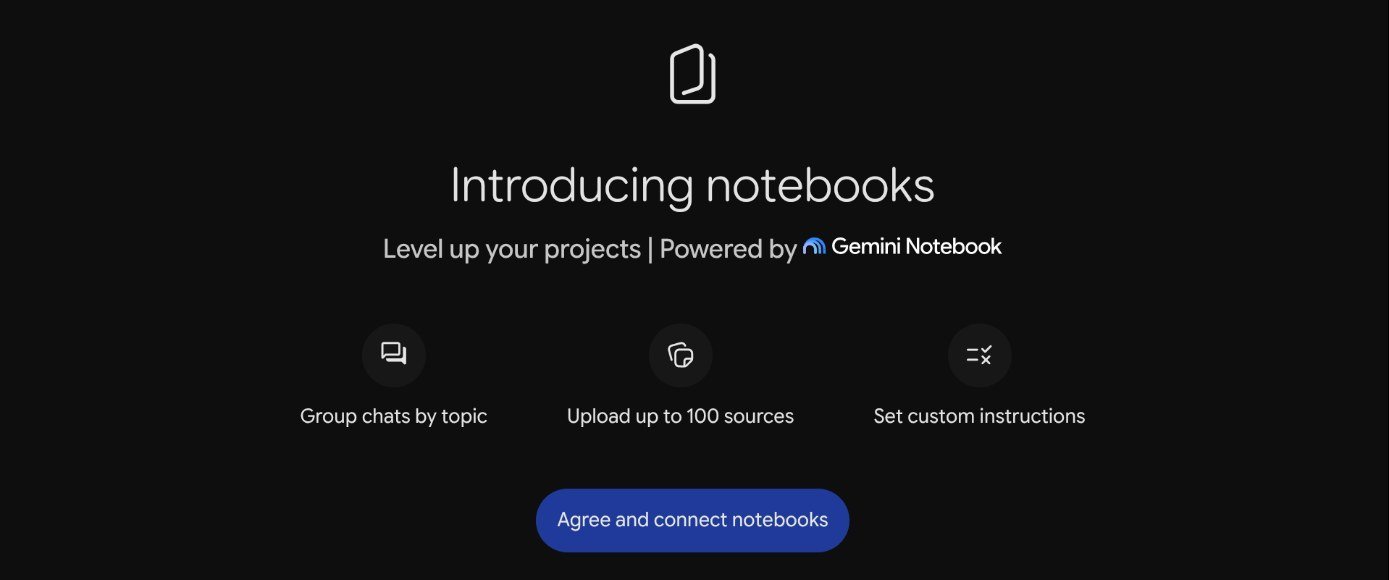
Read the small print before you agree. Google says files you add as sources are not used directly to train its models, but chats with a notebook in the Gemini app are saved according to your Keep activity setting and can be used to improve Google’s AI. If you work with confidential documents, check that setting first.
Step 2: Create a notebook and add your sources
Give the notebook a clear name (ours was “Northbridge annual report”), then click Add sources. The Sources dialog offers four options: Upload files (documents, data and code files), Add from Drive (Docs, Sheets and Slides, which Google says are auto-synced after import), Add websites and Copied text.
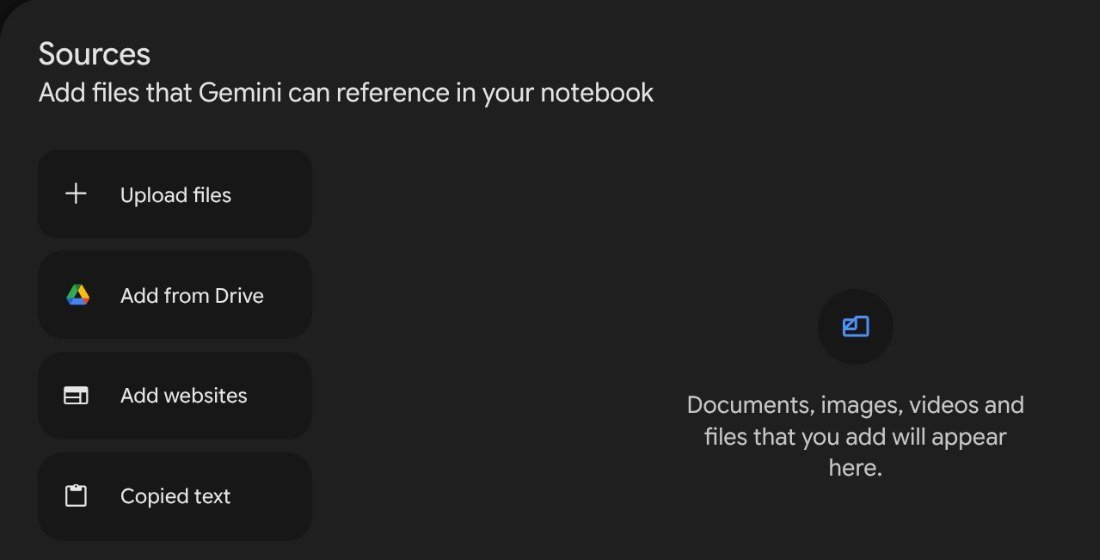
Our 180-page PDF showed “Processing” for about 20 seconds, then appeared as a source. The notebook page then showed “1 source” next to the title, an Ask Gemini box and a list of past chats in this notebook.
Tip: one notebook per project works better than one giant notebook. Gemini answers from everything you have ticked, so unrelated sources make answers noisier and citations harder to check.
Step 3: Set custom instructions for the notebook
Click the three dots at the top right of the notebook and choose Notebook settings. You get two controls:
- Use notebook memory (on by default): “Consider all chats in this notebook when responding.”
- Instructions: tell Gemini how to answer and in what tone.
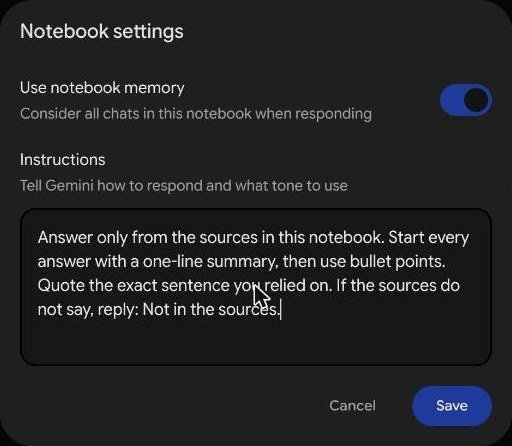
We used: “Answer only from the sources in this notebook. Start every answer with a one-line summary, then use bullet points. Quote the exact sentence you relied on. If the sources do not say, reply: Not in the sources.” Gemini followed it on every later answer, in the Gemini app and in the standalone Gemini Notebook, so instructions sync between the two apps. Asking for exact quotes is the single most useful instruction: it makes every claim easy to check.
Step 4: Ask questions and check the citations
Type your question in the notebook’s Ask Gemini box. Each answer carries small citation chips with the source file’s name. We asked for the average weekly rent for a two-bedroom home, which sits three-quarters of the way through the report. It answered correctly: £148.60, up 4.1%.
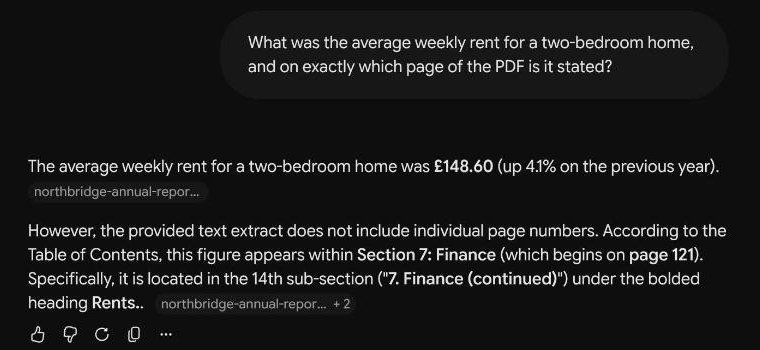
The weak spot was the page number. Every page of our PDF prints “Page N” in its footer, and the rent is on page 135. Gemini said “the provided text extract does not include individual page numbers” and pointed us to Section 7, which starts on page 121 according to the contents page. That is honest, but if you need page references for a report or an essay, you will have to find the page yourself. In our PDF test of ChatGPT, Gemini and Claude, attaching the same PDF to a normal Gemini chat did return the right page numbers, so use that route when pages matter.
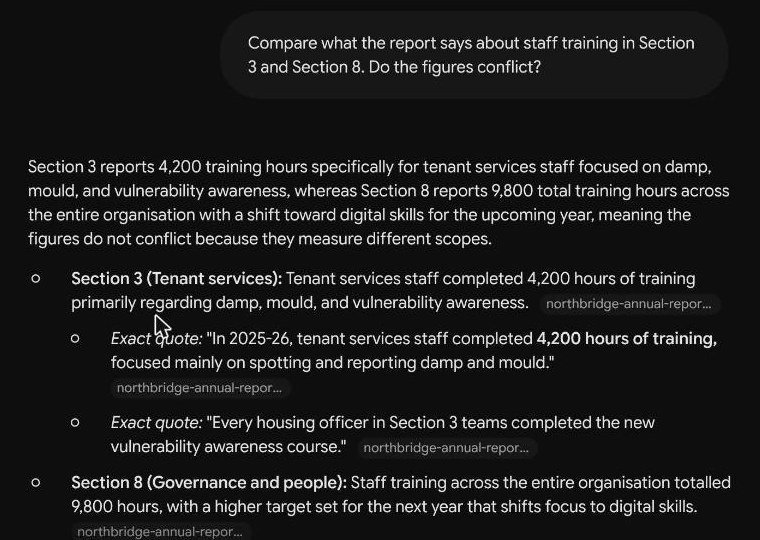
We then asked it to compare what two sections said about staff training. The first reply was “I seem to be encountering an error”. Clicking the redo button and choosing Try again fixed it. The second answer followed our instructions exactly and quoted four sentences from the report. We checked all four against the original text and they matched word for word.
Step 5: Test it with a question your sources can’t answer
Before trusting any source-grounded tool, ask it something that isn’t in your sources. We asked about the rent per desk and the parking at a “Leeds office” and about a “quarterly orders” chart. None of those exist in the report.
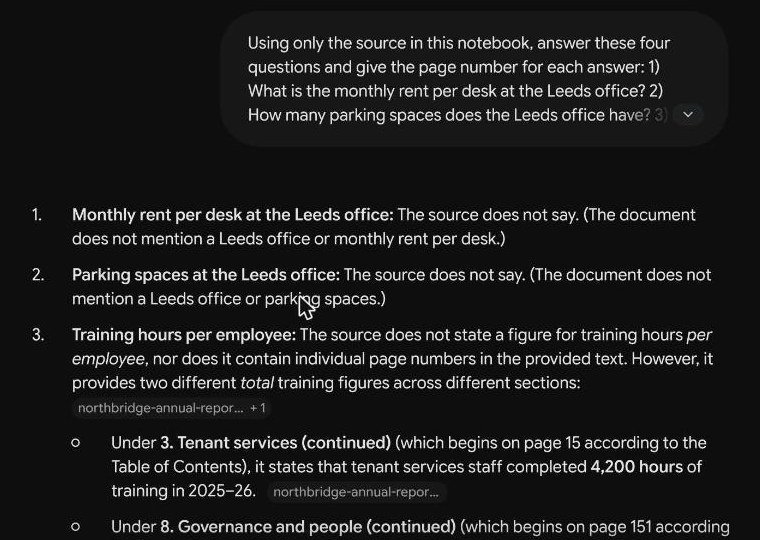
This is where the notebook was at its best. It said the document does not mention a Leeds office, did not invent a figure, and pointed out that the only quarterly chart is “Repairs completed by quarter”, where Q3 is highest with 1,610. That is exactly right. A tool that admits gaps is far more useful for research than one that fills them with a plausible guess.
Step 6: Use @Gemini Notebook from any Gemini chat
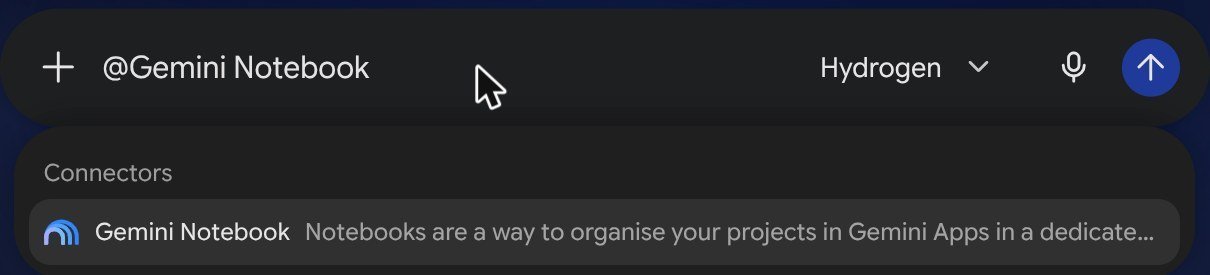
The newest feature lets you work with notebooks from a normal chat. Start typing @Gemini Notebook in the prompt box and pick it from the Connectors list. You can find it under Settings, then Connected apps, where it is listed as installed.
Our results were mixed, so here is exactly what happened:
- On the default Everyday help (4 Hydrogen) model, Gemini twice replied that it did not have access to our notebooks, even with the connector selected.
- On Detailed research (3.1 Pro), it showed “Connecting to Gemini Notebook” and, after about a minute and a half, listed our notebook correctly.
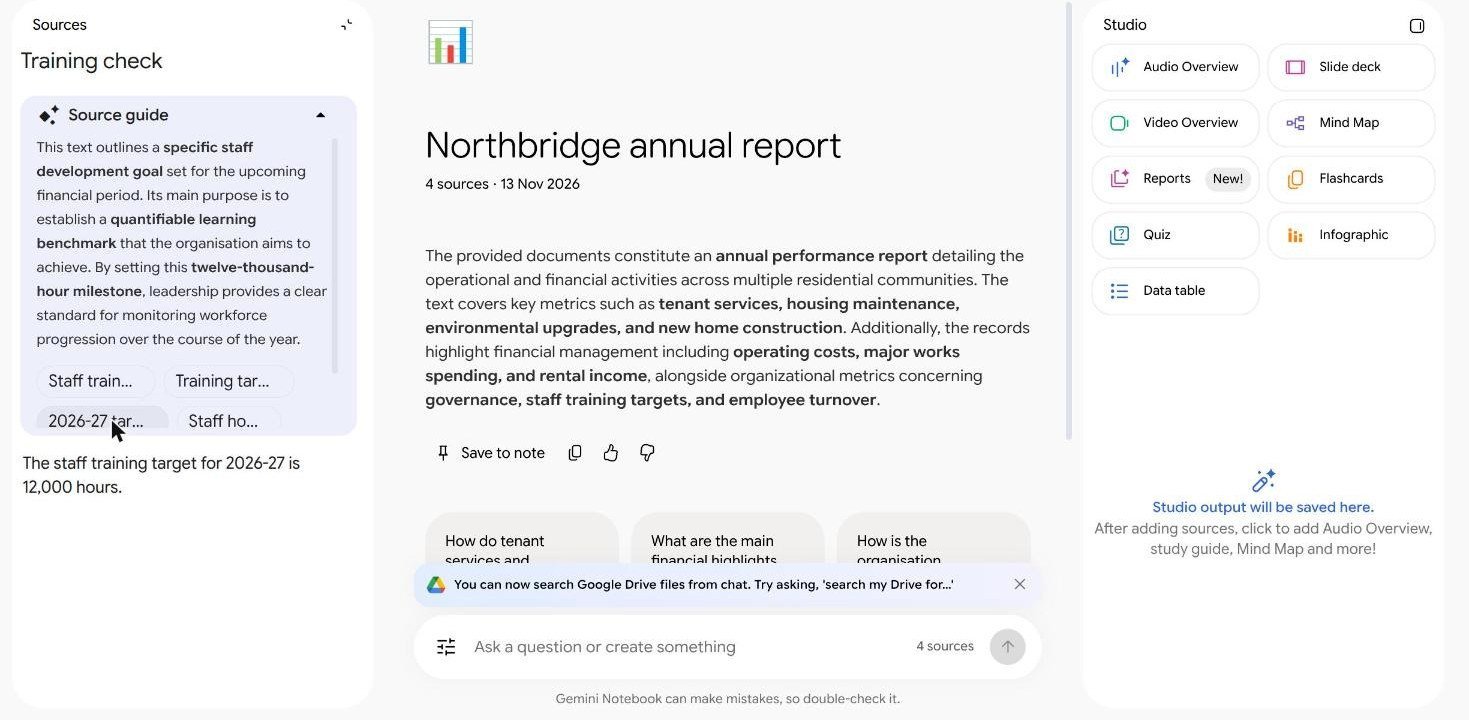
- A follow-up message without the @mention lost the connection again. With @Gemini Notebook typed again, it answered correctly (a 12,000-hour training target for 2026-27) and saved a note called “Training check” in the notebook.
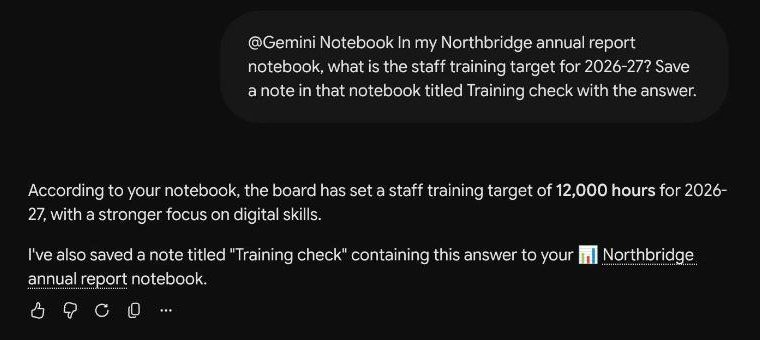
So switch to Pro and start every message with @Gemini Notebook. It is slower than opening the notebook directly, but handy when you are already in a chat and want to file a finding or pull one answer out of a notebook.
Step 7: Open it in the standalone Gemini Notebook app (formerly NotebookLM)
Click Gemini Notebook at the top right of the notebook page. The notebook opens at notebook.google.com with everything synced: our PDF, the “Training check” note created from the chat, and a new source called Chats from Gemini containing our Gemini app conversations.
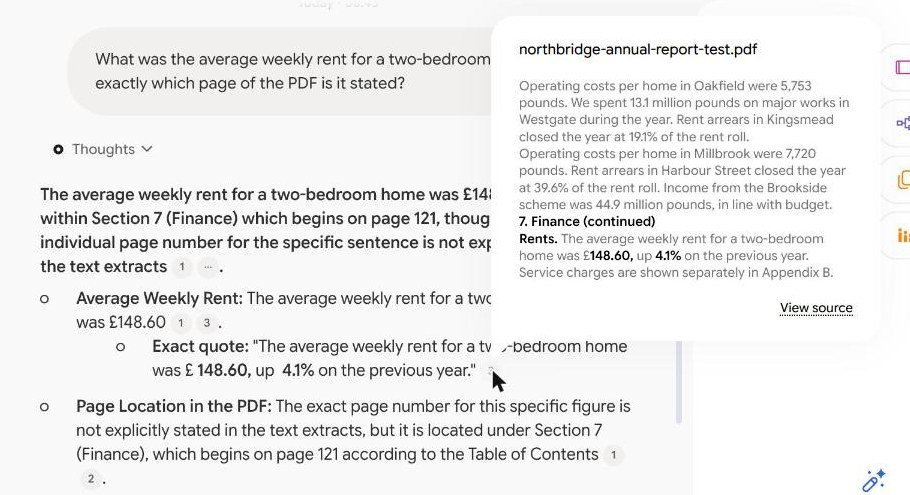
Two things are better here than in the Gemini app. First, clicking a citation number opens the exact passage from your source, not just the file name, which makes checking quick.
Second, the Studio panel turns your sources into an Audio Overview, Video Overview, slide deck, mind map, report, flashcards, quiz, infographic or data table.
Untick “Chats from Gemini” when you want document-only answers
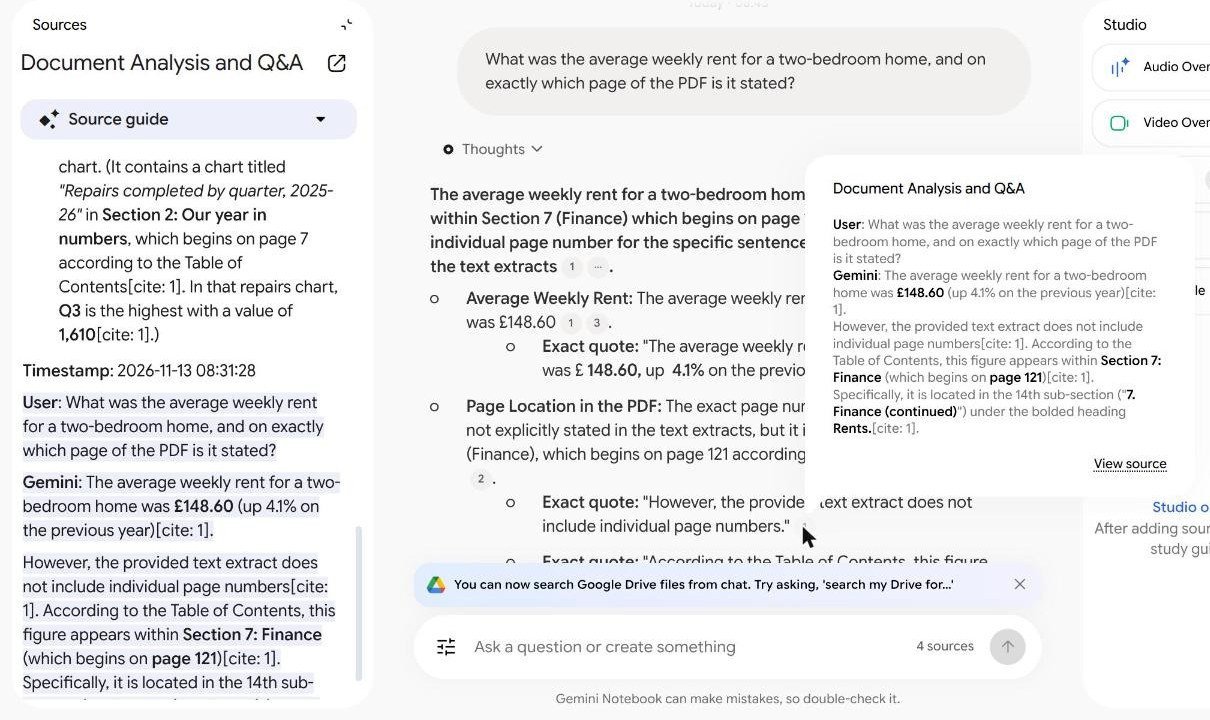
This was our most important finding. When we asked the rent question again in the standalone app, one of the “exact quotes” in the answer came from Gemini’s own earlier chat, synced in as a source, not from the report. The notebook was partly citing itself.
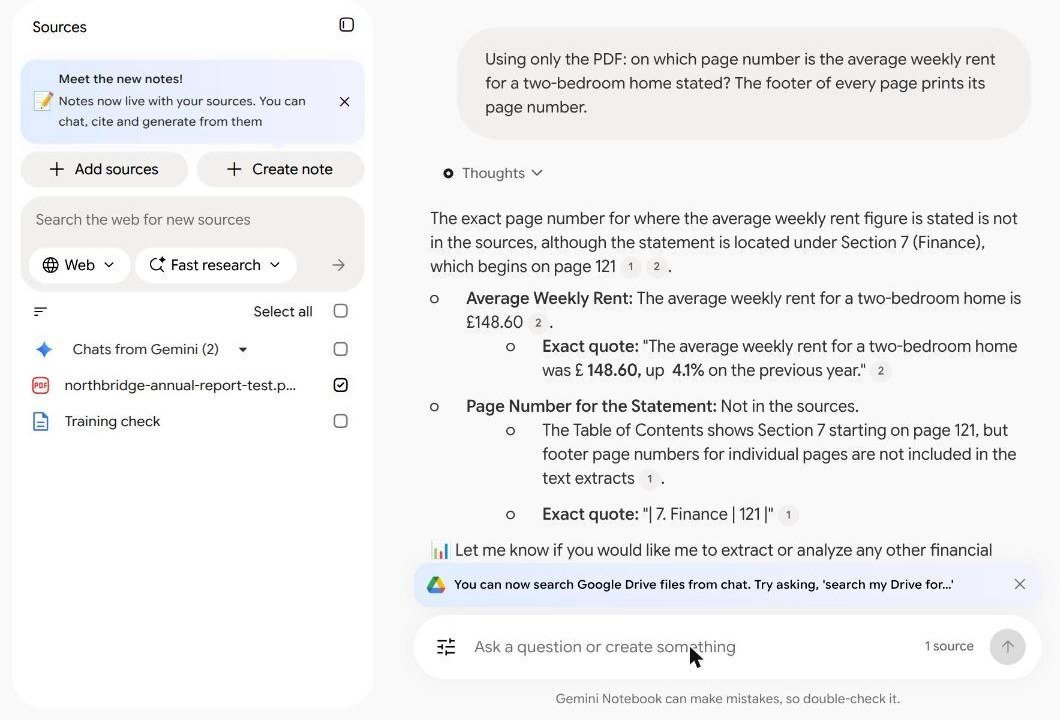
The fix is simple. In the Sources panel, untick Chats from Gemini (and any notes you don’t want treated as evidence) so only your original documents are selected. When we did that and asked again, every citation pointed to the PDF, and the page number came back as “Not in the sources”, which is honest.
Gemini Notebook vs a normal Gemini chat: which should you use?
Both can read your files, so the choice comes down to what you need back. Based on this test and our earlier PDF test:
| You need | Better choice | Why |
|---|---|---|
| Exact page numbers | Normal chat with the file attached | Returned the right pages in our PDF test; the notebook could not |
| Answers you can verify fast | Standalone notebook app | Citations open the exact passage |
| Ongoing research on the same files | Notebook | Sources, instructions and notes stay in one place |
| Study material from your files | Standalone notebook app | Studio makes flashcards, quizzes and Audio Overviews |
| A one-off question about one file | Normal chat | No setup needed |
What can you use NotebookLM for?
- Reading long reports: ask for figures, then check the quoted passage. It found a single number in a 180-page document in seconds.
- Study and revision: add lecture notes and readings, then use Studio for flashcards, quizzes or an Audio Overview.
- Work research: combine Drive docs, websites and meeting notes in one notebook and ask questions across them.
- Fact-checking a draft: add your sources, then ask whether each claim in your draft is supported, with quotes.
- Keeping a running log: save notes from any Gemini chat with @Gemini Notebook.
If you work mostly in Anthropic’s tools, Claude Projects does a similar job of keeping files and instructions together, and our guide to editing files in Gemini covers what to do once you have your answers.
What to do if NotebookLM or Gemini Notebook isn’t working
- “I seem to be encountering an error”: click the redo button and choose Try again. This fixed it for us on the first retry.
- @Gemini Notebook says it has no access: switch to the Pro model and type the @mention at the start of each message. Check it is listed under Connected apps.
- No exact page numbers: ask for an exact quote instead, then search the PDF for that sentence with Ctrl+F (Cmd+F on a Mac).
- Answers mention things you didn’t upload: check which sources are ticked, especially Chats from Gemini and saved notes.
- You are in the EEA: Google says the Connected App is off by default there, so turn it on in Connected apps first.
Mistakes to avoid when you use Gemini Notebook
- Trusting a page number you haven’t checked. In our test it didn’t invent page numbers, but it couldn’t read them either.
- Leaving every source ticked. Old chats and notes can end up cited as evidence.
- Skipping the trick question. One question your sources can’t answer tells you how far to trust the rest.
- Uploading sensitive files without checking Keep activity. Chats in the Gemini app follow that setting.
- Giving up after one error. A retry worked every time in our test.
Key takeaways
- NotebookLM and Gemini Notebook are the same tool: Google renamed NotebookLM in July 2026, and your old notebooks are still there.
- It now lives in two synced places: notebooks in the Gemini app and the standalone Gemini Notebook app.
- It was excellent at not inventing answers and at exact quotes, and it followed custom instructions in both apps.
- It could not give exact page numbers from our PDF; attach the PDF to a normal chat when pages matter.
- Untick “Chats from Gemini” for document-only answers, or it may cite its own earlier replies.
- @Gemini Notebook worked for us only on Detailed research (3.1 Pro), with the @mention in every message.
Frequently asked questions
Is Gemini Notebook the same as NotebookLM?
Yes. Google renamed NotebookLM in July 2026. Your old notebooks are still there at the standalone app, and they also appear as notebooks in the Gemini app.
Is NotebookLM (Gemini Notebook) free?
We tested on a paid Google AI Plus plan, so we can’t confirm what free accounts get today. Google sets notebook and model limits by plan and changes them often, so check its current plan page before you rely on a limit.
How many sources can a Gemini Notebook hold?
The notebooks introduction in the Gemini app says you can upload up to 100 sources. Our single 180-page PDF processed in about 20 seconds.
Does Gemini Notebook give page numbers?
Not in our test. It found the right figure and quoted the exact sentence, but said its text extract did not include page numbers, even though every page of our PDF printed one in the footer. Use the quote to find the page yourself.
Why does @Gemini Notebook say it can’t access my notebooks?
In our test it failed on the Everyday help (4 Hydrogen) model and worked on Detailed research (3.1 Pro). It also needed the @mention at the start of every message, not just the first one.
Sources: Google Workspace Updates, “Take actions on your notebooks from Gemini Notebook directly in the Gemini app” (23 October 2026); 9to5Google, “Gemini app notebooks” (8 April 2026); AlternativeTo, “Google’s NotebookLM is now Gemini Notebook” (July 2026). Hands-on results from our own test on Google AI Plus, 13 November 2026.