
To edit files in Gemini, ask it to create a document, PDF, spreadsheet or slide deck in a normal chat, open the file preview, then either type changes yourself in full-screen mode or highlight a section and ask Gemini to rewrite it. Google added in-chat editing on 29 October 2026, and it is free for every Gemini user. PDFs can be edited on the web and in the mobile app; every other format is web only.
This guide covers the six steps to create and edit files in Gemini, the formats it supports, what each one is good for, and the limits Google’s announcement leaves out. The steps were tested on a Google AI Plus account in Chrome.
How we tested
We tested on 12 November 2026 on a Google AI Plus account, in Chrome on the Gemini web app (UK), and in the Gemini mobile app. We created a PDF, an Excel file and a 5-slide deck, checked the Excel totals, typed an edit, used highlight-and-ask, edited a PDF on the phone and edited a PDF we uploaded ourselves. Matched Google’s claims: real PDF, Excel and Slides files, an Export menu, typing edits directly into a file, and PDF editing on mobile. Also worked: a PDF we uploaded opened in the same editor and could be edited. Different: a highlight-and-ask edit also changed text outside our selection, and the budget came out in dollars rather than pounds.
In this article
What does it mean to edit files in Gemini?
Gemini has been able to create files since 29 April 2026, when Google added downloadable PDFs, Word and Excel files to the Gemini app. Until October, though, changing one of those files meant asking for a whole new version and hoping the parts you liked survived.
The October update changed that. You can now preview a file inside the conversation, expand it to full screen and type into it directly, or select part of it and give Gemini an instruction about just that part. Google describes it as being able to “generate, preview, and edit” files without leaving the chat.
In practice, that means you can edit files in Gemini the same way you would tidy a draft a colleague sent you: fix a figure here, reword a paragraph there, and leave everything else alone.
Which file types can Gemini create and edit?
Gemini can create far more formats than it can edit everywhere. This table pulls together what Google has announced so far.
| Format | Create | Edit in chat (web) | Edit in chat (mobile) | Where it can go |
|---|---|---|---|---|
| Yes | Yes | Yes | Download | |
| Google Docs / Word (.docx) | Yes | Yes | No | Download or Export to Drive |
| Google Sheets / Excel (.xlsx), CSV | Yes | Yes | No | Download or open in Google Sheets |
| Slides (deck) | Yes | Yes | No | Open in Google Slides, or download as PPTX or PDF |
| Markdown, TXT, code | Yes | Yes | No | Download |
| LaTeX, RTF | Yes | Not stated | Not stated | Download |
Sources: Google’s file generation announcement (April 2026), its in-chat editing announcement and the Workspace Updates post (both 29 October 2026).
Who can edit files in Gemini?
Everyone who can use the Gemini app. Google says the feature is “available to all users in all languages where Gemini app is available”, which covers free personal accounts, Google AI plans, Workspace Individual and Workspace business and education accounts. The Workspace post adds that there is no separate admin switch for it: if your organisation allows the Gemini app, it allows this.
The one real split is the device. On a phone, only PDFs can be previewed and edited inside the chat. Docs, spreadsheets, decks and text files need the web app at gemini.google.com.
How to edit files in Gemini: the quick version
- Open gemini.google.com and start a new chat.
- Ask for a specific file, naming the format: “Create a one-page PDF…” or “Create an Excel file…”.
- Open the file preview in the reply and check it.
- Click into the file and type any small fixes yourself.
- Highlight a section and ask Gemini to change only that part.
- Download the file or export it to Google Drive, then open the saved copy to check it.
The detailed steps below show what each screen looks like and what to watch out for.
Step 1: Ask Gemini for a specific file
To edit files in Gemini, you first need Gemini to make one. Be explicit about the format, the length and the structure, because a vague request (“make me a meal plan”) often comes back as plain chat text rather than a file. We used:
Create a one-page PDF: a weekly meal plan for a family of four, with a shopping list table at the bottom.
Naming the format in the prompt is what tells Gemini to produce a file. The same works for other formats, for example Create an Excel file (.xlsx) for a monthly household budget with income, 8 expense categories and a total that adds up automatically.
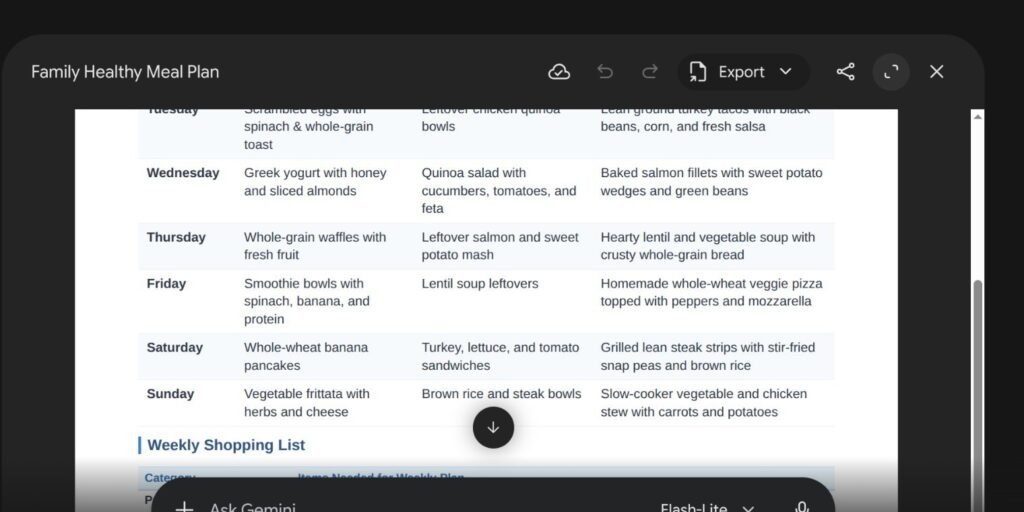
What we found: Gemini returned a real file, not chat text. It opened in a file panel titled “Family Healthy Meal Plan”, with a day-by-day meal table and a separate Weekly Shopping List table at the bottom. The toolbar showed a cloud icon to say the file was saved, undo and redo, an Export menu, a share button, an expand button and close.
Step 2: Preview the file and check the details
Gemini shows the file as a preview in its reply. Read it before you edit anything: AI-made files can look polished and still contain mistakes, such as a total that doesn’t match its rows, a date in the wrong format or an item that isn’t in your notes.
For spreadsheets, check whether the totals are real formulas or typed-in numbers. A formula updates when you change a value; a typed number does not, and that is the difference between a usable budget and a pretty table.
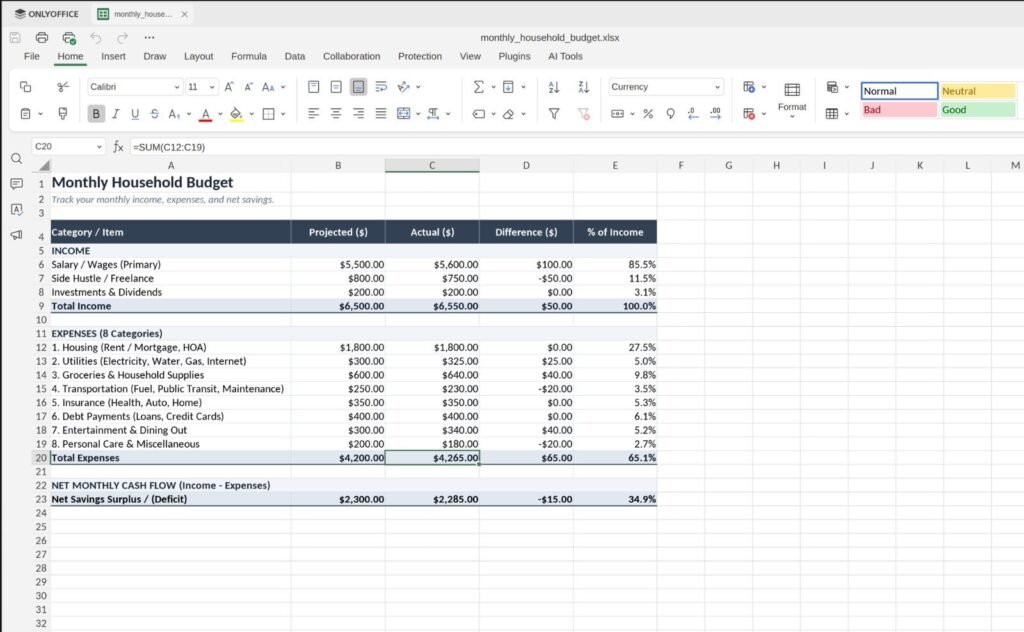
What we found: the totals were real formulas. Total Expenses was =SUM(C12:C19), and income, expenses and net savings all added up correctly. One catch: our account is in the UK, but the budget came out in US dollars. If you want pounds, say so in your prompt.
Step 3: Create a slide deck and export it
Slide decks are where in-chat editing shines, so we made one next and used it for the editing tests in steps 4 and 5. Ask for a deck with a clear outline:
Create a 5-slide Google Slides deck introducing a small cleaning business.
According to Google, decks can be opened in Google Slides or downloaded as PPTX or PDF, so you can finish a deck in PowerPoint if that is what your team uses.
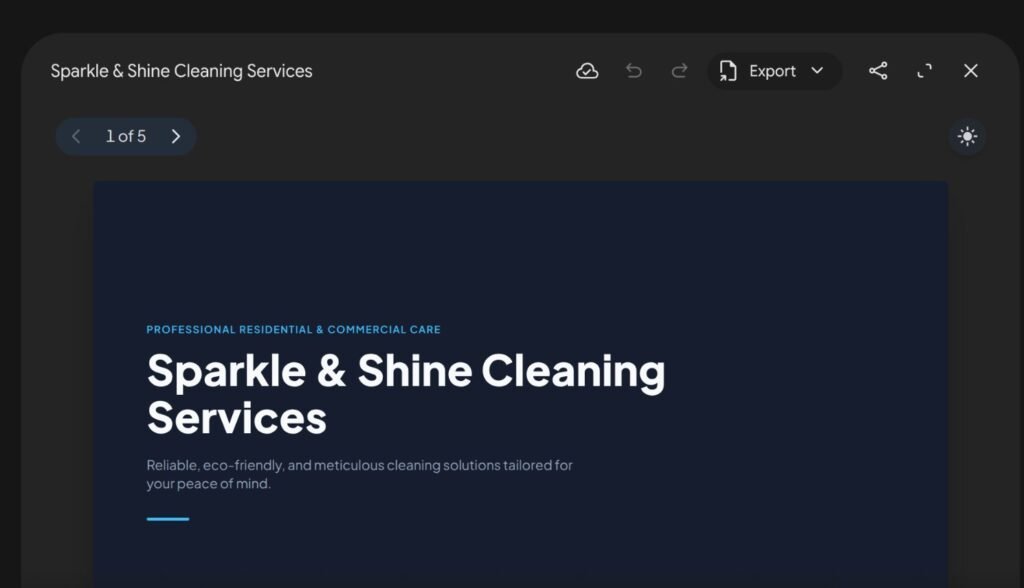
What we found: Gemini built a 5-slide deck called “Sparkle & Shine Cleaning Services” with a clean dark design. The file panel has arrows to move between slides (“1 of 5”), a button to switch the preview between light and dark, and the same Export menu as the PDF and spreadsheet.
Step 4: Type your own changes to edit files in Gemini
Typing is the simplest way to edit files in Gemini. For small fixes, editing by hand is faster and safer than asking for a rewrite. Click into the text in the file panel and type; use the expand button if you want a bigger, full-screen view. This is the easiest way to edit files in Gemini when you already know exactly what the change should be: a name, a price, a date, a typo.
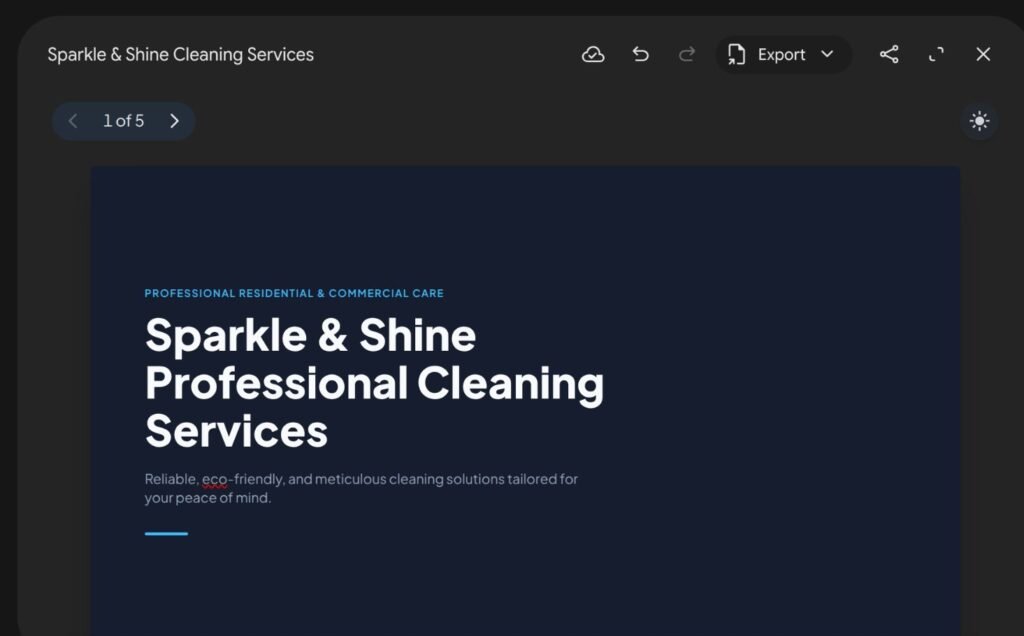
What we found: there was no separate edit mode to switch on. We clicked into the slide title in the file panel and typed, changing it to “Sparkle & Shine Professional Cleaning Services”. The undo button became active, there was no Save button to press, and the change was still there when we came back to the file. The expand button (top right) only makes the panel bigger.
Step 5: Highlight a section and ask Gemini to change it
Highlight-and-ask is the second way to edit files in Gemini, and the more powerful one. For rewrites, select the paragraph, row or slide element you want changed and type an instruction about that selection only. We highlighted one paragraph and asked:
Make this shorter and friendlier.
Google says you can use a selection to ask a question about it or to have Gemini “refine” the text or visuals. The point of this feature is that the rest of the file should stay exactly as it was, so always compare the parts you didn’t select after the edit.
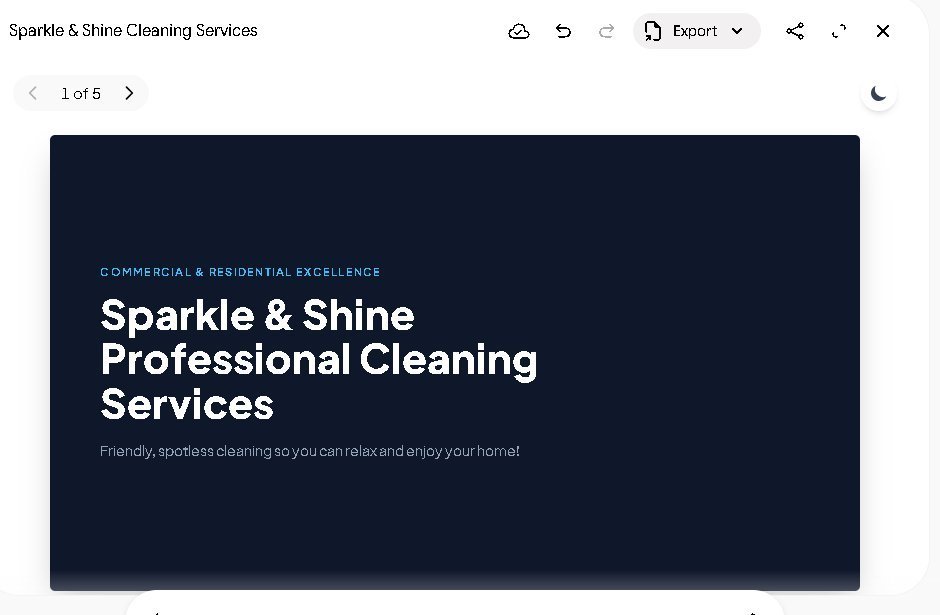
What we found: Gemini rewrote our selection as asked. The subtitle became “Friendly, spotless cleaning so you can relax and enjoy your home!”. But the small heading above the title also changed, from “Professional Residential & Commercial Care” to “Commercial & Residential Excellence”, even though we hadn’t asked for that. Check the whole page or slide after every highlight edit.
Step 6: Edit files in Gemini on your phone
On Android and iOS, PDF is the only format you can preview and edit inside the chat. Open the PDF from the conversation in the Gemini app. Google says you can preview and edit it there, just as on the web.
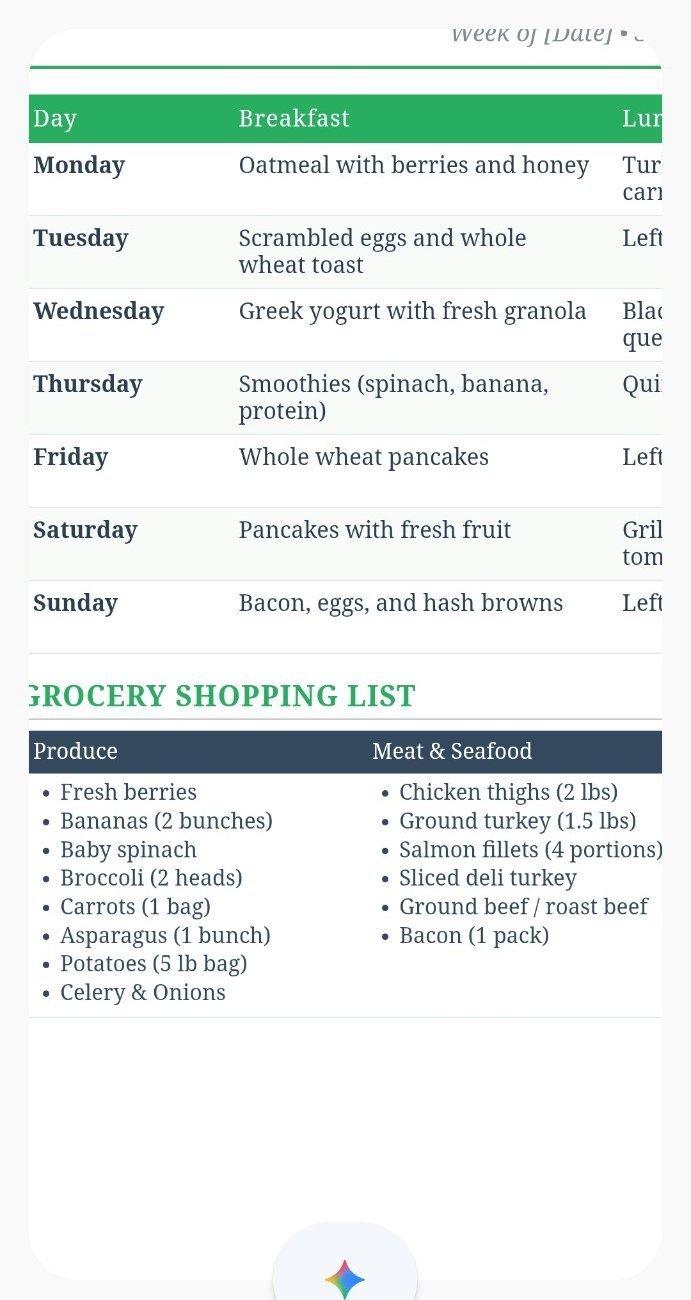
What we found: PDF editing worked on the phone. The PDF opened in the Gemini mobile app with its meal table and shopping list intact, we edited it there, and the change stayed. It also showed something to check on any device: the header still said “Week of [Date]”, a placeholder Gemini never filled in.
Prompts that help you edit files in Gemini
The wording of your request decides how much fixing you’ll need later. These prompts give Gemini a clear format, structure and limit, which makes the result easier to edit.
| Goal | Prompt to try |
|---|---|
| One-page report | Turn these notes into a one-page PDF with a title, a 3-sentence summary and a table of actions with owner and due date. Do not add anything that is not in the notes. |
| Budget with formulas | Create an .xlsx budget where every total is a formula, not a typed number, and label each formula column. |
| Short deck | Create a 5-slide deck: title, problem, solution, pricing, next steps. Keep each slide under 30 words. |
| Targeted rewrite | (Highlight one paragraph) Rewrite only this paragraph in plain English. Keep the numbers the same. |
| Fact check | (Highlight a table) List every figure in this table and where it came from in my notes. |
Adding “do not add anything that is not in the notes” is the single most useful line: it cuts down invented details, so there is less to correct when you edit files in Gemini afterwards.
What can you use Gemini file editing for?
- One-page summaries. Paste meeting notes and ask for a one-page PDF with a summary and an action table. Then fix names and dates by hand.
- Household and small-business budgets. Ask for an Excel file with formulas, then adjust the categories to match your real spending.
- Quick pitch or training decks. Generate a five-slide outline, refine one slide at a time with highlight-and-ask, then finish in Google Slides or PowerPoint.
- Study guides and checklists. Turn a long document into a Markdown or PDF checklist you can print.
- Data clean-up. Turn a messy list into a CSV you can import elsewhere, then correct any rows by hand.
In each case, Gemini does the first draft quickly and you do the last 20% by checking and correcting. That split is where this feature saves real time.

What to do if you can’t edit files in Gemini
- You got text, not a file. Ask again and name the format: “Create this as a PDF” or “as an .xlsx file”.
- There is no full-screen or edit option. If you are on a phone and the file isn’t a PDF, switch to gemini.google.com on a computer.
- The edit changed more than you selected. Undo by asking Gemini to restore the previous version of that section, or regenerate and use typed edits for small changes instead.
- Export to Drive is missing. Download the file instead, or check that you are signed in to the Google account you want it saved to.
- Work or school account. If the Gemini app itself is turned off by your admin, file editing will not be available either.

Mistakes to avoid when you edit files in Gemini
- Trusting the numbers. Check every total, date and name against your source. Editing in place doesn’t make the original content more accurate.
- Missing leftover placeholders. Our test PDF still said “Week of [Date]”. Search every file for brackets before you share it.
- Rewriting the whole file for a small fix. Regenerating can change parts you were happy with. Type small fixes yourself.
- Selecting too much. Highlight only the section you want changed. A bigger selection gives Gemini more to rewrite.
- Editing the wrong version. If you ask for several versions in one chat, check which file card you open before you edit files in Gemini.
- Not opening the saved copy. Always open the downloaded or exported file to make sure your changes and formatting came through.
- Uploading sensitive files without checking settings. Review your Gemini Apps Activity settings before you paste client data, contracts or personal details.
If you use Gemini mostly for research rather than documents, our guide to Gemini Notebook research with your own sources covers that side. And if you are choosing between assistants for document work, see our Claude vs ChatGPT vs Gemini comparison for documents.

Key takeaways
- You can edit files in Gemini by typing in full screen or by highlighting a section and asking for a change.
- The feature to edit files in Gemini is free for all users and needs no admin setting on Workspace.
- PDFs can be edited on web and mobile; Docs, Sheets, Slides, Markdown, TXT and code are web only.
- Check totals, dates and names yourself, and open the saved file before you send it.
Frequently asked questions
Is editing files in Gemini free?
Yes. Google says in-chat file creation, preview and editing are available to all users in every language the Gemini app supports, including free personal accounts. Paid Google AI plans mainly give you higher usage limits, not extra file features.
Can I edit files in Gemini on my phone?
Only PDFs, and in our test PDF editing on the phone worked. Google says PDF preview and editing work on both the web and the mobile apps, while documents, spreadsheets, slide decks, Markdown, TXT and code are supported on the web only. For those, open gemini.google.com on a computer.
What file types can Gemini create?
Gemini can create Google Docs, Sheets and Slides, plus PDF, Word (.docx), Excel (.xlsx), CSV, LaTeX, TXT, RTF and Markdown files. Most can be downloaded or exported to Google Drive, and decks can also be downloaded as PPTX or PDF.
Can Gemini edit a PDF I upload?
Yes, in our test. Google’s announcement only talks about files Gemini generates, but when we uploaded a PDF of our own it opened in the same file panel and we could edit it. If yours doesn’t open that way, ask Gemini to recreate the content as a new PDF and edit that.
Does Gemini save my edits automatically when I edit files in Gemini?
In our test, yes. There was no Save button: the file panel shows a cloud icon, and our typed change was still there when we came back. Even so, export the file when you’re done and open that copy to confirm your changes are in it.
Can I export a Gemini file to Google Drive?
Yes, for most formats. Google says you can download most generated files to your device or export them to Google Drive, and slide decks can be opened directly in Google Slides.
Sources: Google, “Generate files in Gemini” (29 April 2026); Google, “Edit files directly in Gemini” (29 October 2026); Google Workspace Updates, “Create, preview and edit files directly in the Gemini app” (29 October 2026). Hands-on results from our own test on Google AI Plus.