

Using Gemini Notebook research sources — the tool Google renamed from NotebookLM in July 2026 — lets you answer questions using only the sources you load into it, with citations attached to almost every sentence. That one constraint is what makes it powerful for source-grounded research. You are not asking a chatbot what it remembers. You are asking a specific set of documents what they actually say. This guide walks through a seven-step workflow we ran on a real question, with screenshots from the current version, so you can copy it for your own work.
Setting Up Gemini Notebook Research Sources
The short version: create one notebook per question, add a small set of sources you trust, ask where the evidence is thin before you ask for a conclusion, and open the citations before you write anything down.
In this article
- What source-grounded research means in Gemini Notebook
- What you need before you start
- The 7-step workflow
- How it compares to other research tools
- Common mistakes to avoid
- Frequently asked questions
What does source-grounded research mean in Gemini Notebook?
Most AI assistants answer from a blend of training data and, sometimes, a live web search. Gemini Notebook works the other way around. You give it sources, a PDF, a web page, a Google Doc, a YouTube video with captions, and its chat answers are grounded in that material with inline citations you can open. Google’s own description calls it “grounded information based on your sources with clear in-line citations”. Ask it something the sources do not cover and it tells you the information is not there rather than filling the gap.
That design has a measurable payoff. A 2025 Northwestern University study ran a reporting task over a 300-document corpus and found the source-grounded tool produced a hallucination in about 13 percent of its outputs, against roughly 40 percent for general-purpose ChatGPT and Gemini (Hagar, Agustianto and Diakopoulos, Computation and Journalism Symposium 2025). Lower, not zero. The workflow below is built around checking the citations, not trusting them.
One distinction to keep straight: this applies to the standalone Gemini Notebook. Open the same notebook inside the main Gemini app and Google says responses “may also include web search and other tools”, which is a different thing.
What you need before you start
- A Google account. Gemini Notebook has a free tier, and paid Google AI plans raise the usage limits.
- Three to ten sources you already consider credible.
- One specific question you want answered.
- About 30 minutes.
The 7-step source-grounded research workflow
Step 1: Create one notebook for one question
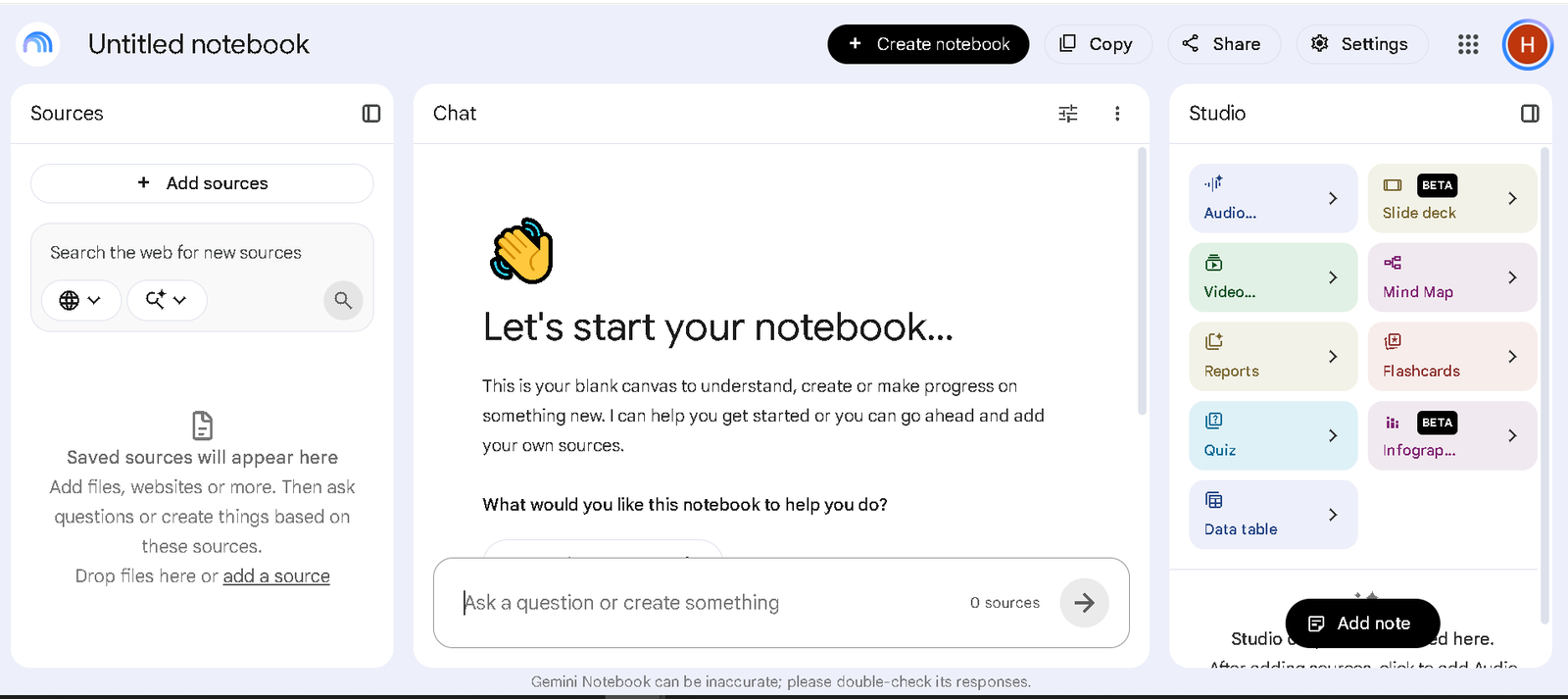
Open Gemini Notebook at notebooklm.google and click Create notebook. Each notebook is a sealed container. Google says a notebook cannot reach into the sources held in any of your other notebooks, so use that separation deliberately. A catch-all notebook called “Business research” fills up with unrelated material and every answer gets vaguer. A notebook called “Should we trial a four-day week?” stays sharp. Name it after the decision, not the topic.
Step 2: Add a small, deliberate set of sources
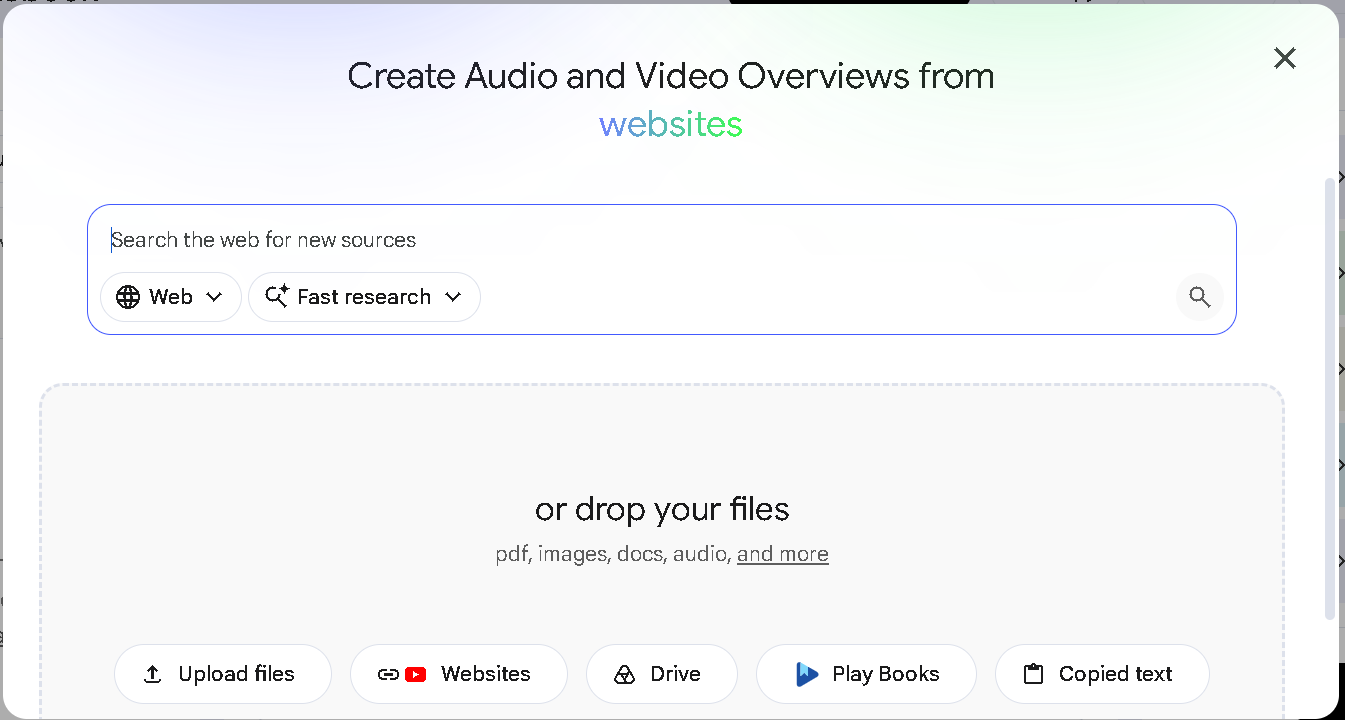
Click Add sources. You can upload files, paste a web URL, link a Google Drive file, add a YouTube link, or paste raw text. For our four-day-week question we added three: a Wikipedia overview, a UK pilot results page, and a BBC news report. Resist the urge to add forty. A tight set you have actually read beats a big pile you have not, and it keeps the citations quick to check. Google’s current ceiling is 500,000 words per source, or up to 200 MB for a local file upload.
Step 3: Use Fast Research or Deep Research to fill the gaps
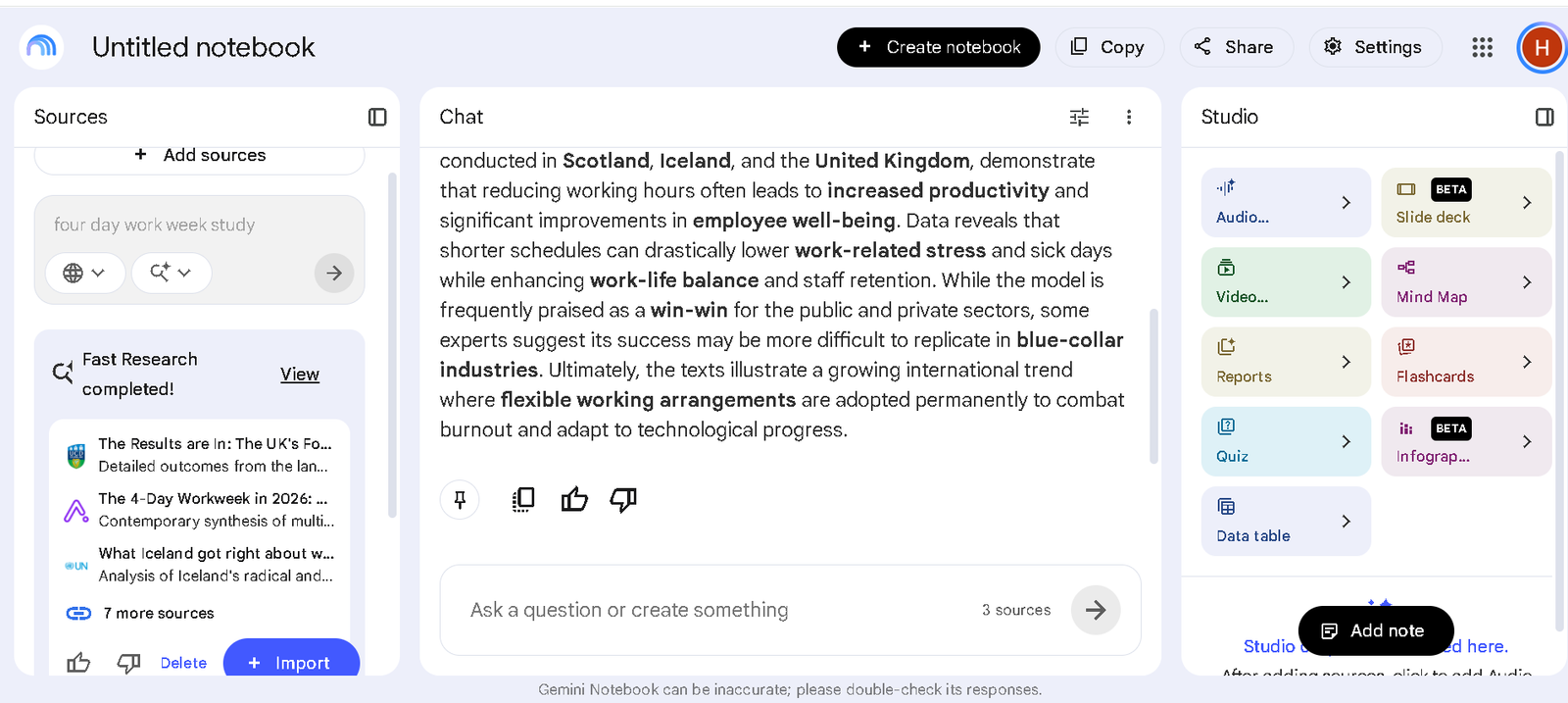
If you are missing something, let Gemini Notebook look for it. Fast Research runs a quick web or Google Drive search, shows you the candidates, and lets you import only the ones you want. Deep Research is the heavier option: Google describes it as an agentic process that can browse hundreds of pages and return a multi-page report with a source list. Deep Research is restricted to users over 18 and has plan-based limits. Either way, nothing enters the notebook unless you import it.
Step 4: Narrow the active sources with the checkboxes
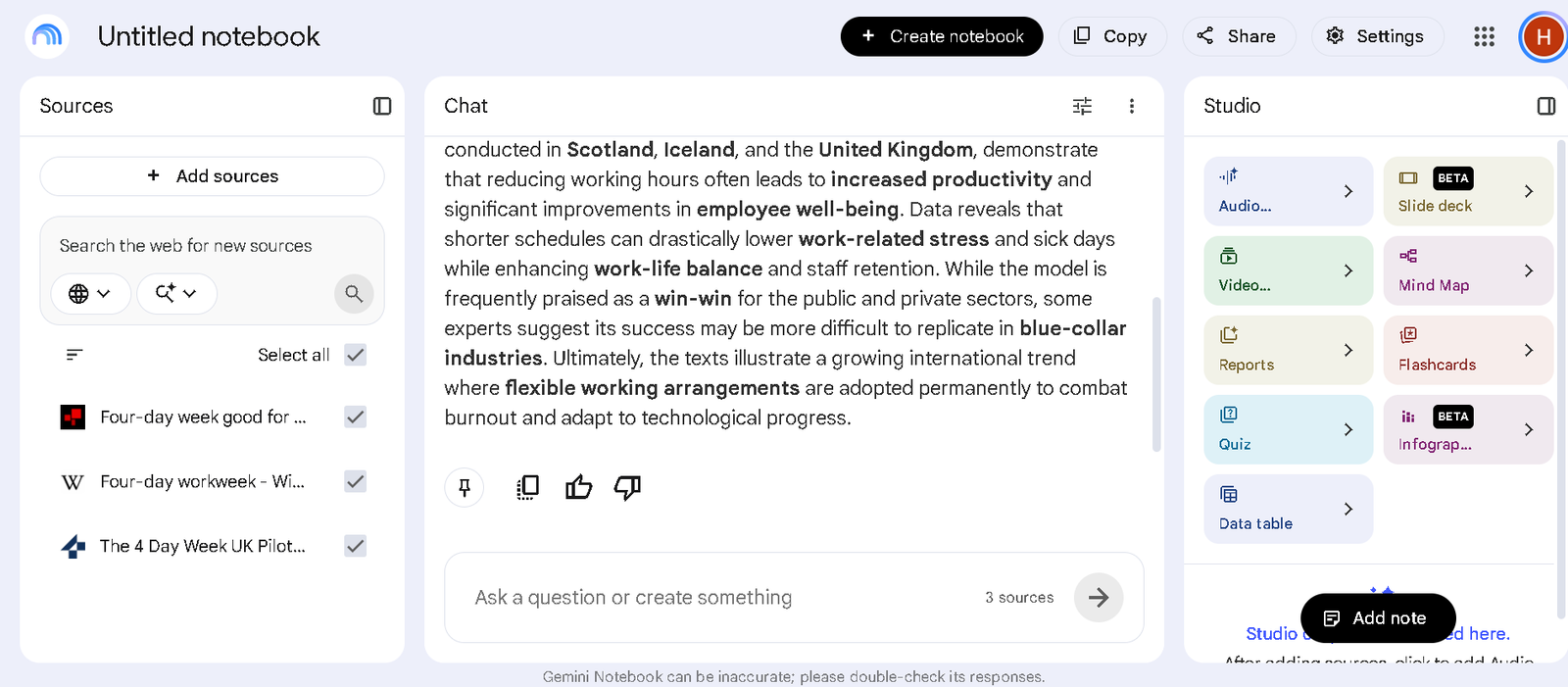
Every source has a checkbox next to it. Unchecking one removes it from the next answer. This is the most underused control in the product. If you want to know what a single report says, uncheck everything else and ask. If you want to compare two, leave two checked. It turns a static pile of documents into something you can question in slices.
Step 5: Ask for an evidence map before you ask for a conclusion
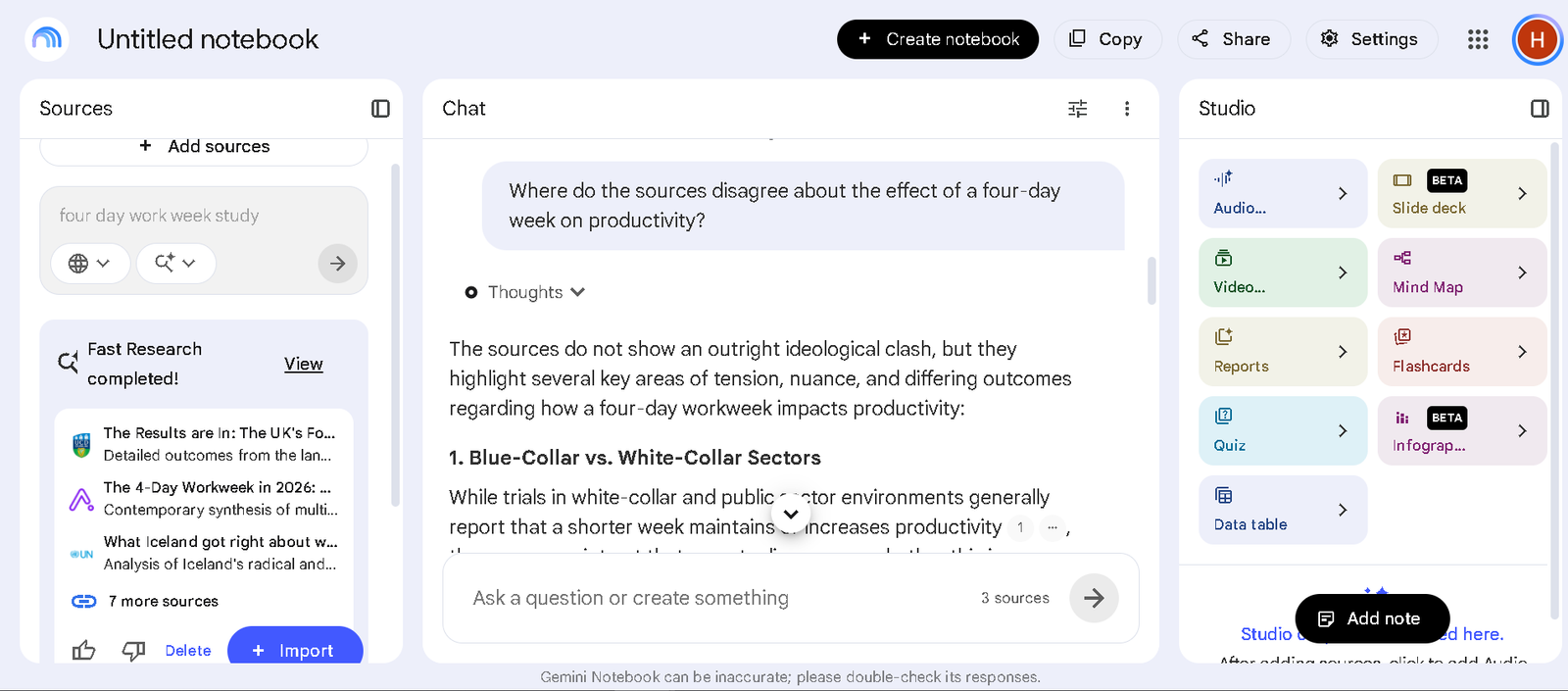
Do not open with “should we do this?” Open with a question that forces the sources to show their working. We asked: “Where do the sources disagree about the effect of a four-day week on productivity?” The reply came back organised by point of tension, with a numbered citation on each claim. Asking first for disagreements, gaps and single-source claims gives you a map of the evidence. A recommendation is much easier to weigh once you have seen the terrain it sits on.

Step 6: Open the citations and run a second pass
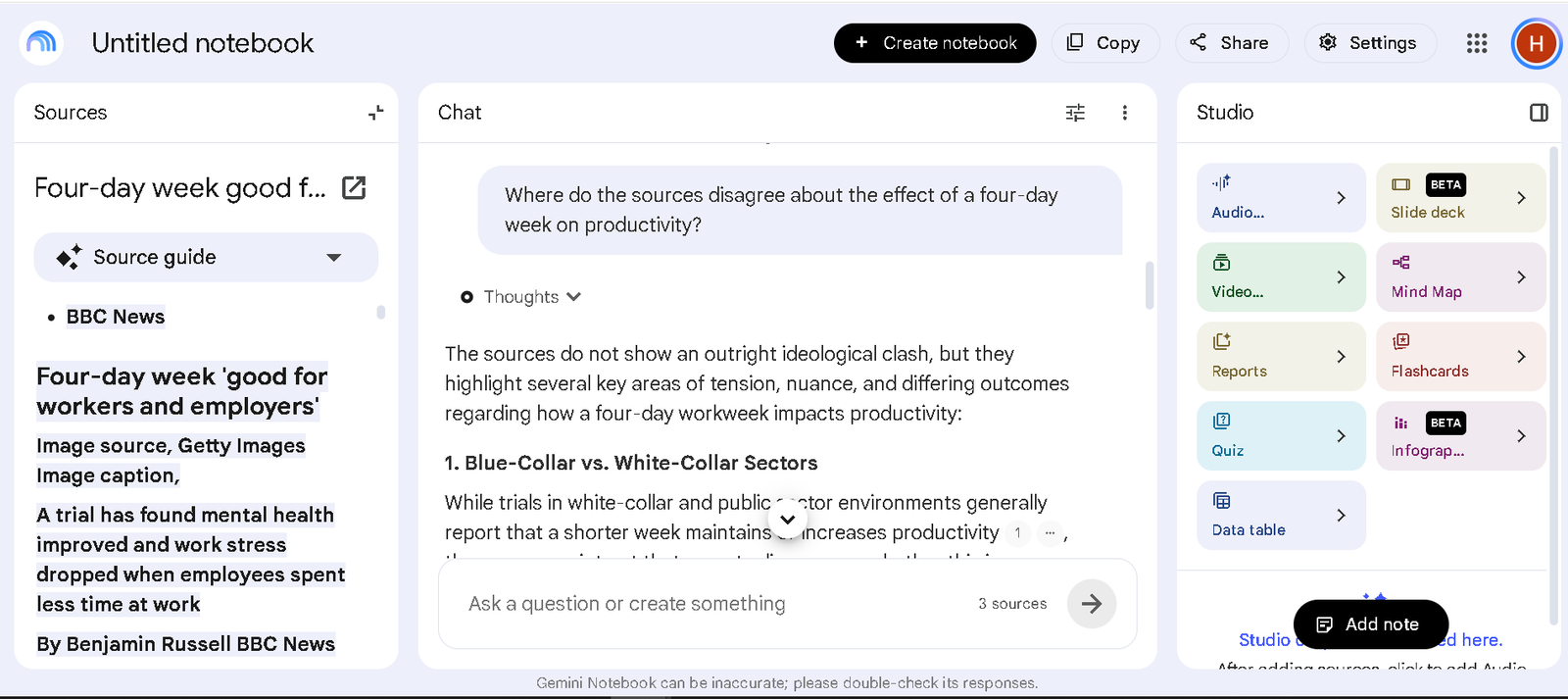
Click a citation. The source opens in the left panel with the exact passage highlighted, so you see the sentence in its real context rather than a trimmed quote. Do this for every claim that would change your decision. In our run, a citation about lower work stress opened straight to the relevant line in the BBC report. Then ask a cleanup question: “Which of these claims rests on only one source?” That flushes out the weak points before they reach your write-up.
Step 7: Build the output in Studio, then export
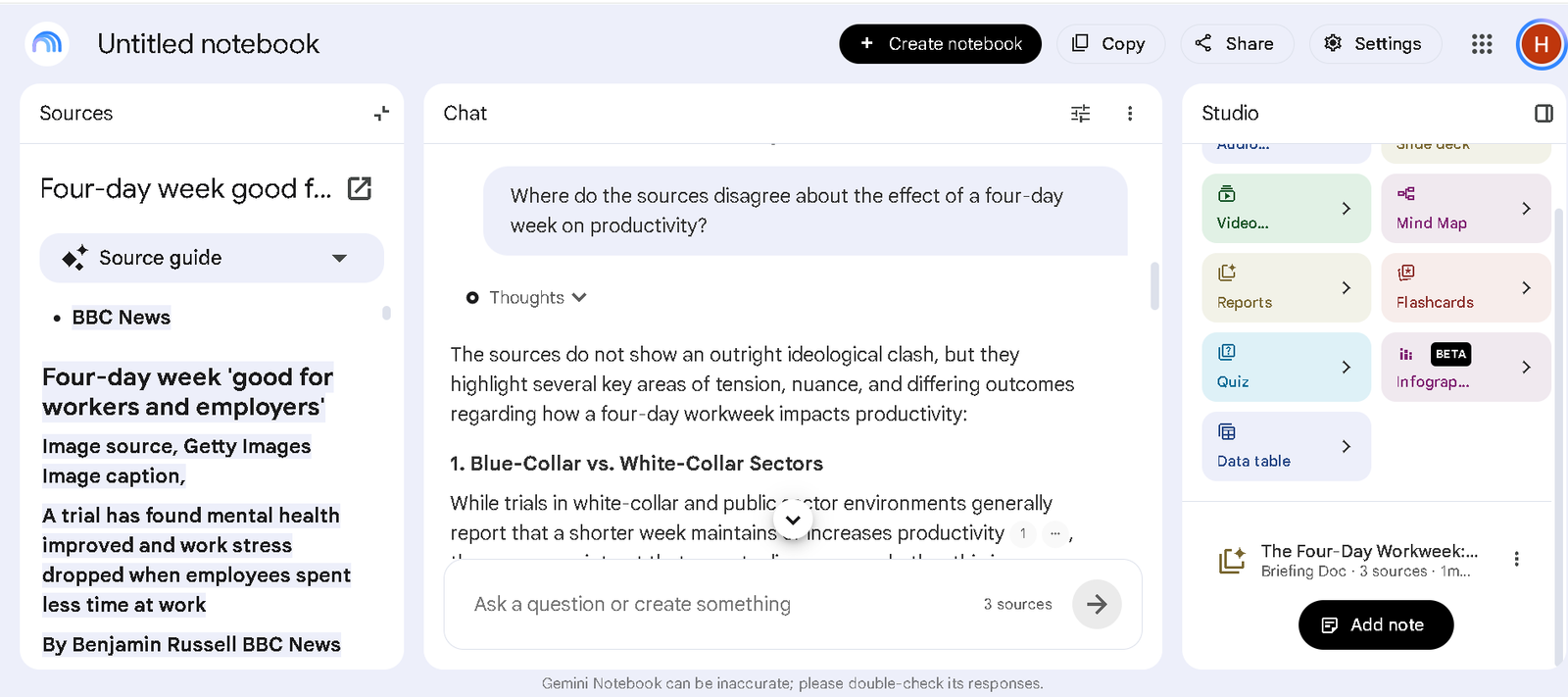
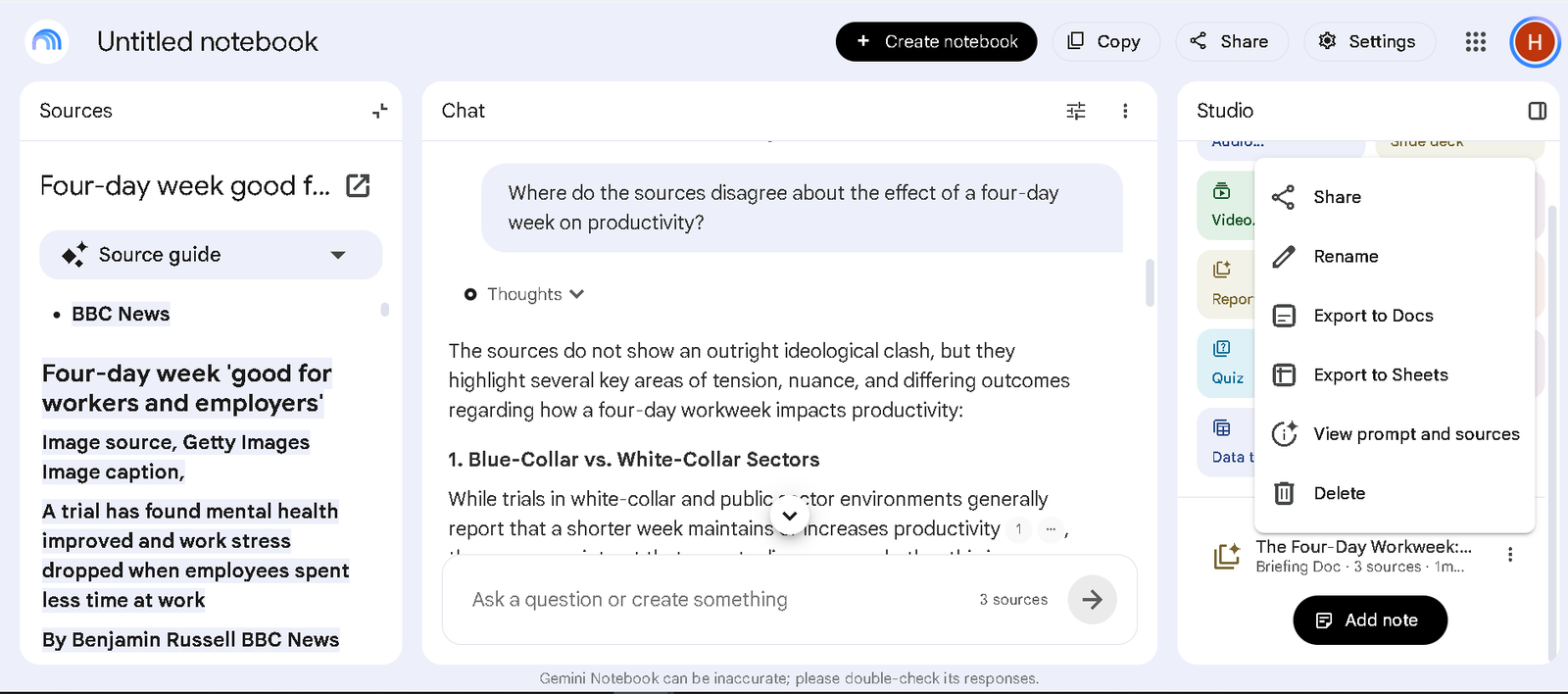
Only now, with the evidence checked, turn to the Studio panel on the right. It can produce a report or briefing document, a data table, a mind map, and audio or video overviews. We generated a briefing document from the three sources. If you need to keep editing, use the output’s menu to Export to Docs or Export to Sheets. One catch to remember: the export is a one-way copy. Changes you make in the Google Doc do not flow back into the notebook.
How does Gemini Notebook compare to other research tools?
Gemini Notebook is not trying to be Perplexity or a general chatbot. It is built for a narrower job: querying a fixed body of documents you have already chosen. Here is where each option fits.
| Tool | Where answers come from | Citations | Best for |
|---|---|---|---|
| Gemini Notebook | Only the sources you add to the notebook | Inline, open to the exact passage | A set of documents you already trust and want to interrogate |
| Perplexity | A live web search it runs for you | Inline links to web pages | Quick answers from the open web with sources attached |
| ChatGPT or Gemini (normal chat) | Model training, plus an optional web search | Sometimes, and not always reliable | Drafting and reasoning, not evidence tracking |
If your question is “what does the open web say about X”, a web tool is faster. If it is “what do these ten documents say, and where do they disagree”, Gemini Notebook is the better fit. We put the general assistants through a related test in our comparison of Claude, ChatGPT and Gemini for long-document analysis.
Common mistakes to avoid
- Dumping in every source you can find, then trusting a summary you cannot realistically check.
- Asking for a recommendation before asking where the evidence is thin.
- Treating a citation as proof instead of opening it.
- Generating a Studio report first and checking the facts afterwards.
- Expecting an exported Google Doc to stay in sync with the notebook. It will not.
Frequently asked questions
Is Gemini Notebook free?
There is a free tier that covers a full research project. Paid Google AI plans raise the limits. Google’s help pages currently put the cap at 500,000 words per source, or up to 200 MB for a local file upload, and note that limits can change.
Is Gemini Notebook the same as NotebookLM?
Yes. Google renamed NotebookLM to Gemini Notebook on 16 July 2026. It is still a standalone product at the same address, run by the same team, and existing notebooks and sources carried over unchanged.
Does Gemini Notebook use the internet to answer?
In the standalone product, no. Chat answers are grounded only in the sources you added. Fast Research and Deep Research can search the web, but only to find sources for you to import, not to answer questions directly. Inside the main Gemini app, a notebook chat can also use web search.
Can Gemini Notebook still get things wrong?
Yes. Google shows a standing notice that it “can be inaccurate” and asks you to double-check responses. Grounding lowers the error rate compared with a general chatbot, as the Northwestern study found, but it does not remove it. Open the citations for any claim that matters.
Can it read YouTube videos?
It can use public YouTube videos that have captions. Very recent uploads may not be available straight away.
What happens to a report I export to Google Docs?
You get a one-way copy. Edits you make in the exported Doc or Sheet do not synchronise back to your notebook, so treat the export as the point where you leave Gemini Notebook, not a live link.
The takeaway
Source-grounded research in Gemini Notebook is less about the AI and more about the discipline it enforces: a fixed set of sources, a citation on every claim, and the habit of opening them. Start with one real question and three sources you trust, ask where they disagree, and check the links before you write a word. Everything past that is just tidying up.
Product behaviour and Google documentation checked on 4 September 2026. Screenshots are from the version live on that date.