
Here is how to use Claude Projects: create a project, add your files to its Library, set project instructions, then ask questions in the project chat. Claude reads your files, follows your instructions and remembers the project across conversations. In the redesigned version Anthropic began rolling out in September 2026, Claude also acts as a coordinator: it splits your request into separate threads that run in parallel and posts the results back to the main chat.
This guide shows how to use Claude Projects step by step, with screenshots from our own test on a Claude Pro account. It covers what changed in the new version, which plans get which features, and the limits worth knowing before you rely on it.
How we tested
We tested on 12 November 2026 on a Claude Pro account in Chrome (UK), which had the new version of Projects. We created a “Kitchen renovation” project, uploaded a made-up fitter’s quote (PDF), a measurements note and a product list, set project instructions, asked Claude to find what the quote was missing, then started a fresh thread to see whether it could recall the quote total. Matched Anthropic’s claims: files in a project Library, project instructions every thread follows, a shared memory, and parallel threads. Worth knowing: before we had added anything, Claude told us it had read our recent sessions to look for related work.
In this article
What are Claude Projects?
A Claude project is a workspace for one piece of work. It keeps its own files, its own instructions and its own conversations together, so you don’t have to re-upload documents or repeat your preferences every time you start a chat.
There are now two versions. The classic version, which most accounts still have, is a folder: project knowledge (your files), custom instructions and a list of chats. The new version, which Anthropic calls “from folder to conversation”, turns the project into one ongoing conversation with a coordinator that hands work to parallel threads. Anthropic says existing classic projects keep working as they are until the upgrade reaches them.
What’s new in the redesigned Claude Projects?
| Feature | Classic Claude Projects | New Claude Projects |
|---|---|---|
| Main view | A list of separate chats | One project conversation with a coordinator |
| How work runs | One chat at a time | Parallel threads, each a cloud Claude Code session |
| Your files | Project knowledge panel | Library (files you add plus files Claude creates) |
| Instructions | Custom instructions box | Project instructions, editable in Project settings |
| Memory | Knowledge and instructions only | Shared memory that every thread reads and adds to |
| Where it lives | claude.ai and the apps | Starting in Claude Code (claude.ai/code), then chat and Cowork |
Sources: Anthropic, Projects redesigned: from folder to conversation (17 September 2026), and the Claude Help Center article What are projects?
Who can use Claude Projects, and on which plan?
Projects themselves are available on every plan, including Free. What differs is how much they can hold and which version you get.
- Free: up to five projects, classic version.
- Pro and Max: unlimited projects. When project knowledge nears the context limit, Claude switches to retrieval (RAG) and, according to Anthropic, can hold up to 10 times more. The new version is rolling out to Pro and Max users of Claude Code first, with a waitlist for those who don’t have it yet.
- Team and Enterprise: everything above, plus sharing a project with colleagues as “Can view” or “Can edit”. Anthropic says the new version reaches these plans after the Pro and Max rollout.
One cost to plan for: in the new version each thread is a full Claude Code session, so Anthropic warns that projects “can reach usage limits faster”. Our project chat showed a usage indicator for the 5-hour limit at all times.
How to use Claude Projects: the quick version
- Open claude.ai/projects and click New project.
- Name it, describe the goal, and click Create project.
- Open the Library and use + Add to upload your files.
- Give Claude your project instructions (or edit them in Project settings).
- Ask a question that needs your files, and follow the thread it starts.
- Come back any time: new threads read the same files, instructions and memory.
The detailed steps below show how to use Claude Projects on each screen, with what we saw in our test.
Step 1: Create a new project
Go to claude.ai/projects and click New project. In our test, the form asked for three things:
- Name: we used
Kitchen renovation. You can also pick an icon and colour. - What do you want to work on? (optional): a sentence about the goal.
- Context (optional): a box where you can drop in files or folders straight away.
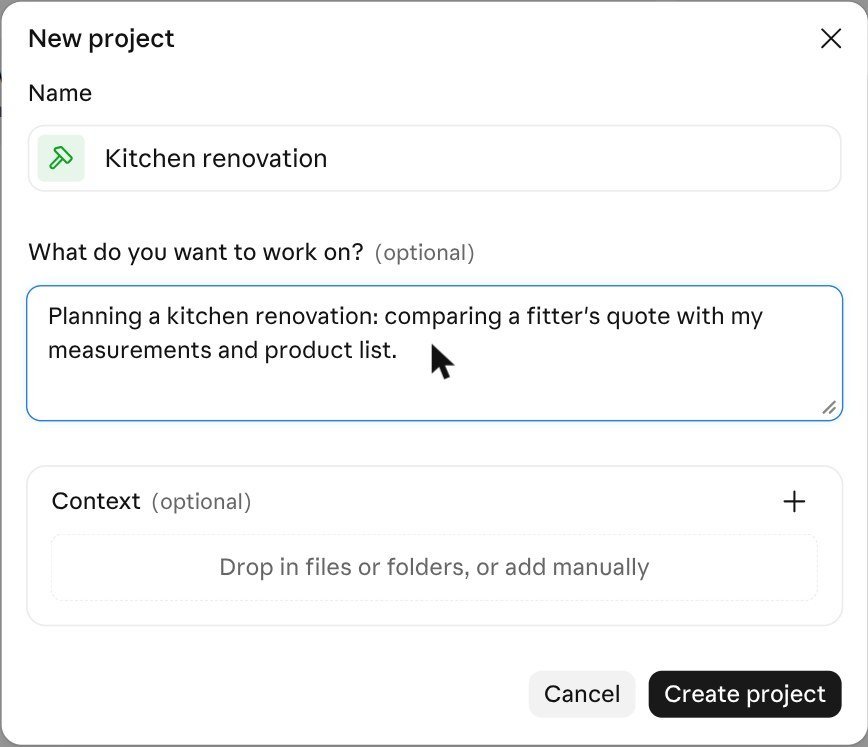
What we found: after we clicked Create project, the project opened at claude.ai/code with a welcome message: Claude offered to coordinate work “all at once”, take project instructions or set up scheduled tasks. A minute later it posted that it had read our recent sessions and found none about this project, then asked us to upload the quote, measurements and product list. If you keep unrelated or private work in Claude, be aware the coordinator looks at it to find context.
Step 2: Add your files to the Library
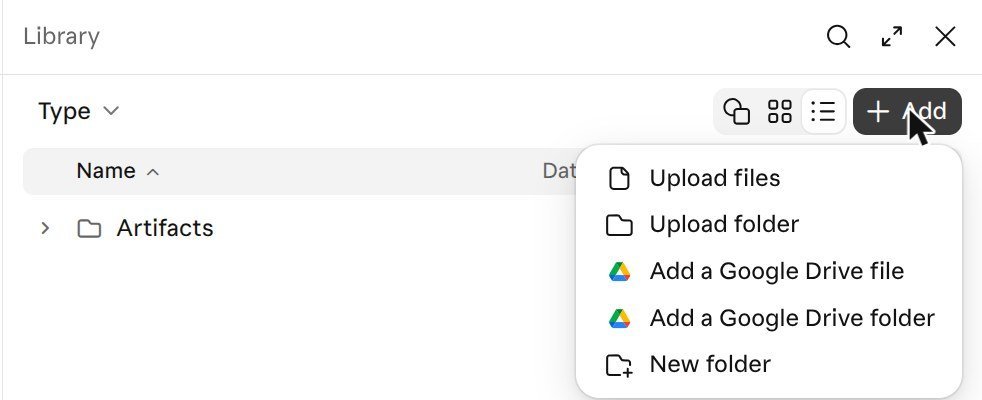
The Library is where a project keeps its files. Open it with the Library button at the top of the project, then click + Add. Our menu offered Upload files, Upload folder, Add a Google Drive file, Add a Google Drive folder and New folder.
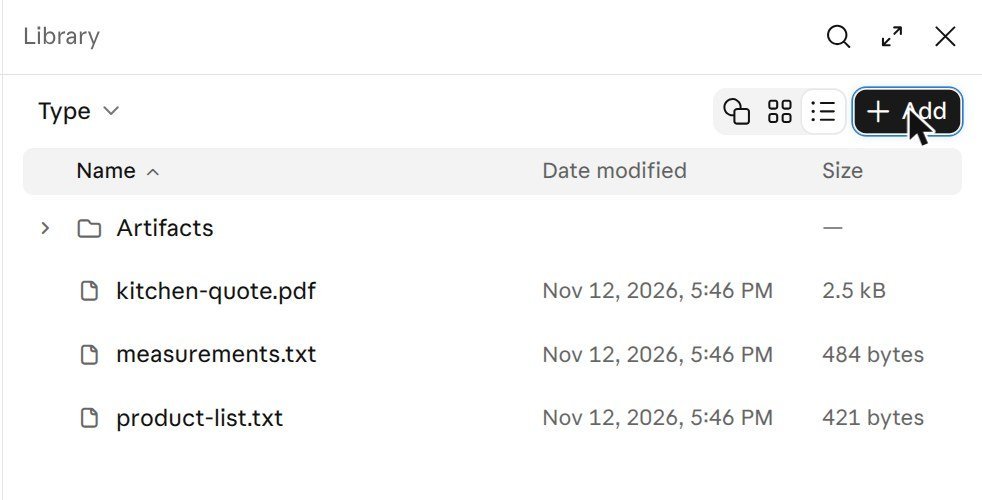
We uploaded three small files: kitchen-quote.pdf (a made-up quote with a total of £15,900), measurements.txt and product-list.txt. They appeared in the Library list with their date and size, next to an Artifacts folder where Claude saves files it creates.
What we found: the bottom of the Library showed a storage bar reading 3.4 kB of 10.7 GB used, so a Library can hold far more than a typical document set. That is file storage; how much Claude can read at once still depends on its context and retrieval.
Step 3: Set project instructions
Project instructions are the rules every conversation in the project follows: language, tone, units, role. The new version lets you set them by simply telling the coordinator. We sent:
Project instructions: You are helping me plan a kitchen renovation in the UK. Use British English and give costs in pounds.
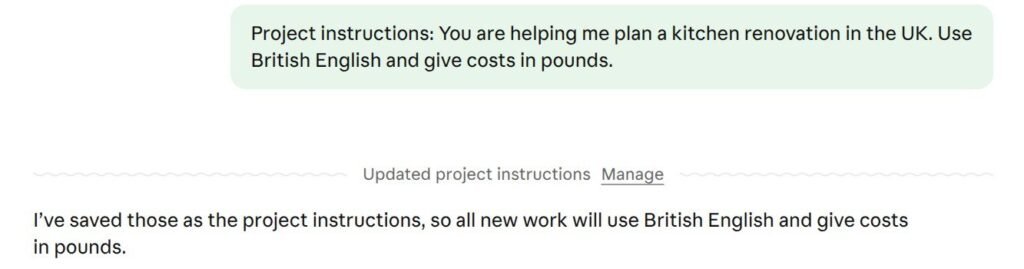
Claude saved them and showed an “Updated project instructions” card with a Manage link. Manage opens Project settings, which has tabs for General, Memory, Environment, Usage and Advanced.
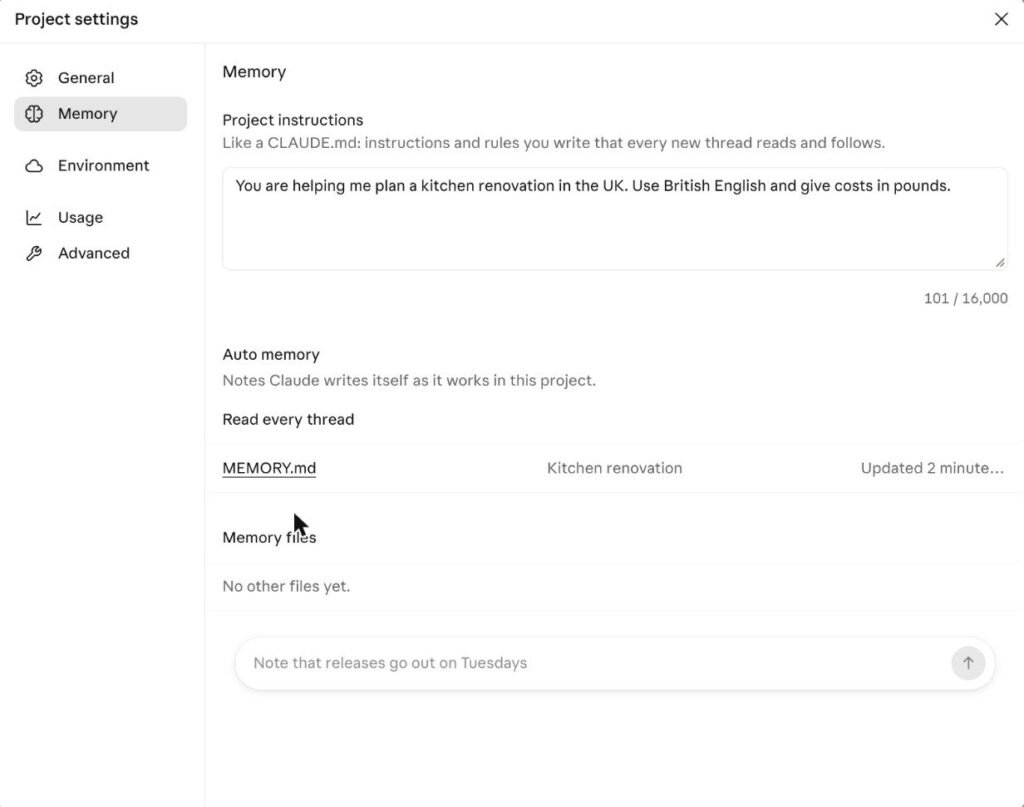
What we found: the Memory tab describes project instructions as “Like a CLAUDE.md: instructions and rules you write that every new thread reads and follows”, with a limit of 16,000 characters. Below it, Auto memory holds a MEMORY.md file of “Notes Claude writes itself as it works in this project”, which every thread reads. You can add to it by typing a note in the box at the bottom.
Step 4: Ask a question that needs your files
This is where you find out whether a project is worth using: ask something Claude can only answer by reading your files. We asked:
Based on the quote and my measurements, what's missing from the quote?
Claude replied that it was starting a thread called “Find gaps in the fitter’s quote”, noted that threads “run on their own”, and posted a short summary in the main chat about a minute later. The full answer sat in the thread.
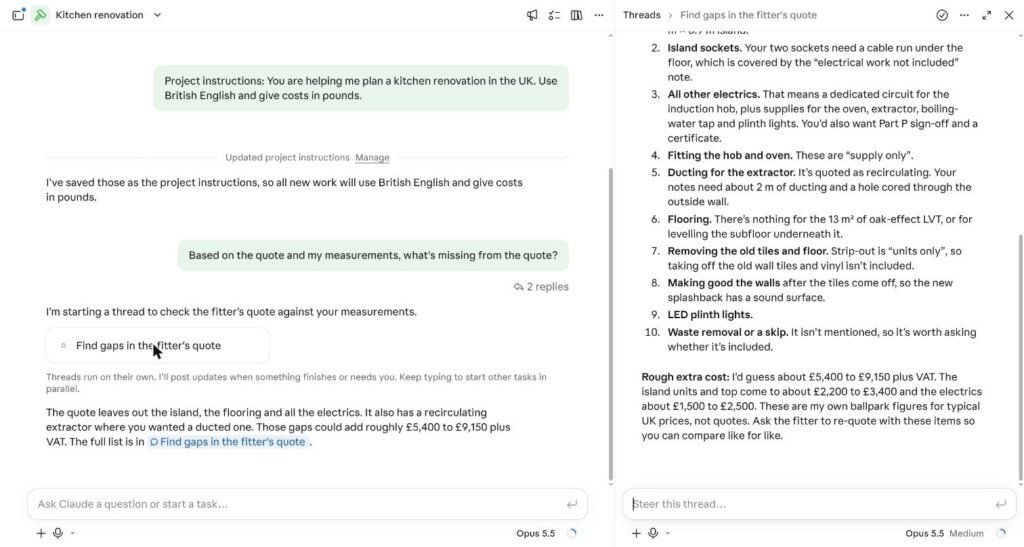
What we found: our test quote left out 10 things on purpose, and Claude found all of them: the whole island, the island sockets, the other electrics (with Part P sign-off), fitting for the “supply only” hob and oven, extractor ducting, flooring, removing the old tiles and vinyl, making good the walls, the LED plinth lights, and waste removal. It also checked the quote’s sums (£13,250 plus £2,650 VAT = £15,900) and confirmed the worktop length matched our measurements. It used pounds and British English, as instructed, and labelled its extra-cost range of £5,400 to £9,150 plus VAT as its own estimate rather than a fact.
Step 5: Check that the project remembers
The point of a project is that you don’t start from zero each time. To test it, we asked for a brand-new thread:
Start a new thread for this: Remind me what the quote total was.
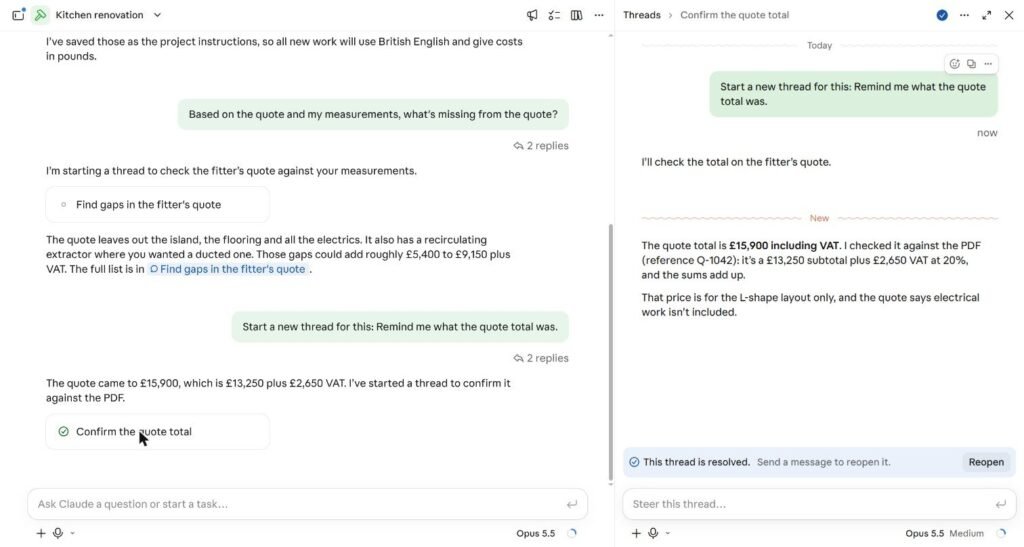
What we found: the coordinator answered straight away (£15,900, which is £13,250 plus £2,650 VAT) and started a thread called “Confirm the quote total”. That new thread went back to the PDF itself, quoted its reference number (Q-1042), confirmed the figure and marked itself resolved. We didn’t re-upload anything.
Step 6: Manage threads, usage and settings
Once a project has a few threads, the Threads panel lists them, and each one can be opened, steered with a follow-up message (“Steer this thread…”) or reopened after it’s resolved. The project menu next to the name has Rename, Send feedback, Archive and Delete.
Keep an eye on usage. Our project chat showed a usage indicator for the 5-hour limit, and Project settings has its own Usage tab. Because every thread is a separate Claude Code session, a request that spawns several threads uses more of your allowance than one ordinary chat.
How to use Claude Projects in the classic version
If your account still has classic Claude Projects, the same ideas apply with different buttons. Create the project from the Projects page, add files under the project’s knowledge section, write your custom instructions in the instructions box, then start chats inside the project. Each chat can read the project knowledge, but chats don’t share a memory with each other the way threads do in the new version.
On paid plans, Anthropic says classic projects switch to retrieval (RAG) automatically when your knowledge nears the context limit, so you can keep adding documents without hitting a wall.
What can you use Claude Projects for?
- Home and personal projects. A renovation, a house move or a wedding: keep quotes, measurements and lists in one place and ask Claude to compare them.
- Client work. One project per client, with their brief, brand guide and past deliverables, so every answer matches their style.
- Research. Upload papers or reports and ask Claude to compare them; the new version can split a large question into several threads.
- Writing a long document. Keep the outline, notes and style rules in the project and draft one section per thread.
- Code. The new version starts in Claude Code, where each thread can work on its own copy of a repository. Our guide to Claude AI for coding covers that side.
What to do if Claude Projects isn’t working
Most problems people hit while learning how to use Claude Projects come down to one of these five.
- You don’t see the new version. It is still rolling out. Pro and Max users can join Anthropic’s waitlist; Free, Team and Enterprise plans come later.
- Claude ignores your files. Name the files in your question (“based on the quote…”) and check they appear in the Library or knowledge list.
- Instructions aren’t followed. Open Project settings and check they were saved; new threads read them, old chats may not.
- You’re hitting usage limits. Ask for one thread at a time. Anthropic says you can also choose the model and effort level for the coordinator and its threads.
- A thread went off course. Open it and use “Steer this thread” rather than starting again.
Mistakes to avoid when you use Claude Projects
- Uploading files that conflict. Two versions of the same quote will confuse every answer. Remove the old one.
- Treating estimates as quotes. Claude labelled its cost ranges as ballpark figures, and so should you. Get real prices.
- Forgetting the coordinator reads your other work. In our test it looked through recent sessions before we had added anything.
- Writing vague instructions. “Be helpful” changes nothing; “Use British English and give costs in pounds” changes every answer.
- Starting new projects for the same job. Keep related work in one project so the memory builds up.
Choosing between assistants for document work? See our Claude vs ChatGPT vs Gemini comparison.
Key takeaways
- How to use Claude Projects in one line: create a project, add files to the Library, set instructions, then ask questions that need those files.
- The new version adds a coordinator, parallel threads and a shared memory; classic projects keep working until they are upgraded.
- In our test, Claude found all 10 gaps in a quote and a fresh thread recalled the total from the PDF.
- Threads use more of your usage allowance, and the coordinator may read your other recent sessions.
Frequently asked questions
Are Claude Projects free?
Yes. Projects are available on every plan, including Free, which allows up to five projects. Paid plans (Pro, Max, Team and Enterprise) remove that cap and add automatic retrieval (RAG) for larger knowledge bases. Sharing projects with colleagues needs a Team or Enterprise plan.
How do I use Claude Projects for the first time?
Go to claude.ai/projects, click New project, give it a name and a goal, then add your files and instructions. Ask a question that needs those files, such as “what’s missing from this quote?”, to check that Claude is reading them.
What is the difference between classic and new Claude Projects?
Classic projects are folders of chats that share files and instructions. The new version is one conversation with a coordinator that splits work into parallel threads, keeps files in a Library and builds a shared memory that every thread reads.
Do Claude Projects remember previous chats?
In the new version, yes: threads read the project instructions, the Library and an auto-written memory file. In our test, a brand-new thread found the quote total without us re-uploading anything. Classic projects share files and instructions, not chat history.
How much can I upload to a Claude project?
Our new-version Library showed 10.7 GB of storage. On paid classic plans, Anthropic says retrieval expands project knowledge capacity by up to 10 times once you near the context limit. Very large files may still need splitting.
Can I share a Claude project with my team?
Yes, on Team and Enterprise plans. You can share by email or with your whole organisation and give each person “Can view” or “Can edit” access. Owners can also switch sharing off for the organisation.
Sources: Anthropic, “Projects redesigned: from folder to conversation” (17 September 2026); Claude Help Center, “What are projects?” and “Retrieval augmented generation (RAG) for projects“. Hands-on results from our own test on Claude Pro, 12 November 2026.