To make a GIF in ChatGPT, open a normal chat, create or upload a still image, then ask: “Make a looping GIF of this.” Since OpenAI released Images 2.6 on 4 November 2026, ChatGPT turns that request into an animated GIF in the chat, which you can speed up or slow down, edit with a follow-up prompt, download or share. Images 2.6 also lets you save a photo as a named reference and reuse it by typing @ and its name instead of uploading the same picture again.
This guide walks through the four steps we tested on a paid ChatGPT Plus account, with screenshots of every screen, the prompts that worked, and the limits OpenAI doesn’t mention.
How we tested
We tested every step on a paid ChatGPT Plus account in the UK on 9 November 2026, using the web app. Results against OpenAI’s four launch claims:
- Details kept across edits: Pass. The fox, scarf and glasses stayed identical when the background changed.
- GIF creation with speed, edit and share controls: Pass. We got a 9-frame looping GIF with a 1x speed button, Edit, Download and Share.
- Animating a photographed sketch: Pass. Our stick figure waved and kept its hand-drawn style.
- Reusing a saved reference with @: Different. ChatGPT saved the photo, but said it could be used “in this conversation”, and the result kept the colours but changed the mug’s shape.
In this guide
How to make a GIF in ChatGPT: the quick version
If you only need the short answer, these five steps cover it. Each one is explained in detail below.
- Open a normal ChatGPT chat on the web, desktop or mobile app.
- Upload a photo with the + button, or describe the image you want and let ChatGPT create it.
- Send “Make a looping GIF of this” and describe one clear motion, such as waving or blinking.
- Open the finished GIF to change its speed, then download it or copy a share link.
- To reuse a picture later, ask ChatGPT to save it as a named reference, then type @ and the name in any new chat.
What’s new in ChatGPT Images 2.6?
Images 2.6 is an upgrade to ChatGPT’s built-in image generator, not a separate app. OpenAI announced three headline changes, and all of them work inside an ordinary ChatGPT conversation.
| Feature | What it does | How you use it |
|---|---|---|
| Animated GIFs | Turns a prompt or a still image into a short looping animation | Ask for “a looping GIF of…” in any chat |
| Saved references | Stores a photo of a person, pet, object or character for reuse | Ask ChatGPT to save it under a name, then type @Name later |
| More consistent edits | Keeps the subject the same when you change the background or style | Say which details to keep in your edit prompt |
OpenAI also launched two new developer models, GPT-Image-2.6 Flare and GPT-Image-2.6 Sunburst, which it says generate images 50% faster. That speed claim is made for the developer API; OpenAI has not published a figure for the ChatGPT app itself.
Who can make a GIF in ChatGPT?
Images 2.6 is available on every ChatGPT plan, including Free, on the web, the desktop app and the mobile apps. GIF creation was still rolling out after launch, so if your account returns a still image when you ask for a GIF, the feature probably hasn’t reached you yet. Free accounts have lower image limits; when you hit yours, ChatGPT may offer to generate the GIF later instead.
When we tested on 9 November 2026, GIF creation was already live on our ChatGPT Plus account. We asked for a GIF in a normal chat and got one, with no setting to switch on first.
Step 1: Create the image you want to animate
To make a GIF in ChatGPT, start with a strong still image, because the animation is built from it. You can upload a photo with the + button or generate one from a prompt. We used:
A cartoon fox wearing a red scarf and round glasses, sitting at a wooden desk with a laptop.
If you want a different setting, change it now, before animating. Images 2.6 is designed to keep your subject the same across edits, and it works best when you say exactly what to keep:
Change the background to a snowy forest. Keep the fox, scarf and glasses exactly the same.


What we found: Images 2.6 kept the fox, the red scarf and the round glasses identical, along with the fox mug, the books and the desk lamp. Only the setting changed, from a cosy study to a snowy forest. That is the consistency OpenAI promised, and it matters because the GIF is animated from whichever image you finish with.
Step 2: Turn the image into a looping GIF
This is where you actually make a GIF in ChatGPT. With the image in the chat, send:
Make a looping GIF of this fox waving.
There is no separate GIF button. ChatGPT recognises the request and shows a progress card while it renders, which can take a minute or more. The finished GIF plays in the chat and loops automatically.
For more control, describe the motion precisely in your prompt. Short, single actions animate best: waving, blinking, a tail swishing, steam rising from a mug. You can also ask for a specific number of frames or a smoother loop, for example Make a smooth 12-frame looping GIF of the fox waving, ending where it starts.

What we found: ChatGPT returned a 9-frame GIF with each frame shown for 0.13 seconds, so the wave loops roughly every 1.2 seconds. It looped continuously, and the fox, scarf and glasses stayed consistent across every frame.
Step 3: Adjust the speed, edit it, then download or share
Once you make a GIF in ChatGPT, click it to open the viewer. Along the bottom you get a play/pause button, a strip showing every frame, a speed button (set to 1x by default) and an Edit button. Changing the speed retimes the frames that already exist, so it won’t make choppy motion smoother. For smoother movement, ask for more frames instead.
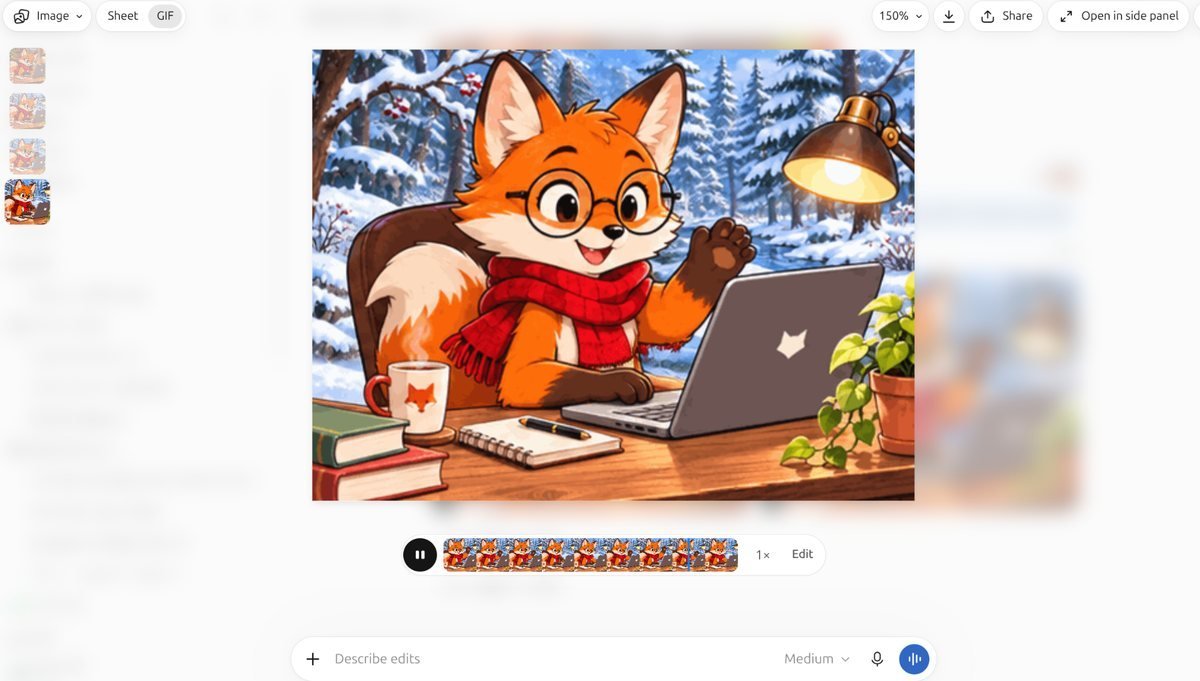
To change the animation, click Edit or type into the Describe edits box at the bottom of the viewer and say what you want. ChatGPT renders a new version, so frames you were happy with can change too. Keep earlier versions you like by downloading them first.
When you’re happy with it, you can:
- Download the GIF with the download button at the top of the viewer. The Image, Sheet and GIF tabs let you switch between the still picture, the frames laid out together, and the animation.
- Share it with the Share button at the top of the viewer, or the share icon on the GIF in the chat. OpenAI says you can also post directly to X, LinkedIn and Reddit.
What we found: The speed button showed 1x by default, and the top of the viewer had zoom, Download, Share and Open in side panel. In the chat itself, the GIF tile also had its own 1x speed button and a share icon, so you can adjust and share without opening the viewer.
Step 4: Save a reference image and reuse it with @
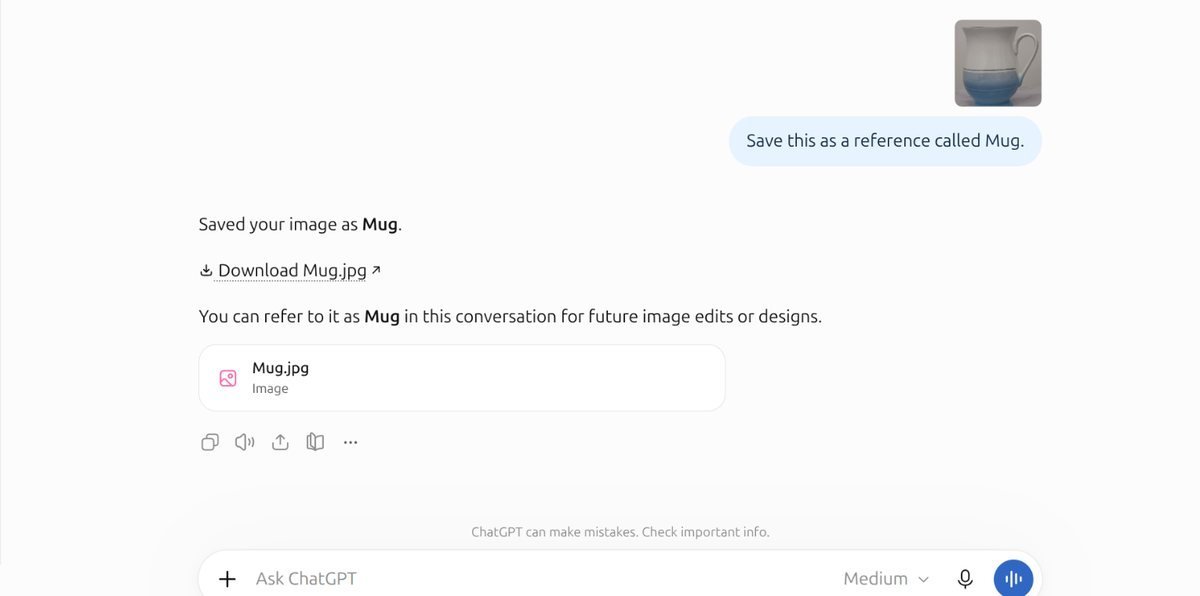
Saved references fix the most tedious part of AI images: re-uploading the same photo every time, which matters if you often make a GIF in ChatGPT of the same pet, product or character. Upload a clear photo of something you’ll reuse (we used a mug), then ask:
Save this as a reference called Mug.
Now open a brand-new chat and type @ followed by the name:
@Mug on a beach at sunset, watercolour style.
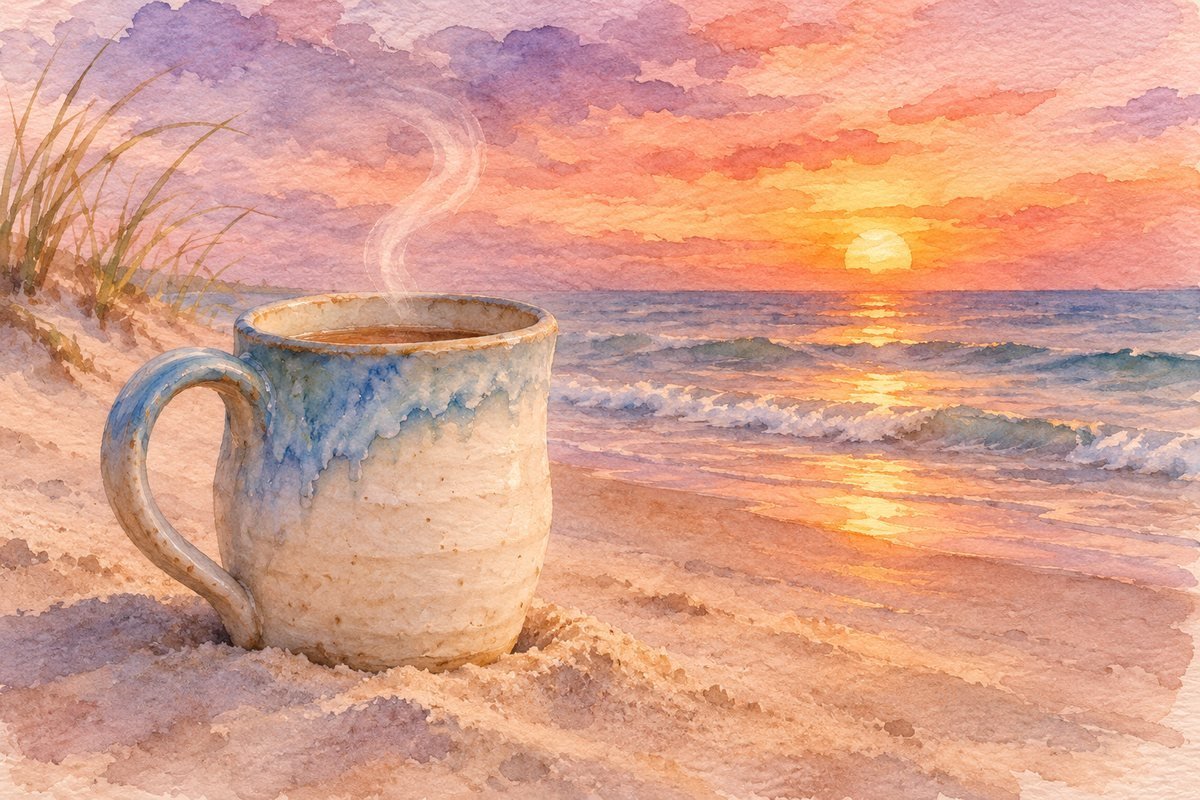
What we found: ChatGPT replied “Saved your image as Mug” with a download link, but said we could refer to it as Mug “in this conversation”. Our @Mug prompt produced a lovely watercolour beach scene with a blue-and-white mug, but it was a different shape from our real one, a tall jug-style cup with a gold rim. Treat saved references as a strong colour and style guide rather than an exact copy, and if you need the exact object, upload the photo again.
Saved references work for pets, products, characters and photos of yourself. Only save photos of people who have agreed to it.
Can ChatGPT animate a drawing or sketch?
Yes. You can make a GIF in ChatGPT from a hand drawing: draw a simple character on paper, photograph it, upload it and send:
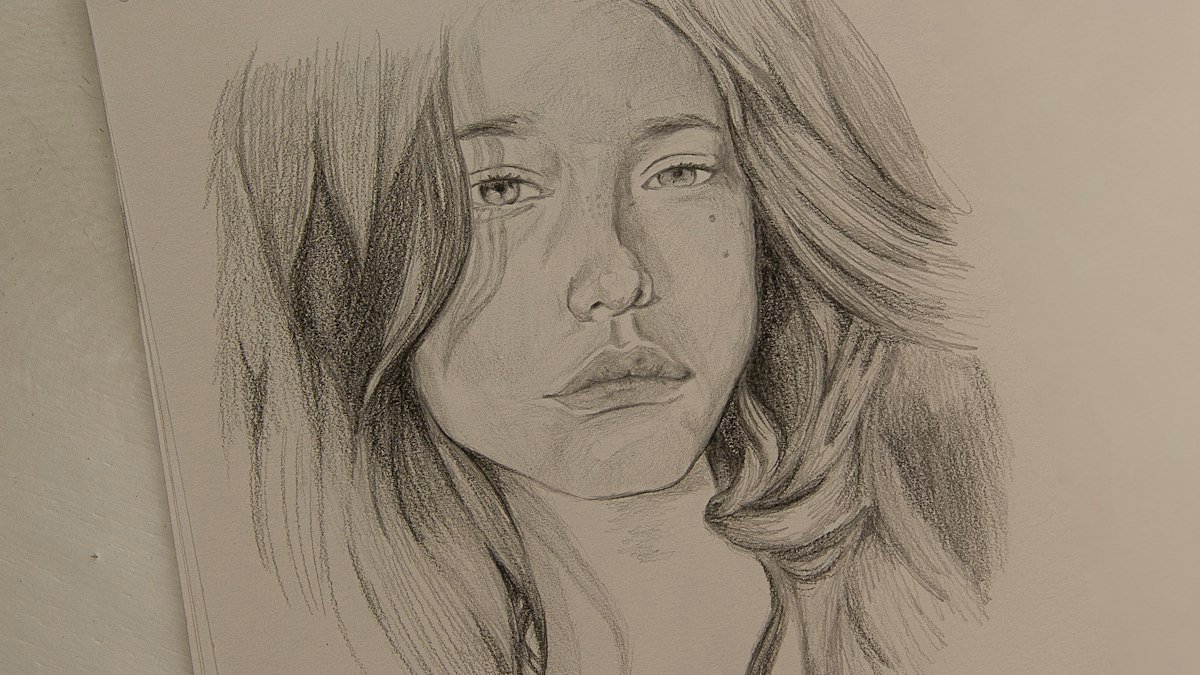
Make this character wave as a looping GIF.
ChatGPT keeps the look of your drawing and adds the motion, which makes this a quick way to bring a child’s drawing or a rough logo idea to life.
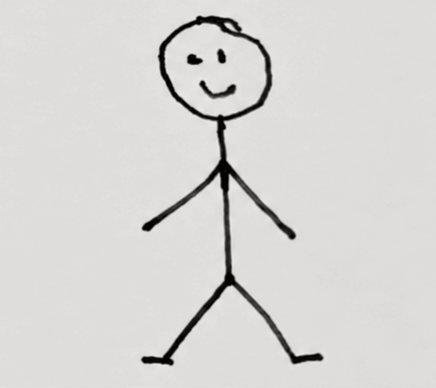
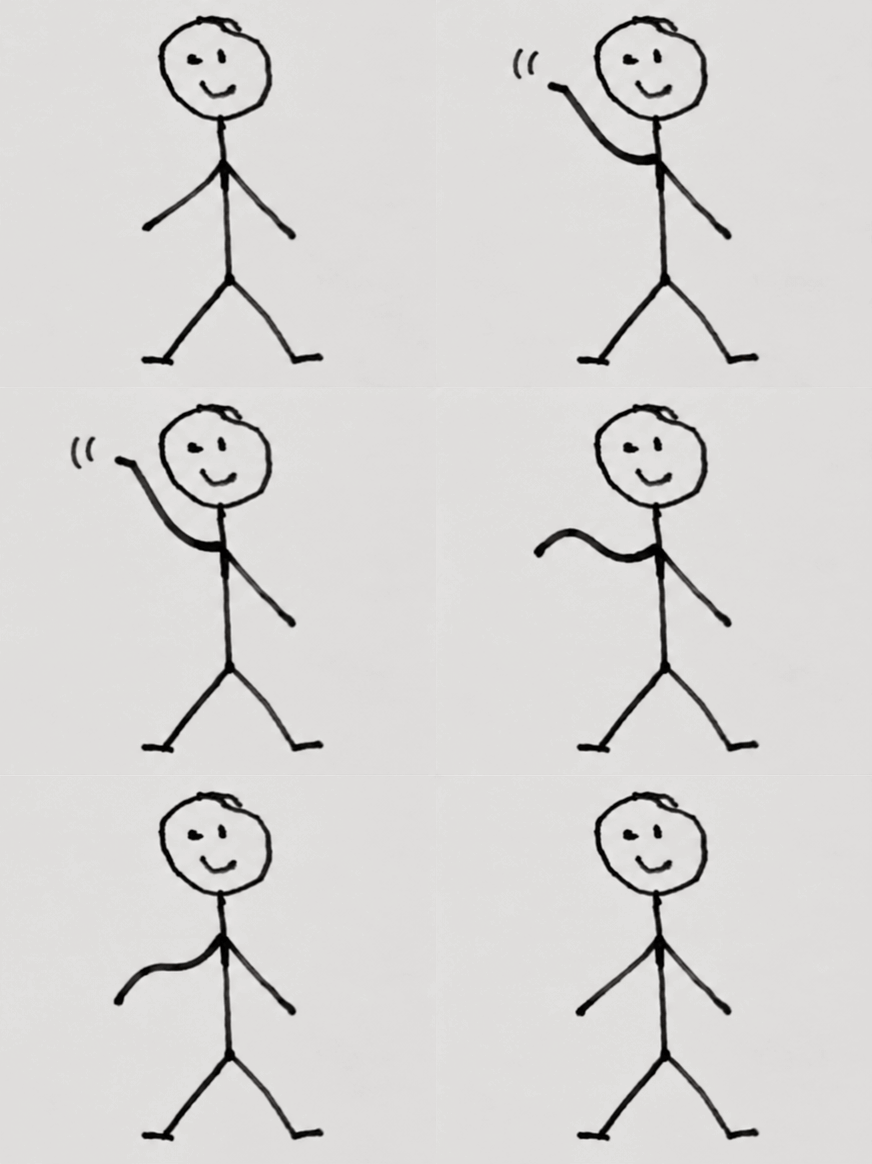
What we found: ChatGPT turned our wobbly stick figure into a 9-frame looping GIF in which it raises its arm and waves, even adding little motion lines. It kept the black-pen, hand-drawn look instead of redrawing the character in a new style, which is what makes this useful for children’s drawings and rough sketches.
What can you use a GIF you make in ChatGPT for?
Once you can make a GIF in ChatGPT in a minute or two, short animations become practical for everyday work, not just for fun. A few uses that suit the short loops ChatGPT produces:
- Social posts. A moving image stands out in a feed more than a still one. ChatGPT can post straight to X, LinkedIn or Reddit, or you can download the file and upload it anywhere else.
- Slides and presentations. A small looping GIF of a product, a logo or a character adds movement to a slide without needing a video player. Most presentation apps, including PowerPoint, Google Slides and Keynote, play GIFs automatically.
- Team chat. Custom reaction GIFs of your team mascot or your own product work well in Slack, Microsoft Teams or WhatsApp.
- Product demos. Save a product photo as a reference once, then ask for it rotating, opening or being used. Keep the motion simple so the product stays recognisable.
- Email newsletters. Animated GIFs play in most email apps, but some desktop versions of Outlook show only the first frame. Make sure the first frame works on its own.
Whatever you use it for, keep the file small: fewer frames and a shorter loop load faster, especially on mobile.
Prompts that help you make a GIF in ChatGPT
| Goal | Prompt to try |
|---|---|
| Simple loop | Make a looping GIF of this [subject] [one action]. |
| Smoother motion | Make a smooth 16-frame looping GIF that ends exactly where it starts. |
| Reaction GIF | Turn this photo into a reaction GIF: a slow nod with raised eyebrows. |
| Product loop | Animate @[Reference] slowly rotating on a plain white background. |
| Sketch to animation | Keep the drawing style exactly, and make this character jump once and land. |
Mistakes to avoid when you make a GIF in ChatGPT
- Asking for too much motion. Long sequences or several actions at once come out jerky. One clear action per GIF works best.
- Expecting speed to fix choppiness. Speed only retimes existing frames. Ask for more frames instead.
- Editing and losing your settings. Every edit regenerates the GIF, so frames can shift and the speed can reset.
- Uploading an existing GIF to edit. ChatGPT animates still images; it isn’t a GIF editor for animations you already have.
- Assuming it’s private. Shared links are public. On Free, Go, Plus and Pro, chats may be used to train OpenAI’s models unless you turn that off in Settings, Data controls.
If you mostly use ChatGPT for writing rather than images, our guide to using ChatGPT for professional emails covers the same “be specific about what to keep” approach for text. And if you’re deciding between assistants, our Claude vs ChatGPT vs Gemini comparison looks at how each handles long documents.
What to do if ChatGPT won’t make a GIF
If ChatGPT replies with a still image, an error, or a message saying it can’t animate, work through these checks in order:

- Ask for a GIF explicitly. Use the words “looping GIF” or “animated GIF” in your prompt. A request like “make it move” can return a still image.
- Start a fresh chat. Long conversations with many images can confuse the request. A new chat with one image and one clear instruction is the most reliable.
- Update the app or use the web. GIF creation arrived with Images 2.6 on 4 November 2026, so an out-of-date mobile app may not support it. chatgpt.com in a browser always runs the latest version.
- Check your limits. Free accounts have lower image limits. If you have hit yours, ChatGPT may offer to generate the GIF later.
- Wait for the rollout. OpenAI released GIF creation gradually, so some accounts got it later than others. If none of the steps above work, try again in a day or two.
If you still can’t make a GIF in ChatGPT after all five checks, the feature has most likely not reached your account yet.
Key takeaways
- You can make a GIF in ChatGPT on any plan, including Free, by asking for “a looping GIF” of an image in a normal chat.
- One clear action per GIF gives the smoothest result. Ask for more frames, not a slower speed, if the motion looks choppy.
- Saved references let you reuse the same photo in any chat with @Name, so you never re-upload it.
- Every edit regenerates the whole GIF, so make your still image right before you make a GIF in ChatGPT.
Frequently asked questions
Is ChatGPT GIF creation free?
Yes. Images 2.6, including GIF creation, is available on the Free plan as well as Go, Plus and Pro. Free accounts have lower image limits, and GIF creation was still rolling out to some accounts after the 4 November 2026 launch.
How do I make a GIF in ChatGPT?
Generate or upload a still image in a normal chat, then ask “Make a looping GIF of this” and describe the motion. ChatGPT renders the animation in the chat, where you can change its speed, download it or share it.
How do saved reference images work in ChatGPT?
Upload a photo and ask ChatGPT to save it as a reference with a name. Then type @ followed by that name in a prompt. In our test ChatGPT said the reference worked “in this conversation”, and the result matched the colours but not the exact shape, so re-upload the photo when precision matters.
Can I change the speed of a ChatGPT GIF?
Yes. Open the GIF and click the speed button, which shows 1x by default. Speed retimes the existing frames, so for smoother motion ask for more frames rather than a slower speed.
Why did ChatGPT give me a still image instead of a GIF?
GIF creation rolled out gradually, so your account may not have it yet. Make sure you’re asking for “a looping GIF” in a normal chat, and try again later if you still get a still image.
Can I make a GIF in ChatGPT on my phone?
Yes. Images 2.6 works in the ChatGPT apps for iPhone and Android as well as on the web and desktop. Upload a photo from your camera roll or describe an image, then ask for a looping GIF exactly as you would on a computer. Downloading saves the GIF to your phone so you can send it in any messaging app.
How long does it take to make a GIF in ChatGPT?
Expect to wait longer than for a still image. Rendering a GIF can take a minute or more, and complex motion or a high frame count takes longer. Simple, single-action loops are the quickest, so start with those and add detail once you are happy with the motion.
Are GIFs made in ChatGPT free to use?
You can use images you create with ChatGPT, including GIFs, for personal and commercial projects under OpenAI’s terms of use. Avoid creating GIFs of real people without their permission, and check the platform rules wherever you post them.
Sources: OpenAI’s Images 2.6 announcement (4 November 2026), as reported by TechRadar and DataNorth; OpenAI Help Center, Images in ChatGPT. Hands-on results from our own test on ChatGPT Plus.