
Claude AI for coding is one of the most effective ways to speed up development today. Claude is among the most capable AI coding assistants, with a context window of up to 1 million tokens on current models, enough to work with large parts of a codebase at once. If you’re a developer, technical founder, or engineer, Claude can significantly speed up your workflow, from generating production code to debugging complex systems to refactoring legacy applications. This guide walks you through everything you need to know to use Claude effectively for coding work, based on hands-on testing against the current release.
In this article
How we tested
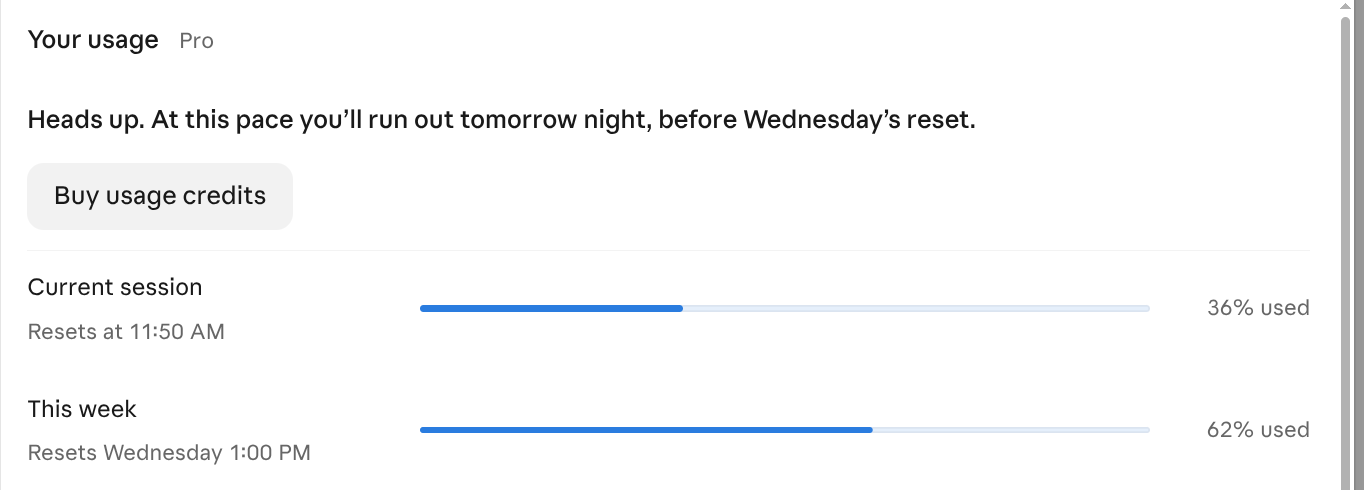
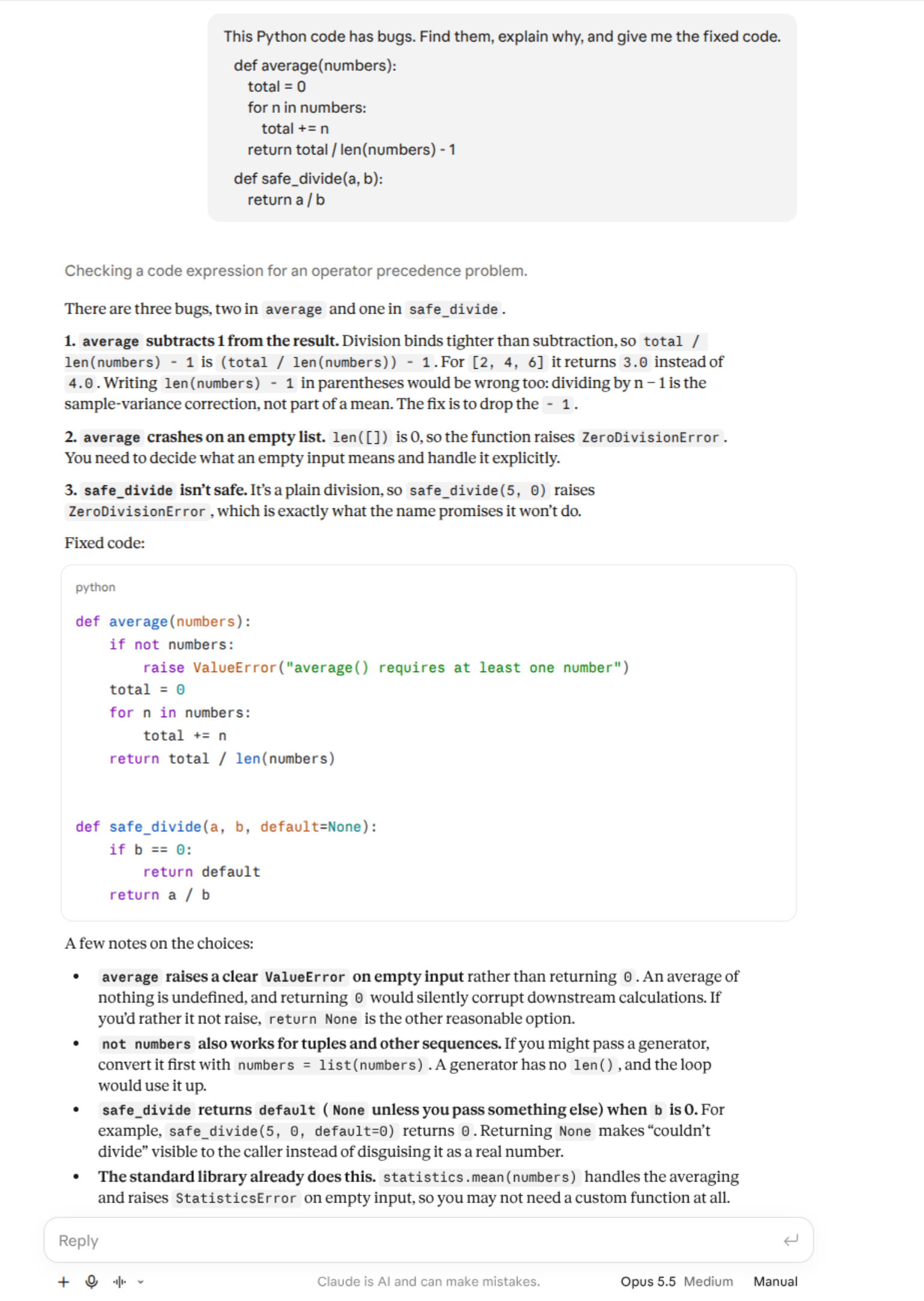
We put Claude AI for coding through a hands-on test on a paid Claude Pro plan on 7 November 2026, using a small, deliberately buggy calculator.py file.
- Claude app: we pasted in an
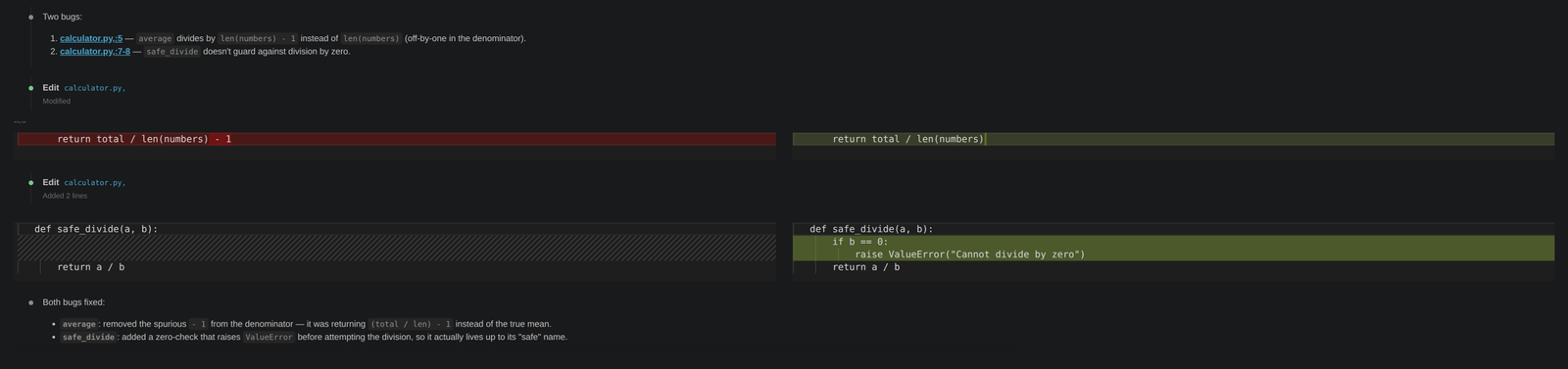
averagefunction that subtracted 1 from its result and asafe_dividefunction with no zero check. Claude found both bugs, also flagged thataveragecrashes on an empty list, and returned fixed code. - Claude Code in VS Code: the extension found and fixed both bugs in
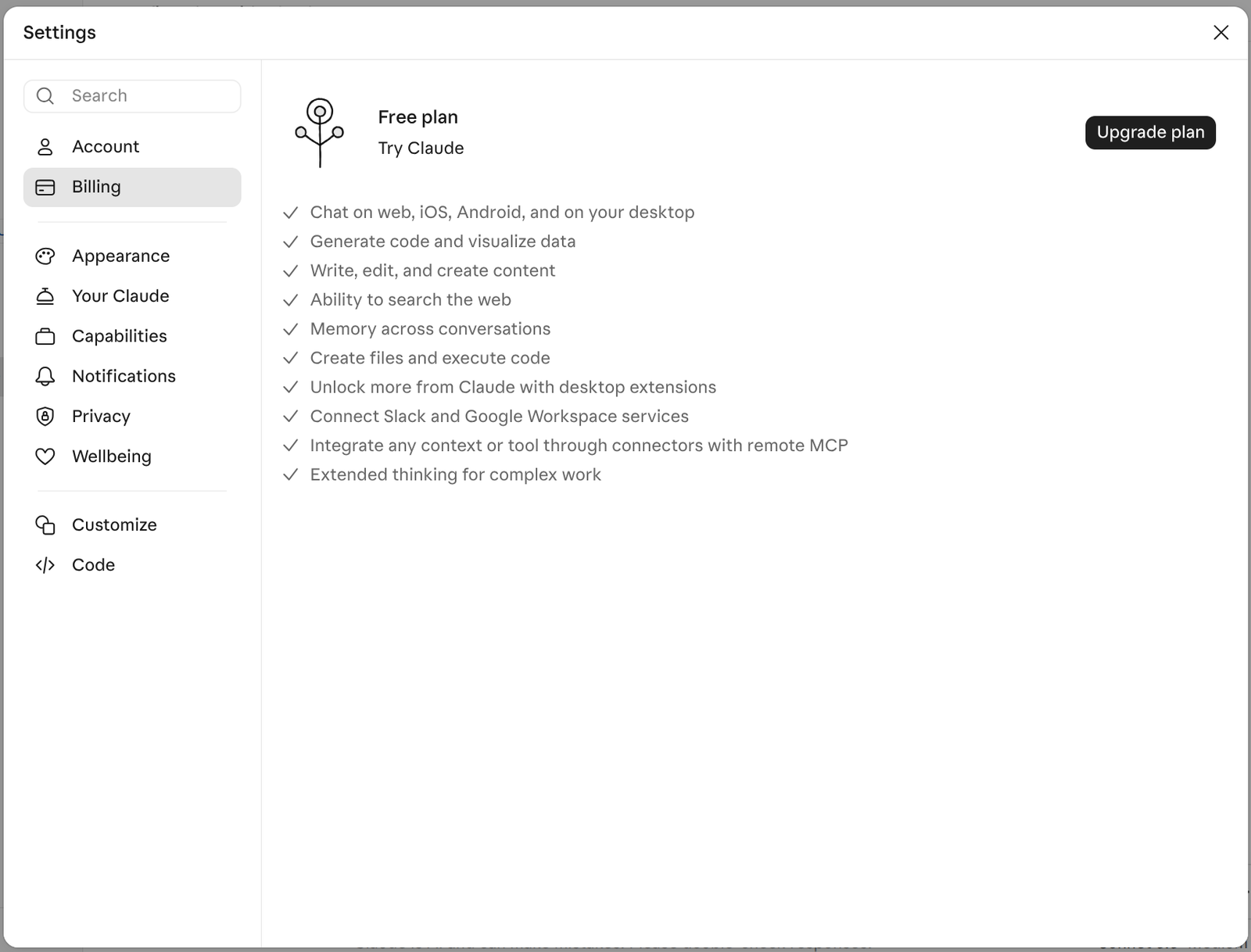
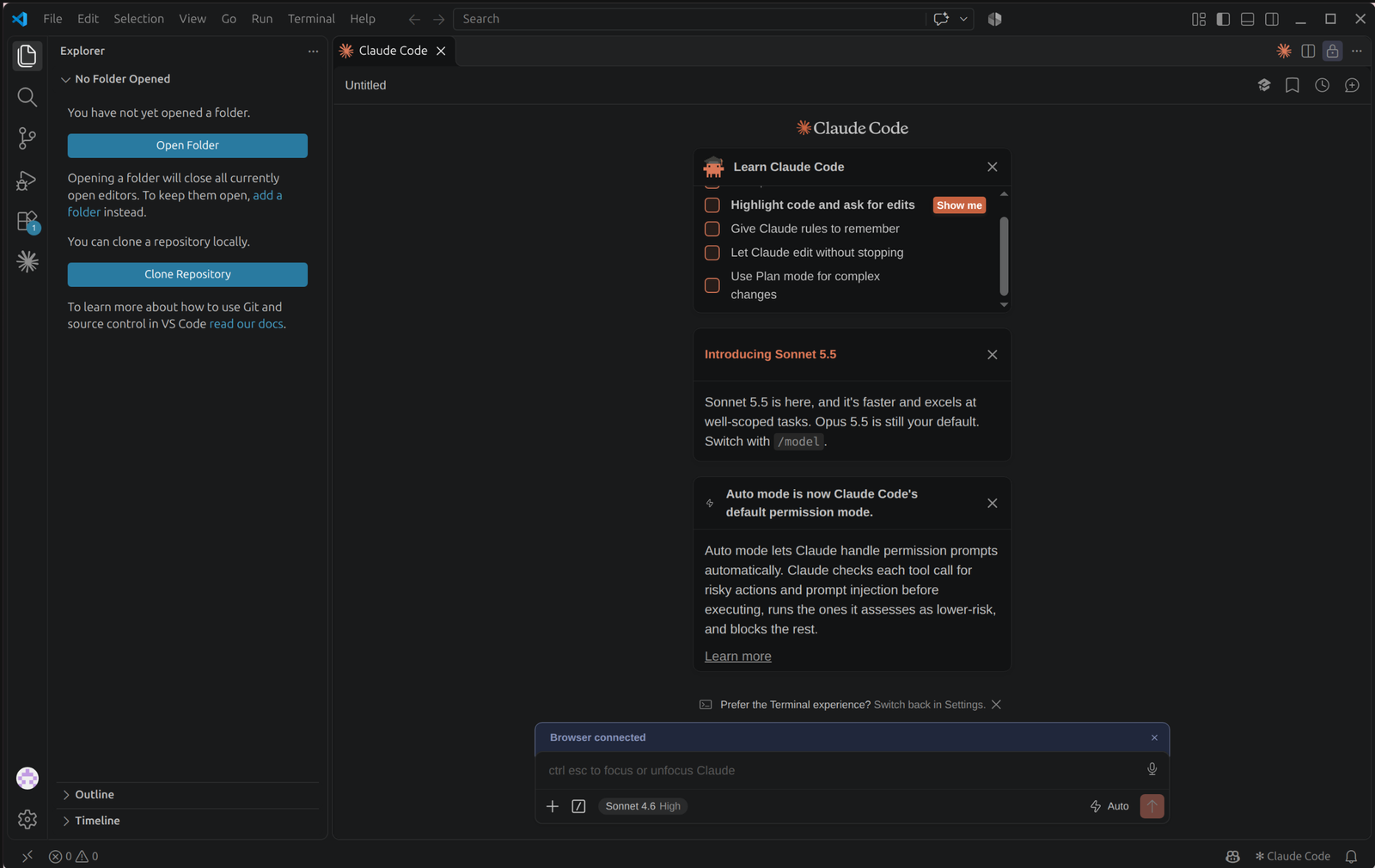
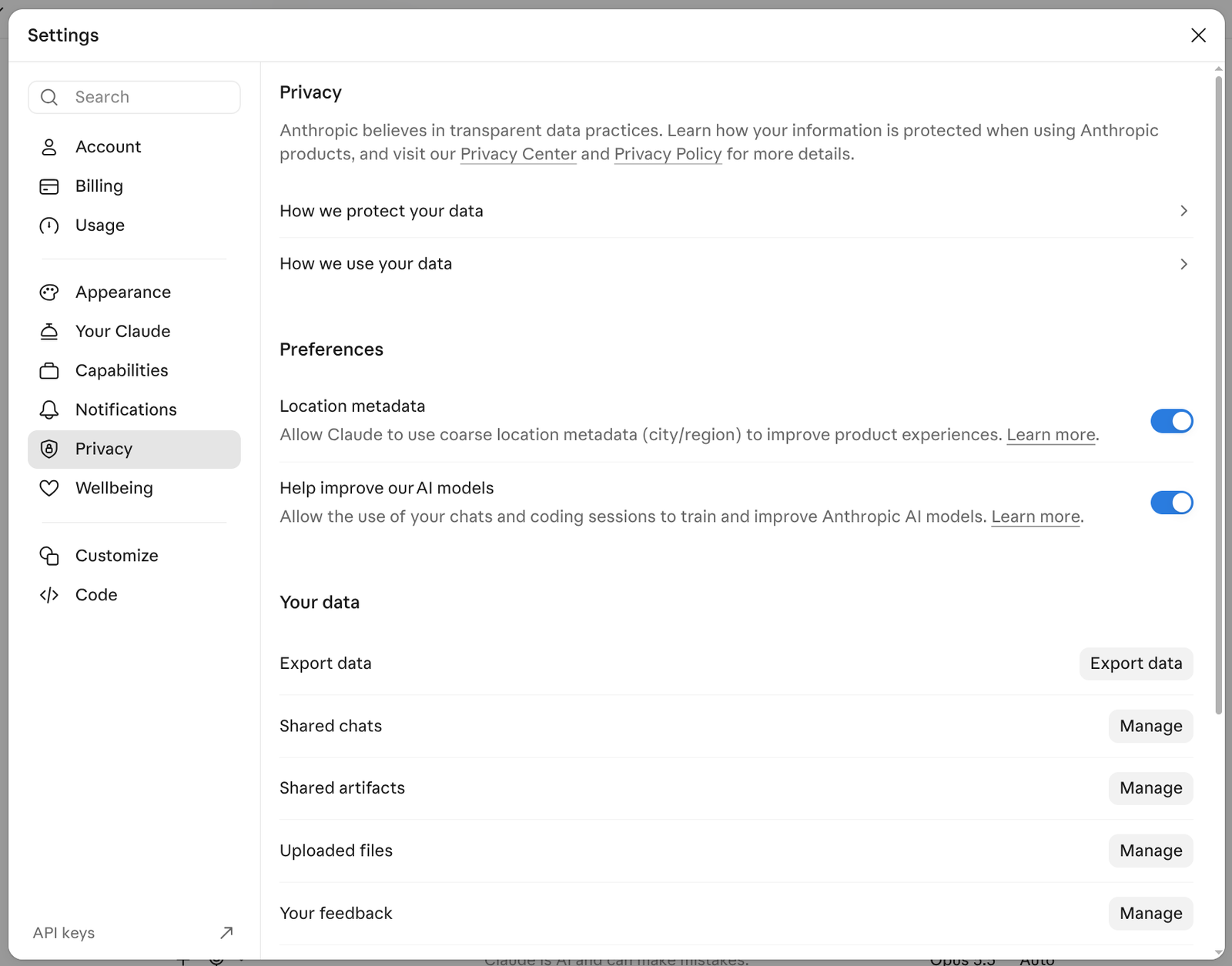
calculator.py, showing each edit as a diff. - Same day: we also checked the Free plan feature list, the privacy settings, and the Claude Code defaults (Auto mode and Opus 5.5) shown in the screenshots below.
What is Claude AI for coding?
Claude is an AI assistant built by Anthropic that excels at understanding and generating code. Unlike general-purpose AI tools, Claude is specifically trained to handle technical conversations with deep context and nuance. It can read your entire codebase, understand the architecture, spot bugs, suggest refactoring, and generate new code that fits your patterns and conventions.
For developers, the practical advantage is this: you can paste a 100KB codebase into Claude and ask it contextual questions. It remembers the entire context of your project while analyzing your code. This makes it genuinely useful for real development work, not just beginner tutorials.

Why Claude’s 1M-token context window matters
Claude’s large context window is one of its biggest advantages for coding: current Claude models support up to 1 million tokens. To put that in perspective:
- Claude: up to 1,000,000 tokens on current models (Opus 5.5, Sonnet 5.5 and Haiku 5.5).
- ChatGPT: varies by plan and model; OpenAI publishes different limits for its instant and reasoning models.
- GitHub Copilot: depends on the underlying model you select in Copilot; check GitHub’s documentation for current limits.
What does 1 million tokens mean in real terms? Roughly 750,000 words. That’s enough to include:
- Your entire codebase (for most projects)
- Full documentation
- Test files and examples
- Multiple related files at once
- Conversation history and iterations
This matters because you can ask Claude contextual questions like “Why is this module failing? Here’s my entire codebase.” Claude reads everything, understands the architecture, and gives specific answers, not generic advice.
Example: paste a mid-sized React codebase and ask, “Where would you add error boundary handling?” Because Claude can see the whole component tree at once, it can point to specific components and suggest patterns that match your existing code style, rather than giving generic advice.
What Claude can do (and what it can’t)
| Task | Claude Capability | Notes |
|---|---|---|
| Generate code from scratch | Excellent | Produces clean, documented code. Best with clear requirements. |
| Debug existing code | Excellent | Identifies bugs and explains root causes. Needs full error context. |
| Refactor code | Excellent | Improves readability, performance, and maintainability. Respects your patterns. |
| Write tests | Very good | Generates comprehensive unit and integration tests. May need refinement. |
| Explain code | Excellent | Breaks down complex logic clearly. Good for onboarding teams. |
| Optimize performance | Good | Suggests improvements. May not catch all edge cases in production systems. |
| SQL/database design | Very good | Generates solid queries. Test on sample data before production use. |
| API integration | Excellent | Reads docs and generates working integration code. Handles complex APIs well. |
| Live code execution | Yes, in chat and in Claude Code | Claude can create files and execute code right in the chat, even on the Free plan. Claude Code also runs commands and tests in your own project. |
| Real-time debugging | Good | Claude Code can run your program or tests and read the output. In chat, Claude can run code in its own sandbox, but you paste in errors and logs from your environment. |
How to get started with Claude
You have three ways to use Claude AI for coding:
Option 1: Claude.ai Web Interface (Easiest)
Cost: Free plan available with usage limits. Claude Pro costs $20/month (or $17/month billed annually) for higher limits and access to Claude Code.
Steps:
- Go to Claude.ai
- Sign up with your email
- Start a new conversation
- Paste your code and ask questions
Best for: Quick questions, debugging, learning. Good for testing before committing to Claude Pro.
Option 2: Claude API (Most Flexible)
Cost: Pay-as-you-go, billed per token. No subscription required. Rates vary by model, so check Anthropic’s API pricing page for current prices.
Setup:
- Go to console.anthropic.com
- Sign up and add a payment method
- Create an API key
- Use the official SDK (Python, JavaScript, etc.)
Code example:
import anthropic

client = anthropic.Anthropic(api_key="your-api-key")

message = client.messages.create(
  model="claude-sonnet-5-5",
  max_tokens=2048,
  messages=[
    {"role": "user", "content": "Debug this Python code: [your code here]"}
  ]
)

print(message.content[0].text)
Best for: Integration into your development workflow, automation, and high-volume usage.
Option 3: Claude Code (Recommended for Developers)
Cost: Included with Claude Pro and higher plans, or usable with an Anthropic Console (API) account.
Installation:
- Install Claude Code in your terminal using the official instructions at code.claude.com
- Or, in VS Code, open Extensions (Ctrl+Shift+X) and search for “Claude Code”
- JetBrains users can install the Claude Code plugin from the JetBrains Marketplace
- Sign in with your Claude account (or Console account) on first use
Usage: Claude Code reads your codebase, edits files, runs commands such as your test suite, and can create commits and pull requests. In VS Code it shows each edit as a diff. In the default Auto mode those edits are applied straight away, so review the diffs before you commit, or switch to Manual mode (see below) to approve each change first.
Best for: Daily development. Never context-switch out of your editor.
Auto mode is now the default: Claude Code starts in Auto mode in both the terminal and VS Code. In Auto mode it applies file edits and runs commands it judges low-risk without asking you first, while a separate safety classifier reviews each action and blocks risky ones such as force pushes or production deploys. That makes Claude AI for coding much faster day to day, but it also means changes land in your files before you have looked at them.
How to review each change instead: switch to Manual mode. In VS Code, click the mode indicator at the bottom of the prompt box and choose Manual; to make that the default for new conversations, set claudeCode.initialPermissionMode to "default" in your VS Code user settings. In the terminal, press Shift+Tab to cycle modes, start a session with claude --permission-mode default, or add "defaultMode": "default" under permissions in ~/.claude/settings.json. Claude then asks before editing files or running commands. Details are in the official permission modes guide.
Default model: Claude Code uses Opus 5.5 by default on paid Claude plans. Sonnet 5.5 is also available; it is faster and well suited to well-scoped tasks. Type /model in Claude Code to switch, or /model sonnet to jump straight to it. See the model configuration docs for the full list of options.
Integrating Claude into your workflow
The most effective developers don’t use Claude for entire projects. They use it for specific, high-value tasks:
Workflow 1: Code Generation with Context
When: Starting a new feature or module.
How:
- Paste your project structure and existing code patterns
- Describe what you want to build
- Claude generates code that matches your style
- You review, test, and refine
Workflow 2: Debugging with Full Context
When: You hit a bug you can’t solve quickly.
How:
- Copy the error message
- Paste the relevant code files (Claude’s large context window handles this), or let Claude Code read them from your project
- Ask “Why is this happening?”
- Claude identifies the root cause and suggests fixes
Workflow 3: Code Review and Refactoring
When: You want to improve code quality before merging.
How:
- Paste a function or module
- Ask “How can I improve this? Consider: performance, readability, edge cases”
- Claude suggests specific improvements
- You implement changes and test
Common mistakes when using Claude AI for coding
Most disappointing results with Claude AI for coding come from a handful of avoidable habits rather than from limits of the model itself. If your output feels generic or wrong, check whether one of these is the cause.
1. Asking without context
A request like “fix this function” with no surrounding code forces Claude to guess at your types, dependencies, and conventions. Paste the relevant files, the exact error message, and one sentence about what the code is supposed to do. The context window is large precisely so you can do this.
2. Accepting the first answer
The first response is a draft. Ask follow-up questions, request an alternative approach, or ask Claude to explain the trade-offs between two options. Iterating two or three times usually produces noticeably cleaner code than a single prompt.
3. Skipping tests
Generated code can look correct and still fail on edge cases. Ask Claude to write unit tests alongside the implementation, then run them yourself. Treat any code you have not executed as unverified.
4. Sharing secrets
Never paste API keys, passwords, customer data, or production credentials into a prompt. Replace them with placeholders before you share code, and check your organization’s policy on what source code may be sent to any external AI service.
5. Using it for everything
Claude AI for coding pays off most on tasks that need reasoning across many files: debugging, refactoring, code review, and explaining unfamiliar code. For one-line autocomplete while you type, an inline editor tool is often faster.
Prompting strategies that work for coding
Claude responds best to specific, contextual prompts. Here’s what works:
Good Prompt (Specific)
“I have a Python function that’s supposed to parse a CSV file and return a list of dictionaries. It’s failing on large files. Here’s the code: [code]. The error is: [error]. What’s the problem and how do I fix it?”
Bad Prompt (Vague)
“How do I parse CSV files in Python?”
Prompt Template for Debugging
I'm working on [project description].
I'm trying to [what you're trying to do].
Here's my code: [paste code]
The error is: [paste error message]
What's going wrong and how do I fix it?
Prompt Template for Code Generation
I'm building [project description].
Here's my existing code structure: [paste relevant files]
I need to [describe the feature or function needed].
Please generate [type] that:
- Matches my existing code style
- Includes error handling for [specific cases]
- Works with [specific libraries/frameworks]
Prompt Template for Refactoring
Here's a function I want to improve: [paste code]
Please refactor it to:
- Make it more [readable/performant/maintainable]
- Handle edge cases like [specific scenarios]
- Keep the same input/output behavior
Explain what changed and why.
Claude vs ChatGPT vs GitHub Copilot: Which should you use?

| Criteria | Claude | ChatGPT | GitHub Copilot |
|---|---|---|---|
| Context window | Up to 1M tokens (current models) | Varies by plan and model | Depends on the model you select |
| Code quality | Excellent | Excellent | Very good |
| Best at | Understanding large codebases, debugging, refactoring | General coding help, learning | Real-time autocomplete in editor |
| Speed | Fast enough for daily use | Fast | Real-time inline suggestions |
| Cost | Free plan; Pro $20/month; or pay-as-you-go API | Free plan; Plus $20/month | Free plan; Pro $10/month |
| IDE integration | Claude Code for VS Code and JetBrains, plus terminal | Codex extension for VS Code | Built into VS Code; also JetBrains and other IDEs |
The verdict: Use Claude for understanding large codebases and debugging. Use ChatGPT for general coding help. Use GitHub Copilot for real-time autocomplete. Many developers use all three in different contexts.
Best practices for production use
1. Always Review Generated Code
Claude can generate code faster than a human, but always review it before using it in production. Check for:
- Error handling and edge cases
- Performance implications
- Security vulnerabilities
- Compatibility with your dependencies
2. Test Before Deploying
Write tests for any Claude-generated code. Claude can also help write tests, but human verification is essential.
3. Provide Full Context
The more context you give Claude, the better the output. Include:
- Project structure
- Relevant dependencies and versions
- Error messages and logs
- Code style and conventions
4. Use for High-Value Tasks
Don’t use Claude for every small task. Focus on:
- Complex debugging that’s taking hours
- Refactoring large code sections
- Understanding unfamiliar codebases
- Writing comprehensive tests
5. Iterate and Refine
Claude works best in conversation. Ask follow-up questions, request improvements, and refine the output together. Don’t just accept the first response.
Pricing and access options

Claude.ai Web (Easiest)
- Free plan: access to Claude with usage limits. Good for testing.
- Claude Pro: $20/month ($17/month billed annually). Higher usage limits and Claude Code included.
- Claude Max: from $100/month for heavy daily use.
Claude API (Most Flexible)
- Pay-as-you-go: billed per million tokens, with different rates for each model. No subscription.
- Rule of thumb: 1 million tokens is roughly 750,000 words.
- Check Anthropic’s API pricing page for current per-model rates before estimating costs.
Recommendation
Start with Claude Pro ($20/month) if you’re using it daily. Switch to the API if you integrate Claude into tools or scripts. The API is cheaper if you use Claude for specific tasks only.
Real-world use cases for Claude AI for coding
Here is where developers typically get the most value from Claude AI for coding in day-to-day work.
- Onboarding to a new codebase: paste the main modules and ask Claude to explain the architecture, the data flow, and where a given feature lives.
- Legacy refactoring: ask for a step-by-step plan to modernise old code, then apply it one module at a time with tests in between.
- Writing tests: give Claude a function and ask for unit tests that cover normal input, edge cases, and failure paths.
- Code review: paste a diff and ask Claude to look for bugs, security issues, and readability problems before a human reviewer sees it.
- Documentation: generate docstrings, README sections, and API usage examples from the actual source code rather than from memory.
- Learning a new language or framework: ask Claude to translate a pattern you already know into the language you are learning, with an explanation of the differences.
In each case the pattern is the same: give Claude the real code, ask a specific question, and verify the result before it ships.
Frequently asked questions
Is Claude better than ChatGPT for coding?
Claude’s larger context window (up to 1M tokens on current models) makes it better for understanding entire codebases and debugging. ChatGPT is more accessible and good for general coding help. For production code understanding and refactoring, Claude wins.
Can Claude write production-ready code?
Yes, but always review and test. Claude generates clean, well-documented code, but it can miss edge cases or security considerations. Human review is essential before production deployment.
Does Claude work offline?
No. Claude runs in the cloud and needs an internet connection, whether you use Claude.ai, Claude Code, or the API. Most AI coding assistants, including GitHub Copilot, also rely on cloud models; for fully offline help you would need an open-source model running locally.
What programming languages does Claude support?
Claude supports all major languages: Python, JavaScript, TypeScript, Java, C/C++, Rust, Go, SQL, and many others. It handles framework-specific code (React, Django, FastAPI, etc.) very well.
Can Claude access my codebase in real-time?
Yes, with Claude Code. Claude Code reads your codebase, edits files, and runs commands directly in your project from the terminal, VS Code, JetBrains IDEs, the desktop app, or the web. In the regular Claude chat, you still paste or upload the files you want it to see.
How long does Claude keep my code private?
It depends on your plan and settings. On Claude Free, Pro, and Max, deleted chats are removed from Anthropic’s back-end within 30 days. If you allow your chats to be used to improve Claude, new chats and coding sessions may be kept in de-identified form for up to 5 years; you can turn this off in your privacy settings, and incognito chats are never used for training. On the API, under commercial terms, your data is not used for model training without your permission, and zero data retention is available for eligible organisations. Either way, remove secrets and sensitive customer data before sharing code, and check Anthropic’s Privacy Center for the latest policy.
Is Claude AI for coding free?
Yes, to a point. Claude.ai has a free plan with usage limits, which is enough to try Claude AI for coding on real tasks. Heavier daily use is where a paid plan or the pay-as-you-go API makes sense; see the pricing section above.
Is Claude AI for coding good for beginners?
Yes, if you use it to learn rather than to copy. Ask Claude to explain each part of the code it writes, why it chose that approach, and what could go wrong. Beginners who type out and run the examples themselves learn far more than those who paste answers straight into a project.
Getting started with Claude AI for coding
If you’re a developer looking to speed up your workflow, the fastest way to try Claude is to visit Claude.ai and start a conversation. Paste a piece of code you’ve been struggling with and ask Claude to debug or refactor it. You’ll see the value in 5 minutes.
For daily use, Claude Pro at $20/month is worth it. For production integrations, the Claude API is more flexible and ultimately cheaper if you use it regularly.
Next step: Start a free Claude conversation today and ask it to help with one of your current projects. See how it handles your code and your questions. That’s the best way to understand if Claude fits your workflow.
Recommended tools: Start with Claude Pro subscription for daily coding work. For API integration, see the Anthropic console.