
The quickest free way to get a YouTube transcript is built into YouTube itself: open the video’s description and click Show transcript. We tested five methods on 15 November 2026, including Gemini, NotebookLM and ChatGPT. The surprise was that both AI chatbots refused to give a word-for-word YouTube transcript. NotebookLM was the only AI tool that showed the full text, and a free transcript website worked too, with plenty of adverts.
This guide shows each method step by step, what happened when we tried it, and which one to use for your situation, whether you want the exact words, a summary or a translation.
How we tested
We tested on 15 November 2026 in Chrome in the UK, using a Google AI Plus account for YouTube, Gemini and NotebookLM and a ChatGPT Plus account. We ran five methods on the same two Google videos, one public and one unlisted, and checked every result against YouTube’s own captions.
Matched the tools’ claims: YouTube’s Show transcript worked on both videos, and NotebookLM imported the full text of the public video as its help text says.
Problems we found: Gemini and ChatGPT both declined to give a word-for-word transcript, Gemini could not open the unlisted video, and ChatGPT said it could not retrieve the spoken words at all.
Disclosure: the tests were run by Claude, an AI assistant made by Anthropic, working for NextGenAI. We do not reproduce the videos’ transcripts in this guide. This post contains no affiliate links.
In this article
Quick version: the best way to get a YouTube transcript
- Want the exact words, free? Use YouTube’s own Show transcript button. It worked on every video we tried.
- Want the text plus AI help? Add the video to NotebookLM. It imports the full YouTube transcript and can summarise it, but only for public videos.
- Want a one-click copy or translation? A free transcript website does it, but expect a lot of ads.
- Want a summary only? Gemini can give an accurate timestamped summary of a public video. ChatGPT could not hear the video at all.
Which YouTube transcript method works best?
We used the same two Google videos for every test: a public one, “How to vibe code a website” (2 minutes 24 seconds, with chapters), and an unlisted one, “How Search Works” (3 minutes 14 seconds). Both have captions uploaded by the channel, so we could check every tool against YouTube’s own text.
| Method | Full word-for-word text? | Timestamps? | What we found |
|---|---|---|---|
| 1. YouTube Show transcript | Yes | Yes | Worked on public and unlisted videos |
| 2. NotebookLM | Yes | No | Public videos only; adds summaries |
| 3. Free transcript website | Yes | Optional | Copy and translate buttons; heavy ads |
| 4. Gemini | No, summary only | Approximate | Accurate summary of the public video; could not open the unlisted one |
| 5. ChatGPT | No, summary only | Chapter times only | Said it could not retrieve the spoken words |
Method 1: Use YouTube’s Show transcript button
This is the best place to start. It is free, needs no extra tools, and the text comes straight from the video’s captions.
- Open the video on youtube.com on a computer.
- Click the description under the video to expand it. In our test we clicked “…more”.
- Scroll to the Transcript section and click Show transcript.
- The YouTube transcript opens in a panel beside the video, with a timestamp before each line. Click any line to jump to that moment.
- To copy it, select the text in the panel with your mouse, then copy and paste it wherever you need it.
What we found: the panel opened instantly on both videos, including the unlisted one that two AI tools could not read. It also has a Search transcript box, which is handy for finding a quote in a long video. On our videos, the text was the channel’s own captions, so it matched exactly what was said.
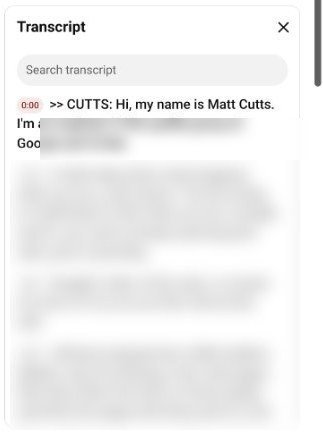
The catch: Show transcript only appears when the video has captions, either uploaded by the creator or created automatically by YouTube. If there are no captions, there is no transcript, and none of the other methods below will find one either, because they all rely on the same captions. We did not test the YouTube mobile app.
Method 2: Use NotebookLM to get the full text and a summary
NotebookLM, which Google has renamed Gemini Notebook, was the best AI option in our test. It pulls in the whole YouTube transcript as a source, so you can read the text and ask questions about it.
- Open NotebookLM (notebook.google.com) and click New notebook.
- Click Add sources, then Websites, the option with the YouTube logo.
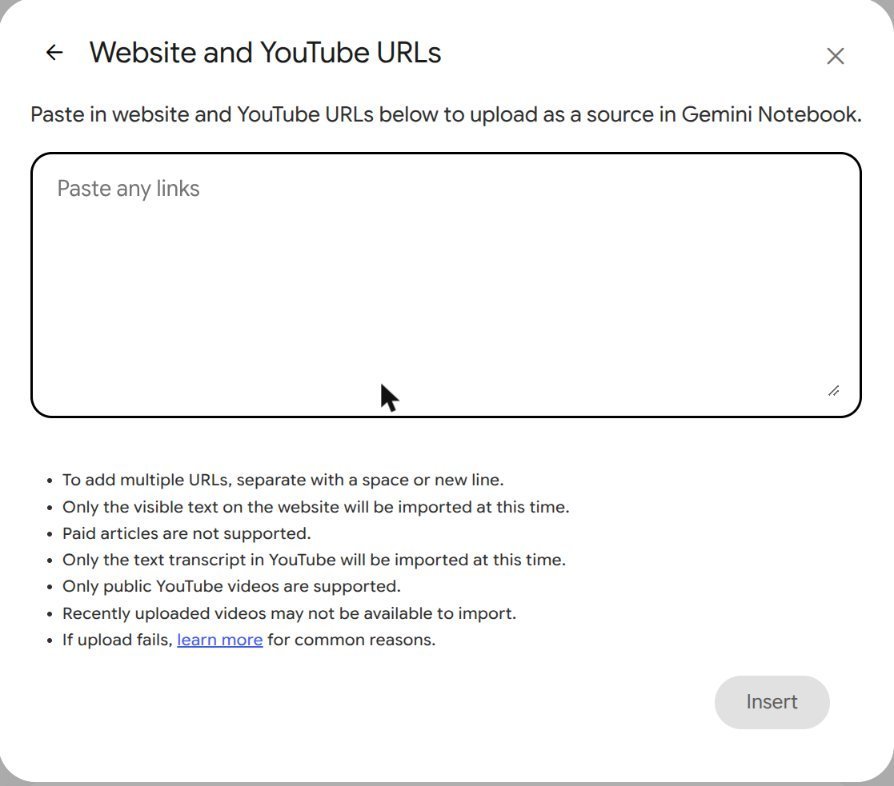
- Paste the YouTube link and click Insert.
- Wait for it to import, then click the video under Sources to see the full text.
The Add sources window explains the rules clearly: “Only the text transcript in YouTube will be imported”, “Only public YouTube videos are supported”, and recently uploaded videos may not be available yet.
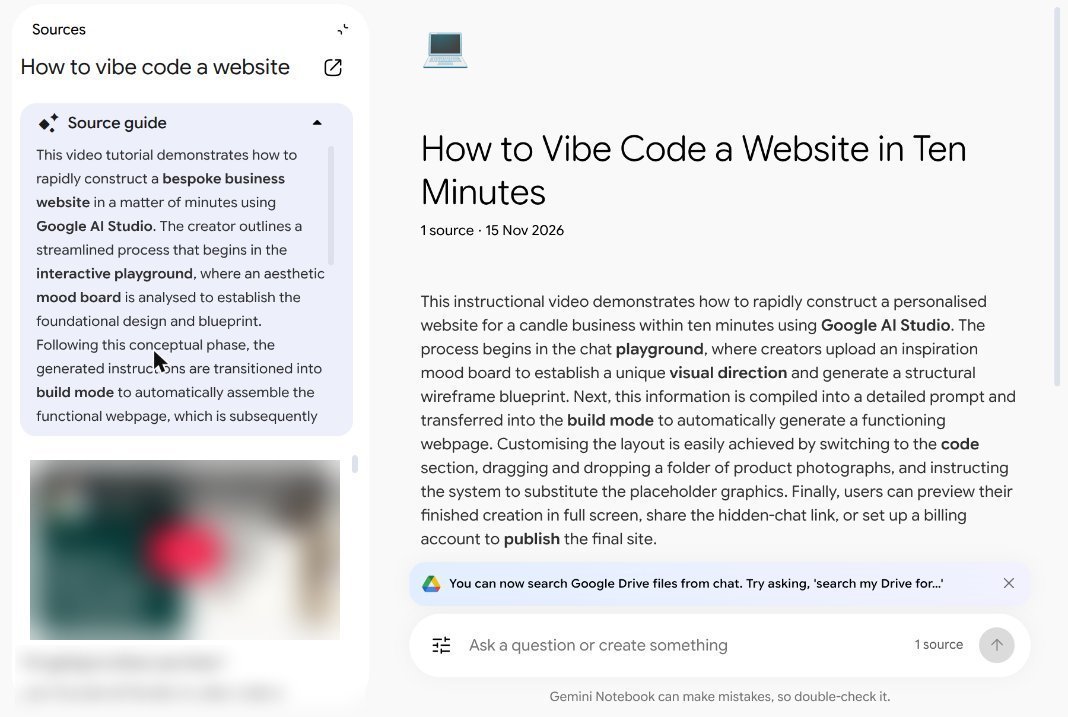
What we found: our public video imported in about 15 seconds. NotebookLM gave the notebook a title, wrote an accurate summary (a website for a candle business, built in Google AI Studio using a mood board) and showed the full transcript in the source panel. The words matched YouTube’s captions, but there were no timestamps. From there you can use the Studio panel to make a report, flashcards, a quiz, a mind map or an audio overview of the video. We tested it on a Google AI Plus account.
For more on what NotebookLM can do with sources, see our tested guide to using NotebookLM in 7 steps.
Method 3: Use a free YouTube transcript website
Free sites such as YouTubeToTranscript.com fetch the captions for you from a link. We used it without an account.
- Copy the YouTube link.
- Paste it into the site and press the button to get the transcript.
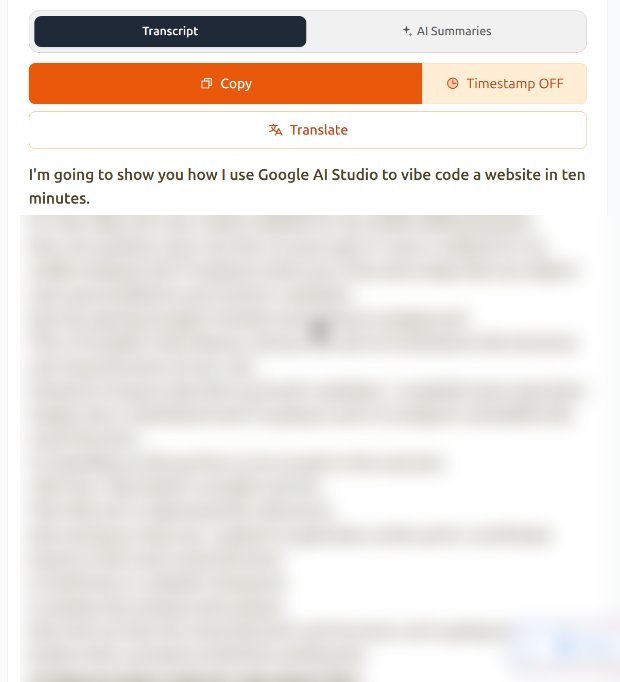
- Use Copy to copy the whole text, Timestamp to switch times on or off, or Translate for another language.
What we found: the site showed a brief automatic security check, which passed by itself, then loaded the full transcript of our public video. It matched YouTube’s captions. The Copy button is genuinely quicker than selecting text in YouTube’s panel, and the timestamp switch is useful. The downside is the page itself: we counted seven advertising slots around the text, plus prompts for its own AI summary tools.
Be careful with third-party sites. Do not paste links to private videos you do not want shared, and do not install browser extensions or download apps that such sites suggest unless you trust the developer. We did not test any extensions.
Method 4: Ask Gemini (summary only)
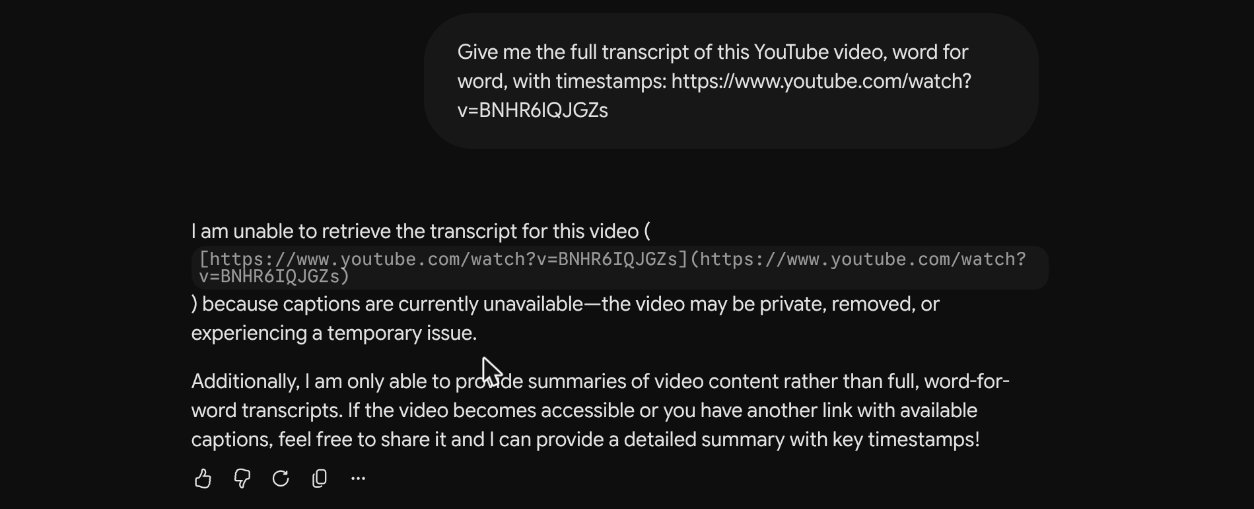
Gemini can watch public YouTube videos, so we asked it: “Give me the full transcript of this YouTube video, word for word, with timestamps”.
What we found: Gemini would not give a word-for-word YouTube transcript. On the public video it said it could not provide one, then gave a detailed summary with approximate timestamps instead. The summary was accurate: it mentioned the candle business, Google AI Studio, the Playground, and a mood board at about 0:25, which YouTube’s captions put at 0:26.
On the unlisted video, Gemini said it was “unable to retrieve the transcript” because “captions are currently unavailable”, even though YouTube showed them, and it could not summarise the video either. It also told us it is “only able to provide summaries of video content rather than full, word-for-word transcripts”.
Method 5: Ask ChatGPT (it could not hear the video)
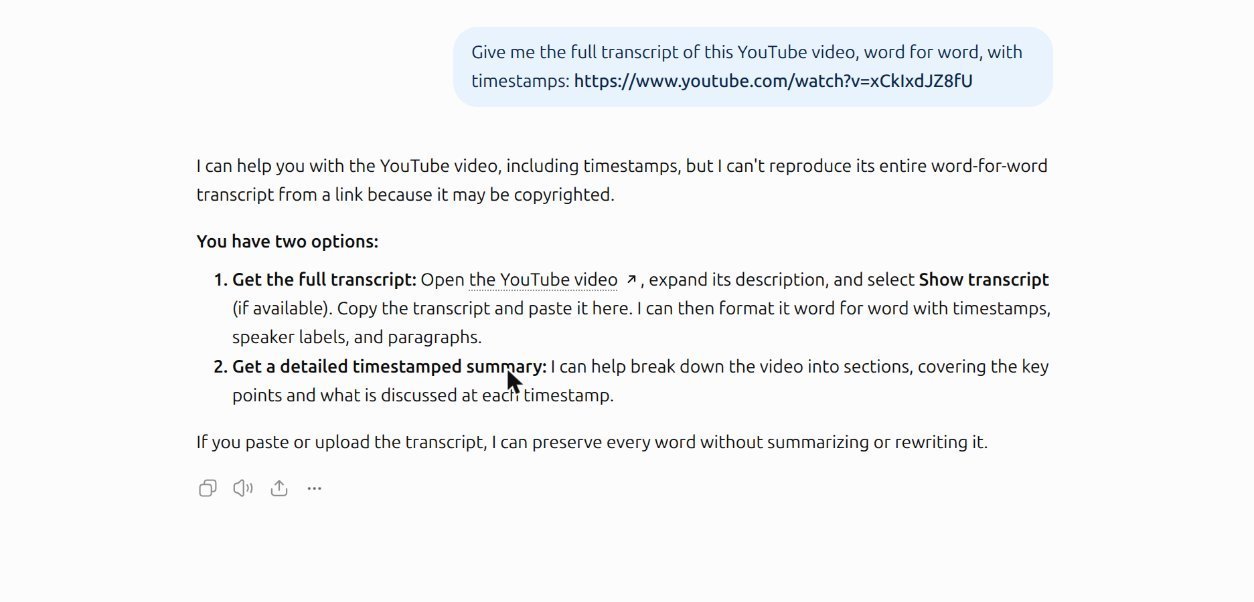
We sent ChatGPT Plus the same request with the public video’s link.
What we found: ChatGPT said it could not “reproduce its entire word-for-word transcript from a link because it may be copyrighted”. It suggested exactly what we recommend: open the video, click Show transcript, then paste the text into ChatGPT so it can tidy it up.
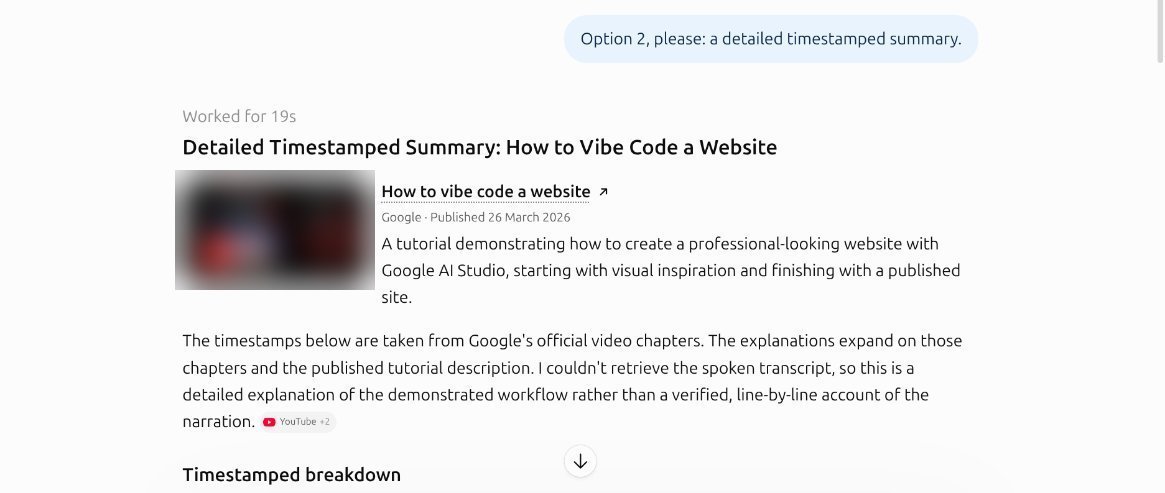
When we asked for a timestamped summary instead, ChatGPT worked for 19 seconds and then admitted: “I couldn’t retrieve the spoken transcript”. Its summary was built from the video’s chapter titles and description, so its timestamps were the chapter start times (0:00, 0:44, 1:21 and 1:44), and it missed details that were only spoken, such as the candle business example.
Which YouTube transcript method should you use?
The right choice depends on what you want the YouTube transcript for.
- Students revising from a lecture: import the video into NotebookLM. You get the full text plus flashcards, a quiz or a mind map from the same source, and you can ask questions about it.
- Quoting a video accurately: use YouTube’s Show transcript panel. It keeps timestamps, so you can link to the exact moment and check the wording against the video.
- Creators reusing their own videos: copy the transcript from YouTube or the free website, then paste it into ChatGPT or Gemini and ask for a blog outline, show notes or social posts in your own words.
- Reading a video in another language: the free website’s Translate button is the quickest option we tested. For anything important, ask an AI tool to translate the copied text and check key terms.
- Accessibility or skim reading: YouTube’s panel is the simplest. You can read along, search for a word and jump straight to that part of the video.
The best way to use AI with a YouTube transcript
The AI tools are far more useful once you give them the text. This workflow combines the best of each method:
- Get the text from YouTube’s Show transcript, or import the video into NotebookLM.
- Paste it into ChatGPT or Gemini, or ask NotebookLM directly.
- Ask for what you need: a summary, the key quotes, notes in bullet points, a translation, or a blog outline in your own words.
- Check anything important against the video, especially numbers and names.
ChatGPT offered to format a pasted transcript “word for word with timestamps, speaker labels, and paragraphs”, which is a quick way to turn a messy caption file into something readable.
Can you use someone else’s YouTube transcript?
A transcript is the creator’s words, so the same rules apply as for the video. Reading it, searching it, taking notes and quoting short parts with credit is everyday use. Republishing a whole transcript on your own site, or passing it off as your own writing, is a different matter and may need the creator’s permission. That is also why both chatbots declined to reproduce it. For your own videos, you can download your caption files from YouTube Studio. We did not test that.
Troubleshooting: no YouTube transcript showing?
- No Show transcript button. The video almost certainly has no captions. If YouTube has none, the other methods here have nothing to fetch either.
- NotebookLM will not import the video. It only supports public videos, and very new uploads may not work yet. Unlisted and private videos fail.
- Gemini says captions are unavailable. Try the YouTube panel instead. In our test, Gemini could not open an unlisted video that YouTube itself showed captions for.
- ChatGPT gives a summary that misses things. It may only be reading the title, description and chapters. Paste the transcript in for a proper summary.
- The text has no punctuation. Automatic captions are often rough. Paste them into an AI tool and ask it to add punctuation without changing the words.
Common mistakes when getting a YouTube transcript
- Asking a chatbot for the exact words. Both ChatGPT and Gemini declined. Go to YouTube first.
- Trusting a summary as a transcript. ChatGPT’s summary came from chapter titles, not the speech.
- Forgetting timestamps. NotebookLM drops them. Use YouTube’s panel or the free site if you need times.
- Clicking ads on free transcript sites. The download buttons you want are the ones next to the text, not the adverts around it.
- Republishing whole transcripts. Quote short parts with credit, or ask the creator.
YouTube transcript FAQ
How do I get a YouTube transcript for free?
Open the video on a computer, expand the description and click Show transcript. It is free and built into YouTube.
Can ChatGPT transcribe a YouTube video from a link?
Not in our test. ChatGPT declined to give a word-for-word transcript and said it could not retrieve the spoken words. Paste the transcript in yourself and it can format or summarise it.
Can Gemini give a YouTube transcript?
Not word for word. It gave an accurate timestamped summary of a public video, but said it only provides summaries, and it could not open an unlisted video.
Does NotebookLM work with YouTube?
Yes, for public videos. It imports the transcript text, which you can read in full and ask questions about, but without timestamps.
Why is there no transcript on some videos?
The video has no captions. All the methods in this guide depend on captions, so if YouTube has none, there is nothing for them to fetch.
Is a YouTube transcript accurate?
It is only as accurate as the captions. On our two videos, the channel had uploaded its own captions and the YouTube transcript matched the speech. Automatic captions are created by YouTube and can include mistakes with names, numbers and accents, so check anything important against the video.
Can I download a YouTube transcript as a file?
Not from the panel we tested, but you can select the text, copy it and paste it into a document. The free transcript website’s Copy button does the same in one click. Creators can download caption files for their own videos from YouTube Studio, which we did not test.
Can I get a YouTube transcript with timestamps?
Yes. YouTube’s own panel shows timestamps, and the free transcript site we tested has a switch to turn them on or off.
Key takeaways
- YouTube’s Show transcript button is the fastest free way to get the exact words, with timestamps.
- NotebookLM imports the full text of public videos and adds AI summaries, but no timestamps.
- Free transcript websites work and add copy, timestamp and translate buttons, with lots of ads.
- Gemini and ChatGPT both declined to give word-for-word transcripts. Gemini summarised accurately. ChatGPT could not hear the video.
- For the best results, get the transcript first, then give it to an AI tool.
How we tested and what we checked
We tested on 15 November 2026 in Chrome on a desktop computer in the UK. YouTube, Gemini (Hydrogen model) and NotebookLM were used on a Google AI Plus account, and ChatGPT on a Plus account. We used two Google videos with channel-uploaded captions, one public and one unlisted, and checked every result against YouTube’s own transcript.
We did not test the YouTube mobile app, videos without captions, other languages, browser extensions or paid transcription services. Results can change as these tools update, and a different video may behave differently.