
The best AI for PDFs depends on what you need. In our test on a 180-page report, ChatGPT Plus, Claude Pro and Gemini all answered five page-by-page questions correctly. ChatGPT was by far the fastest (about 13 seconds), Claude was the most thorough (it checked every page reference and read the chart as an image), and Gemini got there only after its Pro model failed twice and its faster model returned an error on the first try.
We also asked each assistant to turn rough meeting notes into a one-page PDF report. All three produced an accurate file with nothing invented. Below are the full results, the screenshots, and which AI for PDFs to pick for your kind of document.
How we tested
We tested on 12 November 2026 in Chrome (UK) on ChatGPT Plus (Instant and Thinking at Medium effort), Claude Pro (Opus 5.5, Medium) and Gemini on Google AI Plus (3.1 Pro, then 4 Hydrogen). Each tool got the same 180-page PDF and the same five questions in a fresh chat, then the same meeting notes to turn into a PDF. The test PDF was a fictional annual report we generated ourselves, so we knew the correct answer and page for every question. It holds about 40,000 words, lighter than a dense real report of the same length.
In this article
What is the best AI for PDFs?
| Assistant (plan) | 180-page PDF score | Time to answer | Notes to PDF | Best for |
|---|---|---|---|---|
| ChatGPT (Plus) | 5 / 5 | About 13 to 14 seconds | Accurate, downloadable PDF | Fast answers from long documents |
| Claude (Pro) | 5 / 5 | About 1.5 to 2 minutes | Accurate, downloadable PDF | Careful checking, charts, cross-references |
| Gemini (Google AI Plus) | 5 / 5 on the third attempt | About 2 minutes once it worked | Accurate, editable PDF | Google Workspace users, quick reports |
If you want one answer: for speed, ChatGPT is the best AI for PDFs we tested; for work where a missed detail is expensive, Claude was the most careful. Gemini matched them on accuracy once it answered, but it was the least reliable on a long upload.
How we tested the best AI for PDFs
Testing AI for PDFs with a real report has a problem: you have to read the whole thing yourself to know whether the answers are right. So we built a 180-page test report for a fictional housing association, with nine sections, two charts and a few facts placed on known pages. The cover says it is a test document.
Every assistant received the same prompt in a new chat, with the PDF attached:
Answer these five questions about the attached PDF, giving page numbers where asked. (1) List this document's main sections with their page numbers. (2) What was the average weekly rent for a two-bedroom home, and on which page is it stated? (3) What does the document say about parking permits? If it is not stated, reply: not stated. (4) Compare what Section 3 and Section 8 say about staff training, with page numbers. (5) Look at the chart of repairs completed by quarter: which quarter had the most repairs, how many, and on which page is the chart?
| Question | What it tests | Correct answer |
|---|---|---|
| 1. Sections | Structure and the contents page | 9 sections, starting on pages 3, 7, 15, 41, 71, 96, 121, 151, 171 |
| 2. Rent | Finding one figure three-quarters of the way in | £148.60 a week, up 4.1%, page 135 |
| 3. Parking | Saying “not stated” instead of inventing | Not stated |
| 4. Training | Comparing two distant sections | 4,200 hours (page 28) vs 9,800 hours and a 12,000-hour target (page 158) |
| 5. Chart | Reading a bar chart | Q3, 1,610 repairs, page 10 |
One honest caveat: our report has about 220 words a page, roughly 54,000 tokens in total. A dense real report of 180 pages can hold two or three times that, which matters for ChatGPT’s faster mode. See the plan limits section below.
ChatGPT: the fastest AI for PDFs in our test
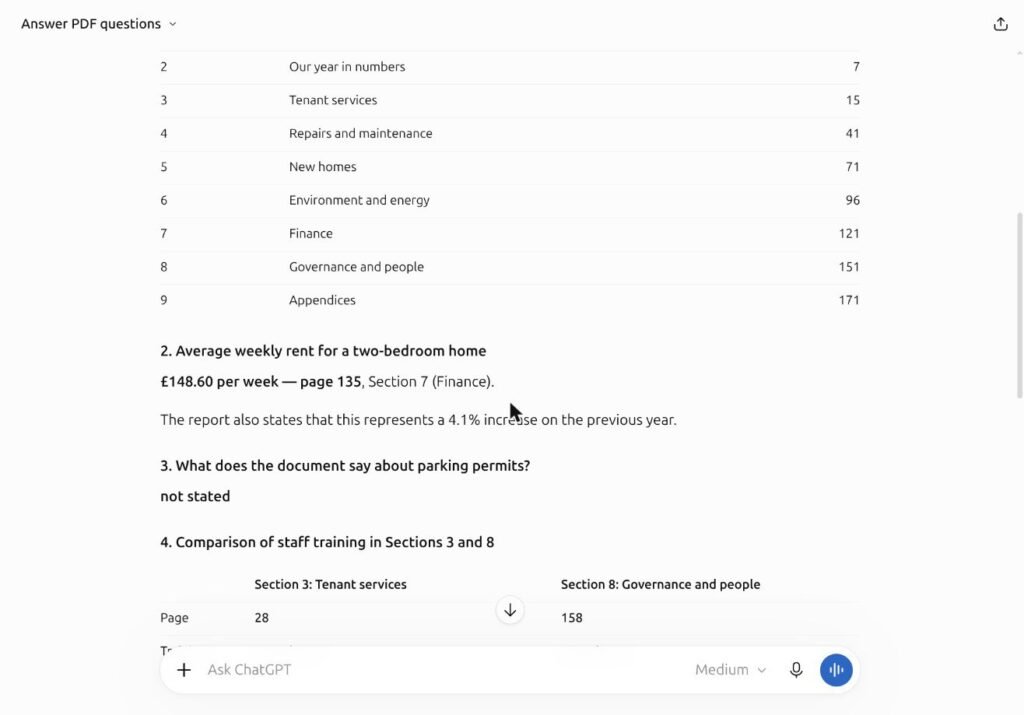
ChatGPT Plus answered all five questions correctly in both modes. With Thinking set to Instant, it said it “Worked for 13s”; at Medium thinking effort it took 14 seconds. Every page number was right, it answered “not stated” for parking, and it even redrew the quarterly repairs chart as an interactive bar chart.
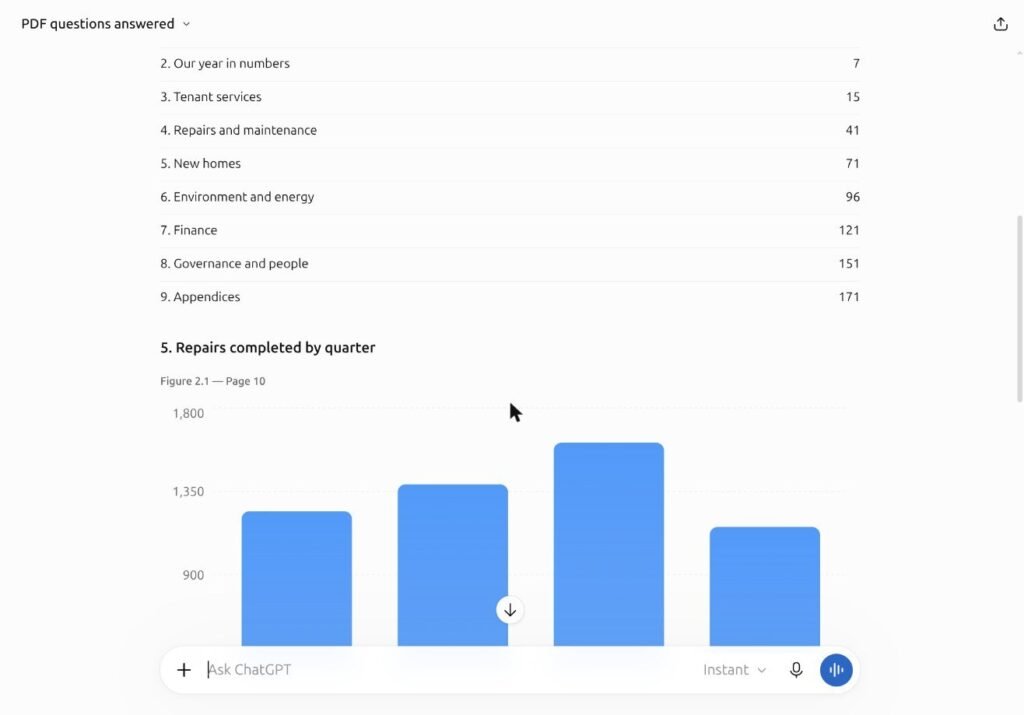
The Thinking run added two pieces of correct arithmetic we hadn’t asked for: Section 8 reports 5,600 more training hours than Section 3, and Q3 had 225 more repairs than Q2. The only quirk in the Instant answer was order: it answered question 5 before question 2.
Claude: the most thorough AI for PDFs
Claude Pro also scored five out of five, and it was the only assistant to show its working. It ran a few commands on the file, opened page 10 as an image to read the chart, and said it had checked each section’s start page against the headings inside the document. That took about one and a half to two minutes, much longer than ChatGPT.
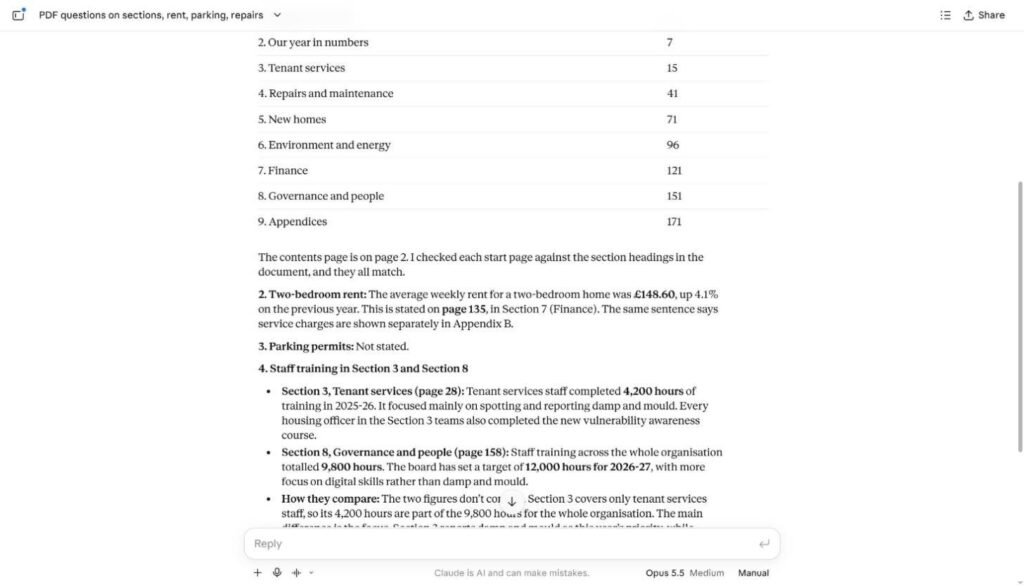
Claude also explained how the two training figures fit together: the 4,200 tenant-services hours are part of the 9,800 hours for the whole organisation, so they don’t conflict. That is the kind of check that matters when you are summarising a report for someone else.
Gemini: right answers, but only on the third try
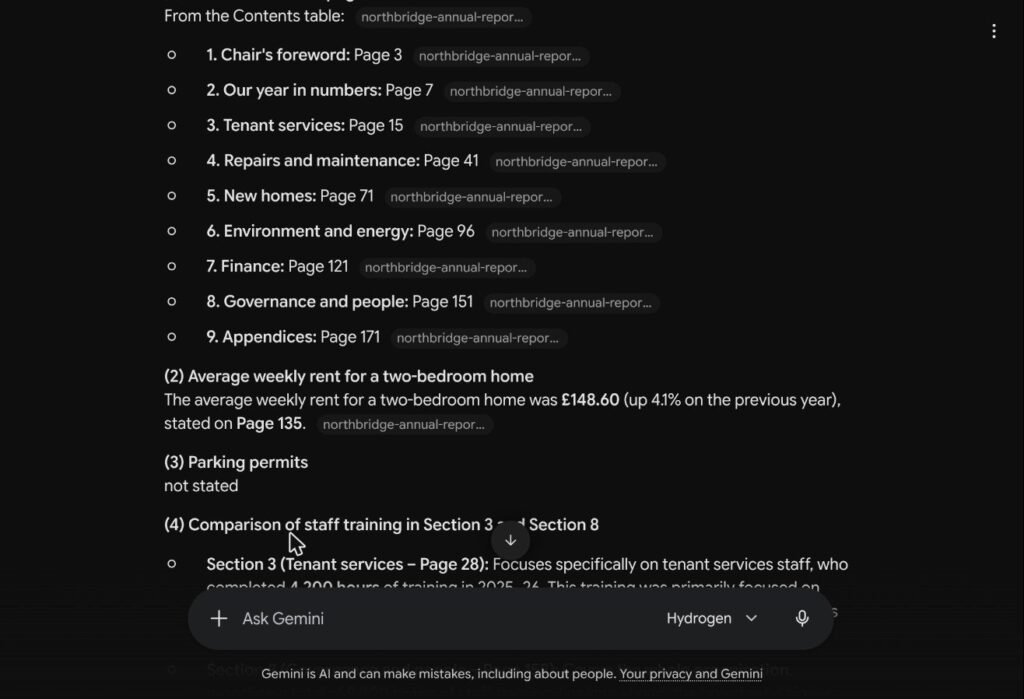
Gemini was the least reliable AI for PDFs in our test. On the Google AI Plus plan we first chose Detailed research (3.1 Pro), the strongest option for documents on that plan. Twice, it worked for about four minutes and then the chat disappeared, leaving a blank “New chat” with no answer and nothing saved in history. Our usage page showed 0% of the current limit and 15% of the weekly limit, so this was not a usage cap.
We switched to Everyday help (4 Hydrogen). Its first reply was “I encountered an error doing what you asked. Could you try again?”
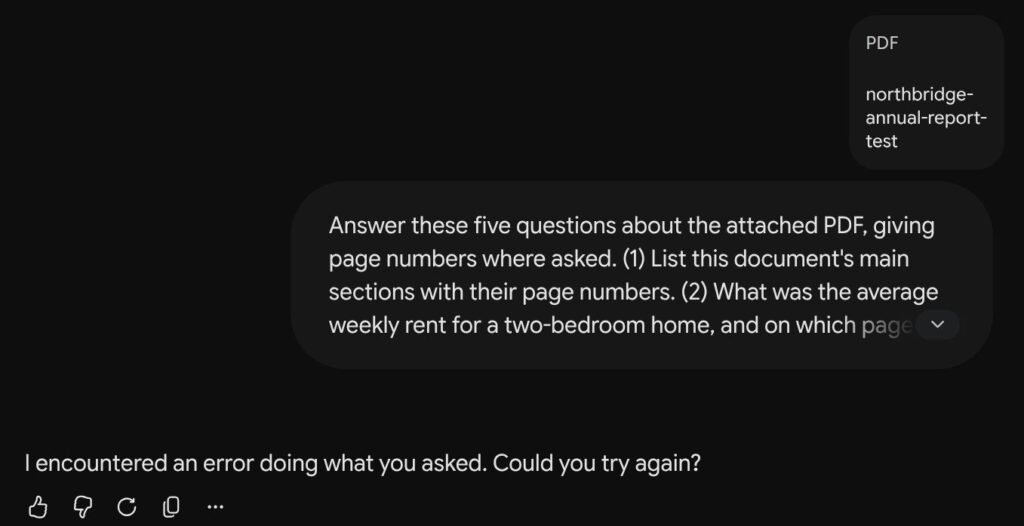
After we clicked Redo, then Try again, Gemini answered all five questions correctly in about two minutes, with a citation chip pointing to the file after almost every line. Once it worked, the answer was as good as the others.
Which AI makes the best PDF report from notes?
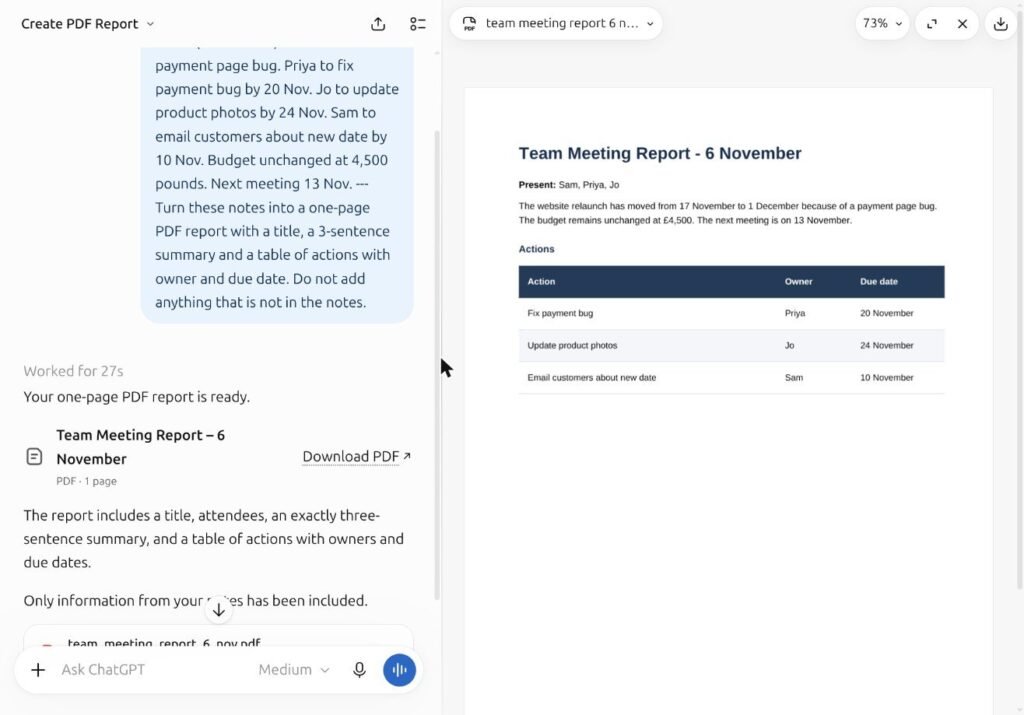
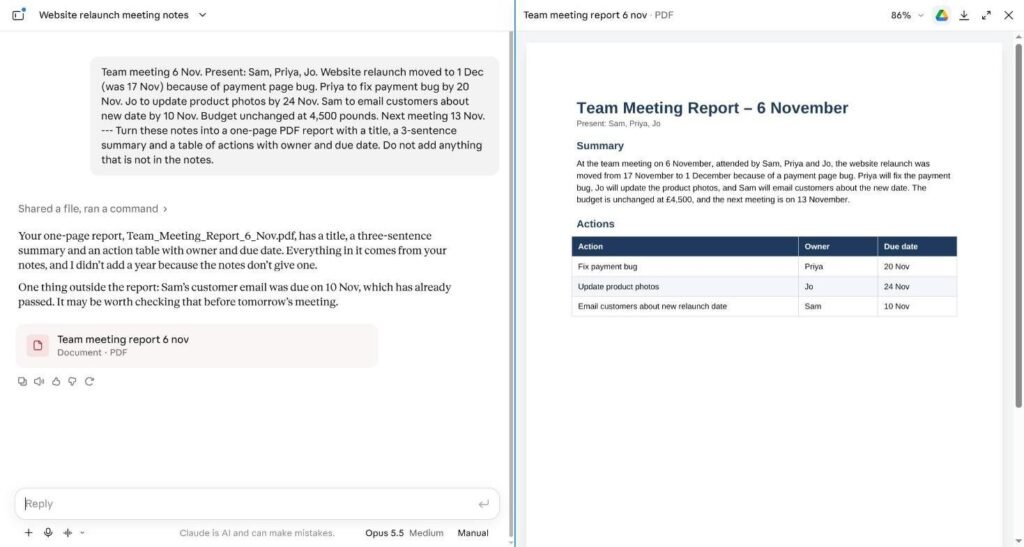
For the second test, each assistant got the same short meeting notes in a new chat and this request: Turn these notes into a one-page PDF report with a title, a 3-sentence summary and a table of actions with owner and due date. Do not add anything that is not in the notes.
| Assistant | Got a PDF? | Accurate? | Anything invented? | What stood out |
|---|---|---|---|---|
| ChatGPT | Yes, with a Download PDF link (27 seconds) | Yes | No | Clean layout, full month names, side-by-side preview |
| Claude | Yes, downloadable | Yes | No | Flagged, outside the report, that one deadline had already passed |
| Gemini | Yes, in an editable file panel (about 30 seconds) | Yes | No | Sorted actions by due date; Export menu |
All three kept every name, date and the £4,500 budget correct, and none added a year or anything else the notes didn’t contain.
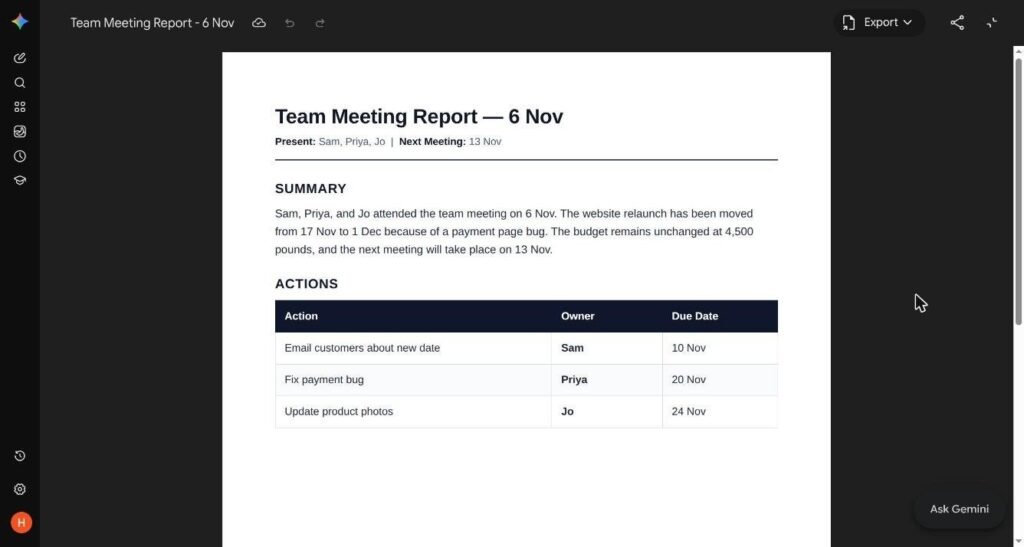
Gemini’s PDF opens in the same file panel you can type into or edit with highlight-and-ask, which we covered in our guide to editing files in Gemini.
Which AI for PDFs should you use?
- You need a quick answer from a report: ChatGPT. It was 6 to 8 times faster than the others in our test and just as accurate.
- Accuracy matters more than speed: Claude. It checked its own page references and read the chart as an image.
- Your documents live in Google Drive: Gemini, which can pull files from Drive and saves PDFs you can edit in place. Expect to retry on long uploads.
- You work across many related files: Claude Projects keeps documents together across chats; see our guide to how to use Claude Projects.
Plan limits that matter for long PDFs
The published limits explain some of what we saw. These are the figures from our Claude vs ChatGPT vs Gemini comparison for documents, checked against each company’s help pages on 7 November 2026.
| Limit | ChatGPT Plus | Claude Pro | Gemini |
|---|---|---|---|
| Context window | 54K tokens (Instant), 256K (reasoning) | 1M tokens on Opus, Sonnet and Haiku 5.5 | 1M tokens on Google AI Pro |
| Rough pages at once | About 40 (Instant), about 320 (reasoning) | Up to 1,000 PDF pages per file | Not published |
| Charts and images in PDFs | Not stated | Up to 100 pages; text only from 101 to 1,000 | Not stated |
| File size | 512MB per document | 500MB per file in chat | 100MB per file |
Two of our results sit right on these lines. Our PDF was about 54,000 tokens, roughly ChatGPT Instant’s limit, so a denser report could push Instant past what it reads in one go; use Thinking for anything bigger. And although Claude’s documented chart support stops at 100 pages, it still read the chart in our 180-page file by opening that page as an image.
Prompts that get better answers from AI for PDFs
- Ask for page numbers every time. “Give the page number for each answer” makes answers checkable.
- Give a way out. “If it is not stated, reply: not stated” stopped all three assistants from guessing.
- Name the sections. “Compare Section 3 and Section 8” works better than “compare what the report says about training”.
- Ask for the check. “Confirm each figure against the page it comes from” pushes the assistant to verify.
- For reports from notes, forbid extras. “Do not add anything that is not in the notes” kept all three PDFs accurate.
How to check an AI’s answer about a PDF
Even the best AI for PDFs can quote the wrong page or blend two sections together. This five-minute routine is how we checked every answer in our test, and it works with any assistant.
- Open one cited page. Pick the answer that matters most, go to the page number the assistant gave, and find the exact sentence. If it isn’t there, treat every other answer with more suspicion.
- Check one number against its source. Copy a figure from the answer, such as a rent or a total, and search for it in the PDF with Ctrl+F (Cmd+F on a Mac). A figure that can’t be found has probably been calculated or invented.
- Ask a question you know is not covered. A good assistant replies “not stated”. If it produces a confident answer instead, it is filling gaps, and you should check everything else more closely.
- Ask it to quote the line. “Quote the sentence that says this, with its page number” turns a summary back into something you can verify in seconds.
- Compare two tools on the critical question. If ChatGPT and Claude give the same figure and page, you can be far more confident than with one answer alone.
None of this takes long, and it is the difference between using AI for PDFs as a research assistant and trusting it as a source.
Mistakes to avoid when you use AI for PDFs
- Trusting a page number you haven’t opened. All three were right in our test, but check at least one reference per answer.
- Using a fast mode on a huge file. ChatGPT’s Instant mode has a much smaller window than its reasoning mode.
- Giving up after one error. Gemini’s first answer was an error; a retry or a different model fixed it.
- Uploading confidential reports without checking settings. Review each tool’s data and training settings first.
- Asking ten questions at once. Five clear, numbered questions worked well; long lists invite skipped answers.
Key takeaways
- All three assistants answered our five 180-page PDF questions correctly, so the best AI for PDFs comes down to speed and reliability.
- ChatGPT Plus was fastest (13 to 14 seconds); Claude Pro was most thorough (about 2 minutes); Gemini Plus needed retries.
- All three turned meeting notes into an accurate one-page PDF with nothing invented.
- Check plan limits for very long or dense files, and always open one cited page yourself.
Frequently asked questions
What is the best AI for PDFs?
In our test, ChatGPT Plus was the fastest and Claude Pro was the most thorough; both answered every question correctly. Gemini was equally accurate once it answered, but its Pro model failed twice on our 180-page file. Pick ChatGPT for speed and Claude for careful checking.
Can ChatGPT read a 180-page PDF?
Yes, in our test. ChatGPT Plus answered questions from pages 10, 28, 135 and 158 correctly in about 13 seconds. Our file was light on text, about 54,000 tokens, so for a denser report use ChatGPT’s Thinking mode, which has a much larger context window than Instant.
Which AI can read charts in a PDF?
All three read our quarterly repairs chart correctly. Claude did it by opening the chart page as an image, even though its documented chart support covers PDFs of up to 100 pages and our file had 180. ChatGPT went further and redrew the chart as an interactive graph.
Why did Gemini fail on my PDF?
We don’t know the cause, and Google didn’t show one. In our test, Gemini’s 3.1 Pro model dropped the conversation twice without an error message, and 4 Hydrogen returned a generic error before succeeding on a retry. Try again, switch model, or split the PDF.
Can AI turn notes into a PDF report?
Yes. ChatGPT, Claude and Gemini all produced a one-page PDF with a title, a three-sentence summary and an action table from our notes, with nothing invented. Telling them “do not add anything that is not in the notes” helps keep the report accurate.
Is it safe to upload PDFs to AI chatbots?
It depends on the document and your settings. Each service has its own data controls, including whether chats can be used for training. Don’t upload confidential or personal documents until you’ve checked those settings or your organisation’s policy.
Sources: our own hands-on test on 12 November 2026 (ChatGPT Plus, Claude Pro, Gemini on Google AI Plus); plan limits from our documents comparison, checked against OpenAI’s file uploads FAQ, Claude’s upload help and Gemini’s upload help.