Google Vids is Google’s free online video editor with built-in AI. You can type a description and get a short AI video clip, add an AI voiceover from a script, drop in stock footage and captions, then download the result as an MP4. We tested Google Vids on 18 November 2026 in the UK. It made a 10 second clip of a rainy windowsill scene in about a minute, added a natural voiceover from two lines of text and saved everything to Google Drive. One headline feature did not work for us: the new personal avatar, which still asked us to upgrade.
This guide walks through every step with screenshots, explains what free accounts get and what needs a paid plan, and covers the mistakes that can cost you your work.
How we tested
We tested on 18 November 2026 in Chrome in the UK, mainly on a Google account with Google AI Plus, and opened Google Vids on a second account to compare. We generated an AI video clip, inserted it, added an AI voiceover and checked the avatar, share and download options.
Matched Google’s claims: the AI clip was ready in about a minute and matched our prompt, the voiceover worked from a typed script, and MP4 and GIF downloads were offered.
Problems we found: Personal avatar still showed Upgrade on both UK accounts despite reports it is now free, Upscale was greyed out, and generated clips are discarded unless you click Insert.
Disclosure: the tests were run by Claude, an AI assistant made by Anthropic, working for NextGenAI. This post contains no affiliate links.
Quick version: how to use Google Vids for free
- Go to vids.google.com and sign in with your Google account.
- Click Create AI videos, or start with a blank video, template, recording or upload.
- In the AI video clip panel, describe your scene and click the arrow to generate it.
- Click Insert to add the clip to your video. If you do not, it is discarded when you close the tab.
- Open Voiceover, type a script, pick a voice and click Insert voiceover.
- Use Share to copy a link, export to YouTube or download as MP4.
What is Google Vids?
Google Vids is a video creation app that works in your browser, like Google Docs or Slides but for video. It started as a Google Workspace tool for businesses and is now available to personal Google accounts. Your projects save automatically to Google Drive.
Its AI features use Google’s video and image models. In our test, the AI video clip tool listed one model, Omni, described as supporting video, images and text. Google also says every generated clip carries an invisible SynthID watermark, so it can be identified as AI made.
Is Google Vids free?
The editor is free with a personal Google account. The AI features have limits. According to Google’s announcements reported by 9to5Google, free personal accounts get 10 AI video generations a month, shared between AI video clips and AI avatars. Google AI Ultra subscribers can make up to 1,000 a month.
Personal avatars, which make a talking video of you, have been for Google AI Pro, Ultra and Workspace customers, according to Google’s July announcement. Reports on 18 November said they are now free for personal accounts. On our two UK Google accounts, Personal avatar still had an Upgrade badge, and clicking it opened the Google One plans page. It may still be rolling out, or not yet available in the UK.
How to use Google Vids, step by step
Step 1: Open Google Vids
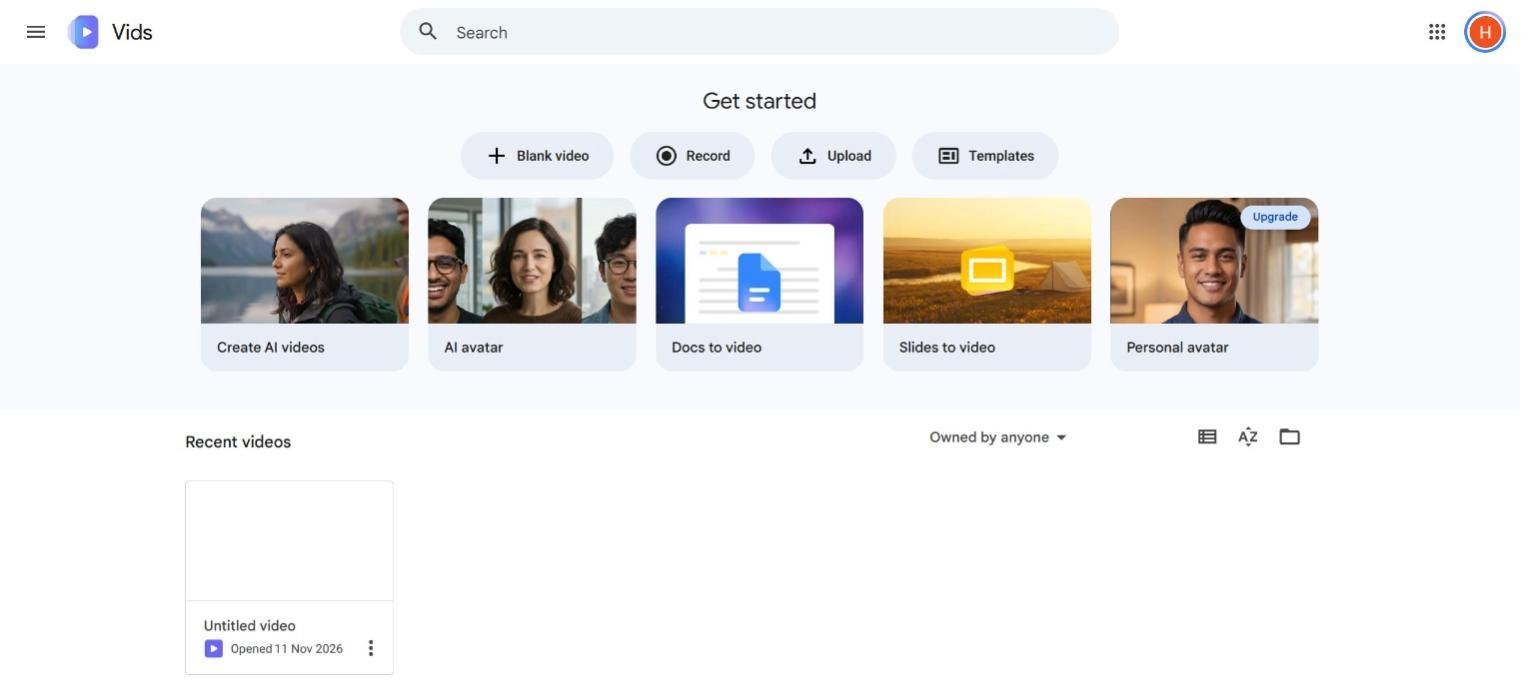
Go to vids.google.com. It redirects to docs.google.com/videos, because Google Vids sits alongside Docs, Sheets and Slides. The home page has four ways to start, Blank video, Record, Upload and Templates, and five AI shortcuts: Create AI videos, AI avatar, Docs to video, Slides to video and Personal avatar. Your recent videos are listed underneath.
Step 2: Start with Create AI videos
We clicked Create AI videos. This opens the Google Vids editor: menus along the top, a 16:9 canvas in the middle, a timeline at the bottom and a toolbar on the right with AI video, Avatar, Voiceover, Image, Record, Uploads, Stock, Captions, Text, Templates and Shapes. The AI video clip panel opened automatically, with Create, Edit, Animate and Extend tabs.
Step 3: Describe your clip and check the settings
Type a description in the box. You can add an avatar or up to three images as “ingredients”, for example your logo or a product photo. Below the box, a settings button showed Omni, 720p, landscape, 10 seconds. Clicking it let us choose landscape or portrait and change the length with a slider.
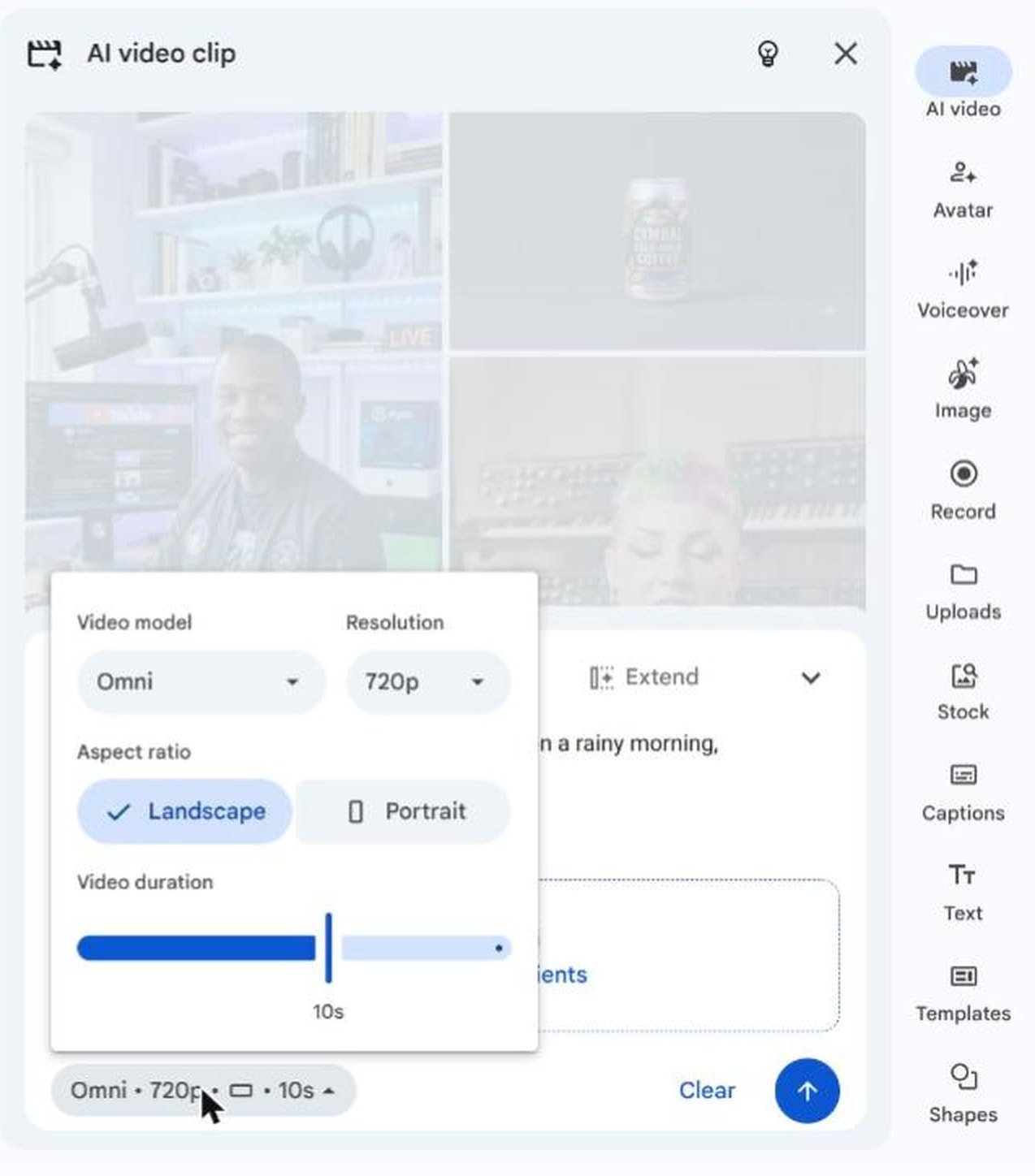
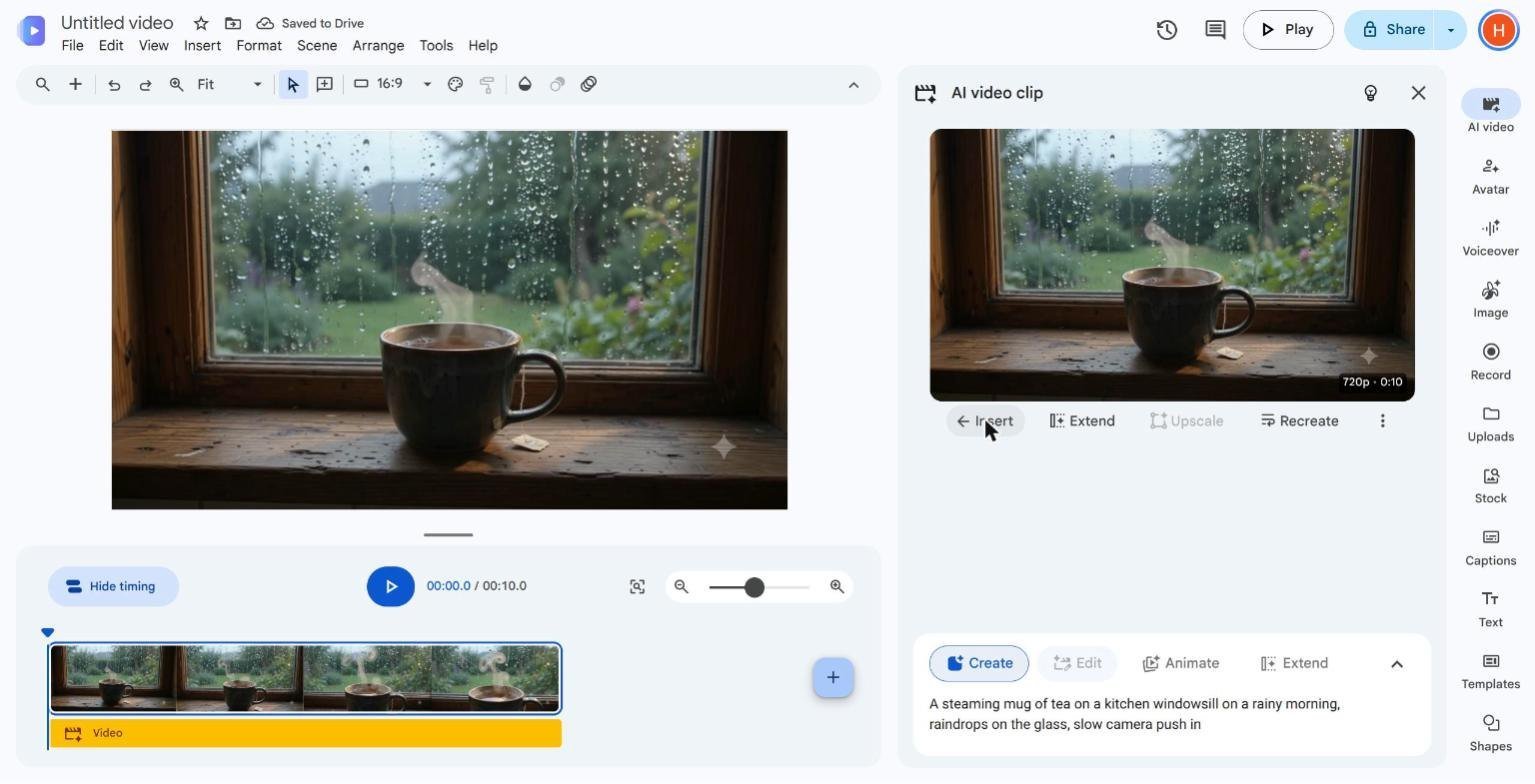
Our prompt was: “A steaming mug of tea on a kitchen windowsill on a rainy morning, raindrops on the glass, slow camera push in.”
Step 4: Generate the clip
We clicked the arrow. A percentage counter appeared with a note that it may take a few minutes and that you can close the panel and be notified. Ours finished in about a minute.
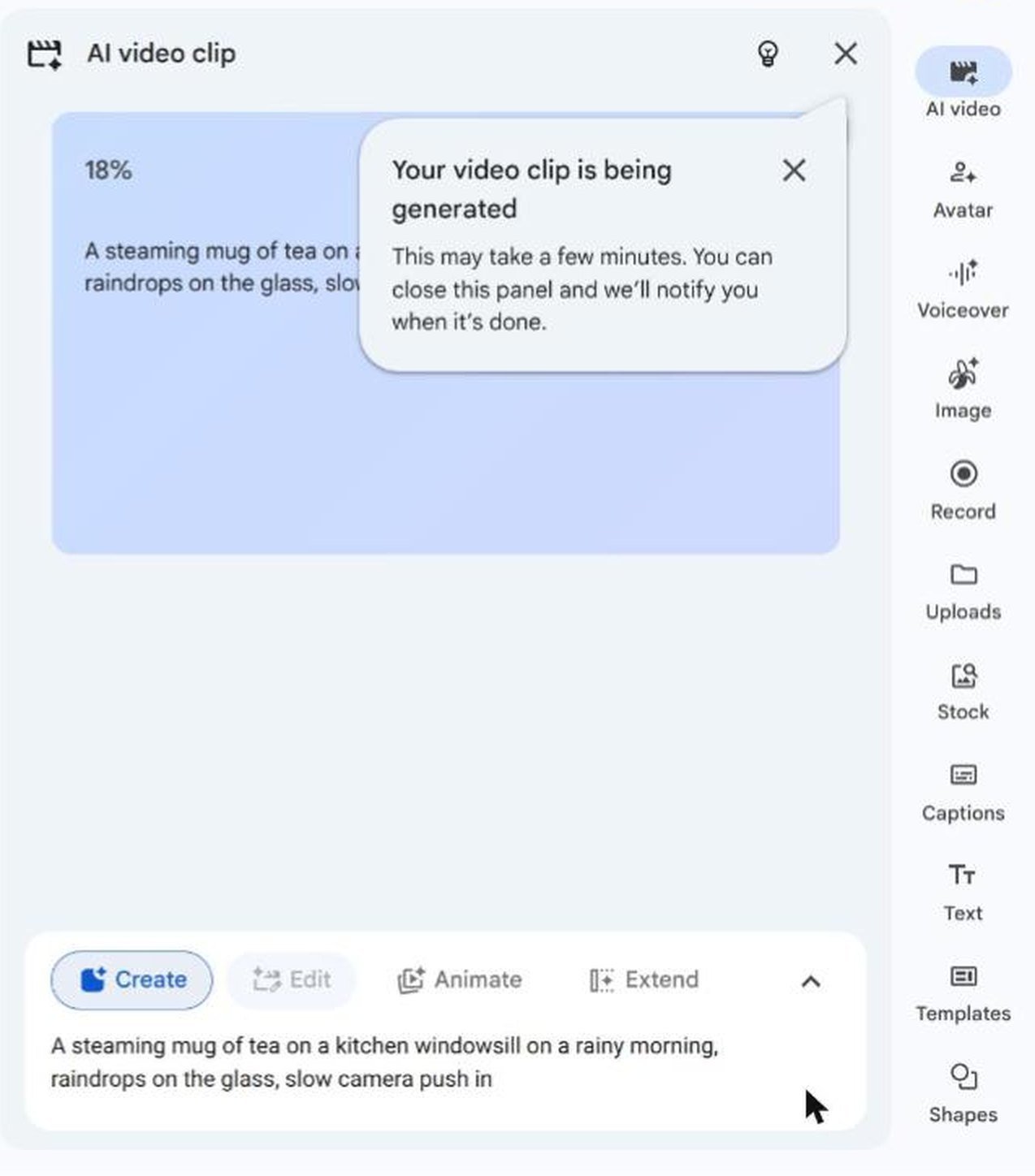
The result matched the prompt well: a mug with rising steam, rain running down the window and a blurred garden behind, in 720p and 10 seconds long. Below it were Insert, Extend, Recreate and a greyed out Upscale button.
Step 5: Insert the clip (do not skip this)
A tip appeared that is easy to ignore: “Videos that aren’t inserted will be discarded when you close this tab.” Generated clips are not saved until you click Insert. We clicked it, the clip dropped onto the timeline, and the title bar said “Saved to Drive”.
Step 6: Add an AI voiceover
We clicked Voiceover on the right. You can write a script for the current scene or all scenes, and type a square bracket to add audio tags, such as pauses or tone. The default voice was Nyla, “Soft, higher pitch”, with a Change button for others. We typed two lines, “Rainy mornings were made for a slow cup of tea. Put the kettle on, and take five minutes for yourself,” and clicked Insert voiceover.
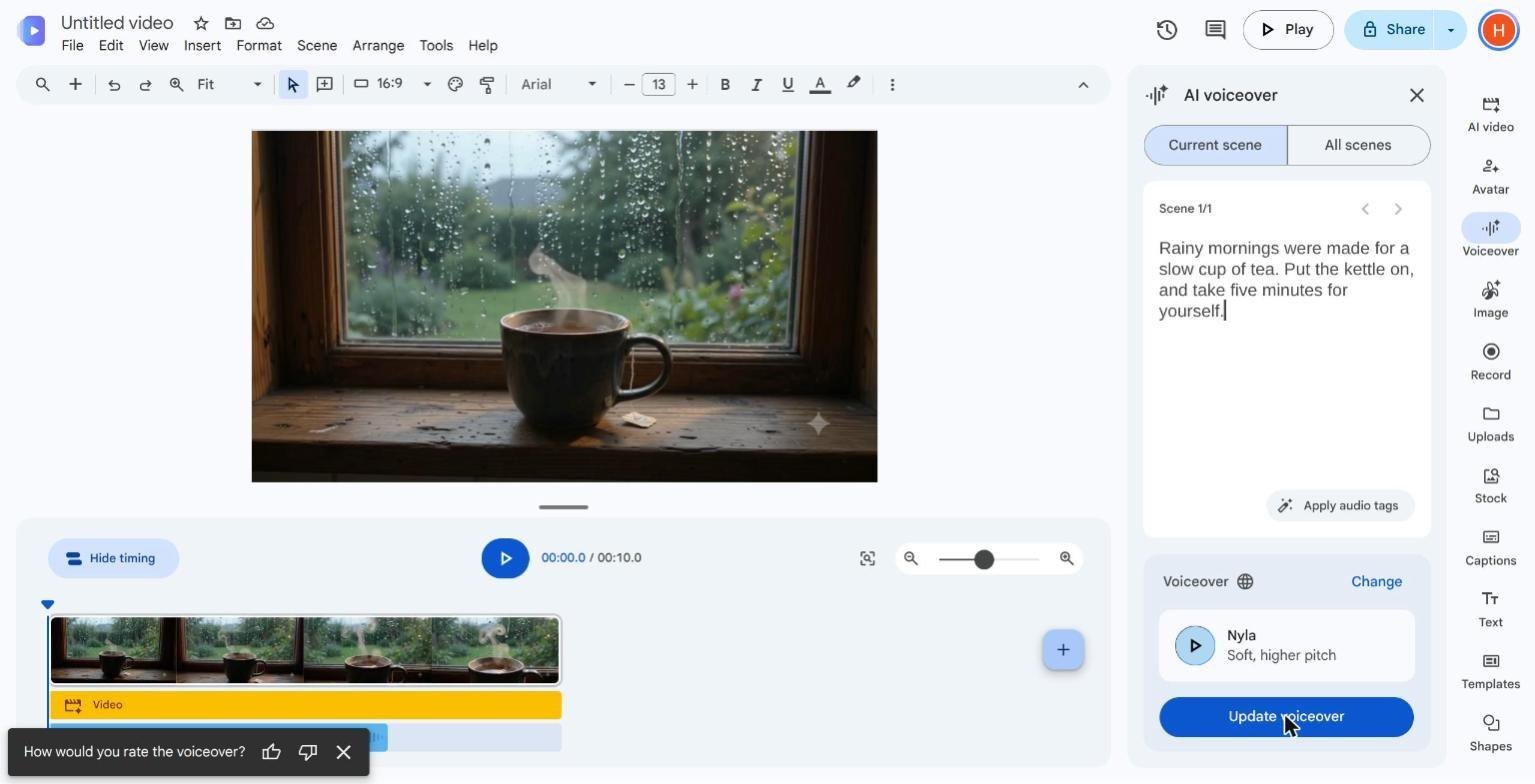
A few seconds later, an audio track labelled with the start of our script appeared under the video. Google Vids then suggested Balance sound to make speech and music easier to hear.
Step 7: Add an AI avatar (optional)
The Avatar panel uses the same script and lets you pick a stock presenter. Ours defaulted to one called Finley, with a Preview button. We did not generate one, because avatars and AI clips share the same monthly allowance on free accounts.
Step 8: Share or download your video
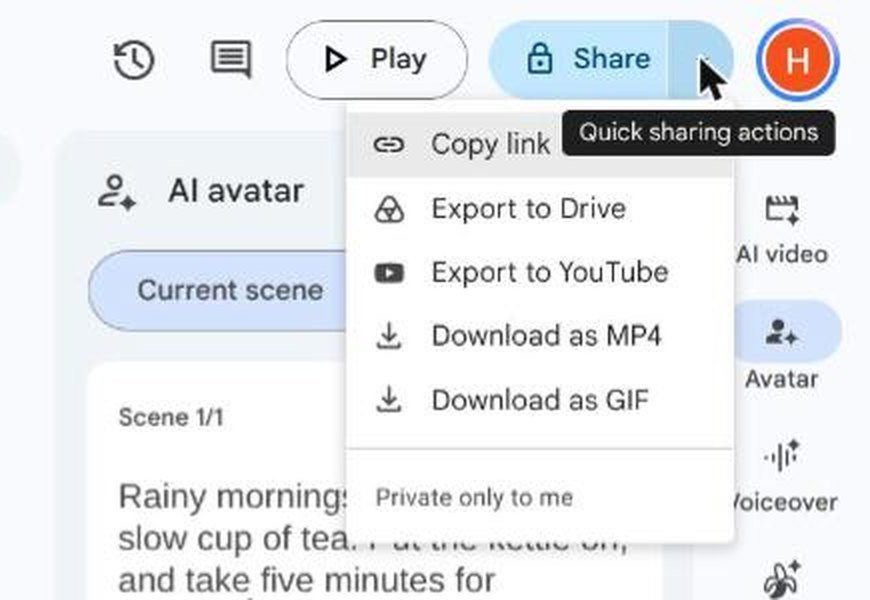
The arrow next to Share opened quick actions: Copy link, Export to Drive, Export to YouTube, Download as MP4 and Download as GIF. Our video was marked “Private only to me” until we chose to share it.
Other ways to make a video in Google Vids
- Docs to video and Slides to video turn an existing document or presentation into a video draft.
- Templates give you ready-made layouts for things like announcements, tutorials and sales pitches.
- Record captures your camera, screen or both, which is useful for walkthroughs.
- Stock gives you stock footage, images and music to fill gaps without using an AI generation.
- Captions adds subtitles, which matter because many people watch videos without sound.
If you want to compare AI video makers, see our hands-on test of Gemini Omni video. For turning videos into text, our guide on how to get a YouTube transcript covers the free options.
Google Vids free vs paid: what you get
| Feature | Free personal account | Paid Google AI plans |
|---|---|---|
| Video editor, templates, stock, record, upload | Yes | Yes |
| AI video clips | 10 generations a month, shared with avatars | More, up to 1,000 a month on Ultra |
| Stock AI avatars | Yes, from the same 10 generations | Yes |
| Personal avatar (you) | Reported as now free, but showed Upgrade for us | Yes on AI Pro and Ultra |
| AI voiceover | Worked on our account | Yes |
| Download MP4 or GIF | Yes | Yes |
The limits come from Google’s announcements this year, and Google changes them often, so treat the numbers as a guide. Our main test account had Google AI Plus, so some of what we saw may differ slightly on a brand new free account. If a feature asks you to upgrade, that is the clearest sign it is not included in your plan.
What can you make with Google Vids?
Google Vids is aimed at short, practical videos rather than films. Some ideas that suit it well:
- Small business promos: a 20 to 30 second clip for a new product or offer, with an AI voiceover and your logo added as an ingredient image.
- Social media shorts: portrait clips for Instagram Reels, YouTube Shorts or TikTok, built from a few AI scenes and stock footage.
- How-to and training videos: record your screen with Record, then add captions and a voiceover so viewers can follow without sound.
- Presentations: Slides to video turns an existing deck into a narrated video you can send instead of presenting live.
- Personal projects: a birthday message, a holiday recap from your own uploads, or a short story with AI scenes.
How to build a 30 second Google Vids video from three scenes
Each AI clip in our test defaulted to 10 seconds, so a longer video is made by stacking scenes on the timeline. A simple workflow that fits within the free allowance:
- Plan three scenes on paper first: an opening shot, a middle shot and a closing shot. Write one sentence of voiceover for each.
- Generate the first clip with Create AI videos, then click Insert.
- Click the plus button on the timeline to add a new scene, and generate the second clip. Repeat for the third. That uses three of your ten monthly generations.
- Open Voiceover and choose All scenes, then write one line per scene so the narration lines up with the pictures.
- Add captions and text for the key message and a call to action at the end.
- Click Play to watch it through, then use Balance sound if the voice is hard to hear.
- Download as MP4 or export to YouTube when you are happy.
How to write a good Google Vids AI video prompt
The prompt is the biggest factor in how good your clip looks, and a better prompt means fewer wasted generations. Our clip came out well because the prompt covered four things:
- The subject: “a steaming mug of tea”.
- The setting: “on a kitchen windowsill”.
- The mood and light: “on a rainy morning, raindrops on the glass”.
- The camera: “slow camera push in”.
Keep each clip to one simple idea. Avoid asking for readable text, logos drawn by the AI or several things happening at once, which AI video tools often get wrong. If you need your real logo or product, add it as an ingredient image instead of describing it.
Google Vids vs other free video editors
Google Vids is not the only free online video editor, and it is not trying to do everything. Its strengths in our test were the AI tools built into the editor, so you can generate a clip, add a voiceover and download the result without leaving one tab, and the Google Drive saving, which means your projects sit next to your Docs and Slides. Docs to video and Slides to video are also unusual extras if you already work in Google’s apps.
Dedicated editors such as Canva, CapCut and Clipchamp generally offer more templates, effects and fine control over editing. If you mainly need trendy transitions and music for social media, one of those may suit you better. If you want quick AI scenes and narration with no software to install, Google Vids is a good place to start.
Tips for better Google Vids videos
- Describe the camera, not just the subject. Adding “slow camera push in” gave our clip gentle movement instead of a still shot.
- Use stock footage first. Save your 10 monthly generations for shots you cannot find in Stock.
- Write voiceover scripts out loud. Short sentences sounded more natural in our test.
- Insert every clip you like straight away, so it saves to Drive.
- Choose portrait in the clip settings if the video is for Reels, Shorts or TikTok.
Troubleshooting
- Personal avatar says Upgrade. It still needs a paid plan on some accounts and regions. Use a stock AI avatar instead.
- Your AI clip disappeared. It was not inserted before you closed the tab. Generate it again and click Insert.
- Upscale is greyed out. It was not available on our account for the clip we made.
- You have run out of generations. Free accounts get 10 a month. Use Stock, Record or Upload until it resets.
Common mistakes with Google Vids
- Not inserting generated clips, so they are lost when the tab closes.
- Using up generations on retries. Each Recreate uses another one. Refine the prompt first.
- Forgetting sharing settings. Videos start private. Copy link or Export only shares what you choose.
- Expecting long AI clips. Our clip defaulted to 10 seconds. Build longer videos from several scenes.
Google Vids FAQ
Is Google Vids free?
Yes, the editor is free with a personal Google account. Free accounts get 10 AI video generations a month, shared between AI clips and AI avatars, according to Google.
Is Google Vids available in the UK?
Yes. We used it in the UK on 18 November 2026. The personal avatar still needed an upgrade on our accounts.
How long does Google Vids take to make an AI video?
Our 10 second, 720p clip took about a minute.
Can I download Google Vids videos?
Yes, as MP4 or GIF from the Share menu. You can also export to Drive or YouTube.
Are Google Vids AI videos watermarked?
Google says generated clips include an invisible SynthID watermark. We did not see a visible watermark on our clip.
Do I need to install anything to use Google Vids?
No. It runs in your web browser. We used Chrome on a desktop computer, and the project saved to Google Drive automatically.
Can I use my own photos and videos in Google Vids?
Yes. Use Upload to add your own files, or add up to three images as ingredients when you generate an AI clip.
Can Google Vids make a video of me talking?
That is the personal avatar feature. It uses a selfie and a voice recording, and on our UK accounts it still asked us to upgrade.
Key takeaways
- Google Vids is a free browser video editor with AI clips, voiceovers, avatars, stock and captions.
- Our AI clip took about a minute and matched the prompt closely.
- Always click Insert, or the generated clip is discarded when you close the tab.
- Free accounts get 10 AI generations a month, shared between clips and avatars.
- Personal avatars still asked for an upgrade on our UK accounts.
How we tested and what we checked
We tested on 18 November 2026 in Chrome on a desktop computer in the UK, mainly on a Google account with Google AI Plus, and also opened Google Vids on a second Google account to compare the home page. We generated one AI video clip, inserted it, added an AI voiceover, looked at the avatar panel and the share menu, and clicked Personal avatar on both accounts.
We did not test a brand new free account, AI avatar generation, Docs or Slides to video, captions, the YouTube export or downloading the final file. Free limits come from Google’s announcements as reported by 9to5Google and PPC Land. Google Vids changes often, so we will update this guide when personal avatars reach our accounts.