
Gemini Notebook can now turn your notes and sources into a working website. You type “make me a site” in the notebook chat, describe what you want, and a few minutes later an interactive Gemini Notebook site appears in the Studio panel. We tested it on 18 November 2026 with a real UK energy price page and our own notes. It built a dashboard with a working cost calculator, and every figure we checked was correct. We also found two things to watch: some web pages will not import, and asking for a change rebuilds the whole site rather than editing it.
This guide shows each step with screenshots, what the finished Gemini Notebook site can do, how editing really works and where it got things wrong.
How we tested
We tested on 18 November 2026 in Chrome in the UK, using a Google account with Google AI Plus. We built a notebook from an Ofgem price cap page and our own notes, asked for a site with one “make me a site” prompt, then asked for one change, and checked every figure against Ofgem.
Matched Google’s claims: the site appeared in the Studio panel with a working calculator, and every price cap figure and calculation we checked was correct.
Problems we found: one web page refused to import, each edit rebuilt the whole site with a new design and new assumptions, and Gemini added a few dates and claims that were not in our sources.
Disclosure: the tests were run by Claude, an AI assistant made by Anthropic, working for NextGenAI. This post contains no affiliate links.
Quick version: how to make a Gemini Notebook site
- Open Gemini Notebook at notebook.google.com and create a new notebook.
- Add your sources: websites, files, Google Drive documents or your own notes.
- In the chat box, type make me a site followed by what you want, for example “an interactive dashboard with a calculator”.
- Wait a few minutes. The site appears in the Studio panel on the right.
- Click it to use it, or choose Open in new tab to see it full screen with its own link.
- To change it, describe the change in the chat. Gemini builds a new version and keeps the old one.
What is the Gemini Notebook “make me a site” feature?
Gemini Notebook is Google’s research notebook, where you collect sources and ask Gemini questions about them. If you are new to it, our NotebookLM and Gemini Notebook guide covers the basics. On 16 November 2026, Google added the ability to turn those sources into interactive sites, such as dashboards, visual explainers, timelines and project trackers.
According to Google’s announcement, the feature is rolling out globally on the web to Gemini Notebook users aged 18 and over, including Google Workspace subscribers, and is coming soon to the mobile app. We used it in the UK on a Google account with Google AI Plus.
How to make a Gemini Notebook site, step by step
Step 1: Create a notebook
Go to notebook.google.com and click New notebook. The Studio panel on the right lists Audio Overview, Slide deck, Video Overview, Mind Map, Reports, Flashcards, Quiz, Infographic and Data table. There is no Site button. You start a Gemini Notebook site from the chat box instead, which is easy to miss.
Step 2: Add your sources
Click Add sources. You can upload files, paste website or YouTube links, pick from Google Drive or paste copied text. We pasted two links: Ofgem’s page on the October to December 2026 energy price cap and an Energy Saving Trust article.
The Ofgem page imported straight away, and Gemini wrote a summary and named the notebook “UK Energy Price Cap Changes: October to December 2026”. The second link failed with “Unable to import this web page due to source restrictions”. Some sites block it. We removed it from the source menu, which also has a handy “Remove all failed sources” option.
Step 3: Add your own notes
Your own notes can feed the site too. We clicked Create note and typed our checked running costs for a microwave, an air fryer and an electric oven, with a few money saving tips. Gemini titled it “Kitchen Energy Costs” automatically. A banner said notes do not count towards your source limit, so this is a good way to add your own figures.
Step 4: Type “make me a site”
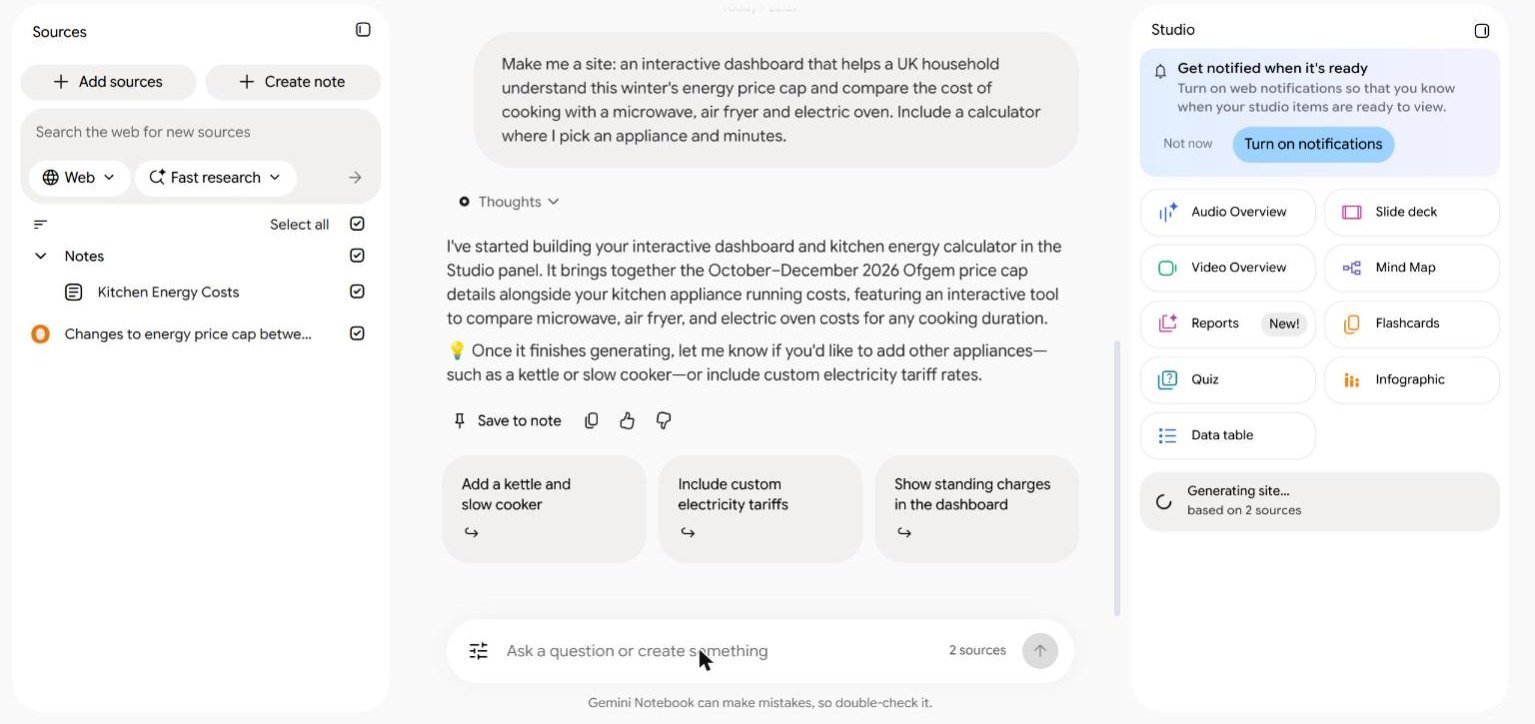
In the chat box we typed: “Make me a site: an interactive dashboard that helps a UK household understand this winter’s energy price cap and compare the cost of cooking with a microwave, air fryer and electric oven. Include a calculator where I pick an appliance and minutes.”
Gemini replied that it had started building the dashboard in the Studio panel, and offered follow-up ideas such as adding a kettle and slow cooker. In Studio, a new item said “Generating site… based on 2 sources”, with an offer to notify us when it was ready.
Step 5: Open your Gemini Notebook site
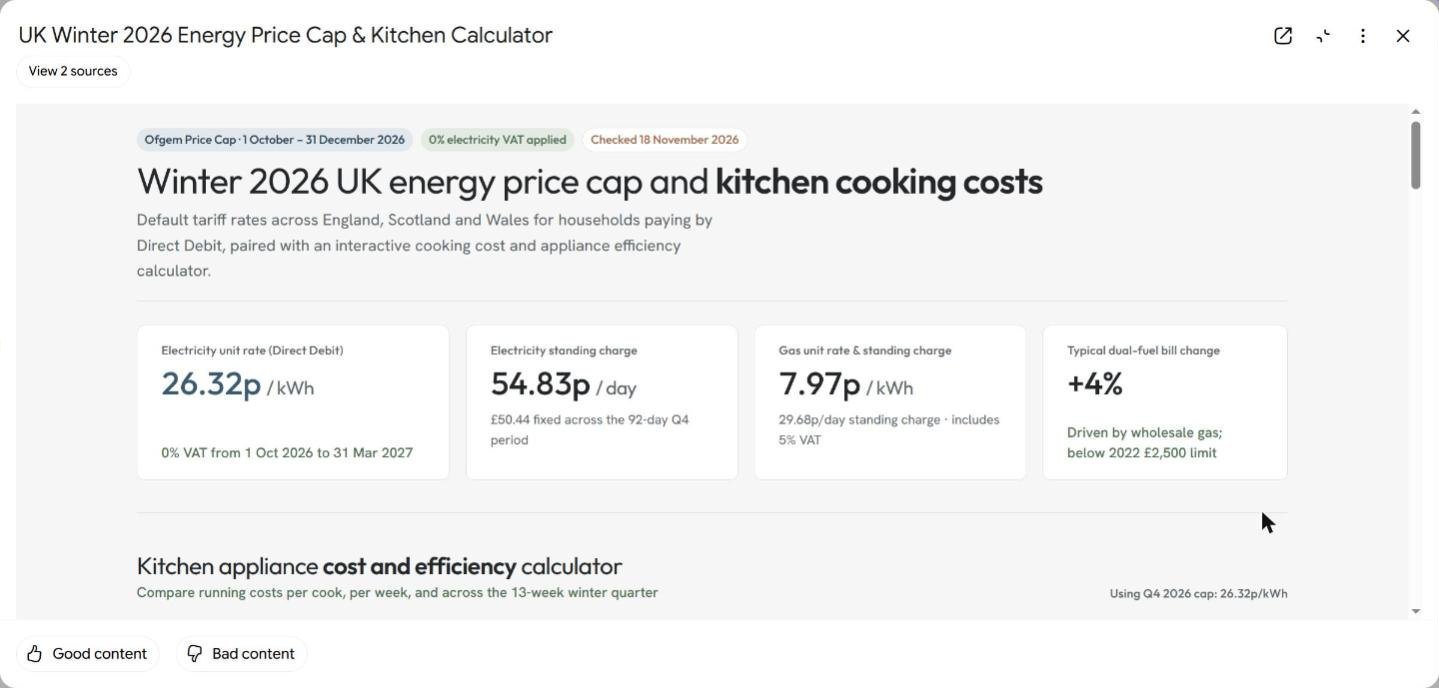
Our Gemini Notebook site was ready in about three to four minutes. Clicking it opened a large viewer titled “UK Winter 2026 Energy Price Cap & Kitchen Calculator”, with a View 2 sources button, an open in new tab icon and Good content and Bad content buttons for feedback.
What our Gemini Notebook site could do
The top of the page showed four cards: the electricity unit rate of 26.32p per kWh with 0% VAT from 1 October 2026 to 31 March 2027, a standing charge of 54.83p a day, gas at 7.97p per kWh with a 29.68p standing charge, and a 4% rise for a typical household. It even added a “Checked 18 November 2026” label taken from our note.
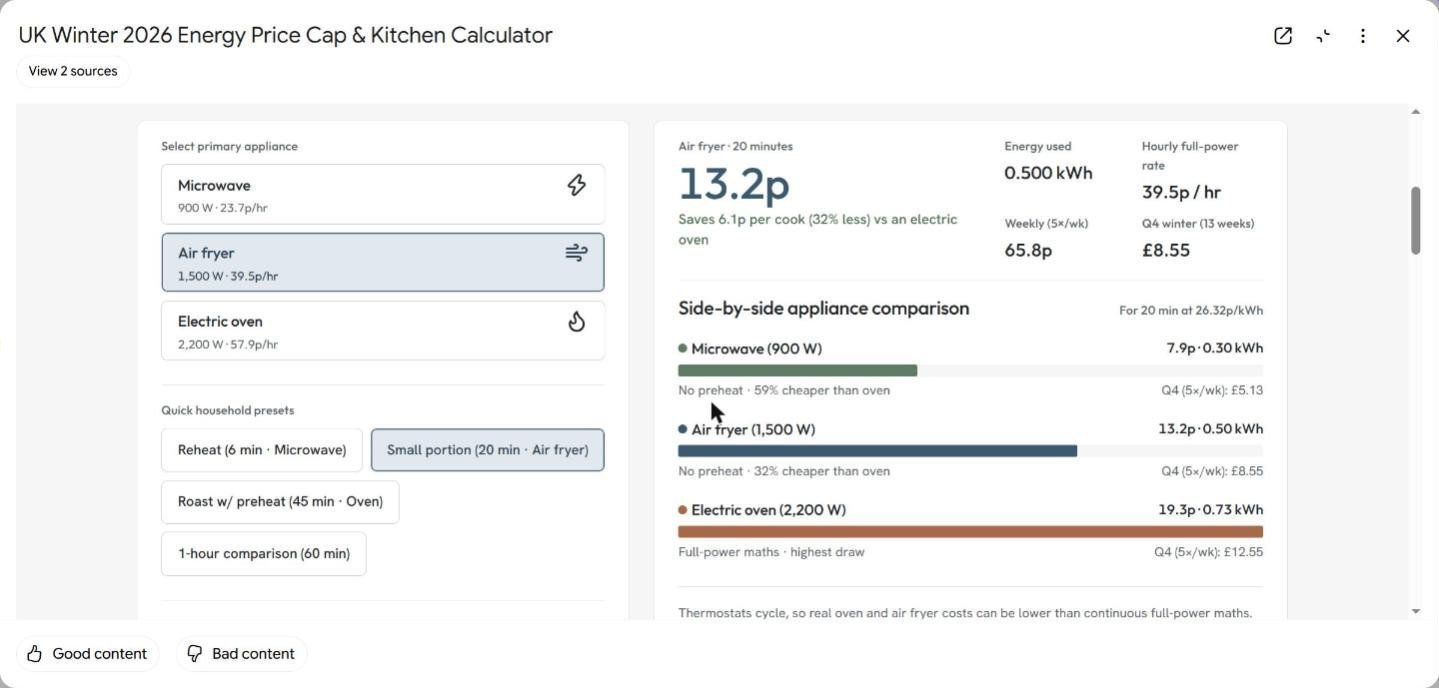
Below that was the calculator we asked for. You pick an appliance, or a preset such as “Reheat (6 min, Microwave)” or “Roast with preheat (45 min, Oven)”, and it shows the cost per use, the energy used, a weekly cost and a total for the winter quarter, with a side by side bar chart of all three appliances.
Was it accurate?
We checked every number against Ofgem’s price cap page and redid the sums. The unit rates, standing charges, VAT details and 4% rise all matched Ofgem. In the calculator, 20 minutes cost 7.9p in the microwave, 13.2p in the air fryer and 19.3p in the oven, and a 45 minute oven roast cost 43.4p. All of those are right at 26.32p per kWh. The weekly and quarterly totals were right too.
One line was not from our sources: a comment that capped prices are “below 2022 £2,500 limit”. That refers to an older scheme and was not in either source. It is a small thing, but it shows Gemini can add background of its own.
Opening the site in its own tab
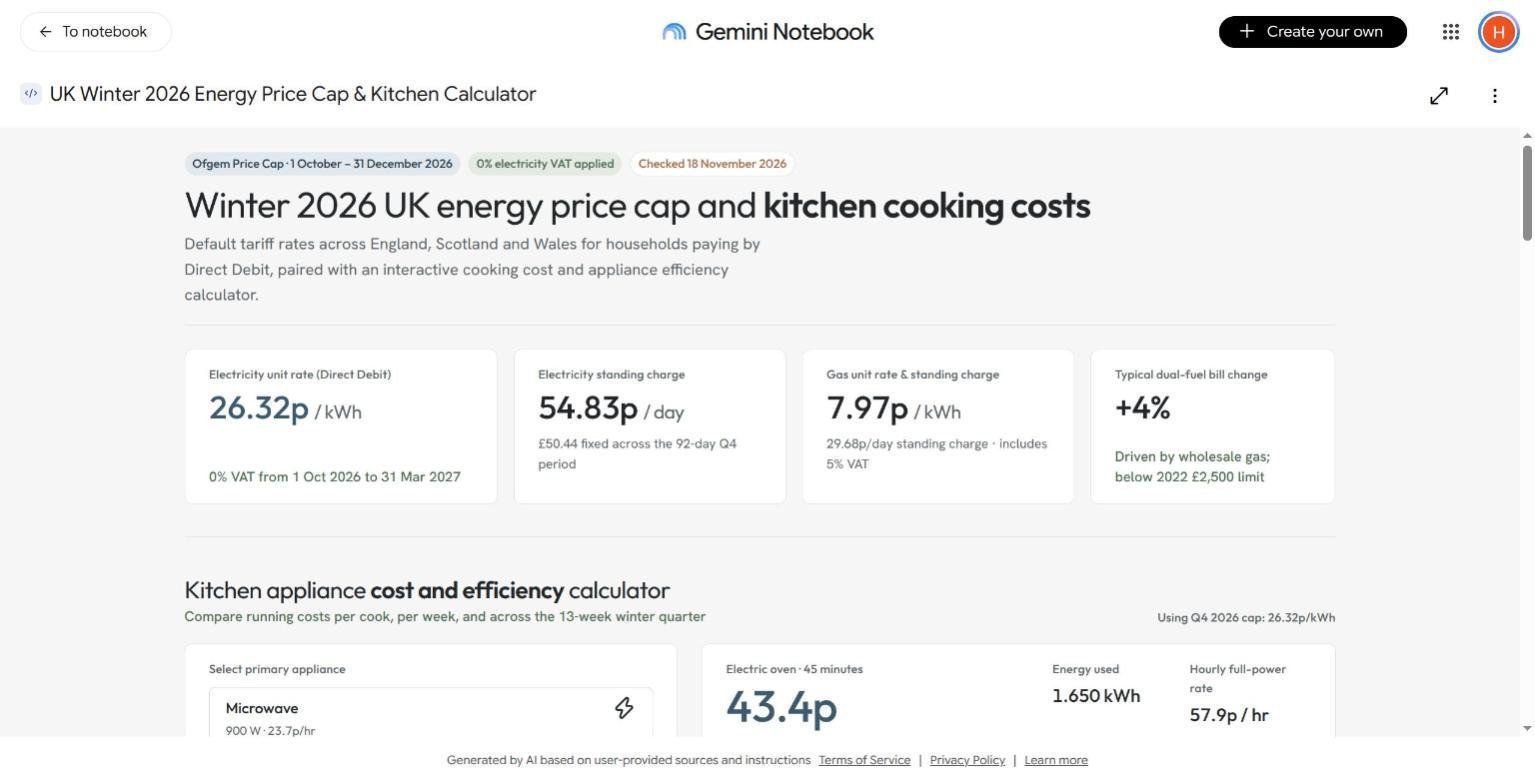
The open in new tab button showed the site full screen with its own address inside Gemini Notebook, a link back to the notebook, a Create your own button and a footer saying it was generated by AI based on user-provided sources and instructions. From the Studio menu you can also Rename, Download, View prompt and sources or Delete the site. Who can see it is controlled by the notebook’s Share button, which we did not change.
How editing a Gemini Notebook site really works
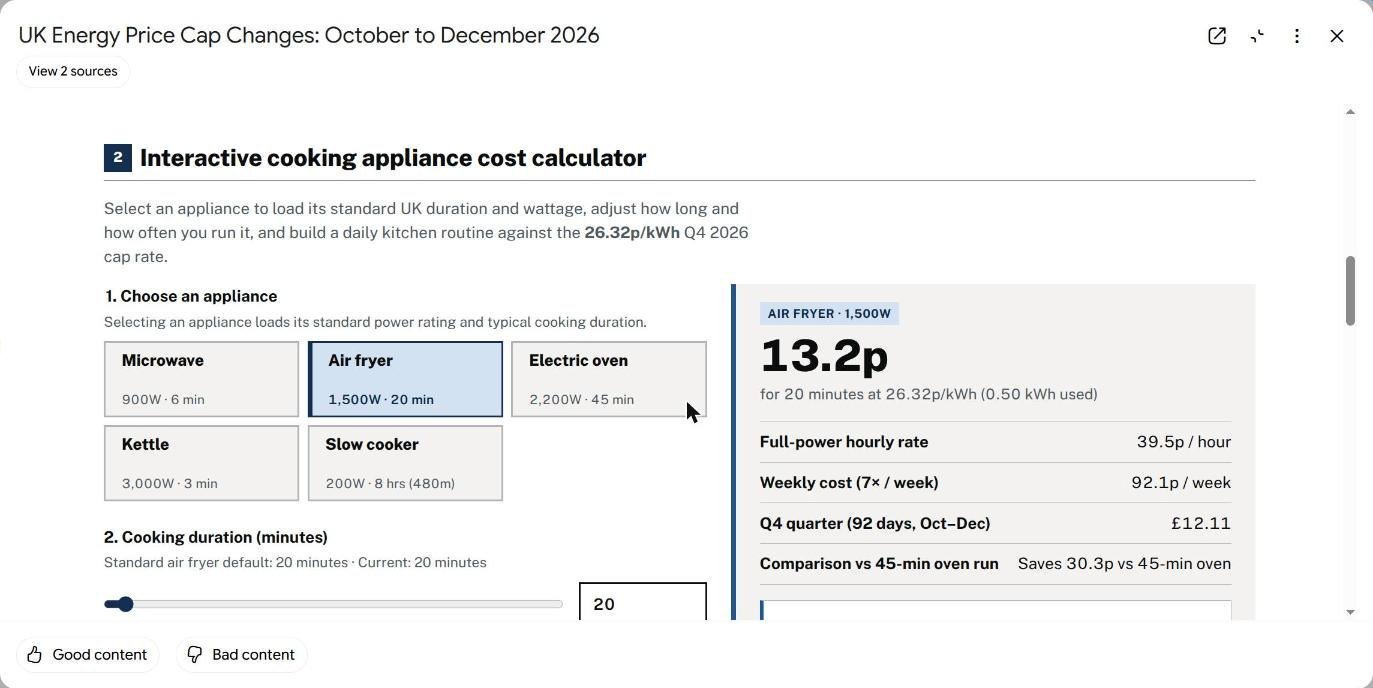
We asked for a change in the chat: “Update the site: add a kettle (3,000W, 3 minutes) and a slow cooker (200W, 8 hours) to the calculator.” Gemini warned us before it started: it builds a fresh version of the site, so “visual layout details you didn’t ask to change may adjust slightly”.
“Slightly” turned out to be an understatement. About three minutes later, a second site appeared in Studio. The original was kept, which is good, but the new one had a completely different design: new colours, new layout, numbered sections and a different set of extras.
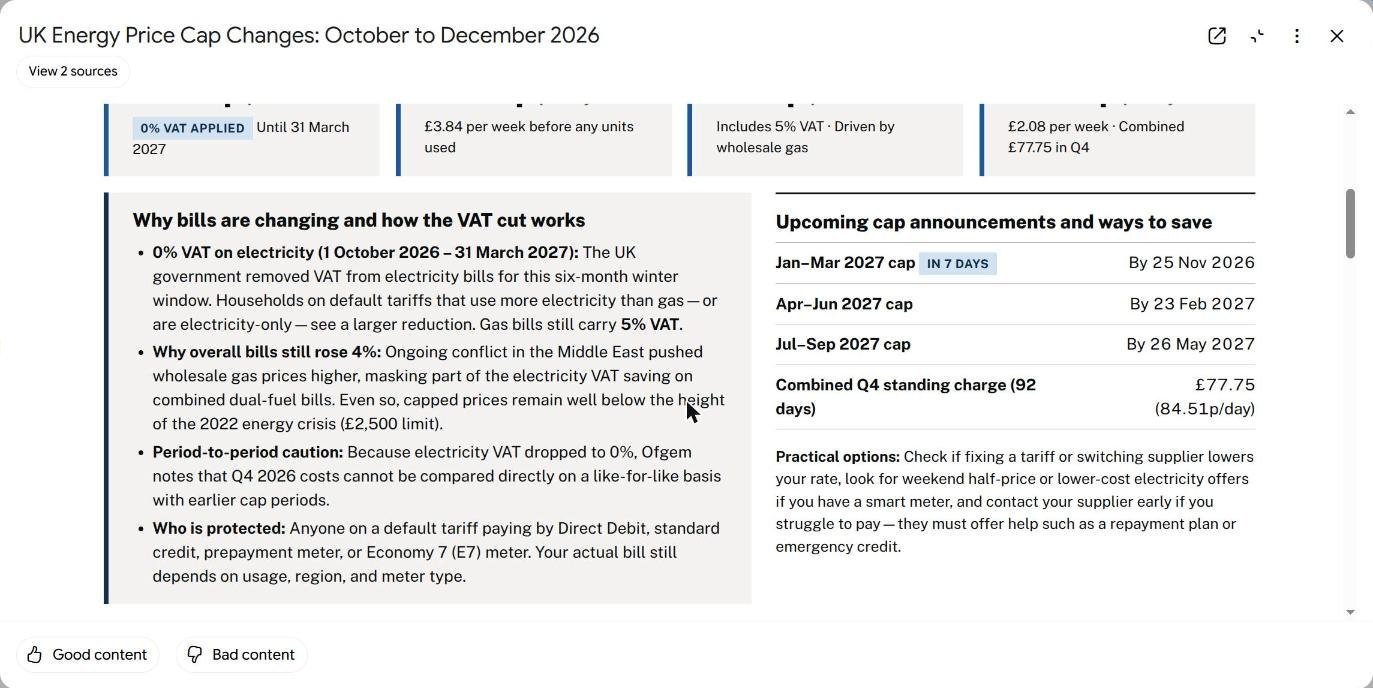
The kettle and slow cooker were there and correct: 3.9p for 3 minutes of kettle and 42.1p for 8 hours of slow cooker. But other things changed that we had not asked for. The weekly cost now assumed you cook seven times a week instead of five, and the quarter was counted as 92 days instead of 13 weeks.
The new version also added a list of future price cap announcement dates. The first, 25 November 2026, matches Ofgem. The other two, for February and May 2027, were not in our sources. They may be reasonable guesses, but they are presented as facts. Always check anything in a new version that you did not provide.
What can you build with Gemini Notebook sites?
Google suggests three kinds of Gemini Notebook site, and our test fits the second:
- Visual explainers for study, such as an interactive periodic table or a history timeline.
- Interactive dashboards for exploring data, such as sales figures or, in our case, energy costs.
- Project trackers for tasks and deadlines.
Some ideas that suit the feature well: a revision page built from your lecture notes, a budget planner from a spending spreadsheet, a trip planner from saved web pages, or a simple explainer for customers built from your product documents.
Which sources work best for a Gemini Notebook site?
In our test, the quality of the Gemini Notebook site came straight from the quality of the sources. A few lessons:
- Official pages import well. Ofgem’s page imported first time, and Gemini pulled every rate from it correctly.
- Some websites refuse. The Energy Saving Trust article would not import. If that happens, copy the parts you need and paste them as Copied text.
- Your own notes are powerful. Our note of checked appliance costs became the calculator’s starting point, word for word.
- Spreadsheets and documents from Google Drive suit dashboards, because the numbers are already organised.
- Fewer, better sources beat many weak ones. Two good sources were enough for a detailed dashboard.
Whatever you use, open View prompt and sources on the finished site to confirm which sources it was built from.
Prompt examples for a Gemini Notebook site
The wording of your “make me a site” prompt shapes the result. These are prompts you can copy and adapt. Each one names who the Gemini Notebook site is for, what it should show and what should be interactive.
- Revision: “Make me a site: an interactive revision page from my biology notes, with a quiz at the end and a glossary I can search.”
- Budget: “Make me a site: a monthly budget dashboard from my spending spreadsheet, with a chart by category and a slider to test savings goals.”
- Trip planning: “Make me a site: a day by day trip planner for Edinburgh from these web pages, with opening times and a map link for each stop.”
- Work: “Make me a site: a project tracker from this plan, showing tasks, owners and deadlines, with a filter for overdue items.”
- Customers: “Make me a site: a simple explainer of our three service plans from these documents, with a comparison table and an FAQ.”
Gemini Notebook site vs a real website
A Gemini Notebook site is impressive, but it is not a replacement for a proper website. It lives inside Gemini Notebook, under Google’s address, with a footer saying it was generated by AI. You cannot add your own domain, and there is nothing in what we tested about search engines finding it.
Where a Gemini Notebook site shines is as an interactive way to explore or present information you already have: a study aid, a dashboard for a meeting, or a one-off explainer you send to a few people. For a business website, a blog or anything customers should find on Google, use a website builder or a host such as WordPress.
Tips for a better Gemini Notebook site
- Start with good sources. A Gemini Notebook site is only as accurate as what you give it. Official pages and your own checked notes worked best for us.
- Use notes for your own numbers. They do not count towards the source limit, and Gemini used ours exactly.
- Be specific in the prompt. Say who it is for, which country, and what interactive parts you want, such as a calculator or a filter.
- Ask for everything at once. Because each edit rebuilds the site, it is better to list all your features in the first prompt.
- Use View prompt and sources to see what a version was built from before you share it.
Troubleshooting
- “Unable to import this web page due to source restrictions”. The site blocks importing. Copy the text and add it with Copied text, or use a different source.
- No Site button in Studio. There is not one. Type “make me a site” in the chat.
- It is taking a while. Ours took three to four minutes each time. Turn on notifications if offered and come back later.
- Your edit changed the design. Each edit creates a new version. Your earlier version stays in Studio, so you can go back to it.
- The feature is missing. It is rolling out on the web for users aged 18 and over. The mobile app does not have it yet.
Common mistakes
- Trusting every figure. Ours were right, but Gemini also added claims and dates that were not in our sources.
- Making lots of small edits. Each one rebuilds the site and can change things you liked.
- Sharing before checking. Read through every section and test every button before you send the link to anyone.
- Using it as a public website. It lives inside Gemini Notebook. For a real business site you still need a proper website builder or host.
Gemini Notebook site FAQ
How do I make a site in Gemini Notebook?
Add sources to a notebook, then type “make me a site” in the chat with a description of what you want. The site appears in the Studio panel.
Is the Gemini Notebook site feature free?
Google has not listed it as a paid feature. It is rolling out to Gemini Notebook users aged 18 and over on the web. We tested it on a Google AI Plus account, so we cannot confirm the limits on a free account.
How long does it take?
About three to four minutes for each version in our test.
Can I edit a Gemini Notebook site?
Yes, by describing the change in the chat. Gemini builds a new version and keeps the old one, and the design can change a lot.
Can I share or download it?
Yes. You can open it in a new tab, download it, and control access through the notebook’s Share button.
Does it work on the Gemini Notebook mobile app?
Not yet. Google says it is coming soon to mobile.
Key takeaways
- Type “make me a site” in the Gemini Notebook chat. There is no button for it.
- Our dashboard and calculator took three to four minutes, and every figure we checked was correct.
- Some web pages cannot be imported, but your own notes work well as a source.
- Each edit builds a whole new version, which can change the design and assumptions.
- Gemini added a few claims and dates that were not in our sources, so check before you share.
How we tested and what we checked
We tested on 18 November 2026 in Chrome on a desktop computer in the UK, signed in to a Google account with Google AI Plus. We created a new notebook, added Ofgem’s October to December 2026 price cap page and a note of our own checked appliance costs, asked for a site with one “make me a site” prompt, then asked for one change. We checked every figure in both versions against Ofgem’s page and redid the calculations ourselves.
We did not test the mobile app, a free account, public sharing, Workspace accounts or large files. The feature is new and rolling out, so what you see may differ, and we will update this guide as it changes.