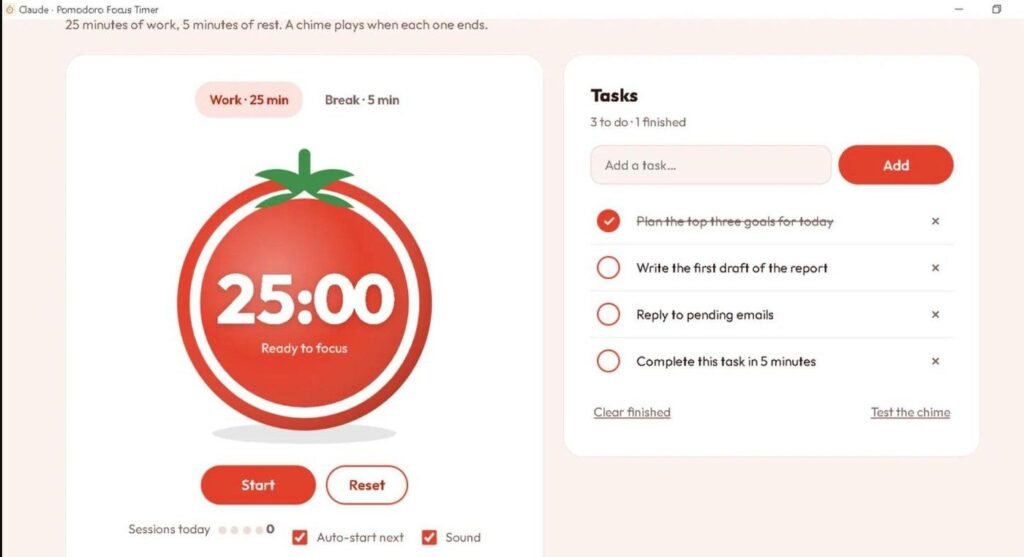
Claude Install as app turns an artifact that Claude builds for you, such as a timer, a tracker or a small calculator, into a desktop app with its own icon and its own window. It is a beta feature in the Claude desktop app for Windows and Mac, announced on 24 November 2026. We tested it on our own Claude Pro account on Windows: we installed a Pomodoro timer artifact, found it in Windows search, used it in its own window and checked that it remembered our to-do list after we closed and reopened it. It took about 5 seconds to open each time.
How we tested
We tested on 28 November 2026 on our own Claude Pro account in the Claude desktop app for Windows (UK). We asked Claude to build a Pomodoro focus timer with a to-do list and a chime (in a normal chat, which also appears in the desktop app), checked whether claude.ai in Chrome offers Install as app, installed the artifact with Install as app, opened it from Windows search, added a task, closed the app completely and reopened it. We also checked the File, Apps menu in the desktop app and noted every option it offered.
Not tested: the Mac version, app permission requests (our timer never asked for any), full computer access, sharing an app with someone else, updates after editing the artifact, offline use and the Team and Enterprise admin controls. Those details come from Anthropic’s help centre and are labelled that way.
In this article
Claude Install as app: the short answer
- What it does: installs a Claude artifact as a standalone app on Windows or Mac, with its own icon, window and shortcuts.
- Who gets it: it is in beta on the Free, Pro, Max, Ultra, Team and Enterprise plans, in the Claude desktop app only.
- How to install: open the artifact in the Claude desktop app, right-click it (or use its title menu or Share), choose Install as app and confirm.
- The catch: you must be online and signed in to the Claude desktop app to open an installed app, and anything the app asks Claude to do counts toward your plan’s usage limits.
- Our result: installing took two clicks, the app opened in about 5 seconds and our to-do list survived a full close and reopen.
What is Claude Install as app?
Artifacts are the interactive pages Claude builds in a chat: small tools, games, dashboards and trackers you can use straight away. Until now they lived inside Claude. With Install as app, an artifact gets its own icon and opens in its own window instead of inside Claude, so a tool you use every day feels like any other program on your computer.
According to Anthropic’s announcement, there is no packaging, code signing, API key or separate login to deal with. The app uses your Claude account. It is still the same artifact underneath: when you or another editor changes the artifact, the installed app changes too.
If you have not built an artifact before, our guide to Claude Projects shows how to keep the files and instructions for a tool like this in one place, and our Claude Cowork guide covers Claude’s longer, hands-off tasks.
Who can use it and what you need
| Requirement | Details |
|---|---|
| Plans | Beta on Free, Pro, Max, Ultra, Team and Enterprise |
| App | Claude for Windows or Claude for Mac, version 6.28899.0 or later |
| Not available on | Linux, the web and mobile |
| To open an app | You must be online and signed in to the Claude desktop app |
| Usage | Building the app and any requests it makes to Claude count toward your plan’s limits |
| Team plans | On by default; full computer access is off until an admin turns it on |
| Enterprise plans | Off until an owner turns it on in Organization settings, Artifacts |
Some artifacts cannot be installed. Anthropic’s help centre article lists artifacts made from templates (Docs, Slides and Sheets), legacy artifacts and live Claude Cowork artifacts. The feature is also not available to organisations with HIPAA-ready configurations.
How to install a Claude artifact as an app in 4 steps
- Build the artifact. In the Claude desktop app, describe the tool you want. Our prompt was: “Build me a Pomodoro focus timer app: 25 minute work and 5 minute break, start, pause and reset buttons, a short to-do list, and a sound when the time is up.” Try it in the chat first and ask for changes until it works the way you want.
- Open the artifact in the main Claude window. The option only appears in the desktop app, not on claude.ai in a browser.
- Choose Install as app. Right-click the artifact, or open its title menu. It is also under Share.
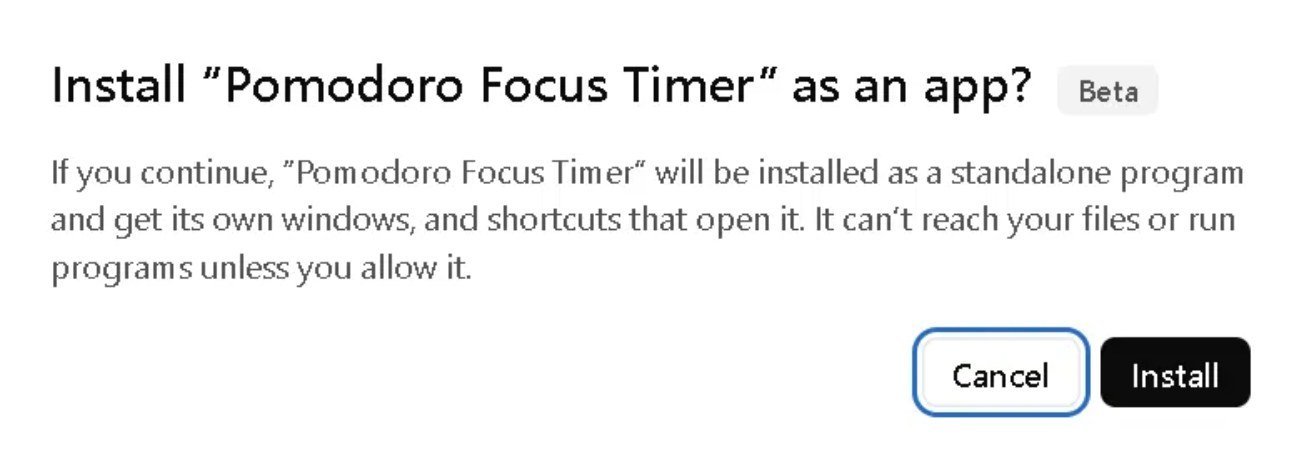
- Confirm with Install. Claude always asks first, however you start the install.
The confirmation box we saw was labelled Beta. It explained that the app would be installed as a standalone program with its own windows and shortcuts, and that it cannot reach your files or run programs unless you allow it.
No Install as app option? Update the desktop app first. On Windows, open the menu button (☰), then Help, then Check for Updates. On a Mac, use Claude, then Check for Updates. On Team or Enterprise, ask an owner whether the feature is turned on.
Our Claude Install as app test on Windows
Test 1: install the artifact
Claude built the Pomodoro timer artifact in about 80 seconds: a tomato-style 25:00 timer, work and break tabs, a chime and a task list with three example tasks. First we checked claude.ai in Chrome. Neither the artifact’s title menu nor its Share panel offered Install as app, which matches Anthropic’s note that it is desktop only. We right-clicked the Pomodoro timer artifact in the Claude desktop app, chose Install as app and clicked Install in the confirmation box. There was nothing else to set up: no file to download, no installer wizard and no extra sign-in.
Test 2: find and open it like a normal Windows app
Typing part of the name into the Windows search box brought up Pomodoro Focus Timer as the best match, listed as an App with its own timer icon. Anthropic says installed apps go in a Claude Apps folder in the Start menu, and can also have a desktop shortcut. The app opened in its own window titled “Claude · Pomodoro Focus Timer” and got its own icon on the taskbar, separate from the Claude desktop app.
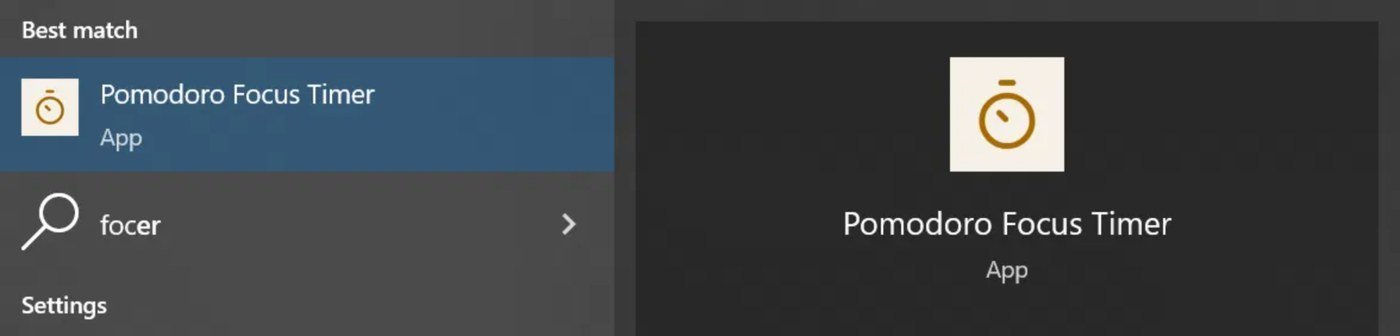
Opening it took about 5 seconds each time we tried, timed by eye. That is slower than a typical small Windows program, but fine for a tool you open once and leave running.
Test 3: does the app remember your data?
This was the test we cared about most, because a to-do list that forgets everything is not much use. We added a new task, “Complete this task in 5 minutes”, closed the app with the X in its title bar and opened it again from Windows search. The task was still there, along with the three example tasks and the one we had already ticked off.
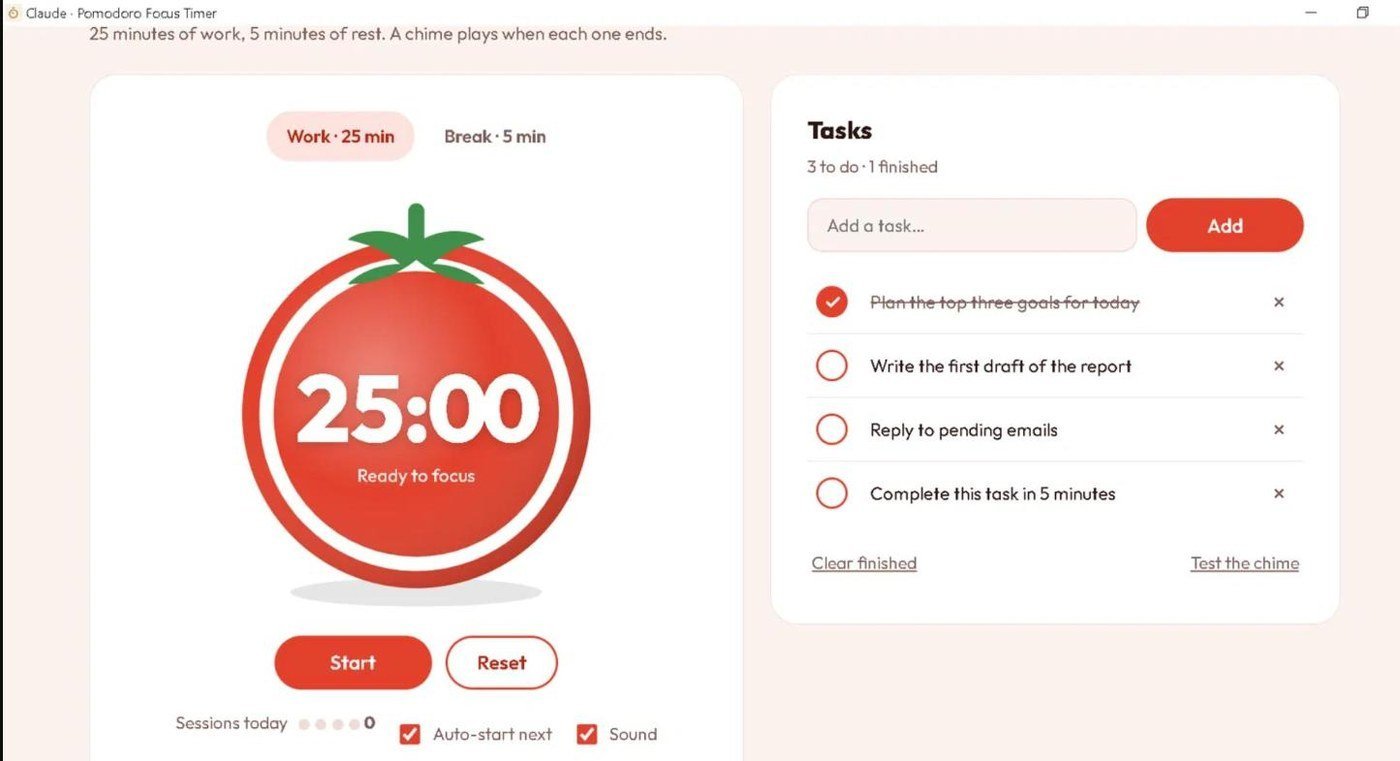
Anthropic’s help article does not explain how installed apps store data, so we can only report what we saw: on one Windows computer, the app kept its list between sessions. We did not test whether that data survives uninstalling, moving to another computer or a change to the artifact.
Test 4: manage the app from the desktop app
In the Claude desktop app on Windows, the menu button (☰) opens File, then Apps. On our computer this was a submenu listing each installed app by name, not a separate window. Pointing at Pomodoro Focus Timer showed six options:
- Open and Show in Explorer
- About Pomodoro Focus Timer
- Permissions…, to change what the app may do on your computer
- Report Artifact…
- Uninstall…
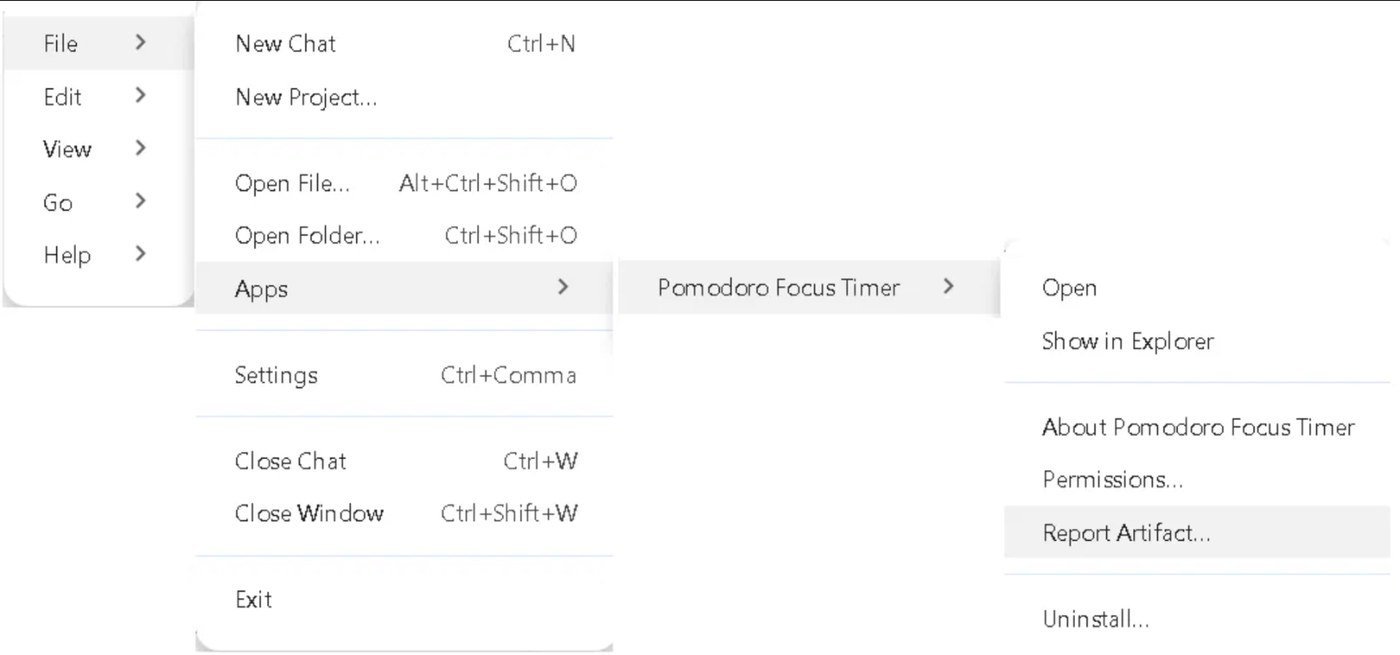
Anthropic’s documentation mentions Permissions, Report Artifact and Uninstall here. Open, Show in Explorer and About were extra options we found on Windows.
Claude app permissions explained
By default, an installed app can only do what the artifact could already do in a browser. If an app wants more, Claude asks you, and each request gets an Allow or Don’t allow. These are the permissions Anthropic lists (not tested, because our timer never asked for any):
| Permission | What it lets the app do |
|---|---|
| Notifications | Show alerts while you use other apps |
| Keyboard shortcuts | Respond to key combinations in other apps |
| Float over other windows | Draw above other windows and read where your cursor is |
| Menu bar or system tray item | Show an item there while the app is open |
| Full access to this computer | Run programs and read, change or delete files without asking each time |
Two details matter for safety. First, an Allow covers only one version of the app. After any update, including your own edits, Claude asks again, while a Don’t allow stays until you change it. Second, if an app loads code from another website, that code can change without a new prompt.
To change permissions later on Windows, right-click the app’s title bar (or press Alt+Space) and choose Permissions, or use File, Apps in the Claude desktop app. On a Mac, click the app’s name in the menu bar.
Is it safe to install Claude artifacts as apps?
For an app you built yourself that only asks for the default permissions, the risk is low: it can do no more than the artifact could in a browser. The bigger decision is full computer access. Anthropic warns that it does not review apps before they are installed, so treat full access like installing any program from the internet.
Claude adds some guard rails. It generally won’t allow full access if someone outside your organisation wrote part of the app or its author can’t be confirmed. On personal plans (Free, Pro, Max and Ultra), anyone other than you counts as outside. Requests like that show a warning. Turning full access off later may reload or close the app and stops programs it started, but it does not undo changes already made.
Our rule of thumb: allow notifications or a tray icon when they make sense for the tool, and only give full access to an app you wrote, understand and actually need it for. If you already let Claude act in your browser, our Claude in Chrome test covers the same kind of permission choices.
How to uninstall a Claude app
- In the Claude desktop app, open File, then Apps (on Windows, File is under the ☰ menu).
- Point at the app and choose Uninstall.
On Windows this removes the app’s shortcuts, and on a Mac the app moves to the Trash. Remove any taskbar, Start or Dock pins yourself. Uninstalling removes the permissions you allowed but does not delete the artifact, so you can install it again from the chat. We did not uninstall our test app.
Limits to know before you rely on it
- It needs Claude running behind it. You must be online and signed in to the Claude desktop app to open an app.
- It uses your allowance. Requests the app makes to Claude count toward your plan’s usage limits. A plain timer like ours makes none, but an app that asks Claude to summarise or write something will.
- Access can end. If the artifact is deleted, taken down or no longer shared with you, Claude usually offers to uninstall the app when you next open it.
- Some apps keep running. Apps with a menu bar item or tray icon keep running after you close the window. On Windows, quit them with Exit in the tray menu.
- It is a beta. Menus and behaviour may change, as the File, Apps submenu already differs slightly from the help article’s description.
Tips for building a good Claude app
- Describe the job, not the code. List the buttons, the data it should keep and what should happen at the end, as in our timer prompt.
- Test it as an artifact first. Fixing it in the chat is quicker than reinstalling, and every edit means Claude asks for permissions again.
- Ask for it to remember things. If you want a list or settings kept between sessions, say so in your prompt, then check it with a close and reopen like we did.
- Keep it small. Single-purpose tools (timers, trackers, calculators, checklists) suit this best.
Our verdict on Claude Install as app
Claude Install as app does what it promises with very little effort. Going from a chat prompt to a timer in our Windows search results took two clicks, and the app behaved like a real program: its own window, its own taskbar icon and a to-do list that was still there the next time we opened it. The trade-offs are that it needs the Claude desktop app signed in and online, it takes a few seconds to open, and full computer access deserves real caution. For small personal tools you use every day, it is well worth trying.
Claude Install as app FAQ
Is Claude Install as app free?
Yes. The beta is available on every plan, including Free. Building the app and any requests it makes to Claude count toward your plan’s usage limits.
Can I install a Claude artifact as an app from claude.ai in my browser?
No. Install as app only works in the Claude desktop app for Windows and Mac. It is not available on the web, on mobile or on Linux.
Does an installed Claude app work offline?
No. Anthropic says you must be online and signed in to the Claude desktop app to open an installed app. We did not test what happens if you lose your connection while an app is already open.
Will my app update when I change the artifact?
Yes, according to Anthropic. The installed app shows the artifact, so edits by you or another editor change the app too, and Claude asks again for any permissions you had allowed.
Where do installed Claude apps appear on Windows?
In a Claude Apps folder in the Start menu, and through Windows search. In our test, searching for part of the name found the app straight away. You can also open apps from File, Apps in the Claude desktop app.
Can I share an app I made?
Anthropic says you can share these apps with others, and people you share the artifact with see the same updates. We did not test installing a shared app on another account.
Sources
- Anthropic: Turn artifacts into Mac and Windows apps
- Claude Help Centre: Install an artifact as an app
More Claude guides
- Claude in Chrome: 4 Real Tests, Permissions and Safety (Tested on Pro)
- Claude Cowork: Where It Went and How to Use It Now in 5 Easy Steps (Tested on Pro)
- Gemini 4 Neon vs Claude Opus 5.5: We Ran 5 Identical Tests (Honest Results)
- Claude Plugins: How to Use the New Plugins Page in 6 Easy Steps (Honest Test)