
Claude plugins now live in one place. On 23 November 2026 Anthropic merged Claude’s skills and connectors into a single Plugins page, reached from the sidebar, where you can browse, add, use and remove them. We tested the new Plugins page on our own Claude Pro account: we added a marketing plugin, ran one of its skills in chat and removed it again. It took about ten minutes, nothing was connected without our say, and the most useful detail was hiding in the remove dialog.
How we tested
We tested on 25 November 2026 on our own Claude Pro account in Chrome (UK), using Opus 5.5 at Medium effort with Manual permissions. We browsed the Plugins page, added Anthropic’s Marketing plugin, checked its Permissions tab, ran its draft-content skill on a short writing task, counted the words in the result and then removed the plugin.
Not tested: the Free plan view, connecting a new connector, uploading a plugin, adding a marketplace, creating a plugin, Cowork, Claude Code and Team or Enterprise admin controls. Those details come from Anthropic’s help pages and are labelled that way.
In this article
Claude plugins: the short answer
- Where: click Plugins in the Claude sidebar, or go to claude.ai/plugins. It replaces the separate Skills, Connectors and Plugins tabs.
- Who: Free, Pro, Max and Ultra plans have it now, according to Anthropic’s help centre. Team plans start getting it on 30 November 2026, and Enterprise in the weeks after.
- What a plugin is: a bundle that can hold skills (instructions Claude follows), connectors (access to apps such as Slack or Notion), commands and agents.
- How to use one: add it, then type / in a chat and pick one of its skills, or just describe the task.
- What surprised us: adding a plugin connected nothing new, and removing it asked which connectors to remove as well, with none ticked by default.
What are Claude plugins?
A Claude plugin packages several things you can add to Claude as one unit. Anthropic’s plugin documentation lists four kinds of component:
- Skills: instructions Claude follows when a task matches, such as a process for writing a campaign brief.
- Connectors: access to an outside app or data source, such as Slack, Canva, Notion or Gmail. You connect each one with your own account.
- Commands: named actions. In chat, a command loads as a skill.
- Agents: specialists Claude can hand part of a task to. These run in Cowork and Claude Code, not in ordinary chat.
Before this change, skills and connectors lived on separate tabs. Now one page holds all three, and Anthropic says there are more than 10,000 plugins to browse, according to The Defiant’s report of the launch. We did not count them.
Plugins you add are saved to your account, so the same plugin is also available in Cowork and Claude Code without installing it again, according to Anthropic’s plugins overview. We only tested chat.
Who can use the new Plugins page?
According to Anthropic’s help article on the Plugins page:
- Free, Pro, Max and Ultra: available now, on the web and in the Claude desktop app.
- Team: rollout begins on 30 November 2026.
- Enterprise: in the weeks after Team, turned on by default.
One catch for Free users: Anthropic’s documentation says plugins from its reviewed directory appear on Pro, Max, Team and Enterprise plans, so a Free account may see a smaller selection. We tested on Pro, so we could not check the Free view. The help article also says plugins need the Cloud code execution and file creation setting turned on.
How to use Claude plugins, step by step
Here is exactly how we used Claude plugins, in order. Each step shows what we saw on our Pro account.
Step 1: Open the Plugins page
Click Plugins in the left sidebar. The page opens with a search box, three filters (All, Connectors and Skills), a filter icon and an Add button. Below them, the page is split into sections: Your plugins, Most used, Popular workflows, Trending, New and Categories.
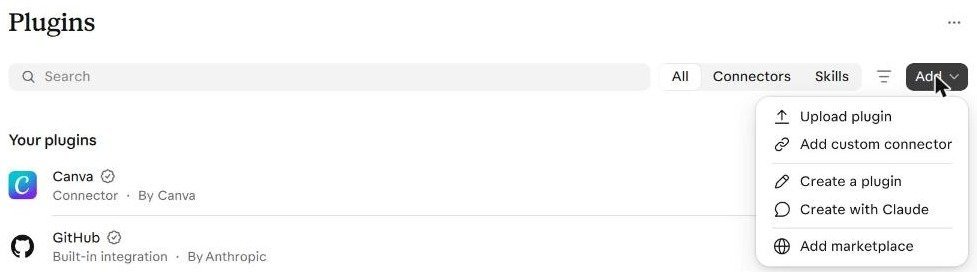
The Add menu holds five options: Upload plugin, Add custom connector, Create a plugin, Create with Claude and Add marketplace. You do not need any of them to add a plugin from the directory.
Step 2: Find a plugin
You can browse Claude plugins by section, filter them by type or search. The filter icon offers two choices, Verified and Community, which is the quickest way to stick to reviewed plugins. The Categories section had 20 groups when we tested, including Automation and workflows, Email and messages, Files and documents, Marketing, Sales and Websites.
We searched for “marketing”. The results mixed connectors, skills we had already made and Anthropic’s own Marketing plugin, plus a “Department: Marketing” tag to narrow things further.
Step 3: Check what the plugin can reach
Open any of the Claude plugins you are considering before you add it. The Marketing plugin’s page listed 13 connectors (including Slack, Canva, Figma, HubSpot, Notion, Ahrefs, Gmail and Google Calendar) and 8 skills, such as brand-review, campaign-plan, competitive-brief and draft-content.
Further down is the part worth reading every time. It showed the developer tier (Verified), a note that it was Scanned by Anthropic, and a list headed “Can send data to these services” with 11 named domains and two entries listed only as “an unnamed service”. It also showed the version (v1.2.0, dated 24 November), when it was listed and a link to its source on GitHub.
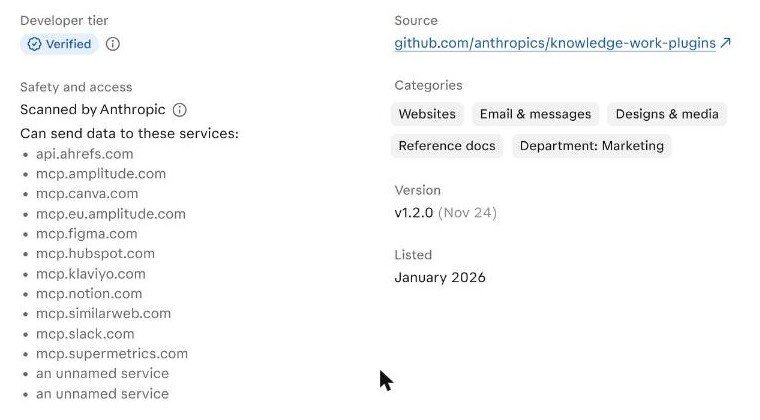
Anthropic’s documentation says every version of a directory plugin gets automated validation and a security scan, and a person reviews a new listing before it goes live. That review does not cover a plugin you upload yourself or add from a marketplace URL, so only add those from sources you trust.
Step 4: Add the plugin
Click Add. A message said “Marketing is added” within a second or two, and the buttons changed to Try in chat and Finish setup. A new Permissions tab also appeared.
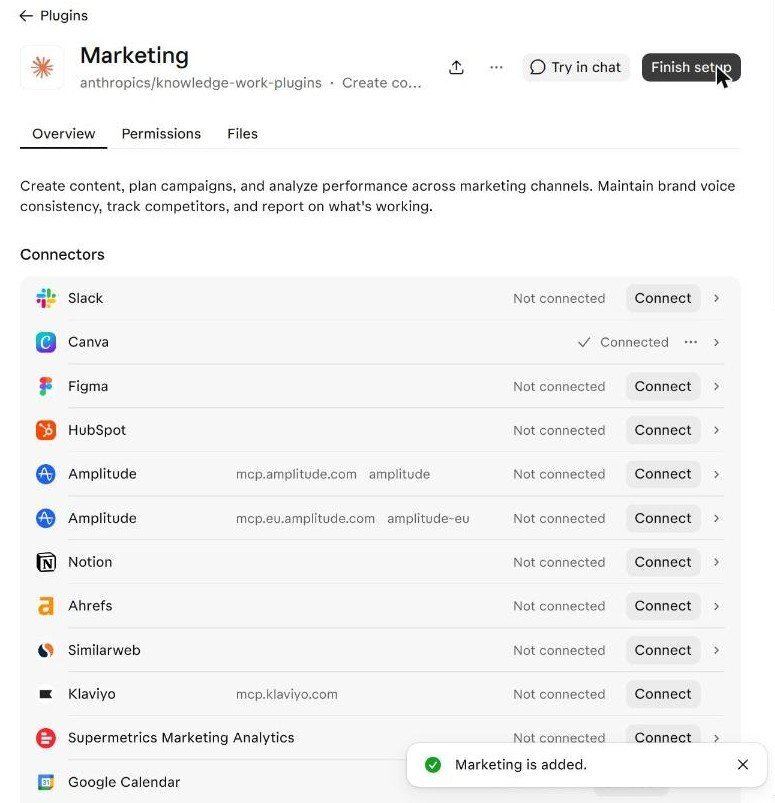
This is the reassuring part. Adding the plugin did not connect anything. Each connector showed Not connected with its own Connect button, and Canva showed Connected only because it was already linked to our account before the test. The plugin’s skills still work without any connector; a skill just cannot reach an app until you connect it.
Step 5: Check the permissions
The Permissions tab lists every tool each connected connector offers, grouped into interactive, read-only and write or delete tools. Each one is set to Needs approval or Always allow. A note on the tab explains that these settings apply in Manual mode, while in Auto mode an automated check blocks actions it flags as risky, and Claude may otherwise act without asking. To make Claude ask even in Auto mode, set a tool to “Always ask”.
If you handle client or company data, glance at this tab before you connect anything, especially the write and delete tools.
Step 6: Use a plugin skill in chat
Try in chat opened a new chat with an example already typed in: a brand-review request. We cleared it and typed / instead. The menu lists built-in options and every skill on the account, so we typed “draft” to filter it. That showed the plugin’s draft-content and email-sequence skills, with a description on hover.
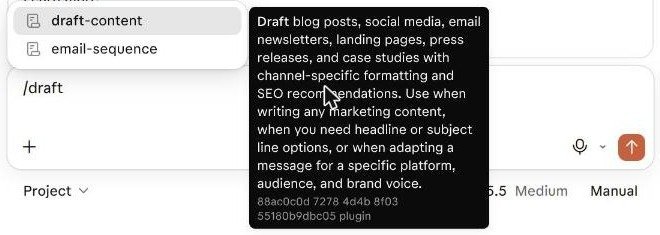
One small surprise: filtering by the plugin’s name, “marketing”, only matched one skill whose description contained the word. The hover card named the plugin by a long ID rather than “Marketing”, so filter by what the skill does, not by the plugin’s name.
We picked draft-content and asked for three short LinkedIn posts announcing that a fictional bakery, Crumb and Co, opens its second shop in Leeds on 6 December, in a friendly tone, under 80 words each, with one call to action per post.

What the plugin skill actually produced
The answer arrived in roughly 20 to 30 seconds (we did not time it precisely). We checked it against the brief:
- Word limit: met. We counted 67, 76 and 61 words, hashtags included.
- Calls to action: one per post, each different: follow the page, comment, and visit on the day. Claude suggested running them in that order.
- Date: correct. It called 6 December 2026 a Sunday, which it is.
- No invented facts: it left a placeholder for the shop address and said it had not added offers or opening hours because it did not want to make them up.
- No connectors used: it did not try to reach any app.
Could Claude write this without the plugin? Probably, since the skill is a set of written instructions rather than a new model. What the skill added was structure: a different angle per post, channel-specific formatting and notes on what to fill in. For one-off posts that is a small gain. For a team that writes the same kinds of content every week, a shared skill keeps everyone’s requests consistent.
How to remove a Claude plugin
Open the plugin, click the … menu and choose Remove. The menu also offered Edit with Claude and Duplicate.
This is where the useful detail was. The Remove dialog said the plugin uses certain connectors and asked which ones to remove too. It listed Canva, Gmail and Google Calendar, each marked “Used by 4 routines”, and none were ticked by default. It added that “Claude can still use the connectors you keep”. We left them all unticked, clicked Remove and got “Marketing has been removed”. Our existing connectors stayed connected.
That default is sensible: removing a plugin should not silently break other work that relies on the same connector. It also means removing a plugin does not, by itself, cut off app access. Anthropic’s help article makes the same point: removing a plugin does not disconnect its connector, so disconnect it separately if you want it gone.
Claude plugins vs skills vs connectors
| Skill | Connector | Plugin | |
|---|---|---|---|
| What it is | Written instructions for a type of task | A link to an outside app or data | A bundle of skills, connectors, commands and agents |
| Needs an account elsewhere? | No | Yes, you sign in to the app | Only for the connectors you choose to connect |
| How you use it in chat | Type / or describe the task | Ask Claude to use the app | Use its skills with / and its connectors once connected |
| Works in Cowork and Claude Code | Yes | Yes | Yes, synced from your account (documented, not tested) |
| Where you manage it | The Plugins page, with the Skills and Connectors filters | ||
Are Claude plugins worth using?
Claude plugins are worth it if you use Claude for repeat work. Having skills and connectors in one searchable place, with Verified and Community labels and a clear list of where data can go, makes it easier to add useful tools and to see what they can reach. The add and remove flow behaved carefully in our test: nothing connected without a click, and removal kept connectors other work depends on.
If you mostly use Claude for one-off questions, you can ignore it. Claude works the same without plugins, and a plugin skill is a shortcut for a type of task, not a smarter model. If you already organise work in Claude Projects, plugins sit alongside them: projects hold your files and instructions, while plugins add reusable skills and app access across all your chats.
Tips for using Claude plugins safely
- Start with Verified. Use the filter icon to show Verified plugins first.
- Read “Can send data to these services”. It is the quickest way to see where a plugin’s connectors can send information.
- Connect only what you need. A plugin can list a dozen connectors; you can use its skills with none of them connected.
- Set write tools to ask. On the Permissions tab, keep tools that send, edit or delete on Needs approval, or Always ask if you use Auto mode.
- Remove Claude plugins you stop using. Fewer plugins means a shorter slash menu and fewer surprises.
Common mistakes with Claude plugins
- Assuming removal disconnects apps. It does not unless you tick the connectors in the Remove dialog or disconnect them separately.
- Searching the slash menu by plugin name. In our test, the menu matched skill names and descriptions, not the plugin’s name.
- Adding unreviewed plugins casually. Uploaded plugins and marketplace plugins skip Anthropic’s directory review.
- Expecting agents in chat. According to Anthropic’s documentation, a plugin’s agents run in Cowork and Claude Code, not in an ordinary chat.
Key takeaways
- Claude’s skills and connectors moved into one Plugins page on 23 November 2026, on Free, Pro, Max and Ultra plans.
- Claude plugins bundle skills, connectors, commands and agents; adding one connects nothing until you choose to.
- Each plugin page shows its tier, a security scan note and every service it can send data to.
- In our test, the Marketing plugin’s draft-content skill met every part of a short brief and did not invent details.
- Removing a plugin keeps your connectors unless you tick them, which protects other work that uses them.
For more Claude guides, see our tests of Claude Sheets and Claude Fable 5.2.
Claude plugins FAQ
Where is the Plugins page in Claude?
Click Plugins in the left sidebar on claude.ai or in the Claude desktop app. On our account the sidebar showed Plugins directly; Anthropic’s help article says the item previously called Customize is now Plugins.
Are Claude plugins free?
The Plugins page is available on the Free plan, according to Anthropic. Anthropic’s documentation says plugins from its reviewed directory appear on Pro, Max, Team and Enterprise plans, so Free users may see fewer. The apps a connector reaches may need their own account or paid plan.
Does adding a plugin give it access to my apps?
No. In our test, adding the Marketing plugin left every connector as Not connected with a Connect button. A connector only reaches an app after you connect it with your own account.
How do I use a plugin skill?
Type / in the message box, filter by the skill’s name or what it does, and pick it, then write your request. You can also describe the task and let Claude load a matching skill.
Does removing a plugin disconnect its connectors?
Not by default. The Remove dialog asks which connectors to remove as well, with none ticked. Leave them unticked to keep them for other work, or tick them, or disconnect them separately, to remove access.
When do Team and Enterprise plans get the Plugins page?
Anthropic’s help article says Team plans begin rolling out on 30 November 2026 and Enterprise plans follow in the weeks after, on by default.
Plan availability, rollout dates and review details come from Anthropic’s Plugins page help article and plugins documentation, checked on 25 November 2026. The plugin count comes from Anthropic, as reported by The Defiant. Everything else describes what we saw in our own test.
More Claude guides