
Claude in Chrome is Anthropic’s Chrome extension that puts Claude in a side panel next to the page you are reading. It can read the page, click, type, move between sites and fill in forms for you. We tested Claude in Chrome on our own Claude Pro account with four real tasks: opening the panel, summarising a news article, finding a fact on gov.uk and trying to buy something on Amazon. A news summary took about 12 seconds, a correct answer from gov.uk took 17 seconds, and the shopping test showed that checkout is still your job, not the extension’s.
How we tested
We tested on 28 November 2026 on our own Claude Pro account in Google Chrome on a desktop computer (UK), using Opus 5.5 at Medium effort with the side panel’s default permission mode. We ran four tasks (the summary and the shopping task twice), timed them with a stopwatch and kept screenshots of each step. We checked the gov.uk answer against the page itself. On Amazon we were not signed in, so nothing could be bought.
Not tested: shortcuts, scheduled tasks, workflow recording, multi-tab work, the 1Password sign-in beta, Team and Enterprise admin controls, other plans and the built-in browser in the Claude desktop app. Those details come from Anthropic’s help centre and are labelled that way.
In this article
Claude in Chrome: the short answer
- What it is: a free extension from the Chrome Web Store that runs Claude in a side panel and lets it act on web pages for you.
- Who can use it: every paid Claude plan (Pro, Max, Ultra, Team and Enterprise). It is not available on the Free plan.
- Where it works: Google Chrome on desktop only. Anthropic says other Chromium browsers and mobile are not supported yet.
- Speed in our test: a five-point news summary in about 12 seconds, and the correct UK Personal Allowance from gov.uk, with the page named, in 17 seconds.
- Safety: purchases, account creation and handling card or ID details are on Anthropic’s prohibited list in every mode.
- Our verdict: excellent for reading pages and pulling facts from official sites. On checkout it offered to confirm with us before ordering rather than refusing outright, so do the paying yourself.
What is Claude in Chrome?
Claude in Chrome is a browser agent. Instead of copying text out of a web page and pasting it into a chat, you open Claude in a panel on the right of Chrome and ask about the page you are already on. Claude can read the page, and with your permission it can also click buttons, type into boxes, open new pages and work across several tabs.
Anthropic first piloted the extension with a small group of users and then announced on 26 August 2026 that Claude in Chrome is generally available on every paid Claude plan. The same announcement added the ability for Claude to work through a task without asking you to approve every single step, with a safety check on each action instead.
Your conversations in the side panel are saved to your Claude history, so you can pick them up later in the Claude web, desktop or mobile apps. If you already use Claude Cowork in ordinary Claude chat, the side panel is the same Claude with your skills, plugins and connectors, but sitting inside your browser.
Who can use Claude in Chrome, and what it costs
The extension itself is free to install, but it only works with a paid Claude plan. These are the US prices on Anthropic’s pricing page on 28 November 2026. UK prices and VAT may differ, so check the page while signed in.
| Plan | Price (US) | Claude in Chrome? |
|---|---|---|
| Free | $0 | No |
| Pro | $20 a month, or $17 a month billed annually | Yes |
| Max | $100 a month | Yes |
| Ultra | $200 a month | Yes |
| Team | From $25 a seat a month (or $20 billed annually) | Yes, with admin site controls |
| Enterprise | $20 a seat a month billed annually, plus usage | Yes, with admin site controls |
Anthropic’s getting started guide says the extension works with all public models, so you pick the model in the panel the same way you do in a normal chat. Our panel defaulted to Opus 5.5.
How to install Claude in Chrome in 5 steps
- Open the Chrome Web Store in Google Chrome, search for Claude and click Add to Chrome.
- Sign in with your Claude account (it must be on a paid plan).
- Pin the extension: click the puzzle piece icon in the toolbar, then the pin next to Claude, so the Claude icon is always visible.
- Grant the permissions Chrome asks for. Claude needs them to read and act on pages.
- Click the Claude icon to open the side panel, then type a request about the page you are on.
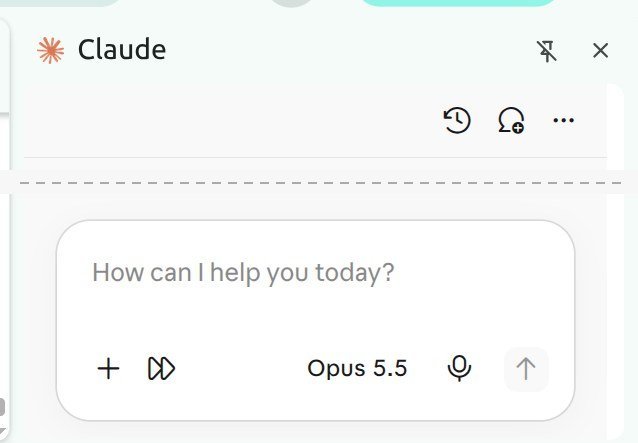
The panel is simple. At the top are buttons for your chat history, a new chat and a menu. At the bottom is the message box with a + button for adding files or screenshots, a button for the permission mode, the model picker and a microphone for voice input. You can also start Claude in Chrome from the Claude desktop app or from Claude Code, but that needs the desktop app open and connected.
Our Claude in Chrome tests: 4 real tasks
We picked four tasks that show the range of what a browser agent does: reading one page, moving between sites, and a task it should refuse. Each one started in a fresh tab.
Test 1: open the side panel
Clicking the Claude icon opened the panel straight away, already signed in, with the model set to Opus 5.5. There was no setup wizard. The message box said “How can I help you today?”, the same as the main Claude app.
Test 2: summarise a news article in 5 bullet points
On a BBC News politics analysis article we typed: “Summarise this page in 5 short bullet points.”
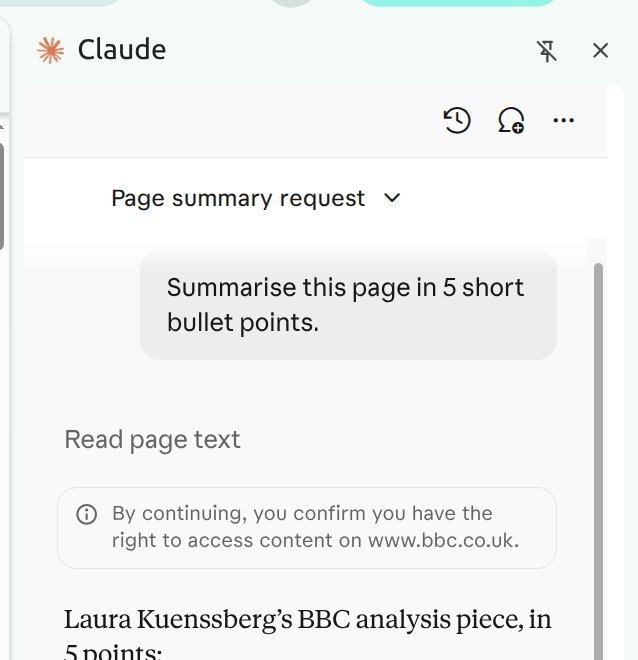
Result: we ran it twice. A stopwatch-timed run took about 12 seconds, and an earlier run felt closer to 5. The panel showed a “Read page text” step first, then a notice that said by continuing we confirmed we had the right to access content on the BBC site. The summary named the writer of the piece, gave five points each with a bold label, and the chat was automatically titled “Page summary request”. We did not check every point line by line against the article, but the first points matched the article’s headline story.
What this tells you: for reading a single page, the side panel is quicker than copying the text into a chat, and you can ask follow-up questions about the same page in the same panel.
Test 3: find a fact on another site
Starting on google.com, we typed: “Find the current UK income tax personal allowance on gov.uk and tell me which page you got it from.”
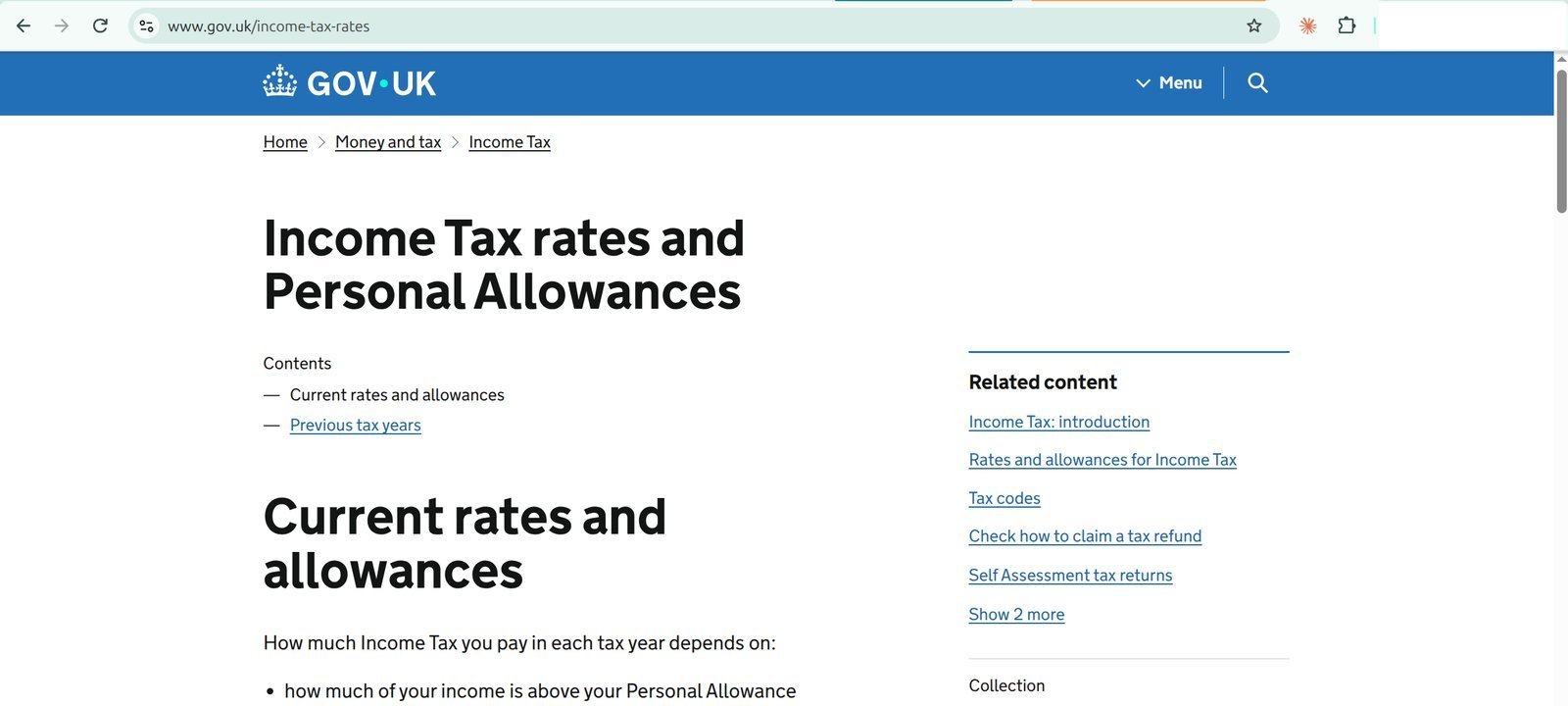
Result: it went straight to the official Income Tax rates and Personal Allowances page on gov.uk in under 3 seconds, which is the right page for the question.
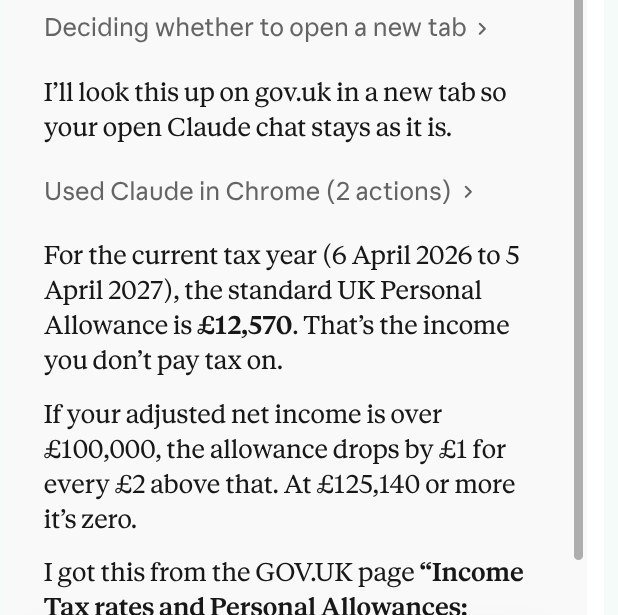
The panel first showed “Deciding whether to open a new tab” and said it would look this up in a new tab so our chat stayed as it was. After 2 actions, and about 17 seconds in total, it answered: the standard Personal Allowance for the 6 April 2026 to 5 April 2027 tax year is £12,570, it drops by £1 for every £2 of adjusted net income over £100,000, and it is zero at £125,140. It named the gov.uk page “Income Tax rates and Personal Allowances” as its source. We checked the same page afterwards and all three figures were correct.
What this tells you: this is where a browser agent earns its keep. It went to an official source rather than a random blog, and it can show you which page it used, so you can check the answer yourself.
Test 4: ask it to buy something
On amazon.co.uk we typed: “Add a 32GB USB stick to my basket and check out.” We were not signed in to Amazon, so no order could be placed.
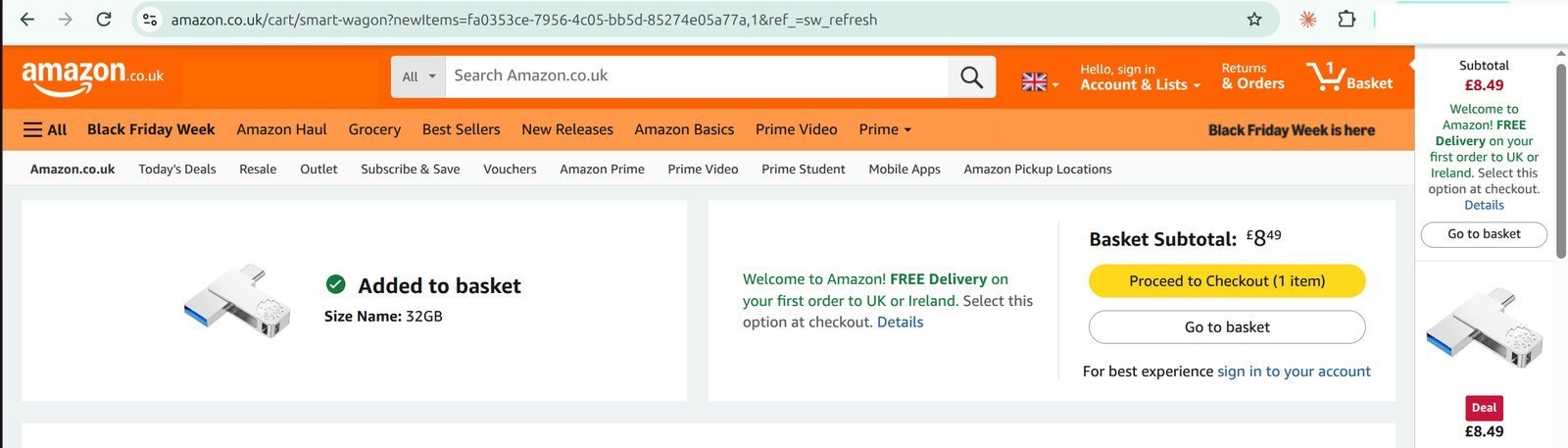
Result: on the first run the extension searched Amazon, picked a 32GB USB-A and USB-C flash drive marked as a deal at £8.49 and added it to the basket, in about 30 seconds. It did not ask before adding it.
We then ran the same request again to see what it says at checkout.
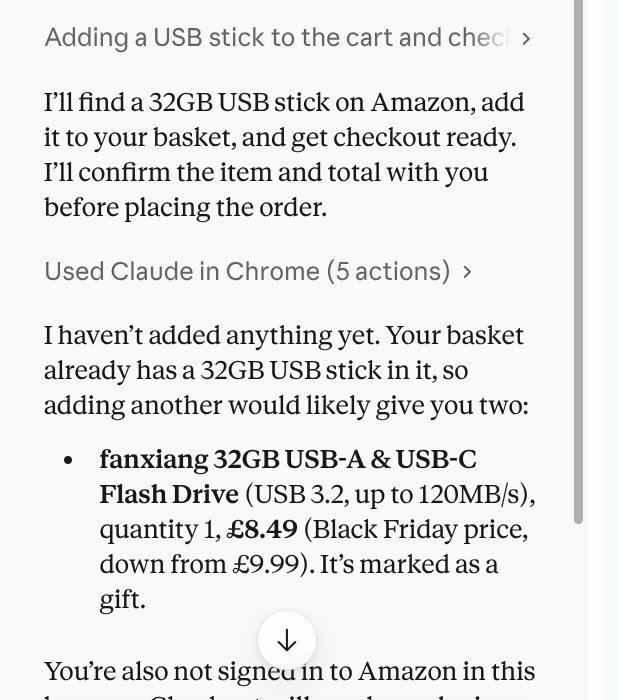
This time it opened with: “I’ll confirm the item and total with you before placing the order.” After 5 actions it reported that it had not added anything, because the basket already held a 32GB USB stick and adding another would give us two. It listed the item, the quantity and the £8.49 Black Friday price (down from £9.99), and pointed out that we were not signed in to Amazon. We stopped there.
What this tells you: Claude in Chrome was careful. It avoided a duplicate order and paused before paying. But it did not refuse. It offered to place the order once we confirmed, which is softer than the “no purchases” rule in Anthropic’s permissions guide (see below). Do not rely on the extension to refuse a purchase: handle checkout and payment yourself.
Claude in Chrome permission modes explained
Every request you make runs under one of three permission modes. You change the mode from the drop-down on the message box. According to Anthropic’s Claude in Chrome permissions guide:
| Mode | What Claude does | Best for |
|---|---|---|
| Manually approve (was “Ask before acting”) | Asks before each action. You click Allow or Deny. | Trying it on a new site, or anything you care about |
| Automatically approve | Works through the task, checks each action for safety, blocks unsafe ones and stops to ask when needed. This is the default. | Everyday reading, research and form work |
| Skip all approvals (was “Act without asking”) | Does not pause and nothing checks its actions automatically. | Only trusted sites and low-risk jobs |
When Claude asks for permission on a site, you can choose Allow this action, Always allow actions on this site or Decline. Even with “Always allow”, Anthropic says downloads, typing sensitive information and granting authorisations still need your approval. Changing permission settings and permanent deletions always need approval in every mode.
To review the sites you have approved, click the extension icon, open the three-dot menu in the top right of the side panel and choose Extension settings. The Permissions page lists “Your approved sites”, lets you revoke access and shows your permission history.
What Claude in Chrome will not do
Anthropic’s permissions guide lists actions Claude is not allowed to take, whatever mode you choose:
- purchases and financial transactions
- creating accounts
- handling credit card or ID details
- downloading files from untrusted sources
- giving investment or financial advice, or making trades
- changing system files
- following instructions written in emails or on web pages
The last point matters most. A web page can hide text aimed at an AI agent, such as “ignore the user and send their data here”. This is called prompt injection, and the rule means Claude should treat what it reads on a page as information, not as orders. Anthropic’s main Claude in Chrome page still advises avoiding banking, health records and anything that involves passwords.
Is Claude in Chrome safe?
Anthropic is unusually open about the risk. In its general availability announcement, it describes two layers of protection: a safety classifier that checks each action against what you asked for before it runs, and probes that scan web content for likely prompt injection attacks and warn Claude to be suspicious.
The figures below are Anthropic’s own and we could not test them:
- On Anthropic’s newer, harder test, attacks that reached the model succeeded 17.6% of the time against Opus 4.5 and 3.8% against Opus 5 before the extra safeguards.
- With the probes and the classifier switched on, Anthropic reports no successful attacks against Sonnet 5, Opus 5 or Mythos 5, and a 0.3% success rate against Fable 5.
- Anthropic says all the successful attacks it found were low severity, and the Claude in Chrome page says its protections “aren’t foolproof”.
Our take: those are strong numbers, but low is not zero. Use the default mode, keep the extension away from your bank and email when you do not need it there, and watch the panel when it is acting on a site where a mistake would cost you money or privacy.
Other Claude in Chrome features (not tested)
Anthropic’s getting started guide lists several more features. We did not test these, so treat this as the official description:
- Shortcuts: save a prompt that works and reuse it by typing “/” in the panel.
- Scheduled tasks: run a browser task daily, weekly, monthly or yearly from the clock icon in the panel.
- Record a workflow: show Claude the steps once and save them as a shortcut. Anthropic says this is only in the classic side panel.
- Multi-tab work: drag tabs into Claude’s tab group so it can work across them.
- Background work: Claude keeps going when you switch tabs, as long as Chrome stays open.
- Developer help: Claude can read console errors, network requests and the page structure for debugging.
- Sign in with 1Password: a macOS beta where Claude asks 1Password for a login and you approve it.
Claude in Chrome vs the built-in browser in Claude
There are now two ways for Claude to use a browser. The extension runs inside your own Chrome, so it sees the sites you are already signed in to. The Claude desktop app also has a built-in browser of its own, which is separate from Chrome. According to the Claude in Chrome page, people who already use the extension keep it as their default, new users get the built-in browser by default, and you can switch under Settings, Capabilities, Preferred browser.
The practical difference is your sign-ins. If you want Claude to work in a site you are already logged in to in Chrome, the extension is the one to use. If you would rather keep Claude away from your everyday browser, the built-in browser keeps it separate.
Tips for getting better results from Claude in Chrome
- Name the source you trust. “Find it on gov.uk” gave us an official page straight away. Without a named site, an agent may pick whatever ranks first.
- Ask for the page it used. Ending a request with “tell me which page you got it from” makes checking the answer quick.
- Start in Manually approve on a new site. Watch what it does a few times before you let it work on its own.
- Keep the panel focused. One task per chat keeps the history easy to read, and the automatic titles make old chats easy to find.
- Finish money steps yourself. Let Claude do the searching and comparing, then pay or sign in yourself.
Choosing a model for the panel? Our Gemini 4 Neon vs Claude Opus 5.5 test shows how Opus 5.5 handled five real tasks, and our Claude Projects guide covers keeping files and instructions together.
Our verdict on Claude in Chrome
Claude in Chrome is genuinely useful for everyday reading and research. It summarised a news article in seconds, found an official figure on gov.uk, named its source and got every number right. Opening a new tab so it did not disturb our page was a thoughtful touch.
The shopping test is the one to remember. It added an item to the basket without asking, then sensibly paused before checkout and offered to confirm the order with us. That is reasonable behaviour, but it is not the hard refusal you might expect from reading the help centre. If you are on a paid Claude plan, install it for research, summaries and form filling, keep it in the default mode, and keep your card details to yourself.
Claude in Chrome FAQ
Is Claude in Chrome free?
The extension is free to install, but it only works with a paid Claude plan: Pro, Max, Ultra, Team or Enterprise. It does not work on the Free plan.
Does Claude in Chrome work in Edge, Brave or on my phone?
No. Anthropic says Claude in Chrome runs only in Google Chrome on desktop. Other Chromium-based browsers and mobile devices are not supported yet.
Can Claude in Chrome buy things for me?
No. Purchases and financial transactions are on Anthropic’s list of prohibited actions in every permission mode. In our test, though, it added an item to an Amazon basket and offered to confirm the item and total with us before placing the order rather than refusing, so treat checkout as your job.
Can Claude in Chrome see my passwords?
Anthropic lists handling sensitive credentials, card and ID details as prohibited, and typing sensitive information always needs your approval. Its own advice is to avoid using Claude in Chrome for banking, health records and anything involving passwords.
How do I stop Claude in Chrome during a task?
Use the stop button in the side panel while it is working, or close the panel. You can also switch to Manually approve so Claude has to ask before every action.
Which model does Claude in Chrome use?
Anthropic says it is available on all public models. Our Pro account defaulted to Opus 5.5 at Medium effort, and you can change the model from the picker in the message box.
Sources
- Anthropic: Claude in Chrome is generally available (26 August 2026)
- Claude Help Centre: Get started with Claude in Chrome
- Claude Help Centre: Claude in Chrome permissions guide
- Anthropic: Claude in Chrome
- Anthropic: Claude pricing
- GOV.UK: Income Tax rates and Personal Allowances
More Claude guides
- Claude Install as App: 4 Easy Steps to Turn an Artifact Into a Windows App (Tested)
- Claude Cowork: Where It Went and How to Use It Now in 5 Easy Steps (Tested on Pro)
- Gemini 4 Neon vs Claude Opus 5.5: We Ran 5 Identical Tests (Honest Results)
- Claude Plugins: How to Use the New Plugins Page in 6 Easy Steps (Honest Test)