
Opus Clip (officially OpusClip) turns one long video into a set of short, captioned clips for TikTok, Reels and YouTube Shorts, and version 4.0 arrived on 2 November 2026 with auto-edit, Viral Hook and Motion Graphics. We signed up on 22 November 2026, fed it a 19-minute talk, and checked what the free trial and the free plan actually give you: how many clips it made, how long it took, what the credits paid for, and where the watermark and the upgrade prompts appear.
How we tested
We tested on 22 November 2026 in Chrome in the UK. We created a new OpusClip account with Google sign-in, which started the 7-day free trial, and ran one project: a 19-minute 15-second NASA video of an astronaut answering questions from a university audience (NASA videos are generally not subject to copyright). We used the default “Clip long video” recipe with Motion graphics switched on, then watched the top clips, opened the editor and the export menu.
Not tested: the paid Starter and Pro plans, the separate Auto-edit footage workflow, downloads, and publishing to social accounts. Plan prices and free plan limits come from OpusClip’s pricing page and are labelled that way. One video is a small sample; results will vary with the type of footage.
In this article
Opus Clip free plan: the short answer
- The trial is generous: a new account got 90 credits for 7 days, no card, with almost every feature.
- It worked fast and found plenty: 24 clips from a 19-minute video in about 7 and a half minutes, each with a virality score, a title and a hook headline.
- Credits go quickly: processing cost 1 credit per minute of video (19 credits), but switching on Motion graphics added 60 more, leaving us 11.
- Every clip had a watermark: even during the trial, the OpusClip logo sat on each clip, and “Remove watermark” was a paid option.
- After the trial the free plan is small: OpusClip lists 60 credits a month, a watermark, no editing, and clips that expire after 3 days.
Opus Clip is genuinely useful for trying out AI clipping on your own videos. To post clips without a watermark, or to edit them, you will need a paid plan.
What is Opus Clip?
Opus Clip is a web app that watches a long video, a podcast, webinar, interview or live stream, and picks out the moments most likely to work as short clips. It reframes them to vertical 9:16, adds animated captions, writes a title and a hook headline, and gives each clip a “virality score” out of 100.
According to OpusClip’s 4.0 announcement on 2 November 2026, the new version adds:
- Auto-edit: upload raw talking footage and get speech cleanup, captions and B-roll added.
- Every format: one edit can become 60 to 90 second highlights, a 3 to 5 minute cut or a quick update.
- Recipes: saved editing set-ups you can reuse.
- Viral Hook and Motion Graphics: a hook style on the first few seconds, and spoken points turned into animated icons, numbers and charts.
- AI Producer: a plugin for ChatGPT and Claude that edits footage to match a style you show it.
Step 1: signing up and the free trial
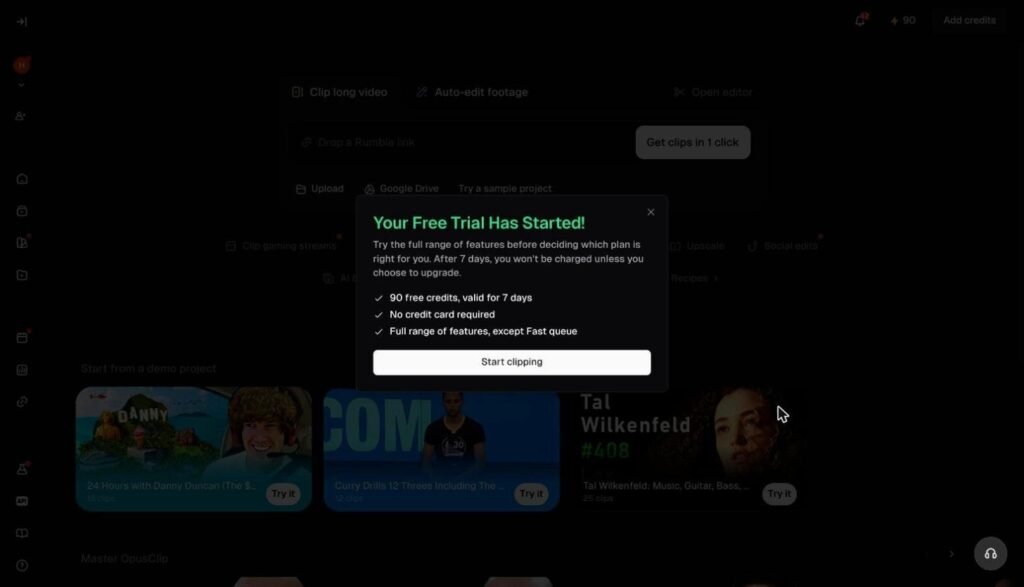
We clicked “Continue with Google” on clip.opus.pro and approved sharing our name and email address. OpusClip immediately showed “Your Free Trial Has Started!” with three promises: 90 free credits valid for 7 days, no credit card required, and the full range of features except the Fast queue.
OpusClip also asked five short survey questions (our role, company size, follower count, the kind of content we clip, and how we found it) before it let us continue. You can answer quickly; there was no skip button.
Step 2: adding a video and choosing settings
The dashboard has a single box for a link (YouTube, Zoom, Rumble and Google Drive are all suggested) plus an Upload button. We pasted a YouTube link and OpusClip loaded the video, detected English and showed the settings page before charging anything.
The summary on the right is the most useful part of the page. For our 19-minute 15-second video it showed:
- Video processing: 19 credits.
- Clipping, captions and Headline: free.
- Total: 19 credits.
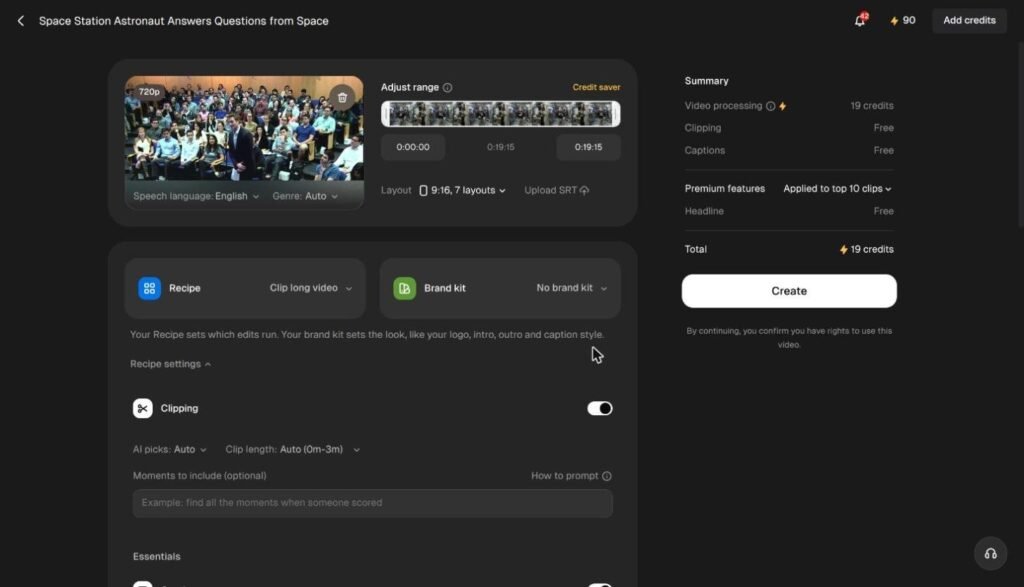
The settings let you trim the range of the video, choose a layout, pick a clip length (Auto is 0 to 3 minutes), add a prompt for moments to include, and choose a caption style from more than 40. Auto hook was already on, with a Headline style.
The Motion graphics trap
We switched on Motion graphics, one of the headline 4.0 features. The summary immediately added 60 credits for Motion graphics on the top 10 clips, raising the estimated total to 79 credits out of our 90.
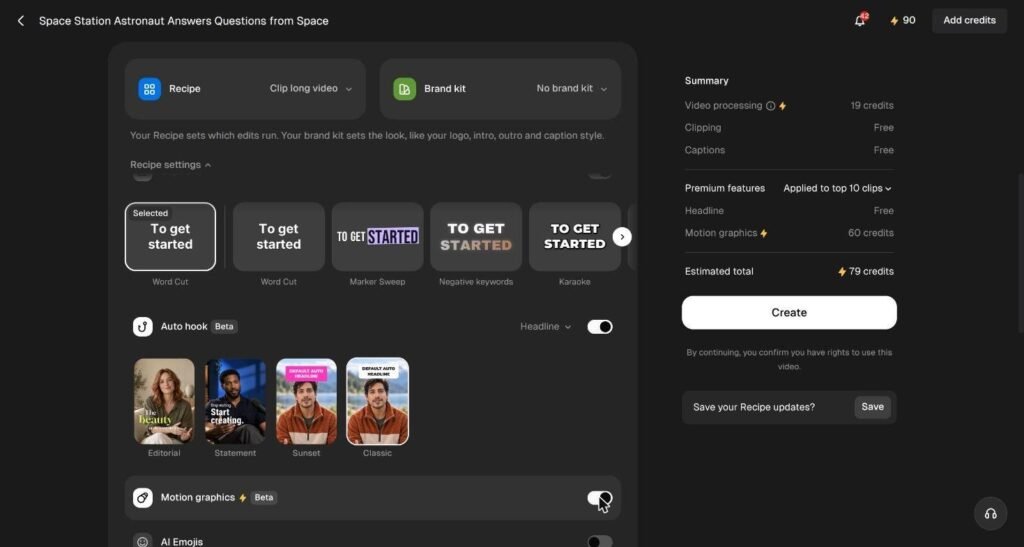
That one setting used two thirds of the trial. If you want to try several videos during the trial, leave Motion graphics off.
Step 3: how long processing took
After we clicked Create, OpusClip showed an estimate of 9 minutes. Our project finished in about 7 and a half minutes. You can leave the page; the project appears under Recent projects with a progress percentage.
The credit balance dropped from 90 to 11 as soon as we started, and a “You’re low on Credits!” upgrade prompt appeared straight away.
Step 4: the clips Opus Clip made
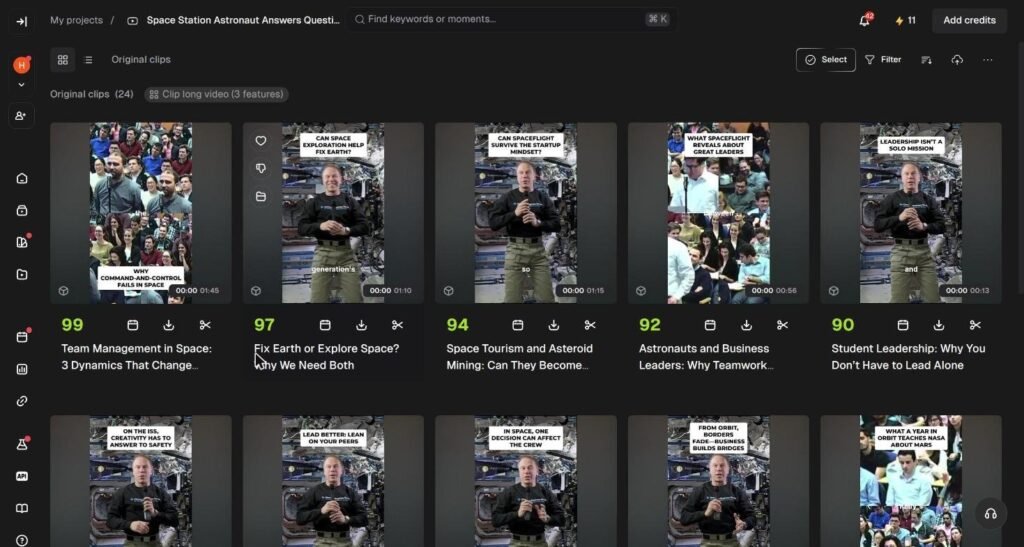
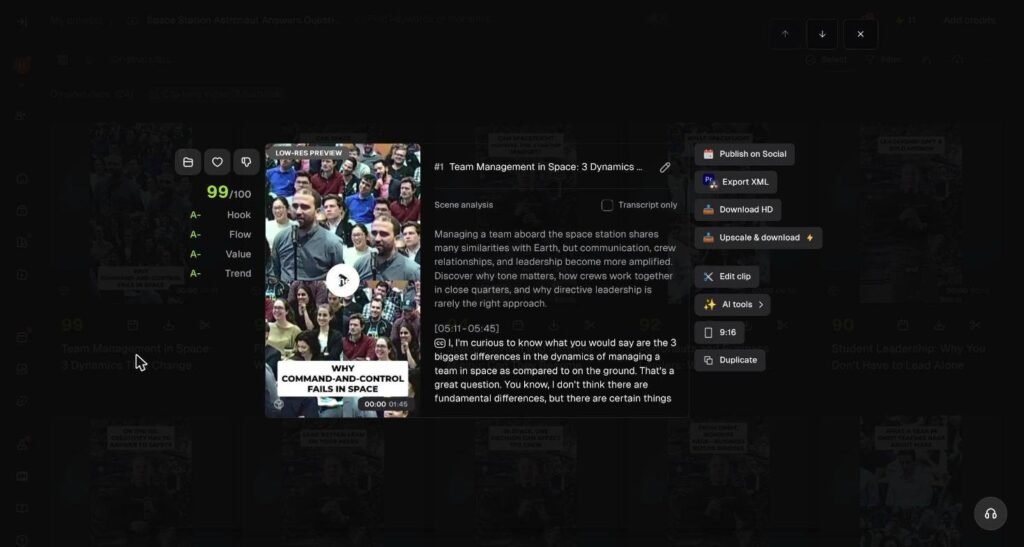
Opus Clip produced 24 clips from the 19-minute talk, sorted by virality score. The top 12 scored between 80 and 99, and lengths ranged from 13 seconds to 1 minute 45 seconds. Every clip had:
- a written title, such as “Team Management in Space: 3 Dynamics That Change Everything” (99) and “Fix Earth or Explore Space? Why We Need Both” (97);
- a hook headline in a white box at the top for the opening seconds, such as “Why command-and-control fails in space”;
- word-by-word captions near the bottom.
Opening a clip showed the score broken into four grades (Hook, Flow, Value and Trend, all A minus for the top clip), a short “scene analysis” summary, the start and end times in the original video, and the transcript.
What the clips were like
The picks were sensible. Each one started on an audience question and ended on a complete answer, so none cut off mid-sentence in the clips we watched. The vertical crop followed the astronaut well once he was speaking.
Two things we would change before posting:
- The openings. The top clip opened on a four-way split of audience faces while the question was asked, which looks busy on a phone.
- Motion graphics. We paid 60 credits for them, but in the two clips we watched from start to finish we did not see any animated numbers, icons or charts. The talk had few figures to animate, which may be why. Try it on a video with numbers before paying for it.
Step 5: the editor
“Edit clip” opens a transcript editor. The words appear on the left, the vertical preview on the right, and a timeline underneath. Pauses show as small time stamps you can delete, and filler phrases such as “You know” appear greyed out, ready to remove with Speech cleanup. You can also change the layout, background, colour correction and captions, and add B-roll, hooks, transitions, text, graphics and audio.
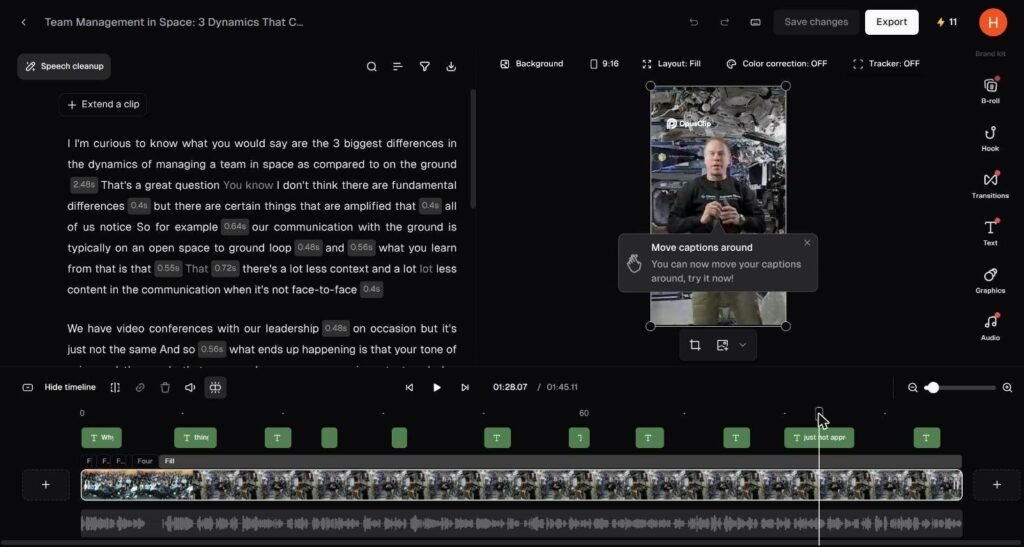
According to OpusClip’s pricing page, editing is not included on the free plan after the trial, so this is a trial and paid-plan feature.
Step 6: the watermark and export
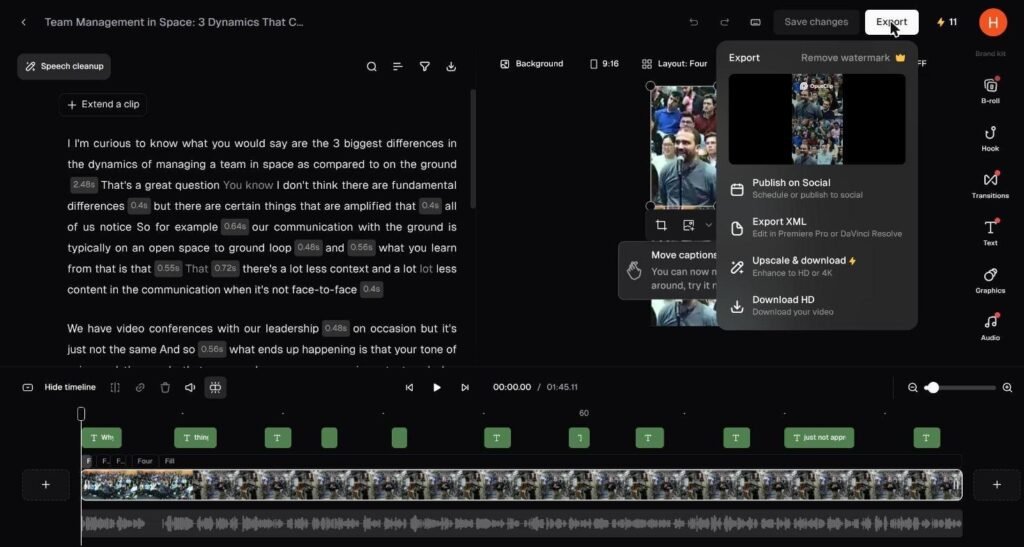
Every clip we previewed carried an OpusClip logo in the top left, during the trial as well. The Export menu offered Publish on Social, Export XML (for Premiere Pro or DaVinci Resolve), Upscale and download (which costs credits) and Download HD, with “Remove watermark” marked as a premium option.
How to use Opus Clip: the quick version
- Go to clip.opus.pro and sign up. Google sign-in takes a few seconds and starts the 7-day trial.
- Paste a video link (YouTube, Zoom, Rumble or Google Drive) or click Upload.
- On the settings page, trim the range, choose a clip length and a caption style, and add a prompt under “Moments to include” if you want specific topics.
- Check the credit summary on the right. Leave Motion graphics off unless you need it.
- Click Create and wait. Our 19-minute video took about 7 and a half minutes.
- Open the highest-scoring clips, watch the first few seconds of each, and use Edit clip to fix the opening or the captions.
- Export with Download HD, or publish straight to your social accounts. On the free plan, do this within 3 days.
Opus Clip vs cutting clips yourself
The main thing Opus Clip saves is the finding. To cut 24 clips from a 19-minute talk by hand, you would need to watch the whole video at least once, note the time codes of every strong answer, crop each part to vertical, and caption it. Opus Clip did all of that in about 7 and a half minutes, and the captions we spot-checked matched what was said.
What it does not save is judgement. The virality score is a guide, not a guarantee, and our top-scoring clip had the weakest opening. Expect to spend a few minutes per clip reviewing and adjusting before you post, especially the first two seconds and the hook headline. If you only need two or three clips a month, doing it yourself in a free editor may be just as quick. If you publish daily, Opus Clip’s speed is the reason to pay.
Common Opus Clip problems and fixes
- “You’re low on Credits!” straight away. Paid extras such as Motion graphics and upscaling use credits fast. Check the summary before clicking Create, and trim long intros.
- Clips no longer exportable. On the free plan, clips stop being exportable after 3 days. Download the ones you want promptly.
- A watermark you cannot remove. Watermark-free export needs a paid plan; it was not available during our trial.
- A busy or odd opening frame. Change the layout in the editor (for example from Four to Fill) or trim the first second.
- A link that will not load. If a video is private or region-locked, download your own copy and use Upload instead.
Opus Clip free plan vs paid plans
These are OpusClip’s published prices and limits on 22 November 2026, not something we tested:
| Free | Starter | Pro | |
|---|---|---|---|
| Price | $0 | $15 a month | $29 a month, or $14.50 a month billed yearly |
| Credits | 60 a month | 150 a month | 3,600 a year (unused credits roll over 2 months) |
| Watermark | Yes | No | No |
| Editing | No | Yes | Yes |
| Clip storage | 3 days | 30 days | Not stated on the page |
| Motion graphics and Viral Hook | No | No | Yes |
| Brand kit | 1 template | 1 | 2, plus a 2-seat team workspace and social scheduler |
Based on what we were charged (1 credit per minute of video), 60 free credits a month would cover about one hour of video, if you leave the paid extras off. Check the current figures on OpusClip’s pricing page, because OpusClip often runs discounts on the first month.
Is Opus Clip worth it?
Use the free trial if
- You have a podcast, webinar or talk and want to see which moments an AI picks out.
- You want clip titles and hook ideas, even if you edit the final clips elsewhere.
- You plan to run two or three videos in a week: keep Motion graphics off and the trial covers them.
Pay for Starter or Pro if
- You publish clips every week and need them without a watermark.
- You want to tidy clips in the transcript editor before posting.
- You need your clips to stay available for more than 3 days.
Look elsewhere if
- You only need a transcript of a video. Our guide to getting a YouTube transcript for free covers five free ways.
- You want to make a video from scratch rather than cut one up. See how to use Google Vids for free.
Tips to get better clips from Opus Clip
- Check the credit summary before you click Create. It updates as you switch features on.
- Use “Moments to include”. A short prompt such as “the answers about leadership” steers the picks.
- Trim the range. Cutting intros and Q&A sign-offs saves credits, because processing is charged per minute.
- Review the opening of each clip. The first two seconds decide whether people keep watching, and that is where our top clip was weakest.
- Download within 3 days on the free plan, or the clips stop being exportable.
Key takeaways
- Opus Clip’s trial gave us 90 credits for 7 days with no card, and turned a 19-minute video into 24 scored clips in about 7 and a half minutes.
- Processing cost 1 credit per minute; Motion graphics added 60 credits and we did not see it in the clips we watched.
- Every clip carried a watermark, even during the trial.
- The free plan after the trial is 60 credits a month, with a watermark, no editing and 3-day clip storage.
Opus Clip FAQ
Is Opus Clip free?
Yes, with limits. A new account starts a 7-day trial with 90 credits and almost all features. After that, OpusClip’s pricing page lists the free plan at 60 credits a month, with a watermark, no editing and clips that expire after 3 days.
Does Opus Clip add a watermark?
Yes, on the free plan and, in our test, during the free trial too. Removing it needs a paid plan; Starter is the cheapest plan that lists watermark-free export.
How many credits does Opus Clip use?
In our test, processing cost 1 credit per minute of video: 19 credits for a 19-minute 15-second video. Clipping, captions and the Headline hook were free. Motion graphics cost an extra 60 credits for the top 10 clips.
How long does Opus Clip take?
Our 19-minute video took about 7 and a half minutes to process, against an estimate of 9 minutes. OpusClip’s pricing page lists Starter as processing faster than the free plan and the trial.
What is new in OpusClip 4.0?
OpusClip 4.0, announced on 2 November 2026, added auto-edit for talking footage, multiple output formats from one edit, saved Recipes, Viral Hook, Motion Graphics and an AI Producer plugin for ChatGPT and Claude.
Can I use Opus Clip on someone else’s video?
Only if you have the rights. OpusClip asks you to confirm you have rights to use the video before it processes it. We used a NASA video, which is generally not subject to copyright.