
The best Gemini prompts use what ChatGPT cannot easily match: Google’s own apps. Gemini can search your Gmail, read files in Google Drive, plan routes with live Google Maps data, find and summarise YouTube videos, and save notes to Google Keep. We tested 25 Gemini prompts that use these features on 19 November 2026 and copied every one below. 19 worked first time, 2 half-worked, and 4 failed with our first wording. We found a fix for three of those four, so you get the versions that actually work.
This guide shows how to connect Gmail and Drive to Gemini, then gives 25 tested Gemini prompts for Gmail, Drive and Docs, Calendar and Keep, Google Maps, YouTube, live Search and creative tools, with exactly what each one did.
How we tested
We ran every prompt on 19 November 2026 in the Gemini web app on a Google AI Pro account in Chrome, with our location set to Manchester, UK. Most prompts used Gemini 4 Hydrogen at its default thinking level, which is the same model free users get. Gmail, Drive and Calendar prompts used the Google Workspace connector, which we switched on for this test. We checked results against the real apps: we counted emails in Gmail, opened Google Keep to see if notes were saved, typed numbers into the budget calculator and added up the meal plan. We cropped screenshots so no private emails or files are shown.
In this article
Gemini prompts: the quick version
- Turn on Workspace first. Gmail, Drive and Calendar prompts only work after you switch on Google’s smart features and connect Google Workspace in Gemini (steps below).
- Name the app in your prompt. “Search my Gmail”, “Using Google Maps”, “Save a note in Google Keep” all worked better than vague wording.
- Use the Export buttons for Docs and Sheets. Asking Gemini to create a file through the connector hung for us, but the Export to Docs and Export to Sheets buttons worked in seconds.
- Check counts and totals. Gemini undercounted our newsletters by about half.
- Maps and YouTube need no setup. They worked straight away on every account.
How to connect Gmail, Drive and Calendar to Gemini
Before any Gmail or Drive Gemini prompts will work, you need two settings. Without them, the Google Workspace connector shows a message asking you to turn on smart features.
- Open Gmail, click the gear icon and choose See all settings.
- On the General tab, find Google Workspace smart features and click Manage Workspace smart feature settings.
- Turn on both Smart features in Google Workspace and Smart features in other Google products, then click Save.
- In Gemini, type @ in the prompt box, choose View all connectors, then click + next to Google Workspace.
- Read the permissions and click Connect. Gemini shows “Google Workspace is connected and ready to use”.
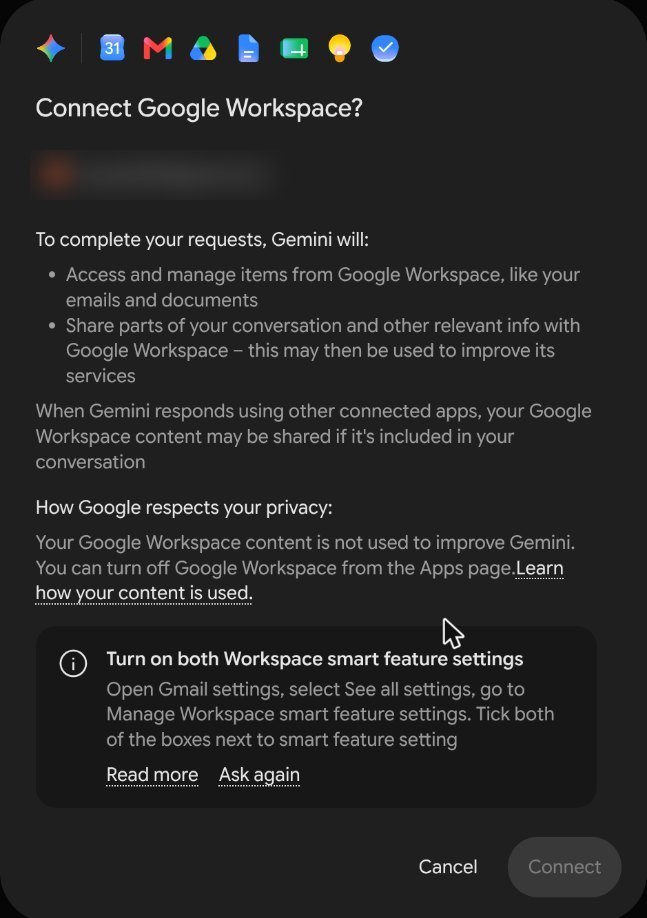
Google says your Workspace content is not used to improve Gemini, but connecting does let Gemini read your email and files when you ask it to. You can disconnect Google Workspace at any time from the same Connectors page.
Gemini prompts for Gmail
These four Gemini prompts search your inbox. Each took 25 to 50 seconds, with a “Connecting to Gmail” step first.
1. Find emails that need a reply
Search my Gmail for emails from the last 7 days that still need a reply from me. List them with sender, subject and what they want, most urgent first.What happened: Gemini correctly worked out that our inbox for 12 to 19 November held only automated mail (newsletters, GitHub alerts, Google Play receipts and webinar reminders) and said nothing needed a reply. That matched what we saw in Gmail.
2. Find your latest order
Find my most recent order confirmation in Gmail and tell me what I ordered, the total and the delivery date.What happened: it found our Google Play receipt from that afternoon, gave the item, the £18.99 monthly price including £3.16 VAT and the renewal date, and linked each fact to the source email. Correct in every detail.
3. Track renewals and free trials
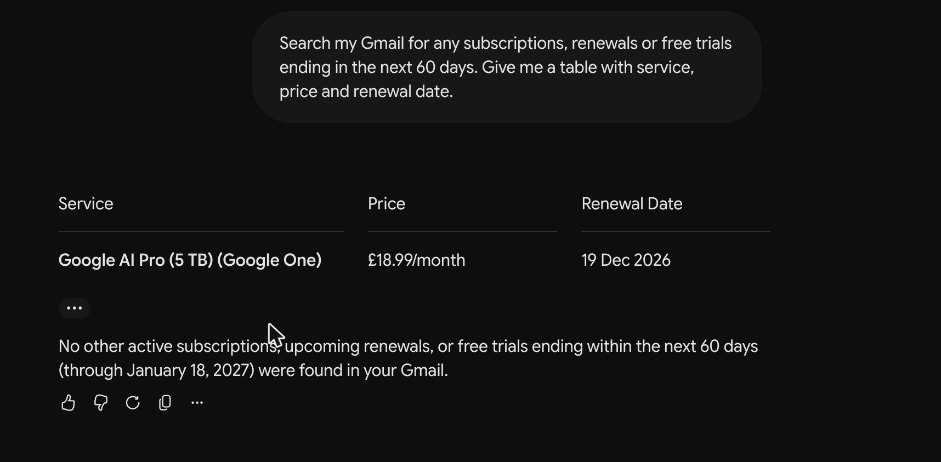
Search my Gmail for any subscriptions, renewals or free trials ending in the next 60 days. Give me a table with service, price and renewal date.What happened: one of the most practical Gmail Gemini prompts. It gave a tidy table with our one live subscription and its renewal date of 19 December 2026, plus a note that nothing else was due before 18 January. This is one of the most useful Gemini prompts for saving money.
4. Decide which newsletters to unsubscribe from
Look through my Gmail and list the newsletters and promotional senders I get most often, with how many emails each sent in the last month, so I can decide what to unsubscribe from.What happened: a ranked table of about ten senders. The ranking was useful, but the numbers were wrong. Gemini said our top sender had sent 19 emails. Searching Gmail for that sender over the same period showed 37. Use this prompt for the ranking, not the counts. Google’s own help page for the Workspace connection says Gemini can’t count items, which explains it.
Gemini prompts for Google Drive, Docs and Sheets
Drive Gemini prompts were the slowest and least reliable in our test. Here is what worked.
5. Search your Drive by topic
Search my Google Drive for anything about a budget or meal plan and tell me what each file covers.What happened: after about 80 seconds, Gemini found five budget spreadsheets, read inside the Excel files to describe each one, and correctly said there were no meal plan files. Slow, but accurate.
6. Summarise your latest file (did not work)
What is the most recent file in my Google Drive? Give me a five-bullet summary of it.What happened: Gemini got stuck on “Connecting to Google Drive” for more than five minutes, twice, with two different wordings. Searching Drive by topic or by file name (prompt 5) worked, so ask for files by what they are about.
7. Make a meal plan and export it to Docs
Create a one-page weekly meal plan for a family of four on a £60 budget, as a table with a shopping list and estimated prices.What happened: a seven-day breakfast, lunch and dinner plan with a 24-item shopping list priced at Aldi and Lidl levels. We added up the list: £52.90, exactly Gemini’s total, leaving about £7 spare. Then we opened the ⋮ menu under the answer and chose Export to Docs, which created a Google Doc. Our first version, which asked Gemini to make the Doc itself, hung on “Connecting to Google Drive”.
8. Make a budget table and export it to Sheets
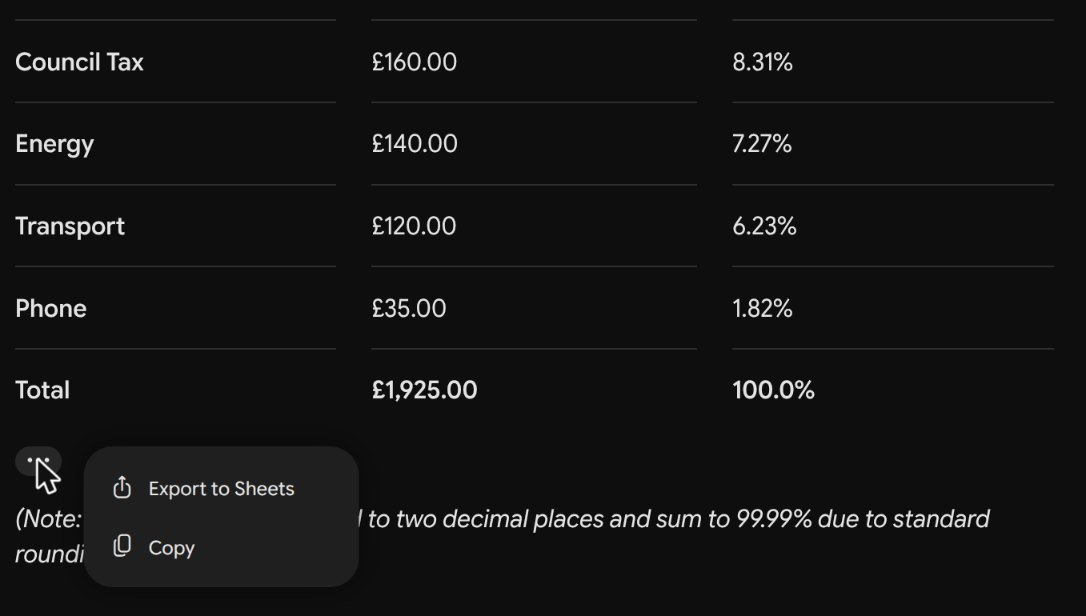
Make a table of my monthly bills: rent £950, council tax £160, energy £140, phone £35, food £320, transport £120, savings £200. Add a total row and a column for percentage of the total.What happened: an instant table with a total of £1,925 and every percentage correct (we checked them all), plus a useful split of fixed and flexible costs. The ⋮ menu on the table offered Export to Sheets, and a new spreadsheet appeared in about five seconds.
Gemini prompts for Calendar, Tasks and Keep
9. Find free time
Check my Google Calendar for next week and tell me where I have free blocks of at least two hours.What happened: Gemini correctly read “next week” as Monday 23 to Sunday 29 November, saw our calendar was empty and offered to book a focus block. A busy calendar would be a stronger test, but the date handling was right.
10. Add a reminder to Google Tasks
Add a reminder to Google Tasks to renew my car insurance on 1 December 2026.What happened: done in about 15 seconds, with a Google Tasks card showing “Renew car insurance, Tue, Dec 1, 2026”.
11. Save a shopping list to Google Keep
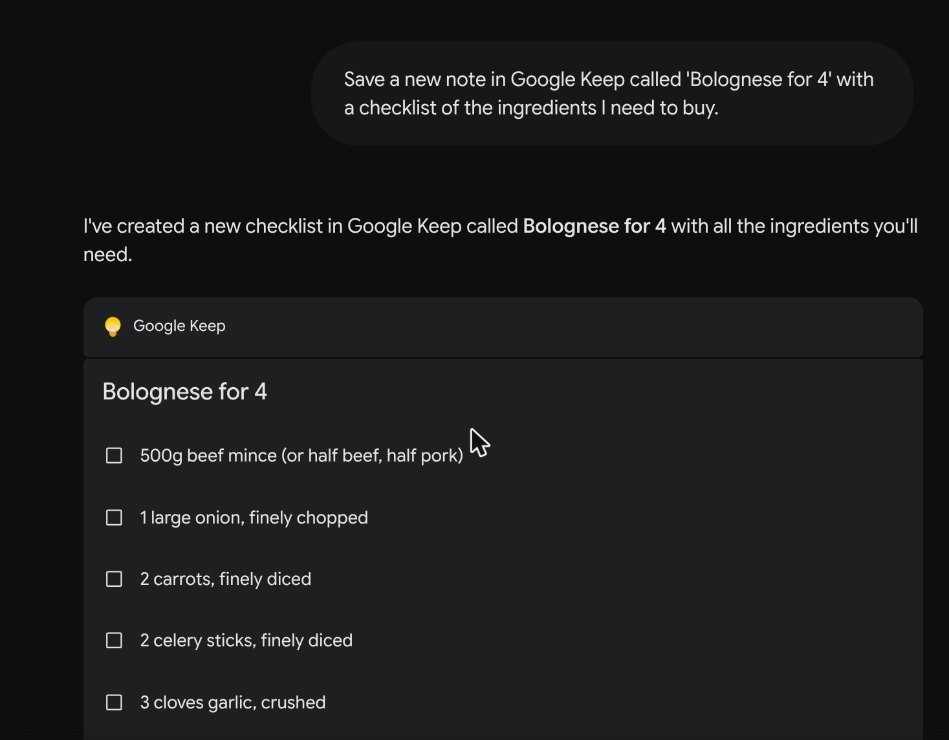
Save a new note in Google Keep called 'Bolognese for 4' with a checklist of the ingredients I need to buy.What happened: Gemini created the checklist in Keep, and we confirmed it was there. Our first wording, “Make a Google Keep shopping list for spaghetti bolognese for four people”, only showed a checklist inside the chat and did not save anything to Keep. Say “save a new note in Google Keep” to make sure.
Gemini prompts for Google Maps
Maps prompts were the most impressive Gemini prompts we tested. They need no setup and come back with a live map, ratings and opening hours.
12. Find somewhere to work nearby
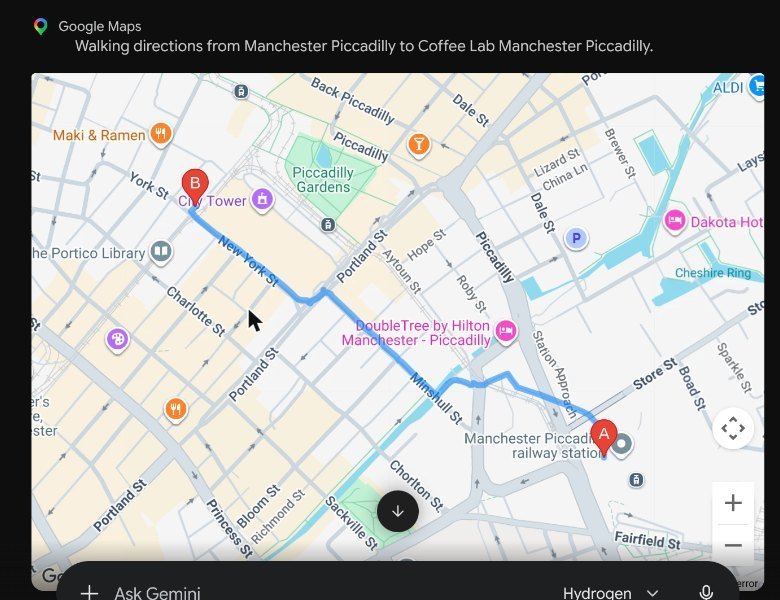
Using Google Maps, find three cafés near [station or area] that are good for working on a laptop and are open now. Include walking time from the station.What happened: near Manchester Piccadilly, Gemini picked three cafés with ratings, price bands, closing times and walking times from 2 to 11 minutes, plus notes on Wi-Fi and plug sockets from reviews. An embedded map showed the walking route.
13. Compare driving and the train
Using Google Maps, how long does it take to drive from [place] to [place] on a Saturday at 8am, and is the train faster?What happened: for Manchester to Windermere, about 1 hour 32 minutes by car (84 miles via the M6) against about 1 hour 48 minutes by public transport, with links to both routes.
14. Plan a walking route
Using Google Maps, plan a walking route in York that visits York Minster, the Shambles, Clifford's Tower and the city walls in under two hours. Give the order and walking times.What happened: a sensible order with only 18 minutes of walking in total, leaving time to look around. It also flagged that York Minster was closed at that time of day, which is exactly the kind of detail that saves a wasted trip.
15. Find a family restaurant
Using Google Maps, find a highly rated halal restaurant in [city centre] that suits a family of five, with its opening hours today.What happened: several Birmingham options with ratings, price bands, today’s hours and notes on family seating. Swap “halal” for any requirement, such as vegetarian or step-free access, and these Gemini prompts still work.
Gemini prompts for YouTube
16. Find a short tutorial
Find a YouTube video under 15 minutes that teaches beginners how to make sourdough bread, and list the main steps it covers.What happened: a 12-minute beginner tutorial with a link and the steps, including amounts in grams. Watch the video before relying on the quantities.
17. Compare several videos
Find three popular YouTube videos about [topic] and tell me which [tools or ideas] appear in more than one video.What happened: for free AI tools, three videos with view counts, the tools each one featured and a table of the five tools that appeared in more than one. Gemini prompts like this are a great research shortcut.
18. Find a workout
Find a 10-minute beginner workout on YouTube that needs no equipment, and tell me the exercises in order.What happened: a 10-minute bodyweight video with a link, the 20 seconds on and 10 seconds off format, and the exercises in order.
19. Summarise a video with timestamps (half worked)
Find the official Google video about Gemini 4 on YouTube and summarise it in five bullet points with timestamps.What happened: five good bullet points, but from a Google Cloud video about Gemini 4 Argon rather than a general Gemini 4 video, and no timestamps. For timestamps, paste the exact video link into your prompt.
Gemini prompts for live answers from Google Search
20. Compare travel prices
What is the cheapest way to travel from [city] to [city] next Friday? Compare train, coach and plane with typical prices and journey times, and link your sources.What happened: Gemini correctly worked out that “next Friday” was 27 November and built a table of plane, coach and train prices and times, with a sensible note that the coach is often cheapest door to door once airport travel is added. Prices change hourly, so check before booking.
21. Plan around the weather
What is the weather forecast for [city] this weekend, and which day is better for a long walk?What happened: a Saturday and Sunday forecast for Manchester, citing GOV.UK, with a clear recommendation for Saturday.
22. Explain something in the news
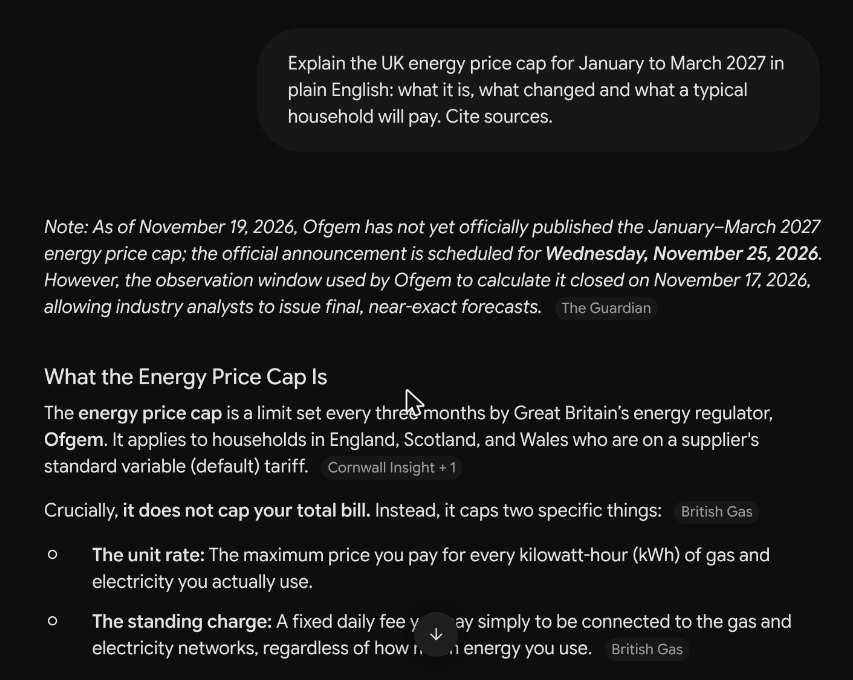
Explain the UK energy price cap for January to March 2027 in plain English: what it is, what changed and what a typical household will pay. Cite sources.What happened: the best answer in the test. Gemini opened by saying Ofgem had not yet published the January cap (it was due on 25 November), then explained the cap, gave the confirmed October to December figures, which matched the official Ofgem numbers we had checked for an earlier article, and clearly labelled the January figures as a forecast.
Gemini prompts for images, apps and learning
23. Create an image
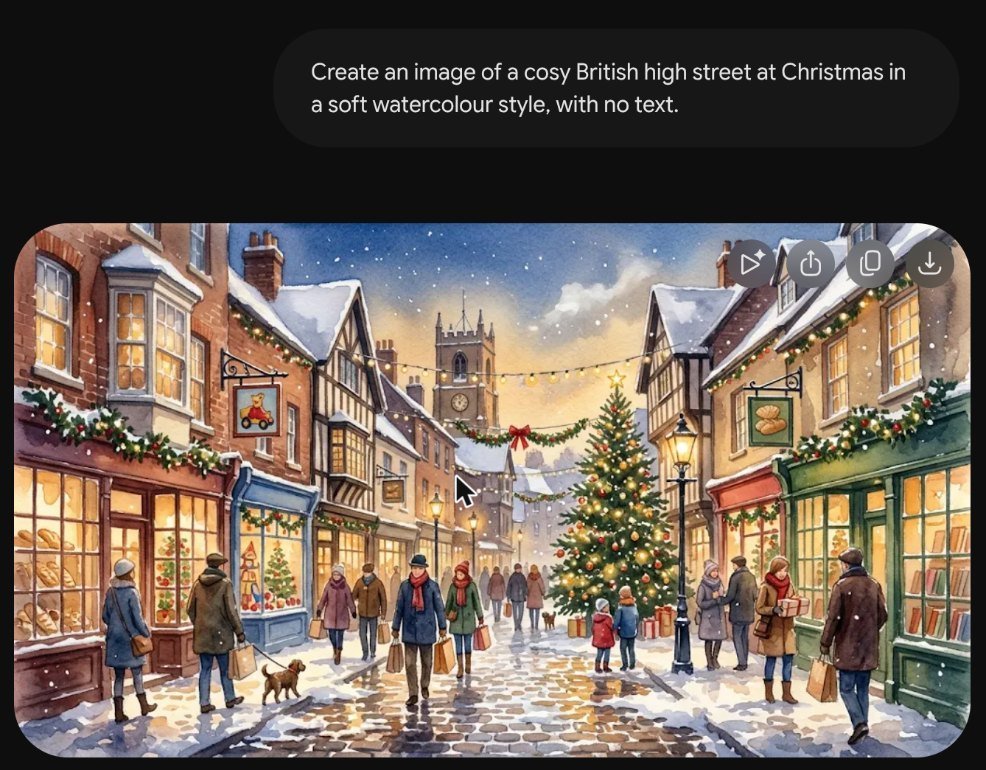
Create an image of a cosy British high street at Christmas in a soft watercolour style, with no text.What happened: image Gemini prompts are quick and simple. It made a lovely watercolour scene with snow, shop windows, a Christmas tree and a church tower, in about 20 seconds, with no stray text.
24. Build a working calculator in Canvas
Build me a simple monthly budget calculator in Canvas where I type my income and five bills and it shows what is left.What happened: the most surprising of our Gemini prompts. It built a working web app with a currency switch and renamable bills. We entered £2,400 of income and £1,585 of bills, and it correctly showed £815 left and 66% spent. You can export the code or share it.
25. Make a quiz for a child
Make a 10-question multiple-choice quiz on the solar system for a 10-year-old, with the answers at the end.What happened: ten age-appropriate questions with answers and one-line explanations. One small thing: it gave a temperature in Fahrenheit before Celsius, so ask for “UK units” if that matters.
What we learned from testing 25 Gemini prompts
- 19 of 25 worked first time, 2 half-worked (the newsletter counts and the missing timestamps) and 4 failed as first worded. Rewording fixed three of the four.
- Google Maps prompts were the standout. Live ratings, opening hours and maps make them better than any chatbot without Google’s data.
- Workspace prompts are powerful but slow. Gmail took 25 to 50 seconds and Drive up to 80 seconds, and two Drive requests never finished.
- Wording matters for actions. “Save a new note in Google Keep” saved a note. “Make a Google Keep shopping list” did not.
- Gemini was honest about the news. It flagged that the January energy cap had not been published instead of inventing it.
What to do if Gemini prompts don’t work
- Gmail or Drive says it can’t connect: turn on both smart feature settings in Gmail, then reconnect Google Workspace in Gemini’s Connectors page.
- It’s stuck on “Connecting to Google Drive”: stop it and ask for files by topic or name instead of “most recent”.
- Nothing was saved to Keep, Tasks or Docs: say “save” or “add” plus the app’s name, or use the Export buttons under the answer.
- Maps results are for the wrong place: include the city or station in your prompt, or check your location at the bottom left of Gemini.
- Work or school account: your administrator decides which connectors you can use.
Mistakes to avoid with Gemini prompts
- Trusting counts from Gmail. Our newsletter counts were about half the real number, and Google’s help page confirms Gemini can’t count items.
- Assuming an action happened. Check Keep, Tasks or Docs after asking Gemini to save something.
- Using vague Gemini prompts. “Using Google Maps” and “search my Gmail” made Gemini use the right tool every time.
- Forgetting privacy. Connecting Workspace lets Gemini read your email and files when you ask. Turn it off if you share a computer.
- Booking from AI prices. Travel and gift prices change constantly, so treat them as a guide.
For more on Google’s AI tools, see our hands-on guides to Google AI Mode, turning Gemini Notebook sources into a website and making a free video with Google Vids. Google explains the Workspace connection in its own Gemini Apps help.
Key takeaways
- The best Gemini prompts use Google’s own apps: Gmail, Drive, Maps, YouTube, Keep and Tasks.
- Turn on Workspace smart features in Gmail before using Gmail or Drive Gemini prompts.
- Name the app in your prompt and use “save” or “add” for actions.
- Use Export to Docs and Export to Sheets instead of asking Gemini to build files.
- Always check counts, totals and prices before acting on them.
Frequently asked questions
Do these Gemini prompts work on the free plan?
Most do. We tested on Google AI Pro, but nearly every prompt used Gemini 4 Hydrogen, the model free users get. Maps, YouTube, Search, image and Canvas prompts need no setup. Gmail, Drive and Calendar prompts need the Google Workspace connection on any plan.
How do I use Gemini with Gmail?
Turn on both Google Workspace smart feature settings in Gmail’s settings, then connect Google Workspace from Gemini’s Connectors page. After that, start Gemini prompts with “Search my Gmail for…” and Gemini will look through your inbox.
Is it safe to connect Gmail to Gemini?
Google says your Workspace content is not used to improve Gemini, but connecting does let Gemini read your emails and files when you ask a related question. Only connect it on your own device, and you can disconnect it at any time.
Why did Gemini not save my note to Google Keep?
In our test, “Make a Google Keep shopping list” only showed a checklist in the chat. “Save a new note in Google Keep called…” created a real note. Use clear action words and the app’s name, then check Keep.
Can Gemini create Google Docs and Sheets?
Yes, but the Export buttons worked better than asking. Under any answer, the ⋮ menu has Export to Docs, and tables have Export to Sheets. Both created files in seconds, while asking Gemini to create the file through the connector hung for us.
What are the best Gemini prompts for travel?
Google Maps prompts: find places near a station that are open now, compare driving and the train, and plan walking routes with timings. Add “Using Google Maps” to the start so Gemini uses live map data.
Are Gemini prompts better than ChatGPT prompts?
For anything involving your Google account, maps or YouTube, yes, because Gemini can use those directly. For general writing and study, both are strong. See our tested ChatGPT prompts guide for the comparison.