Google Antigravity is Google’s AI coding platform where agents write, run and test code for you, and since November 2026 it can do that in Google’s cloud while your laptop is closed. To use it, open antigravity.google.com (or the desktop app), sign in with a personal Google account, create a project, give the agent a task and come back later. We tested Google Antigravity’s new Remote Agents on a Google AI Pro account on 20 November 2026. We gave the agent a small buggy Python file, closed the page 10 seconds later, and when we came back the agent had found both bugs, fixed them and run its tests (all passing).
This guide covers what Google Antigravity is, what it costs, how to use Remote Agents step by step, what Voice Mode does, and how Gemini 4 Neon and Gemini 4 Argon compared on the same job.
How we tested
We tested on 20 November 2026 in Chrome in the UK, on a personal Google account with Google AI Pro, using the Google Antigravity web app at antigravity.google.com. We wrote a small Python file with two bugs we planted ourselves, plus a README with the correct answers, then asked a remote agent to find the bugs, fix them, write tests and run them. We ran the same task once with Gemini 4 Neon (the default) and once with Gemini 4 Argon, each in a fresh project, and left the page while each agent worked. One run per model on one small task is a practical sample, not a benchmark. Not tested: the desktop app, Voice Mode (it only works in the desktop app and the command line), and connecting GitHub or Google Drive. What we say about those comes from Google’s own documentation and is labelled that way.
In this article
How to use Google Antigravity: the quick version
Here is the short path to running your first Google Antigravity remote agent:
- Check your plan. Remote Agents need Google AI Pro or Ultra on a personal Google account. The free plan can still use Antigravity on your own computer.
- Open the web app. Go to antigravity.google.com and sign in, or download the desktop app from antigravity.google/download.
- Create a project. Click Create New Project, then add resources: upload files, or connect GitHub or Google Drive.
- Pick a model and give the task. Gemini 4 Neon is the default. Describe the job and what “done” looks like.
- Close the tab. The agent keeps working in Google’s cloud. Come back from any device and click Review to check its changes.
What is Google Antigravity?
Google Antigravity is Google’s “agent-first” development platform. Instead of an AI that suggests the next line of code, you hand an agent a whole task (build a feature, fix a bug, research a codebase) and it plans the work, edits files, runs commands and reports back. Google first launched Antigravity in November 2025 and released Antigravity 2.0, with a new desktop app and a command line tool, at Google I/O in May 2026.
Today Antigravity comes in several forms: a desktop app for Windows, macOS and Linux, a standalone IDE, a command line tool called agy, a Python SDK and a web app. You can switch between a Software Engineering layout and a simpler Knowledge Work layout for research and writing.
The November 2026 updates are why so many people are searching for it this month:
- Version 2.29 (3 November): Remote Agents and Voice Mode started rolling out, according to the Antigravity changelog.
- Version 2.30 (9 November): Remote Agents finished rolling out to Ultra and reached Pro subscribers on a paid plan.
- 18 November: Gemini 4 Neon became the default model for anyone who has not chosen one. We covered Neon itself in our Gemini 4 Neon guide.
Is Google Antigravity free?
Yes, there is a free plan, but the new Remote Agents are not part of it. According to Google’s Antigravity pricing page, the free plan for individuals costs $0 a month and includes the app, command line, IDE extensions and SDK, with a weekly quota and models such as Gemini 3.8 Flash. Remote Agents need a paid Google AI plan.
| Plan | Remote Agents | Quota (Google’s description) | Gemini 4 models |
|---|---|---|---|
| Free (no Google AI plan) | No | A quota refreshed weekly | No (Gemini 3.8 Flash and others) |
| Google AI Plus | No | Not listed on the pricing page | Not listed |
| Google AI Pro | Yes, on a paid (non-trial) plan | Refreshed every five hours, up to a weekly limit | Neon, Argon and Hydrogen |
| Google AI Ultra | Yes | Highest limits | Neon, Carbon, Argon and Hydrogen |
| Workspace or Google Cloud business accounts | No | Business plans via Google Cloud | Varies |
Google AI Pro cost £18.99 a month in the UK when we subscribed. Pro and Ultra users can also buy AI credits for usage above the included quota, but only if they switch that setting on.
How to use Google Antigravity remote agents, step by step
This is exactly what we did on 20 November. Google’s Remote Agents documentation describes the same flow for the desktop app and the command line.
Step 1: Sign in to the Google Antigravity web app
Go to antigravity.google.com and sign in with a personal Google account on Google AI Pro or Ultra. The first time, Antigravity asks what you want to do and shows a short screen about agent risks. On that screen a box called “Help us improve Antigravity” (sharing your conversations with Google) was ticked by default. We unticked it before clicking Get started, and you can change it later in settings.
Step 2: Create a remote project and add your files
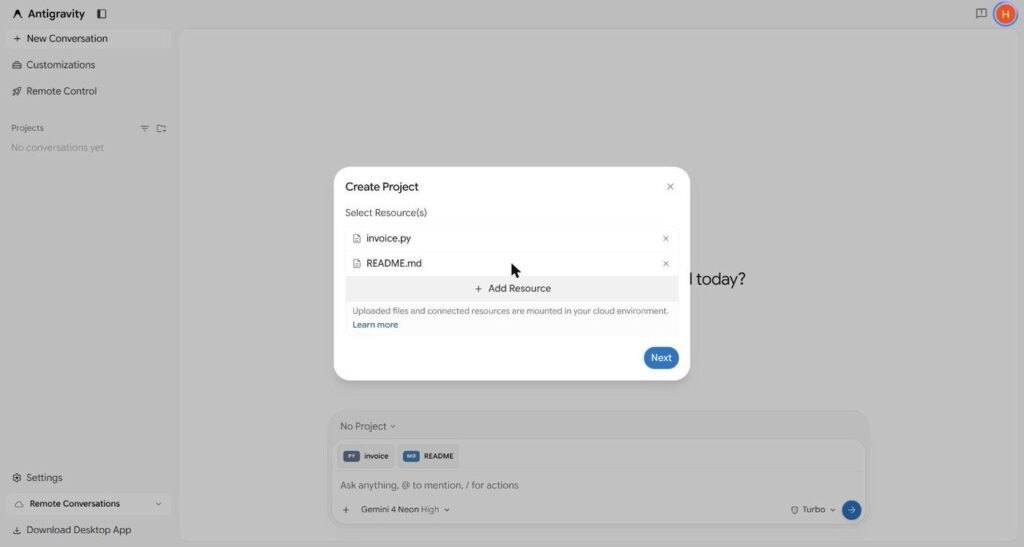
Click the Create New Project icon next to Projects, then Add Resource. You get three choices: Google Drive, Upload Files and GitHub. We uploaded two files. Google’s limits for uploads are 8 MiB per file, 50 files and 100 MiB per project. GitHub repositories are cloned into the cloud workspace after you authorise access, and Google Drive files are read when the agent needs them.
Step 3: Pick a model and describe the task
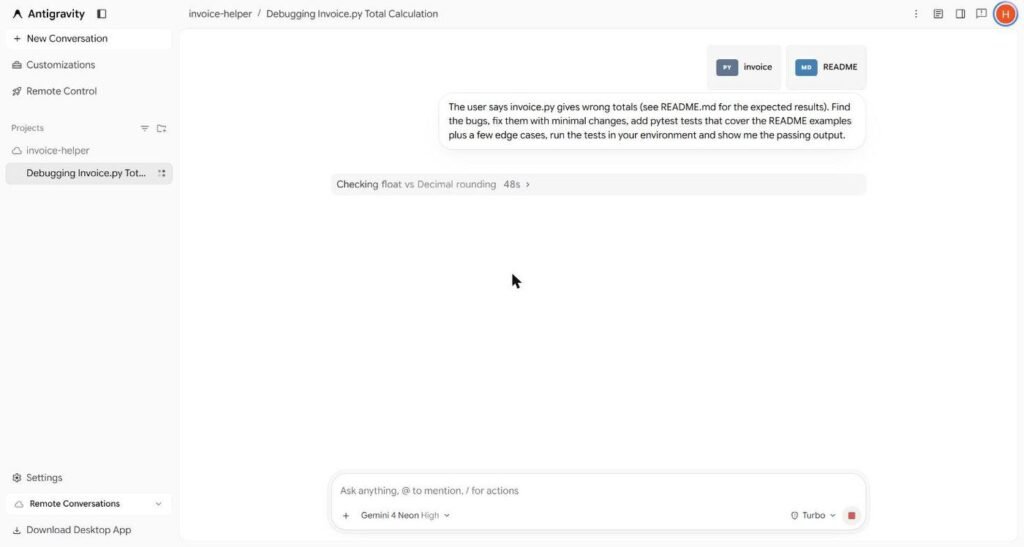
The message box shows the current model (Gemini 4 Neon, High, by default) and a permission preset, which was Turbo on our account. Turbo lets the agent run commands without asking each time, which is what makes unattended work possible. Our prompt was one paragraph: the user says the totals are wrong, find the bugs, fix them with minimal changes, add tests for the README examples plus edge cases, run them and show the output.
Step 4: Close the page and let the agent keep working
We left the page 20 seconds after sending the task, while it still said “Completing setup”. When we came back a minute later the agent was mid-task (“Checking float vs Decimal rounding”), then moved on to “Running pytest with uv”. Nothing on our computer was running it.
Step 5: Check the results and review the changes
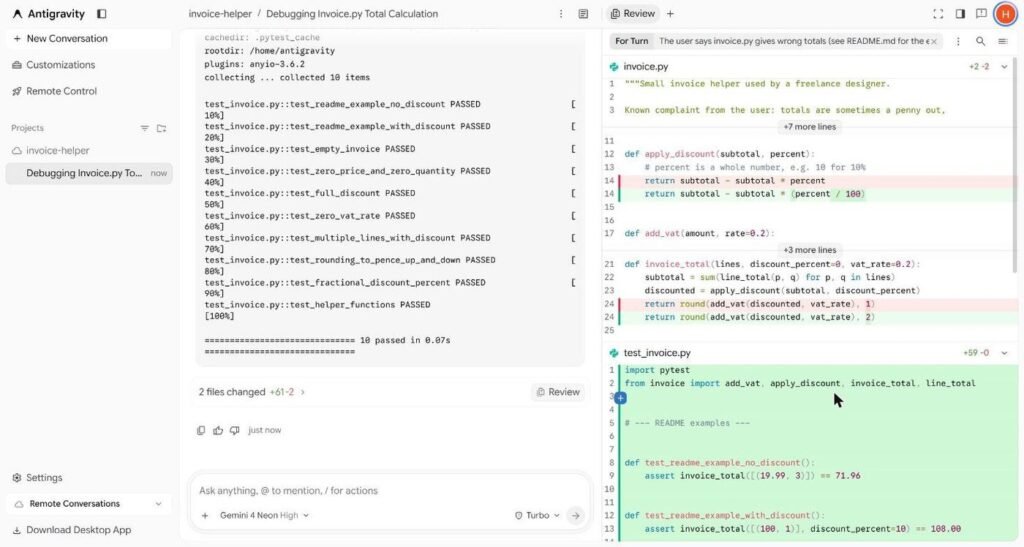
When the agent finishes, it posts a summary and a “files changed” bar. Click Review to see every change side by side, with red for removed lines and green for added ones. You can leave inline comments there and ask for changes in the same conversation.
What happened when we closed the page?
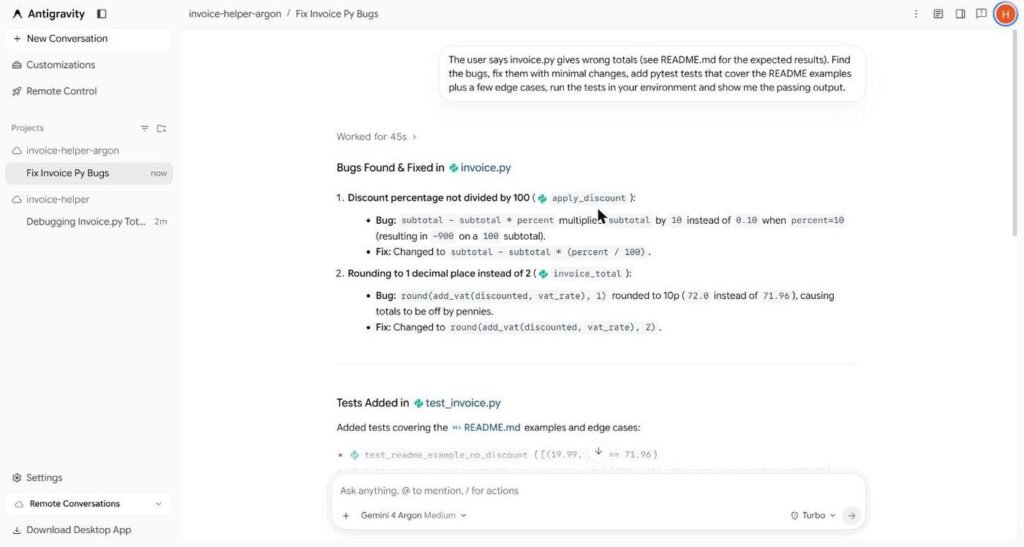
Both runs finished without a browser tab open on them. The second test was the clearer one: we sent the task to Gemini 4 Argon, left the page 10 seconds later, and stayed away. When we came back about a minute and a half later, the conversation already said “Worked for 45s”, with both bugs fixed and every test passing.
| What we measured | Gemini 4 Neon (High) | Gemini 4 Argon (Medium) |
|---|---|---|
| Found both planted bugs | Yes | Yes |
| Tests it wrote | 10 | 7 |
| Test result in its cloud environment | 10 passed | 7 passed |
| Agent’s own “worked for” time | About 1 minute | 45 seconds |
| Lines changed | +61, -2 | +39, -2 |
| Finished while the page was closed | Partly (we checked in once) | Yes, fully |
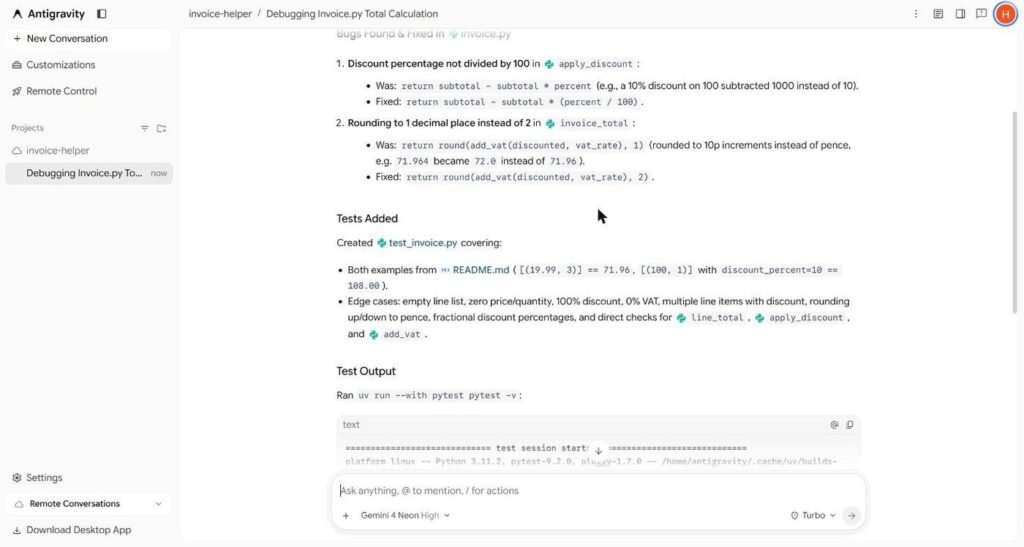
We checked the fixes ourselves against the bugs we had planted. Both models changed exactly the two lines that were wrong and left everything else alone, which is what “minimal changes” asked for. Their explanations were also accurate, for example that a 10% code on £100 was subtracting £1,000.
Gemini 4 Neon vs Argon in Google Antigravity: which should you use?
On our one small task, both were correct, and Argon was a little quicker and more concise while Neon wrote more edge-case tests. That is too small a sample to call a winner. What it does show is that both models are available on Google AI Pro inside Antigravity, even though Argon did not appear in the Gemini app’s model picker on the same account.
A practical rule from Google’s own descriptions: leave Neon as the default for everyday agent work, and try Argon for harder reasoning when you have weekly Argon allowance to spare. Argon has its own weekly limit on Pro, shown separately in settings.
Can you use Google Antigravity from your phone?
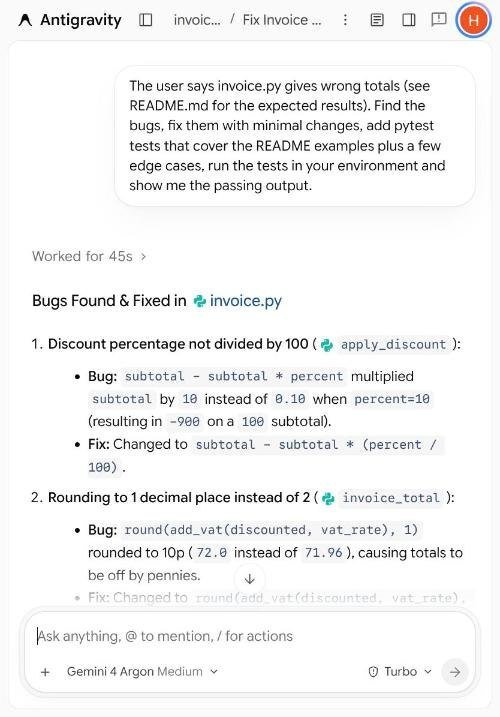
Yes, through a mobile browser. Google’s documentation says to open antigravity.google.com on your phone, where a switcher in the top bar lets you move between Remote Conversations and any computers connected through Remote Control. We did not test on a physical phone, but we narrowed our browser window to phone width and the full conversation, results and message box still worked.
What is Antigravity Voice Mode?
Voice Mode lets you talk to the agent instead of typing, powered by Gemini Live. According to Google’s Voice Mode documentation, you start it from the round button beside the microphone in an empty message box in the desktop app, or with /voice live (or F6) in the command line. You can pick a voice, set the speed from 0.75x to 2x, steer or stop a running task, and approve most permission prompts by voice.
Two limits matter. Voice Mode only works in local conversations, not in remote agents or the web app, and it cannot approve destructive actions such as deleting files, which still need a click. We did not test Voice Mode for this guide.
How do Google Antigravity usage limits work?
On Google AI Pro, Antigravity shows your remaining allowance under Settings, Models. There are separate meters for Gemini models (a five-hour limit and a weekly limit), for Claude and GPT models, and a separate weekly limit for Gemini 4 Argon. Google says limits depend on how much work the agent does, not on how many prompts you send.
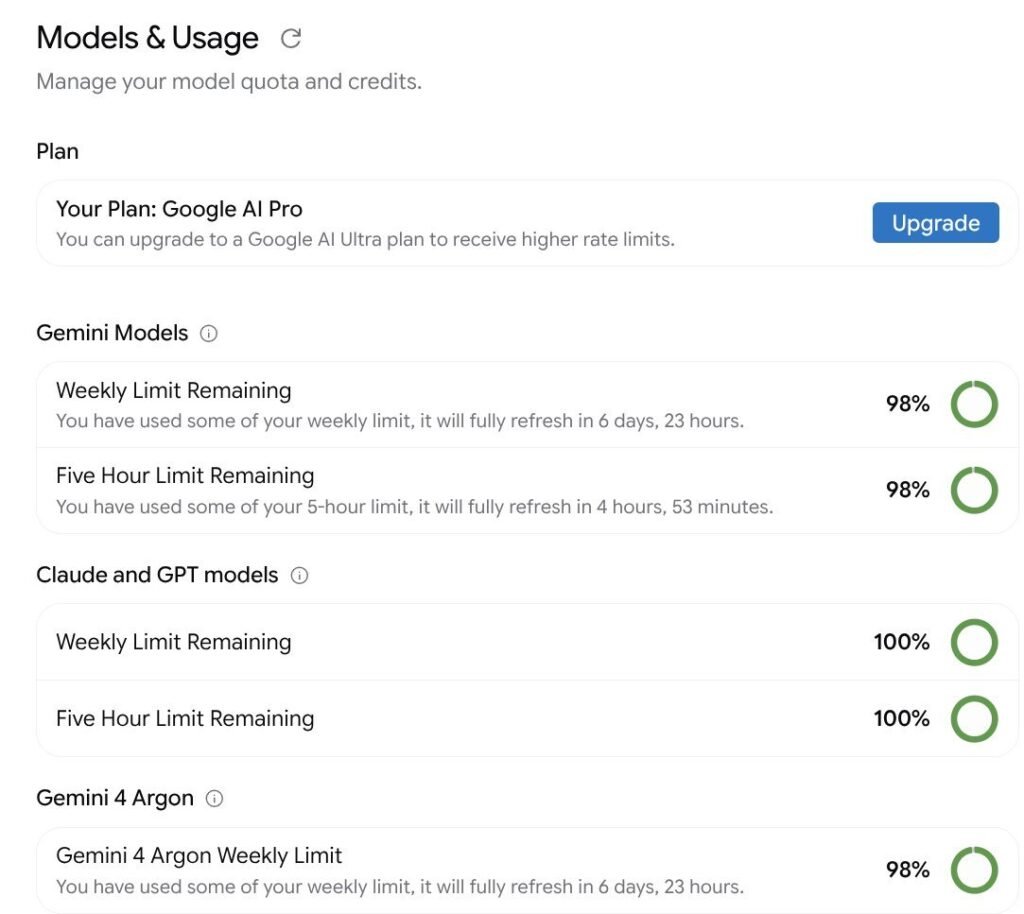
In our test, one small bug-fix task used about 2% of the weekly Gemini allowance. A large refactor will use far more, so check this page before you queue several long jobs.
Remote Agents vs Remote Control: what is the difference?
They sound alike but work differently:
- Remote Agents run in a Google-managed cloud environment. Your computer can be off. The agent can only see the files, repositories and Drive items you attach to the project, never your local disk.
- Remote Control (added in August 2026) lets you drive Antigravity running on your own computer or server from a browser. That machine must stay on and online, but the agent can use your local folders, tools and running servers.
Use Remote Agents for self-contained tasks on a repository. Use Remote Control when the work needs your local setup.

What can you use Google Antigravity remote agents for?
- Bug fixes with tests. Like our test: describe the symptom, point to the expected result and ask for passing tests as proof.
- Background jobs. Start a longer task before a meeting or before bed and review it later from your phone.
- Repository chores. Updating dependencies, adding missing tests or tidying documentation in a GitHub repo.
- Research on files. Asking questions about PDFs, Docs or Sheets you attach from Google Drive.
If you mainly write code with Claude, our Claude AI for coding guide covers that side; Antigravity also offers Claude Opus 5.5 and Sonnet 5.5 on Pro.
What to do if remote agents don’t show up
- Check the account type. Remote Agents need a personal Google account. Workspace and Google Cloud business accounts are not supported.
- Check the plan. Free and Google AI Plus accounts do not get Remote Agents, and Google says Pro must be a paid plan, not a trial.
- Give the rollout time. Google calls the rollout gradual, so an eligible account may not see it straight away.
- Update the app or CLI. In the command line, remote sessions need
agyversion 1.4.12 or later (runagy update). - Try the web app. antigravity.google.com showed Remote Conversations for us without installing anything.
Mistakes to avoid when you use Google Antigravity
- Leaving Turbo on for risky work. Turbo runs commands without asking. For anything connected to real accounts or data, switch the permission preset to one that asks first.
- Uploading secrets. Google’s own notice warns against uploading highly sensitive data. Keep passwords, API keys and private customer data out of remote projects.
- Not defining “done”. Our prompt worked because it named the expected results and asked for passing tests. Vague prompts get vague results.
- Skipping the review. Always open Review and read the changes before you merge or use them. Passing tests only prove what the tests check.
- Expecting local access. A remote agent cannot see files on your computer. Attach what it needs.
Key takeaways
- Google Antigravity is Google’s agent-first coding platform, with a free plan and paid Google AI Pro and Ultra tiers.
- Remote Agents (November 2026) keep working in Google’s cloud after you close the page; they need Pro or Ultra on a personal account.
- In our test, Gemini 4 Neon and Gemini 4 Argon both fixed two planted bugs with passing tests, and Argon finished entirely while we were away.
- Voice Mode is desktop and command line only, and does not work with remote agents.
Google Antigravity FAQ
Is Google Antigravity free to use?
Yes. Google Antigravity has a free plan for individuals at $0 a month with a weekly quota and models such as Gemini 3.8 Flash. Remote Agents and the Gemini 4 models need Google AI Pro or Ultra.
What are Google Antigravity remote agents?
They are agents that run in an isolated, Google-managed cloud environment instead of on your computer. They keep working when you close the browser or your laptop sleeps, and you can check on them from any device.
Does Antigravity work on Windows?
Yes. The desktop app supports Windows 10 (64-bit) or later on x64 and ARM64, as well as macOS 13 or later and Linux. The web app works in any modern browser.
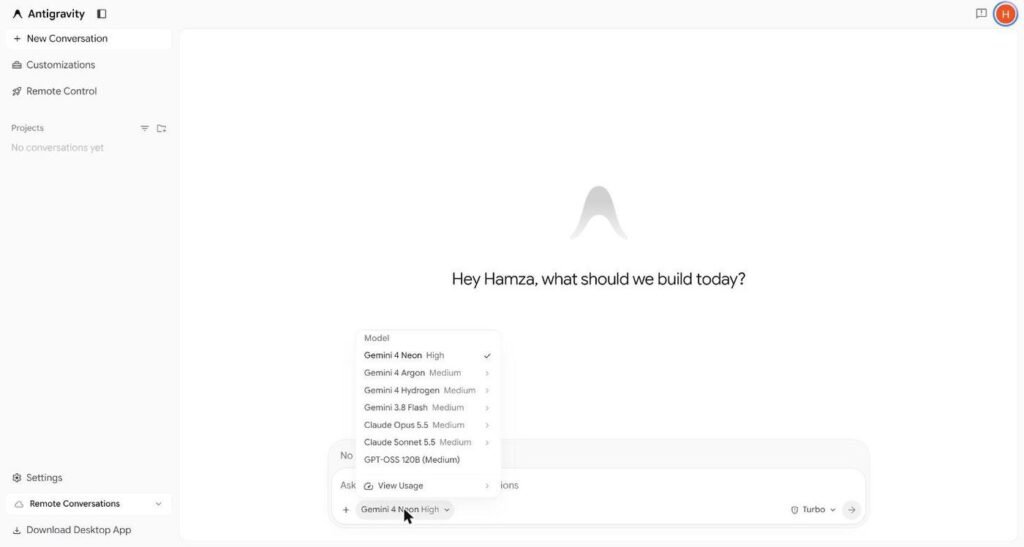
Which models can you use in Google Antigravity?
On Google AI Pro we saw Gemini 4 Neon (the default), Gemini 4 Argon, Gemini 4 Hydrogen, Gemini 3.8 Flash, Claude Opus 5.5, Claude Sonnet 5.5 and GPT-OSS 120B. Ultra adds Gemini 4 Carbon.
Can Google Antigravity remote agents see my local files?
No. A remote agent only sees files you upload, GitHub repositories you connect and Google Drive items you attach to the project. To work on local files, use Remote Control or the desktop app.
Does Voice Mode work with remote agents?
No. Google’s documentation says Voice Mode only works in local conversations in the desktop app and the command line, not in cloud conversations or Remote Control sessions.
How long do Antigravity usage limits last?
On Google AI Pro, the Gemini allowance refreshes every five hours up to a weekly limit, and Gemini 4 Argon has its own weekly limit. You can see what is left under Settings, Models.
Is Google Antigravity good for beginners?
Antigravity is easier than it sounds if you can describe a task clearly, especially with the Knowledge Work layout. But you still need to judge the agent’s changes, so beginners should start with small, low-risk tasks and always use Review.
Sources
- Google Antigravity: Remote Agents documentation
- Google Antigravity changelog (versions 2.29 to 2.33, Gemini 4 Neon)
- Google Antigravity pricing and plans
- Google Antigravity: Voice Mode documentation
- Google Antigravity download and system requirements
- 9to5Google: Antigravity update brings Remote Agents and Voice Mode (6 November 2026)