
Claude Cowork has not disappeared. Anthropic merged it into ordinary Claude chat, so there is no longer a separate Cowork button: you type the task into the normal message box and Claude decides whether to answer, research, build a file or run something on a schedule. We tested Claude Cowork in its new form on our own Claude Pro account. A pricing research task produced a finished spreadsheet with sources in under two minutes, a follow-up finished while we were on another page, and a weekly schedule was set up from one sentence. The schedule was also the one thing that surprised us.
How we tested
We tested on 27 November 2026 on our own Claude Pro account in Chrome (UK), using Opus 5.5 at Medium effort with the account’s default Auto permission mode. We gave Claude one multi-step research task that had to end in a spreadsheet, asked for a change and left the page while it worked, then asked it to repeat the check every week. We timed each step, compared the spreadsheet with the official pricing pages and recorded what the schedule actually did.
Not tested: the Claude desktop app (local files, computer use and its built-in browser), the mobile apps, the Chrome side panel, the Free plan, Team and Enterprise admin settings, a scheduled run firing, and the usage meter. Rollout and plan details come from Anthropic’s help centre and news reports and are labelled that way.
Table of Contents
Claude Cowork: the short answer
- Where did Cowork go? It is now part of every Claude conversation. Anthropic’s help centre says “Chat and Claude Cowork are merged into one conversation”, with no mode to choose.
- How to use it: open a new chat and describe the result you want, such as a spreadsheet, report or slide deck. Claude picks the tools.
- Who has it: Pro, Max and Ultra since September 2026, rolling out in stages. Enterprise from 23 October. Team plans became generally available on 12 November, according to Buildcamp’s guide, and eligible Enterprise organisations switched on by default on 16 November, according to MIXED.
- Can you switch back? No. Anthropic says once your account has the new experience, the separate Chat and Cowork options do not return.
- Our result: a three-plan price comparison spreadsheet with source links in about 112 seconds, with honest “not confirmed” labels where it could not check a price.
- Watch out for: scheduling happened instantly, with no confirmation, at a slightly different time than we asked for.
What happened to Claude Cowork?
Claude Cowork started as a separate mode for longer jobs: you switched from Chat to Cowork, and Claude worked through multi-step tasks such as research, file creation and app actions. On 16 September 2026 Anthropic announced that Claude Cowork and chat are now one Claude. Since then, the rollout has worked through the plans one by one, which is why so many people are only now finding the Cowork button gone.
According to Anthropic’s help article, quick questions still get quick answers, while bigger jobs such as research, reports, spreadsheets and presentations come back as files you can edit. Everything Cowork could do is available from any conversation, and your existing Cowork tasks, projects, connectors, skills, artifacts and files carry over.
The help article lists a few things that changed or are missing for now:
- Your old global instructions now live under Instructions for Claude in Settings.
- Older Cowork tasks do not show up in search, but you can find them by name in Recents.
- Adding from GitHub and branching a conversation are not supported yet.
- Incognito chats cannot create files or run code.
- Dispatch is not available to new users; existing users can keep it for now.
How to tell if you have the new Claude Cowork
Anthropic’s test is simple: if your message box still shows separate Chat and Cowork options, your account has not moved yet. There is nothing to switch on; the change arrives by itself.
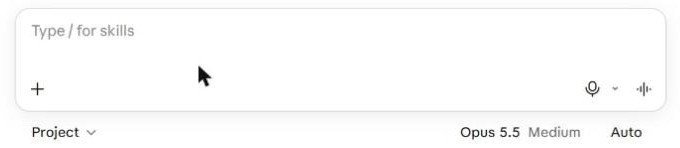
On our account, the sidebar also showed Scheduled, Design and Plugins entries, which is where Cowork’s scheduling, design and connector features now live.
How to use Claude Cowork now in 5 easy steps
1. Start a normal chat
Click New. You do not need a Cowork tab, a project or a special prompt.
2. Choose a permission mode
Below the message box is a mode button. On our Pro account it offered two options:
- Manual: “Claude asks before using new tools or opening new sites.”
- Auto: “Claude runs on its own and pauses to ask if anything looks unsafe.”
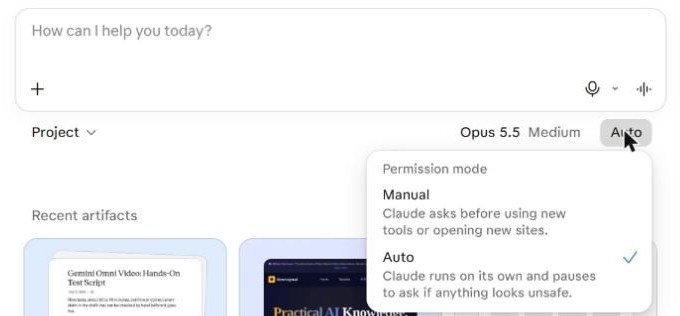
Anthropic says Auto is rolling out as the default on Pro, Max, Ultra and Team, and Manual is the default on Enterprise. For anything that sends messages, spends money or changes important files, Manual is the safer choice.
3. Describe the outcome, not the steps
Say what you want to end up with, where the information should come from, and what to do when something cannot be confirmed. Our prompt asked for a spreadsheet, named the columns and asked for a note on anything it could not check.
4. Let it work, and leave if you like
The status line shows what Claude is doing. Anthropic says longer tasks keep running in the cloud if you close your laptop or leave the page. Tasks that use files or apps on your own computer need the Claude desktop app open.
5. Review, ask for changes, then schedule if it repeats
The result opens beside the chat. Ask for edits in the same conversation, and if it is a job you need every week, ask Claude to schedule it.
Our Claude Cowork test: a real research task
We picked a job that needs searching, checking several websites and building a file, which is exactly what Cowork was made for:
Compare the current monthly prices of ChatGPT Plus, Claude Pro and Google AI Pro in the UK and the US. Check each price on the official pricing page and put the results in a spreadsheet with one row per plan, columns for UK price, US price, what’s included, and the source link. Add a short note on anything you couldn’t confirm.
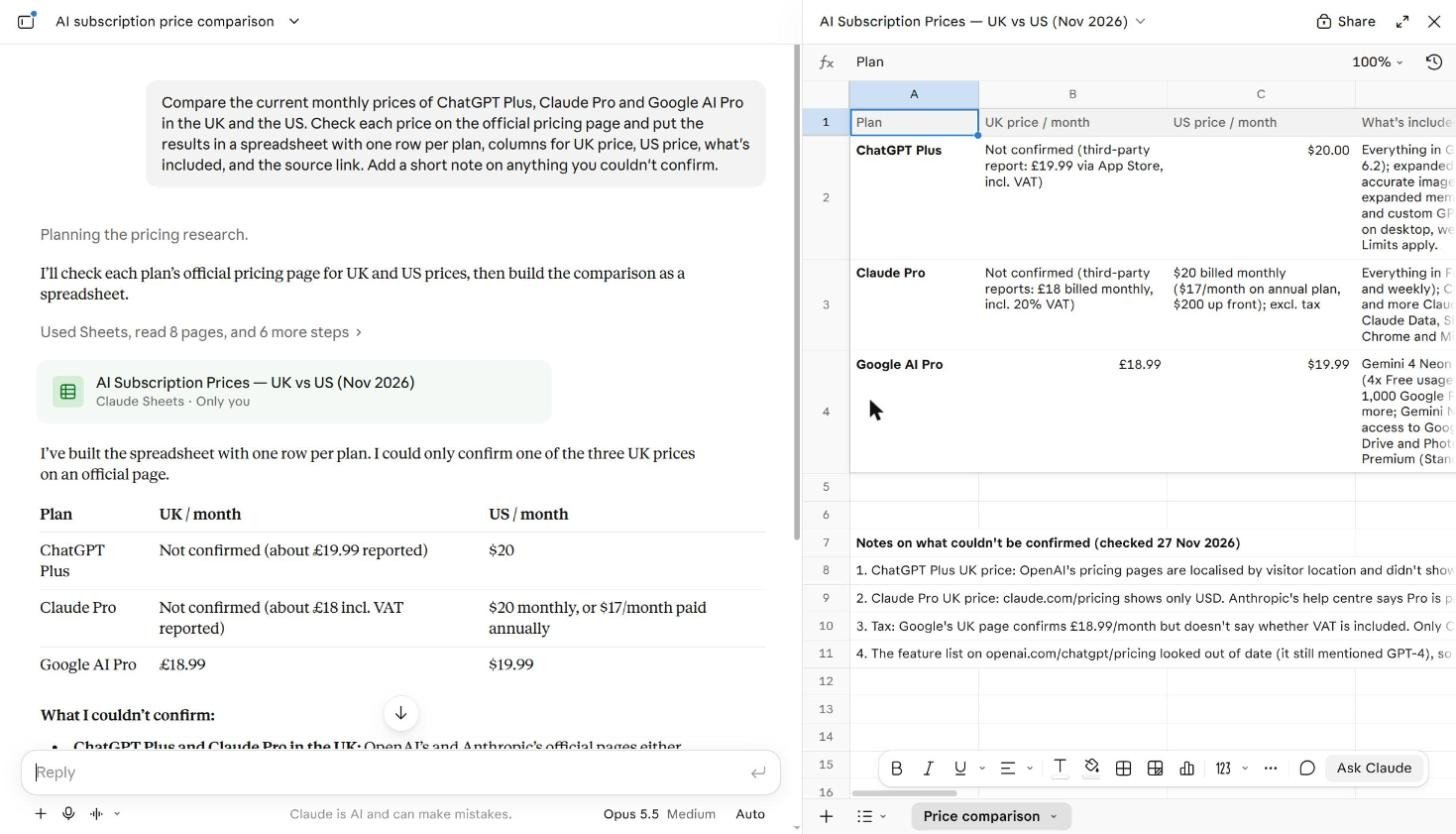
Claude replied that it would check each official pricing page and then build the spreadsheet. The status line moved from “Reading 3 pages” to “Using Sheets: Update content”, and a spreadsheet opened next to the chat while it was still filling in. The whole task took about 112 seconds. Afterwards, the activity panel listed 4 web searches and 6 sites read.
What it got right
The output was a real spreadsheet with one row per plan, the columns we asked for, source links and a numbered list of notes. The US prices matched the official pages we checked: ChatGPT Plus at $20 a month, Claude Pro at $20 a month or $17 a month billed annually, and Google AI Pro at $19.99. It also confirmed Google AI Pro at £18.99 a month on Google’s UK page.
What it refused to guess
This was the most useful part. Claude could not confirm the UK prices of ChatGPT Plus or Claude Pro on the official pages, and it said why: those pages show prices based on the visitor’s location, and its lookups came from the US. Instead of filling the gaps with figures from other websites, it marked both as “Not confirmed” and showed the third-party figures separately. It also noted that Google’s UK page does not say whether VAT is included, and that OpenAI’s main pricing page still listed outdated features, so it took the feature list from a different OpenAI page.
That is the behaviour you want from an agent doing research for you. It is also a real limitation: if you need local UK prices, check them on your own account, because Claude’s searches may not see what you see.
Test 2: does Claude Cowork keep working when you leave?
Next we asked for one more column:
Add a column with each plan’s annual price, if the official page offers one, and keep the source links.
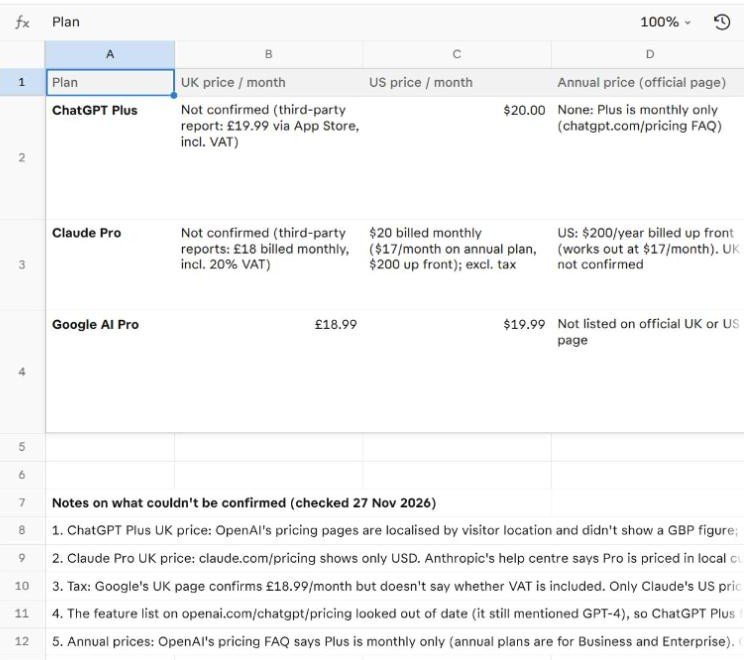
About three seconds after sending it, we navigated the tab to a different website. When we came back roughly 35 seconds later, the answer was complete and the spreadsheet had a new annual price column. Our test was short, so this proves the task carried on without the page open, not that it can run for hours.

The details were careful again. Only Claude Pro had an annual price on its official page ($200 a year in the US). ChatGPT Plus is monthly only, and Claude quoted OpenAI’s FAQ to show it. For Google AI Pro, it found a yearly price reported by TechRadar but left it out of the column because Google’s own page did not show it, and added a note instead.
Test 3: scheduling a Claude Cowork task
Scheduled tasks are one of Cowork’s headline features, so we asked:
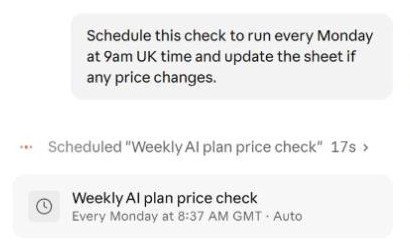
Schedule this check to run every Monday at 9am UK time and update the sheet if any price changes.
In about 17 seconds a scheduled task called “Weekly AI plan price check” appeared, set to Every Monday at 8:37 AM GMT, in Auto mode. Claude explained that it had moved the time off the hour because tasks set for the top of the hour are more often delayed, and offered to change it to 9:00. It said each run would check only the official pages, change only cells with a new value, add a dated note for each change, and send a phone notification.
Two things to know before you do this yourself:
- There was no confirmation step. In Auto mode the schedule was created straight away. Claude told us afterwards that the task would edit the sheet without asking each time.
- The time can differ from what you asked. The explanation was sensible and clearly stated, but if 9:00 matters, tell Claude to use exactly 9:00.
You can find and manage scheduled tasks under Scheduled in the sidebar. We have not yet seen a scheduled run fire, so we cannot say how reliable the weekly runs are.
Claude Cowork on each plan
| Plan | Status (as reported, November 2026) |
|---|---|
| Free | Not moved over yet, according to Buildcamp; handing off tasks needs a paid plan |
| Pro, Max, Ultra | Rolling out in stages since 16 September; nothing to turn on (Anthropic) |
| Team | Generally available from 12 November, according to Buildcamp; available where the admin has turned on “Chat and Cowork unified” (Anthropic) |
| Enterprise | Generally available from 23 October (Anthropic); on by default for eligible organisations from 16 November, unless an admin chose otherwise (MIXED) |
Anthropic says all activity counts towards your plan’s usage limits, and agentic tasks that search the web, run code or create files generally use more than a quick question. You can check your usage under Settings, then Usage. We did not record our usage for this test.
Tips for getting good results from Claude Cowork
- Ask for sources and gaps. Adding “add a short note on anything you couldn’t confirm” made Claude separate checked facts from reported ones.
- Name the output. “A spreadsheet with these columns” produced exactly that layout.
- Use Manual mode for anything risky. Auto is fast, but Manual asks before using new tools or opening new sites.
- Check location-based facts yourself. Prices, availability and local rules can look different from Claude’s servers.
- Read the schedule before you walk away. Check the time and whether it will change files without asking.
- Use the desktop app for local work. Anthropic says tasks that touch files or apps on your computer need Claude Desktop open.
For related features, see our guides to Claude plugins, Claude Sheets and Claude Projects.
Our verdict on Claude Cowork in its new form
Folding Cowork into chat makes it easier to use: you no longer have to decide in advance whether a job is “big enough” for a different mode. In our test, Claude Cowork handled a real research task well, built an editable spreadsheet, finished a change while we were away, and was honest about what it could not confirm. The one thing we would change is scheduling in Auto mode: a short confirmation before creating a recurring task that edits your files would be welcome. If you miss the old Cowork button, the good news is that nothing is lost; you just ask for the result in a normal chat.
Key takeaways
- Claude Cowork now lives inside every Claude conversation; there is no separate mode and no way to switch back.
- A three-plan pricing spreadsheet with sources took about 112 seconds on Claude Pro.
- Claude marked prices it could not check as “Not confirmed” instead of guessing.
- Scheduling worked from one sentence but skipped any confirmation and moved our 9am to 8:37.
Claude Cowork FAQ
Where is Claude Cowork?
It is built into Claude’s normal chat. If your account has the new experience, describe the task in a new chat and Claude uses Cowork’s tools when needed. If you still see separate Chat and Cowork options, your account has not moved over yet.
Can I turn off the new Claude Cowork experience?
Not on a personal plan. Anthropic says once your account has it, you cannot switch back. On Team and Enterprise, the admin controls whether “Chat and Cowork unified” is on.
Is Claude Cowork free?
Handing off tasks needs a paid plan, and Buildcamp reports that Free accounts had not moved to the new experience in November 2026. Pro, Max and Ultra have it, as do Team and Enterprise where it is enabled.
Do I need the Claude desktop app for Cowork?
Not for cloud tasks like ours, which ran in the browser. Anthropic says local file access, computer use and the built-in browser only work while Claude Desktop is open.
Will my old Cowork tasks disappear?
No. Anthropic says existing Cowork tasks, projects, connectors, skills, artifacts and files carry over. Older tasks do not appear in search yet, but you can find them by name in Recents.
How do I schedule a task in Claude Cowork?
Ask in the chat, for example “run this every Monday at 9am”. In our test Claude created the schedule straight away in Auto mode and showed it in the chat and under Scheduled in the sidebar. Check the time it chose and the permission mode before you rely on it.
Rollout dates and feature details come from Anthropic’s help article on the merge, Anthropic’s announcement and Anthropic’s Enterprise update, checked on 27 November 2026. The Team and Free plan status comes from Buildcamp’s guide, and the 16 November Enterprise default from MIXED. Everything else describes what we saw in our own test.
More Claude guides