Vizard AI free is one of the two names that come up most when people look for a free AI clipping tool, and OpusClip is the other. Both turn one long video into short vertical clips for TikTok, Reels and YouTube Shorts. To see which one gives you more for nothing, we ran the same 19-minute video through both, a day apart, and compared credits, speed, the clips they picked, the watermark and what the free plans keep back.
How we tested
We tested Vizard on 23 November 2026 and OpusClip on 22 November 2026, both in Chrome in the UK, on new accounts created with Google sign-in. Each tool got the same video: a 19-minute 15-second NASA recording of an astronaut on the space station answering questions from a university audience (NASA videos are generally not subject to copyright).
On Vizard we used the default Model v1, the 9:16 ratio, any clip length and the Default caption template, then reviewed the clips, played the top one, opened the editor and the export menu.
Not tested: paid plans of either tool, Vizard’s Model v2, the Vizard Agent, downloads and publishing to social accounts. Prices and plan limits come from each company’s own pricing page and are labelled that way. One video is a small sample; results will vary with your footage.
In this article
Vizard AI free vs OpusClip: the short answer
- Same cost to process: both charged 19 credits for our 19-minute video, about 1 credit per minute.
- Vizard was faster: it finished in under 5 minutes. OpusClip took about 7 and a half.
- OpusClip showed more clips: 24 clips against 10 visible on the Vizard AI free plan, which found 18 but locked 8 behind an upgrade.
- Both add a watermark: “made with Vizard.ai” on Vizard, the OpusClip logo on OpusClip, including during OpusClip’s trial.
- The free allowances match on paper: each lists 60 credits a month. OpusClip adds a 7-day, 90-credit trial for new accounts; Vizard has no trial but keeps its editor open.
Our pick: Vizard if you want quick results and an editor on the free plan, OpusClip if you want the most clips from one video during its trial. Neither is a watermark-free option.
What is Vizard AI?
Vizard is a web app (with a mobile app on Google Play) that watches a long video, such as a podcast, webinar, interview or talk, and cuts out the moments most likely to work as short clips. It reframes each one to vertical, adds animated captions with emojis and highlighted keywords, writes a title, and gives each clip a “virality” score out of 10 with a one-line “viral reason”.
Vizard has also added newer tools around the clipper, including the Vizard Agent chat editor, AI Edit for talking-head videos, image and video generation, and an enhancer. We stuck to the core clipping job, because that is what both tools are mainly used for.
What does the Vizard AI free plan include?
According to Vizard’s pricing page, the Vizard AI free plan gives you:
- 60 credits a month, shared across its tools.
- AI clipping, with a watermark (the pricing page marks “No watermark” with a cross on the free plan).
- Export in 720p only.
- 3-day storage for your projects.
- The Vizard Agent on its Flash model only, and one social account for sharing.
Paid plans, again from Vizard’s pricing page, start with Creator at $29 a month, or $14.50 a month billed yearly ($174 a year), which removes the watermark and allows 4K export. Business is $39 a month, or $19.50 billed yearly.
Signing up for the Vizard AI free plan
We clicked “Sign up with Google” on Vizard’s sign-up page and approved the Google prompt. Vizard then asked three quick questions: our role, our main goal and how we heard about it. Each is a single click, and the Vizard AI free dashboard opened straight after, with 60 credits shown in the top bar.
There was no trial and no card request. You simply start on the Vizard AI free plan. The home page also offers a “Try it free, no sign up needed” box for a YouTube link, which we did not test.
Step 1: adding the video and checking the credit cost
The dashboard has one box for a video link. Vizard lists YouTube, Google Drive, StreamYard, Loom, Twitch, X, TikTok, Instagram, LinkedIn, Facebook and Dropbox, and you can also upload a file, import from Zoom or record a video.
We pasted the YouTube link. Vizard loaded the title, detected 720p and 19:15, set the language to English, and showed the cost on the Upload button before charging anything: 19 credits.
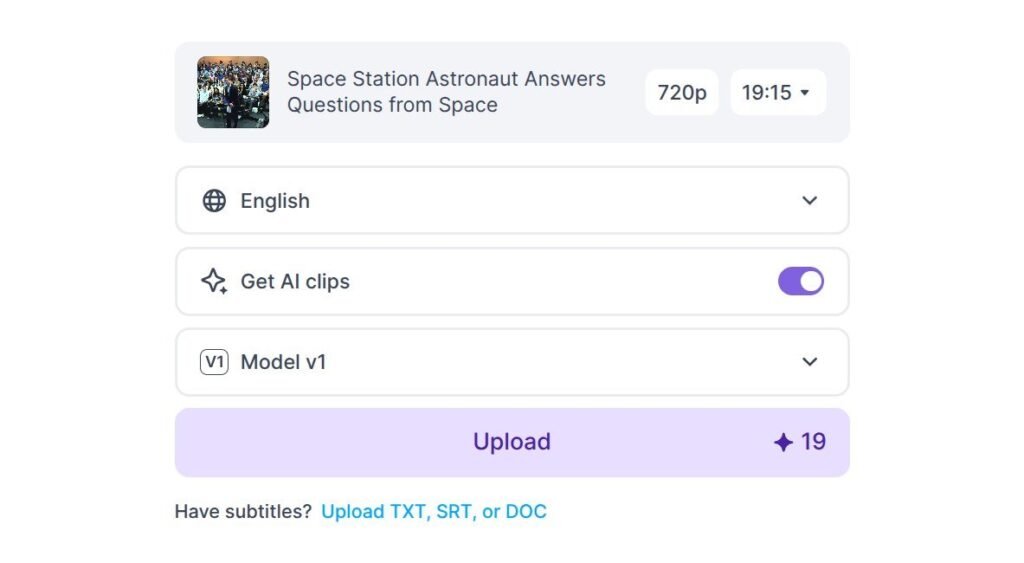
That is exactly what OpusClip charged for the same video. On both tools, processing costs about 1 credit per minute, so the 60 monthly credits on each free plan cover roughly one hour of video.
Model v1 or Model v2?
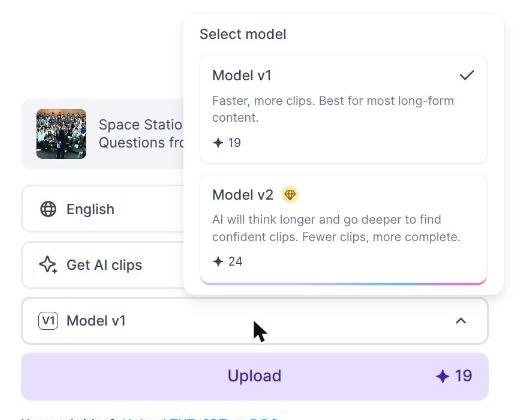
Vizard offers two clipping models. Model v1 is described as “faster, more clips” and cost 19 credits. Model v2 “will think longer and go deeper”, with fewer, more complete clips, and cost 24 credits. Model v2 carries a premium badge, so on the Vizard AI free plan we used Model v1.
Step 2: choosing captions and clip settings
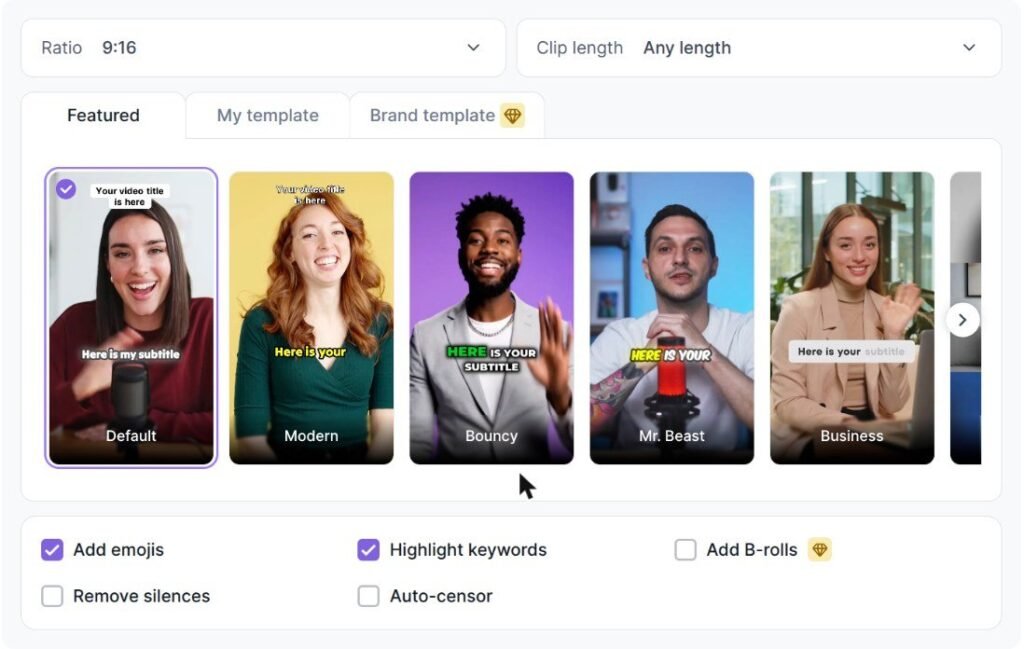
After the upload starts, Vizard shows a settings page while the video downloads in the background. You choose:
- Ratio (9:16 by default) and clip length (“Any length” by default).
- A caption template: Default, Modern, Bouncy, Mr. Beast, Business and more, plus your own templates. Brand templates are premium.
- Add emojis and Highlight keywords, both on by default.
- Remove silences and Auto-censor, both off by default. Add B-rolls is premium.
- An optional “Find clip moment” prompt to steer the picks toward a topic.
Unlike OpusClip, nothing on this page added extra credits on the free plan. On OpusClip, switching on Motion graphics added 60 credits in one go, which used most of its trial allowance. Vizard simply locks the premium options instead.
Step 3: how long Vizard AI free processing took
We clicked “Get AI clips” at 21:32 UK time. Vizard showed a checklist (uploading, create project, process video, find best parts, edit clips, finalise) and said it would email us when the clips were ready. When we checked back a few minutes later, at about 21:36, the project was finished.
That is under 5 minutes for a 19-minute video. OpusClip took about 7 and a half minutes for the same video, against its own estimate of 9 minutes. The credit balance dropped from 60 to 41.
Step 4: the clips Vizard AI free made
Vizard sorted the clips by score. The project page said 10 clips, and a yellow bar at the bottom read “Remove watermark and unlock 8 more clips”. So Vizard found 18 clips, but the Vizard AI free plan showed us only 10.
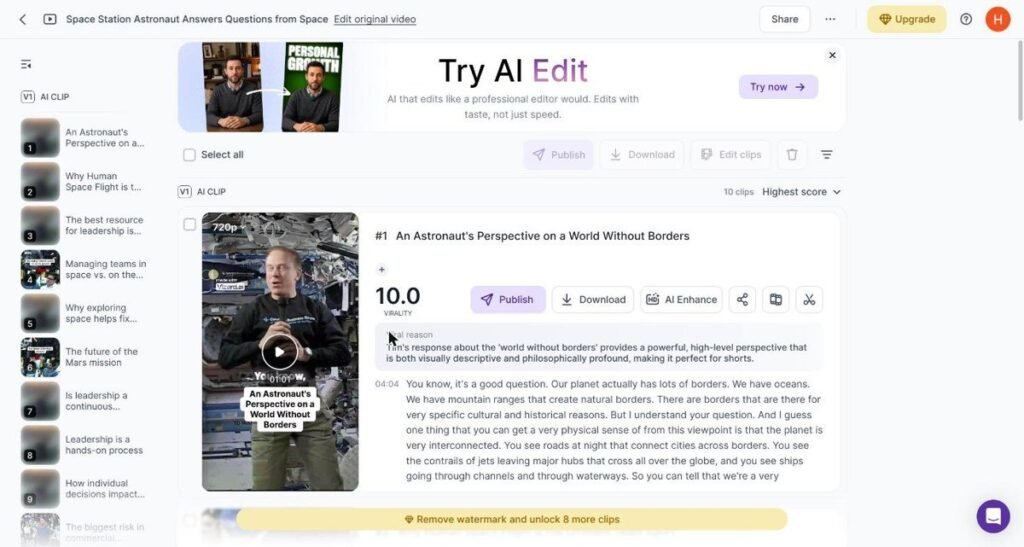
The scores ran from 10.0 down to 8.4. The ten visible clips were:
- An Astronaut’s Perspective on a World Without Borders (10.0, 1:01)
- Why Human Space Flight is the Ultimate Team Sport (10.0)
- The best resource for leadership is your classmates (9.0)
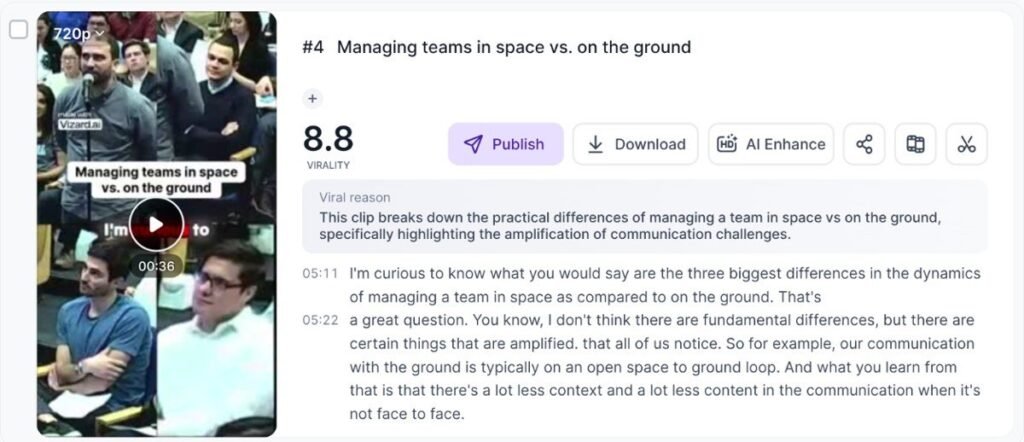
- Managing teams in space vs. on the ground (8.8, 0:36)
- Why exploring space helps fix Earth (8.8)
- The future of the Mars mission (8.7)
- Is leadership a continuous learning process? (8.5)
- Leadership is a hands-on process (8.5)
- How individual decisions impact the whole team (8.4)
- The biggest risk in commercial spaceflight (8.4)
Every clip came with a one-line “viral reason”. For the top clip it said the astronaut’s answer about a “world without borders” was visual and thought-provoking. The visible clips ran from about 30 seconds to just over a minute, shorter on average than OpusClip’s, which ran from 13 seconds to 1 minute 45 seconds.
Did the two tools agree?
Partly. OpusClip’s top clip (99 out of 100) was about managing a team in space compared with on the ground. Vizard found the same moment but ranked it fourth, at 8.8. Both tools also picked out the answer about exploring space and fixing Earth. The clearest difference was the top pick: Vizard preferred the astronaut’s reflection on borders seen from orbit.
What the Vizard clips were like
We played the top Vizard AI free clip in full. The captions appear word by word in the centre of the frame, with keywords highlighted in green and the occasional emoji, because those two options were on by default. The title sits in a white box for the opening seconds, and the vertical crop kept the astronaut centred throughout.

Two things we would change before posting:
- The opening. The top clip starts with “You know, it’s a good question”, but the question itself is cut, so a viewer does not know what is being answered. Clip 4 handled this better by starting on the audience member asking. OpusClip’s clips started on the question every time in the ones we watched.
- The emojis. A few looked random next to the words they decorated. If your content is serious, switch “Add emojis” off before you start.
On the plus side, the top clip ended on a complete sentence, and the crop never lost the speaker.
Step 5: the editor on the free plan
The scissors icon on a clip opens Vizard’s editor. Like OpusClip’s, it works from the transcript: you delete words to trim the video, and a short tour explains that you can restore deleted words. The right-hand toolbar has AI tools, templates, subtitles, audio, B-roll, transitions and text, and you can change the ratio, background and layout.
The editor opened for us on the Vizard AI free plan. That matters, because OpusClip’s pricing page lists no editing on its free plan once the trial ends. We did not test saving and exporting an edited clip, so check that before relying on it.
Step 6: the watermark and export
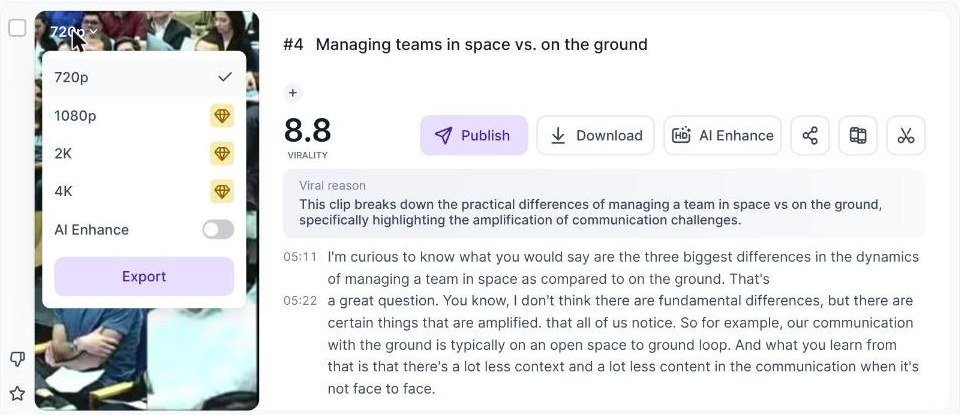
Every clip preview showed a small “made with Vizard.ai” mark in the top left. The resolution menu on each clip offered 720p on the free plan, with 1080p, 2K and 4K marked as premium, plus an AI Enhance toggle and an Export button.
OpusClip’s clips carried its logo too, even during the trial, and “Remove watermark” was a premium option there as well. So neither free tool gives you clean clips for posting. If a watermark-free clip is the goal, budget for a paid plan on whichever tool you choose.
Vizard AI free vs OpusClip free: side by side
| Vizard (free plan) | OpusClip (trial, then free plan) | |
|---|---|---|
| Credits | 60 a month* | 90 for 7 days, then 60 a month* |
| Cost of our 19-minute video | 19 credits | 19 credits (79 with Motion graphics) |
| Processing time | Under 5 minutes | About 7 and a half minutes |
| Clips you could see | 10 (8 more locked) | 24 |
| Score | Out of 10, with a “viral reason” | Out of 100, with Hook, Flow, Value and Trend grades |
| Watermark | Yes | Yes, during the trial too |
| Export resolution | 720p* | 1080p listed* |
| Editor | Opened on the free plan | In the trial; not listed on the free plan* |
| Storage | 3 days* | 3 days* |
| Cheapest watermark-free plan | Creator, $29 a month or $14.50 billed yearly* | Starter, $15 a month* |
*From each company’s pricing page, not tested by us. Everything else is from our tests on 22 and 23 November 2026.
Which is better on the free plan?
Choose the Vizard AI free plan if you want results quickly, like a written reason for each pick, and want to open the editor without paying. It also cannot surprise you with an extra-credit add-on, because premium options are simply locked.
The Vizard AI free plan is the simpler of the two to budget.
Choose OpusClip if you are signing up now and want to make the most of its 90-credit trial. It showed every clip it found (24 against Vizard’s 10), its clips opened on the question, and its free plan lists 1080p export against Vizard’s 720p.
If you only clip a video or two a month, you can use both. The two free allowances together cover about two hours of video a month.
How to use Vizard AI free: the quick version
- Sign up on vizard.ai with Google or email, and answer the three onboarding questions.
- Paste a video link or upload a file. Check the credit cost on the Upload button.
- Keep Model v1, choose your ratio, clip length and caption template, and turn emojis off if they do not suit your content.
- Add a “Find clip moment” prompt if you want a particular topic, then click “Get AI clips”.
- Watch the first few seconds of each of the top clips, and fix the opening in the editor if the question is missing.
- Export in 720p within 3 days, before the project expires.
Mistakes to avoid on the Vizard AI free plan
- Uploading the whole recording. You pay per minute, so trim long intros and outros first, or 60 credits will not go far.
- Trusting the score alone. Our 10.0 clip was missing its question. Watch the opening of each clip before you post it.
- Leaving it longer than 3 days. Free projects are stored for 3 days, according to Vizard’s pricing page.
- Expecting all the clips. The free plan showed 10 of the 18 clips Vizard found. If you need more, pick a shorter section or use the “Find clip moment” prompt.
What to do if Vizard doesn’t work
- The link is not accepted: check the video is public, or download it (if you own it) and use Upload instead.
- You run out of credits: wait for the monthly reset, trim the video, or try OpusClip’s free allowance for the next one.
- The clip starts mid-answer: open the editor and restore the words before the clip, or choose a clip that starts on the question.
- Captions are wrong: use “Edit subtitles” in the editor; names and technical terms are the usual mistakes.
Key takeaways
- The Vizard AI free plan and OpusClip both charged 19 credits for a 19-minute video, about 1 credit per minute.
- Vizard finished in under 5 minutes; OpusClip took about 7 and a half.
- Vizard showed 10 clips and locked 8 more; OpusClip showed all 24 it found.
- Both add a watermark on free use; Vizard exports in 720p, and its editor opened on the free plan.
If you want the full OpusClip walkthrough, see our OpusClip 4.0 free plan test. To pull the words out of a video before clipping it, our guide to getting a YouTube transcript shows the quickest ways. Plan details come from Vizard’s pricing page and OpusClip’s pricing page.
Vizard AI free FAQ
Is Vizard AI free?
Yes, with limits. The Vizard AI free plan gives you 60 credits a month, according to Vizard’s pricing page, which covered about an hour of video in our test at roughly 1 credit per minute. Clips have a watermark, export is 720p, and projects are kept for 3 days.
Does Vizard AI free add a watermark?
Yes. Every clip in our test showed a “made with Vizard.ai” mark in the top left, and the results page offered to “Remove watermark and unlock 8 more clips” with an upgrade. Vizard’s pricing page lists watermark-free clips from the Creator plan.
How many credits does Vizard use?
Our 19-minute 15-second video cost 19 credits with Model v1, about 1 credit per minute. Model v2, which is premium, would have cost 24 credits. The cost appears on the Upload button before anything is charged.
Is Vizard better than OpusClip?
It depends on what you need. In our test Vizard was faster and its editor opened on the free plan, while OpusClip showed more than twice as many clips and opened each clip on the audience question. Both charged the same credits and both added a watermark.
How many clips does the Vizard free plan give you?
From our 19-minute video, Vizard found 18 clips but showed 10 on the free plan, with the other 8 unlocked by upgrading. A shorter video, or a “Find clip moment” prompt, can help you get the clips you actually want into those 10.
Can I use Vizard on someone else’s video?
Only if you have the rights to use it. We used a NASA video, which is generally not subject to copyright. Clipping and reposting other creators’ videos without permission can break copyright law and platform rules.