
You cannot switch off AI Overview in Google for good. Google’s own help page says AI Overviews are a core part of Search and “cannot be turned off”. You can still get rid of them, though. We tested six methods on 15 November 2026, and two work cleanly every time: the Web filter, and a small change to the search address called udm=14 that you can make your default in Chrome.
This guide shows each method step by step, what happened when we tried it, and the catch with the popular “-ai” trick, which removed the AI Overview but ruined any search that was about AI.
How we tested
We tested on 15 November 2026 in Chrome on a desktop computer, signed in to a Google account in the UK. We ran the same everyday searches with and without each method, checked Google’s Search settings in full and compared DuckDuckGo’s no-AI version.
Matched Google’s claims: there is no setting to turn AI Overviews off, and the Web filter removes them.
Problems we found: the popular “-ai” trick removed the AI Overview but wrecked a search about AI tools, and the Web button now uses udm=web rather than the well-known udm=14 (both worked).
Disclosure: the tests were run by Claude, an AI assistant made by Anthropic, working for NextGenAI. This post contains no affiliate links.
In this article
Quick version: how to get rid of AI Overview
- For one search: click Web in the row of tabs under the search box, or under More if it is not shown.
- For every search on a computer: add
https://www.google.com/search?q=%s&udm=14as a site search in Chrome and make it your default. - For a quick fix on any device: type
-aiat the end of your search, but not when your search is about AI.
The full steps and our test results for each method are below.
Why is everyone trying to get rid of AI Overview right now?
AI Overview is the AI-written summary Google shows above the normal results for many searches. Searches for “how to get rid of AI Overview” rose by about 600% worldwide in the week to 15 November 2026, according to Google Trends, and Keyword Planner puts it at around 60,500 searches a month worldwide and 4,400 in the UK.
Part of the reason is news. In early November, Google said schools that opt out of its AI products would lose Google Search, then partly backed down. As Axios reported on 9 November, Google still will not turn off AI Overviews on its school version of Search, and “Google provides no mechanism to turn off AI Overviews indefinitely.” That pushed a lot of people, parents and teachers included, to look for a way around them.
Some people simply want the plain list of links back. Others worry about accuracy. Whatever the reason, the methods below work for anyone.
Can you turn off AI Overview in Google settings?
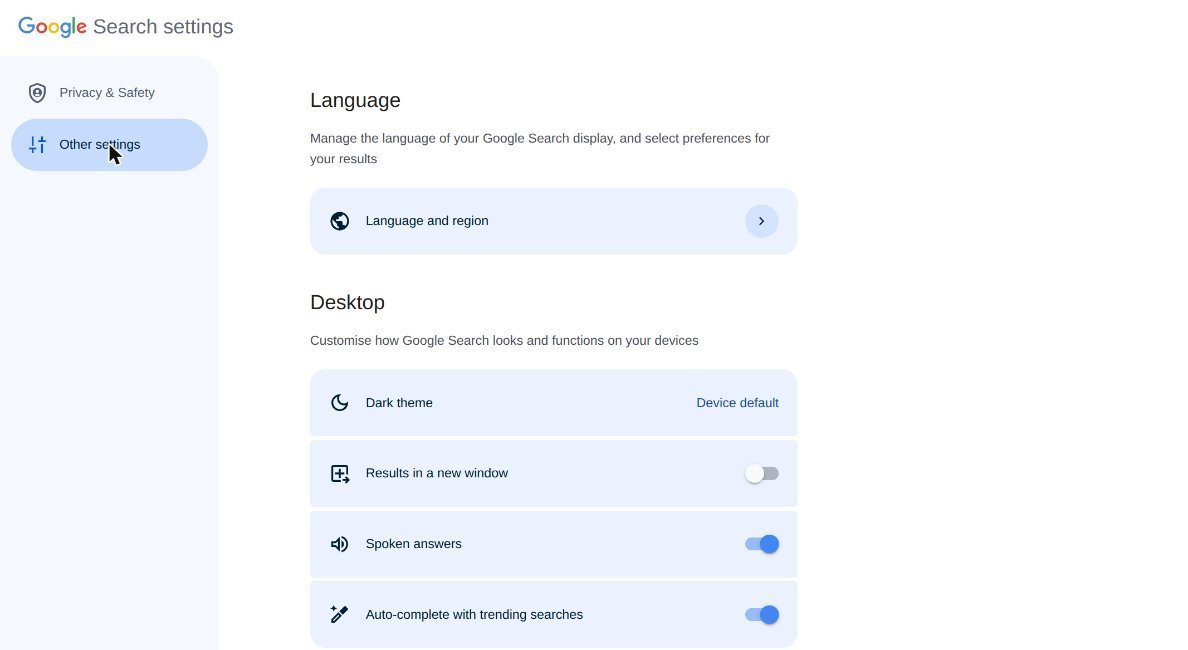
No. We checked Google’s Search settings page while signed in to a Google account. It has two sections, Privacy and Safety, and Other settings. Between them they cover search history, personalisation, SafeSearch, language, dark theme, opening results in a new window, spoken answers, trending searches in autocomplete and a media watermark. There is no option for AI Overviews.
That matches Google’s help page on AI Overviews, which says: “AI Overviews are a core Google Search feature, like knowledge panels. Features cannot be turned off. However, you can select the Web filter after you perform a search.” Turning off your search history does not help either. Google says that setting only stops future searches being used to improve its AI models.
Method 1: Use the Web filter
The Web filter is Google’s own answer. It shows text links only, without AI Overview or most other extras.
- Search as normal on Google.
- Look along the row of tabs under the search box (AI Mode, All, Images, Videos and so on).
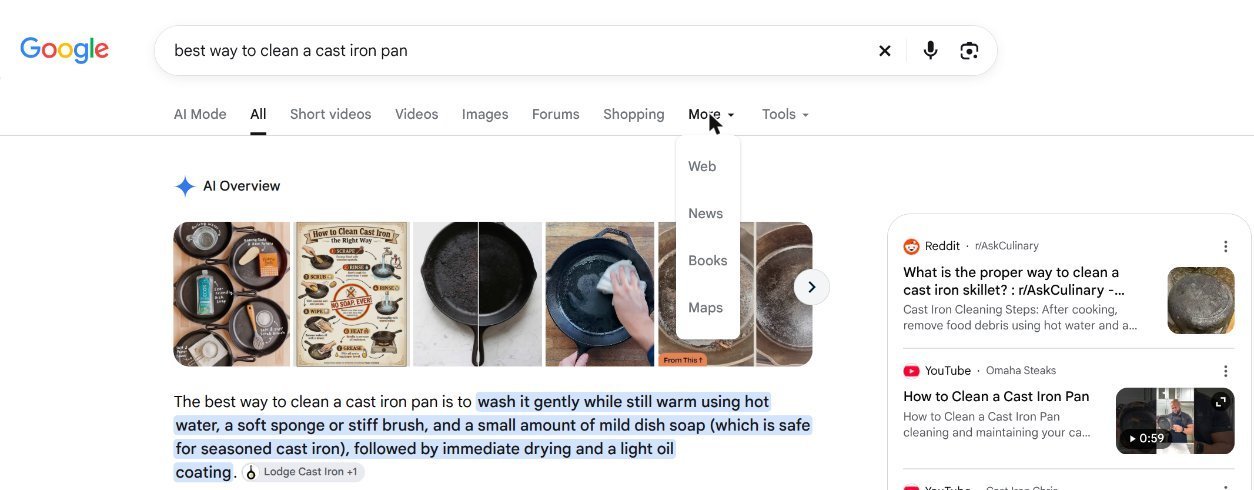
- Click Web. If you cannot see it, click More. In our test, Web was inside the More menu, above News, Books and Maps.
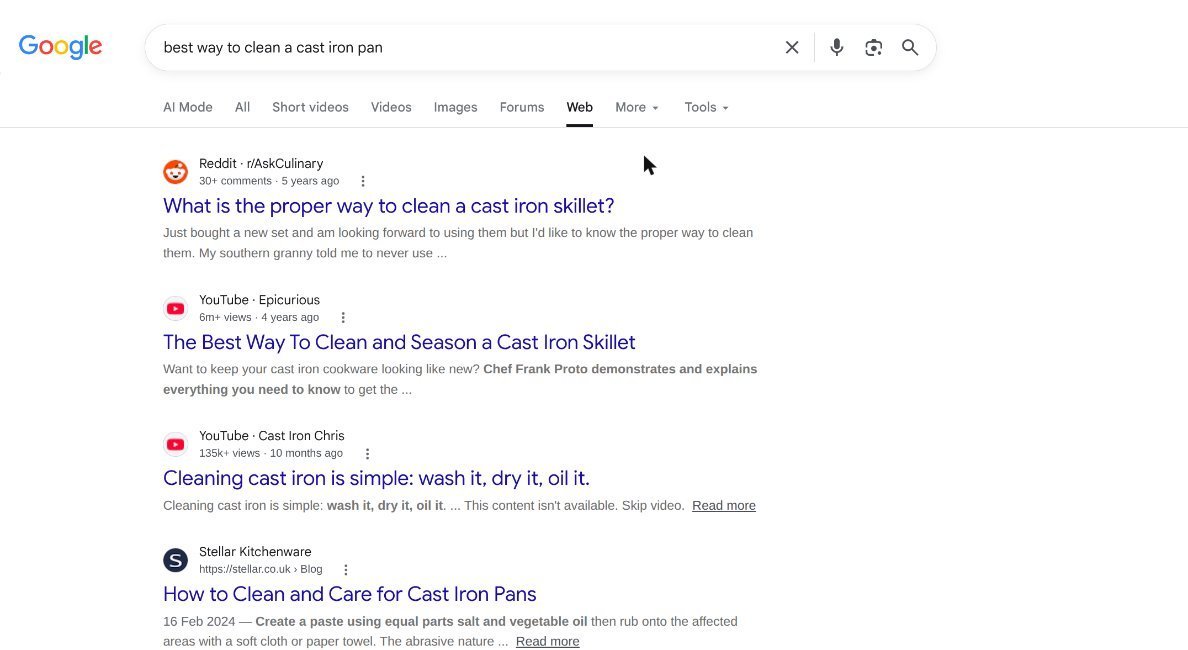
What we found: clicking More, then Web, on our cast iron pan search removed the AI Overview. The page showed ten plain results with titles and snippets, starting with a Reddit cooking thread, and no ads. The downside is that you have to click it on every search, and Google moves the tab around depending on the query.
Method 2: Add udm=14 to the search address
Every Google results page has a code in its address that sets the view. For years the Web view has been udm=14, and that code still worked in our tests. When we clicked the Web filter on 15 November 2026, Google itself used udm=web instead, which also worked. You can add either one yourself.
- Search on Google.
- Click the address bar and go to the very end of the address.
- Type
&udm=14and press Enter.
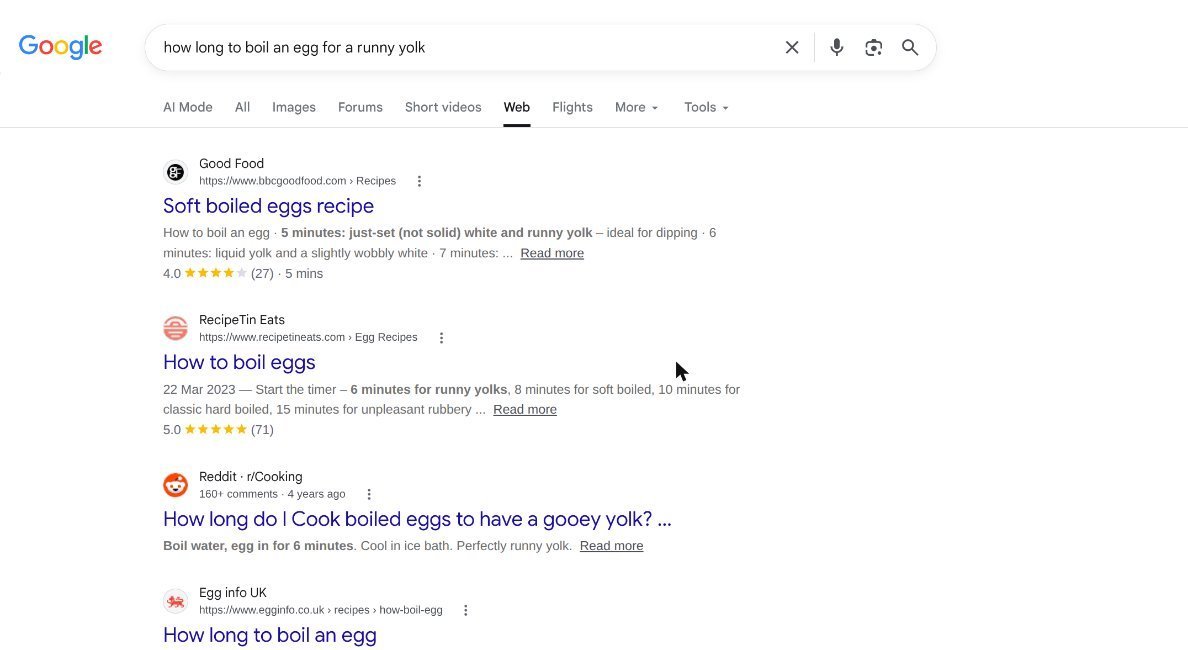
What we found: adding &udm=14 to our egg search opened the Web tab straight away, with no AI Overview. The first results were BBC Good Food, RecipeTin Eats, a Reddit cooking thread and Egg Info UK. On its own this is no quicker than clicking Web, but it is the key to Method 3.
A simple shortcut is to bookmark https://www.google.com/search?udm=14&q= and search from there, though Method 3 is neater.
Method 3: Make AI-free Google your default in Chrome
This is the best long-term fix on a computer. You add a custom search engine that always uses the Web filter, then make it your default. Every search you type in the Chrome address bar then skips AI Overview.
- Open Chrome and click the three dots at the top right, then Settings.
- Choose Search engine, then Manage search engines and site search.
- Next to Site search, click Add.
- Fill in the boxes. Name: Google Web. Shortcut: gw. URL:
https://www.google.com/search?q=%s&udm=14 - Click Add. Then click the three dots next to your new entry and choose Make default.
What we found: we could not open Chrome’s settings screens with our testing tools, so we tested the address this shortcut uses rather than the settings screen itself. That address worked every time in our tests. The steps above follow Google’s Chrome help page on site search shortcuts. To undo it, go back to the same screen and make Google the default again.
If udm=14 ever stops working, use udm=web in the same address instead. Two more things to know. This changes searches from the address bar only, not searches typed on the google.com home page. And if Chrome is managed by your work or school, your administrator may stop you changing the default.
Method 4: Add “-ai” to your search
This is the trick most people share. Adding a minus sign tells Google to leave out pages containing a word, and typing -ai at the end of a search also stops the AI Overview. Axios describes it as a way to “disable AI responses on individual queries”.
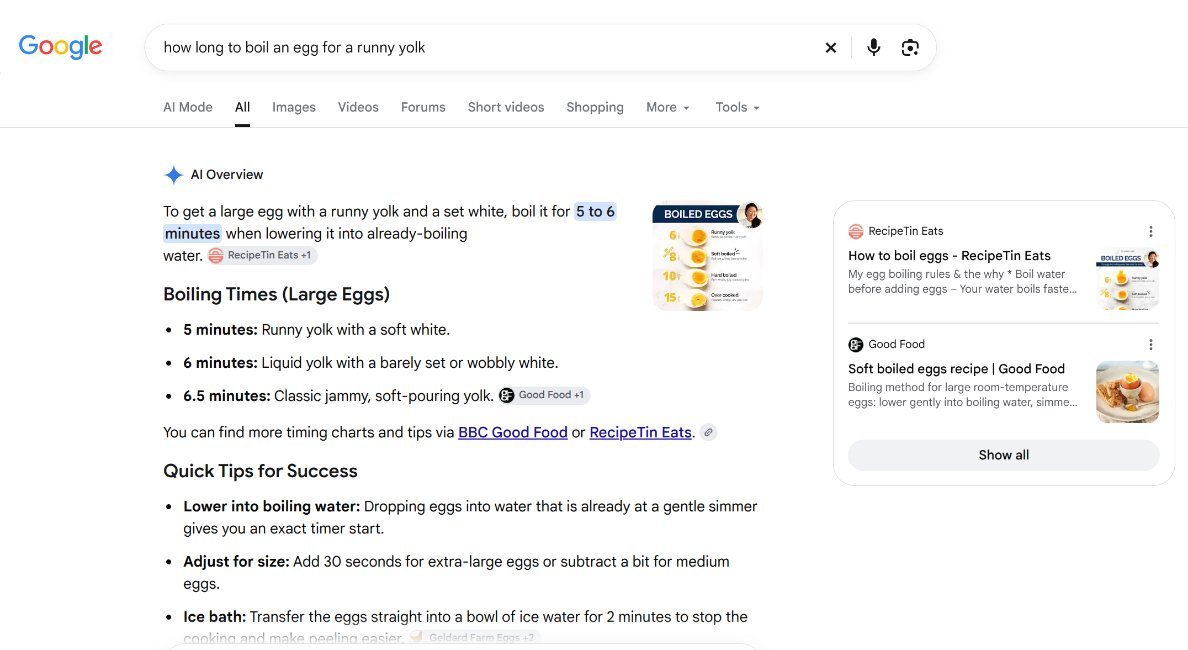
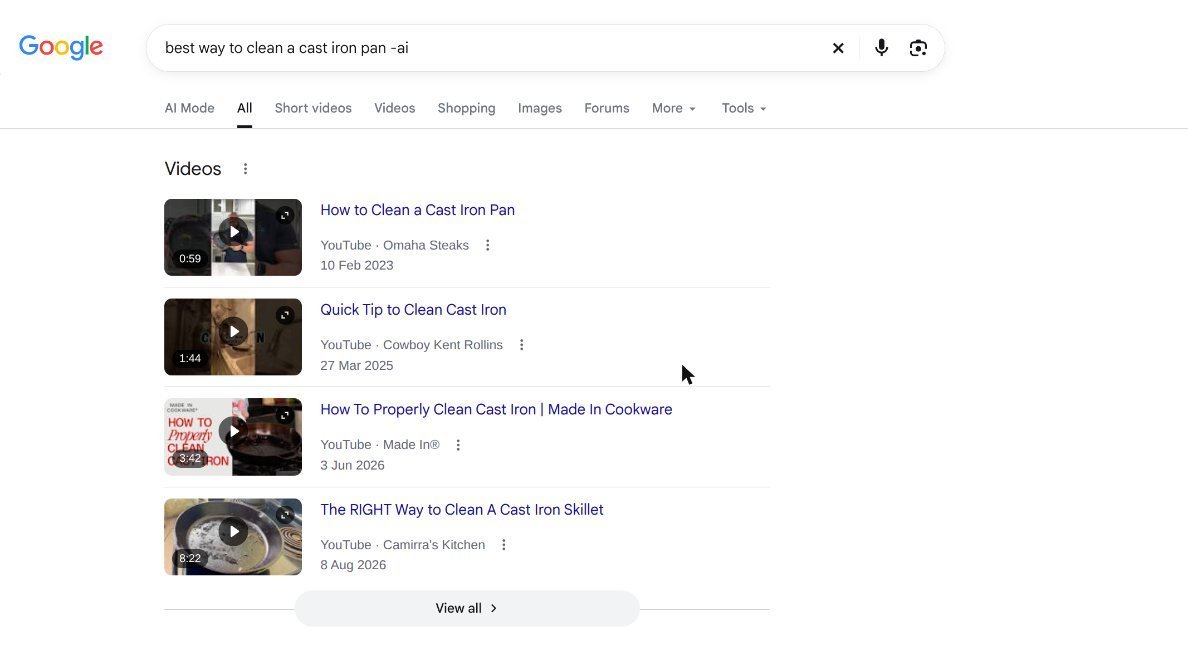
What we found: it removed the AI Overview on both of our everyday searches. “How long to boil an egg for a runny yolk -ai” and “best way to clean a cast iron pan -ai” both opened with a block of videos instead.
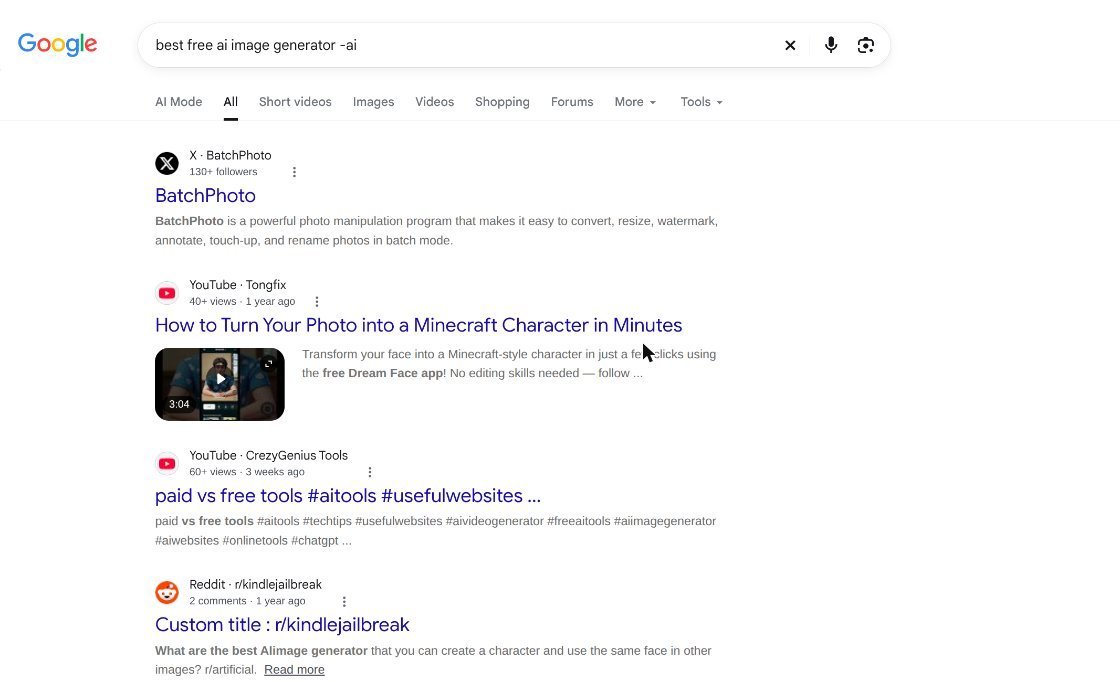
Then we found the catch. The minus sign really does remove every page containing the word “ai”. When we searched “best free ai image generator -ai”, the results were useless: a photo batch-editing program, a video about turning a photo into a Minecraft character and an unrelated Reddit thread. The real AI image tools were all filtered out, because their pages mention AI.
So “-ai” is fine for cooking, travel or shopping searches, but do not use it when your search is about AI, and it can quietly drop useful pages that happen to mention AI on any topic.
Method 5: Use a search engine without AI answers
If you want to avoid AI summaries everywhere, you can switch search engine. DuckDuckGo runs a version without AI answers at noai.duckduckgo.com.
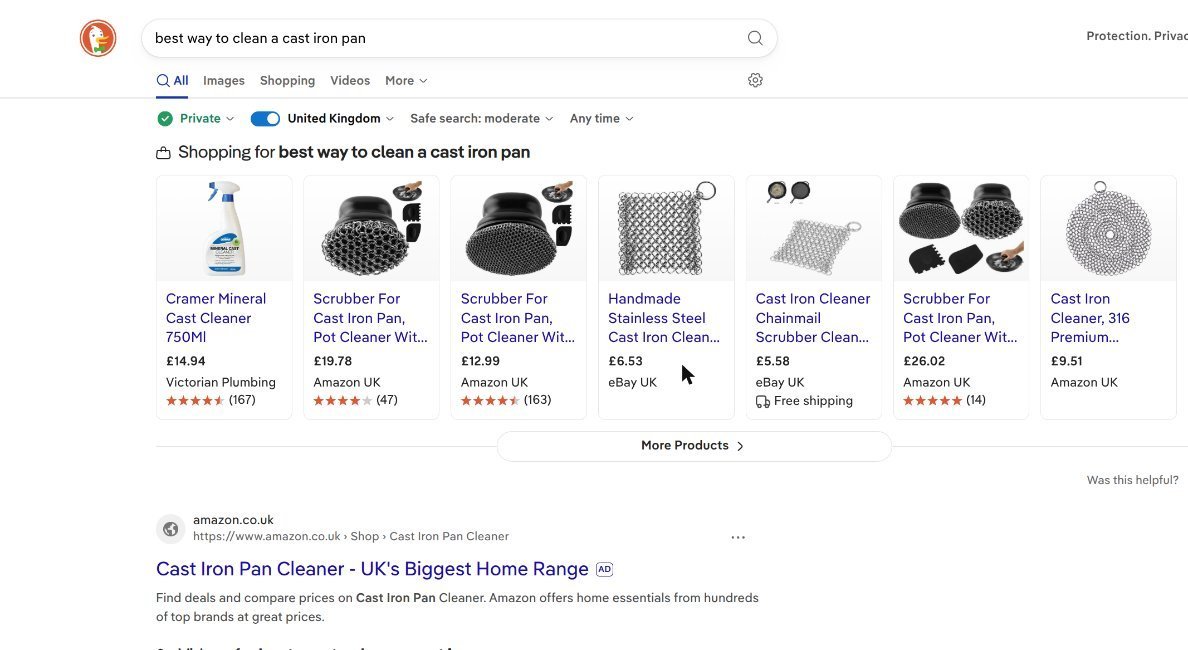
What we found: our cast iron search showed no AI summary. It did open with a row of shopping results and an Amazon advert before the normal links, so it is not ad-free. Results were set to the United Kingdom automatically. You can make it your default in Chrome using the same steps as Method 3, with the address https://noai.duckduckgo.com/?q=%s.
Method 6: Look for an off switch in Google
We include this because so many guides suggest it. We checked Google’s Search settings and found no option, and Google’s help page confirms the feature cannot be turned off. Some older advice mentions switching off an AI Overviews experiment in Search Labs, from when the feature was still being tested. AI Overviews are now part of normal Search, so there is nothing to switch off.
Which method should you use?
| Method | Removes AI Overview? | Lasts? | Downside |
|---|---|---|---|
| 1. Web filter | Yes | One search | Click it every time; sometimes under More |
| 2. Add udm=14 or udm=web | Yes | One search | Fiddly by hand |
| 3. Chrome default with udm=14 | Yes (address tested) | Every address-bar search | Computer only; not for managed browsers |
| 4. Add -ai | Yes in our tests | One search | Breaks searches about AI |
| 5. DuckDuckGo no-AI | No AI answer | Every search | Different results; shopping and ads first |
| 6. Google settings | No | Not applicable | There is no setting |
Our recommendation: set up Method 3 on your computer once, and use the Web filter (Method 1) on other devices when you need it.
What about your phone?
We tested on a computer only. Google’s help page describes the Web filter for computers. If you see a Web tab in your phone browser, try that first. The udm=14 address also works in any browser that lets you set a custom search engine. We did not test the Google app, so check it on your own phone before relying on it.
Are AI Overviews accurate enough to keep?
Sometimes they are genuinely useful. Our egg search got a sensible answer, 5 to 6 minutes for a runny yolk, with links to BBC Good Food and RecipeTin Eats. The problem is that you cannot always tell when the summary is wrong. Axios reported 2026 data showing AI answers “found to be inaccurate about 10% of the time”.
The safest habit is the same whether you keep them or not: for health, money, legal or safety questions, open the original sources and check the answer yourself. We found a similar problem with AI voice assistants this week, when ChatGPT Voice misheard a number and still sounded confident.
Troubleshooting: AI Overview still showing?
- You cannot see the Web tab. Click More. On our cast iron search, Web was only in that menu. Google changes the order of tabs from one search to the next.
- Adding udm=14 did nothing. Check you typed
&udm=14at the very end of the address, with the ampersand, after the search words. If the address has no question mark at all, you are not on a results page yet. - Your Chrome default is set, but AI Overview still appears. The custom engine only applies to searches typed in Chrome’s address bar. Searches typed into the box on the google.com home page still use normal Google.
- Chrome will not let you change the default. Work and school computers are often managed by an administrator, who may lock the search engine. Use the Web filter instead.
- Your results look odd after using -ai. Remove it. The minus sign also filters out every page containing “ai”, which can throw away the best results.
- The Web tab has stopped working one day. Google changes Search often. Swap between
udm=14andudm=web, since both worked in our test.
Common mistakes when removing AI Overview
- Using -ai for AI searches. It removes every page that mentions AI, so your results fall apart.
- Looking for a toggle. There is no setting in Google Search to turn AI Overviews off.
- Clearing your history to stop them. Google’s history settings affect model training, not whether you see AI Overviews.
- Installing random extensions. Some browser extensions claim to hide AI Overviews, but they can ask for permission to read every page you visit. We did not test any. If you use one, check the developer and its permissions first.
- Forgetting AI Mode. AI Mode is a separate tab. The methods above stop the AI Overview, but AI Mode only appears if you click it.
AI Overview FAQ
Can you permanently turn off AI Overview in Google?
Not inside Google. Google says AI Overviews cannot be turned off. The closest thing to a permanent fix is making the udm=14 address your default search engine in Chrome (Method 3).
Does the -ai trick still work in 2026?
Yes, in our tests on 15 November 2026 it removed the AI Overview on two everyday searches. It also removed every result containing the word “ai”, so avoid it for searches about AI.
What does udm=14 mean?
It is a code in the Google address that opens the Web results, which do not include AI Overview. In our test the Web button itself used udm=web, and both codes worked. If one ever stops working, try the other.
Why does Google not let you switch AI Overview off?
Google treats it as a core part of Search, like knowledge panels. Axios reported that a Google representative said in 2025 that people find AI Overviews “much more helpful”.
Is it safe to use udm=14?
Yes. It is part of Google’s own web address, not an extension or third-party tool, so it does not need any extra permissions or share anything new with anyone.
Can schools turn off AI Overviews?
According to Axios, not while keeping Google Search. In November 2026 Google said schools must take the version with AI Overviews or go without Google Search.
Does the Web filter remove ads too?
Our Web results for the cast iron search showed no ads. We only tested a few searches, so we cannot say ads never appear there. It is not an ad blocker.
Key takeaways
- Google does not offer a setting to turn off AI Overview. Its help page says so directly.
- The Web filter and the udm=14 and udm=web addresses removed AI Overview every time we tried.
- Making the udm=14 address your Chrome default is the best long-term fix on a computer.
- “-ai” works, but it wrecks searches about AI and can hide useful pages.
- DuckDuckGo’s no-AI version is an option if you want AI-free results everywhere.
How we tested and what we checked
We tested on 15 November 2026, in Chrome on a desktop computer, signed in to a Google account in the UK. The searches were “how long to boil an egg for a runny yolk”, “best way to clean a cast iron pan” and “best free ai image generator”, each with and without the methods above. We checked Google’s Search settings screen in full and ran the same cast iron search on DuckDuckGo’s no-AI version.
We did not test the Google app, phone browsers, browser extensions, signed-out searches or other countries, and we could not open Chrome’s settings screens with our testing tools, so Method 3’s setup steps come from Google’s Chrome help page while the address it uses was tested directly. Google changes Search often, so results may differ for you.